
title: "Submagic Review 2026: Useful for Small Creators?" slug: "submagic-review" description: "Hands-on Submagic review for small creators: free trial limits, captions, watermark, export behavior, and pricing tested before you decide to pay." category: "reviews" last_updated: "2026-09-28" author: "Gaurav Sharma" show_toc: true evidence_status: "Strong" testing_basis: "Hands-on Submagic review. Export behaviour and free-tier credit model re-verified 2026-08-27 on a Trial plan account, and re-checked 2026-09-22 on the same account across both the editor and Submagic's documented API — the editor still blocks export, the API returns an unwatermarked file. Logged in the CreatorIntelHQ evidence database. First tested May 2026 on a 28-second video. Per-tool credit costs read in the editor 2026-08-27; the API allowance confirmed on a second, unused trial account 2026-09-24." card_image: "/wp-content/uploads/cihq/cards/creatorintelhq-submagic-review-card.png" card_image_alt: "Submagic homepage hero showing AI short-form video editing positioning." tags:
- submagic
- submagic review
- submagic ai review
- ai video repurposing
- ai captions
- youtube shorts tools
- creator tools
Submagic Review 2026: Is It Actually Useful for Small Creators?
Submagic is an AI editor for short-form video. It adds animated captions, and offers tools to remove silences, add B-roll, zoom and clean up audio. I tested its free trial in May 2026 and again on 27 August and 22 September 2026, on a 28-second video and a 90-second clip. I wanted to know whether a free account can caption a video and give you a file you can post.
⚠️ Is Submagic Free?
There is a free trial, but its editor will not export. You can upload a video, add captions and preview the result. When you press Export, Submagic asks you to upgrade.
- Free credits: 15 a month. A caption run costs 3, so that is about five videos.
- Editor export: blocked. The upgrade screen lists "Export your videos" as a paid feature.
- API export: works. It uses a separate allowance of 10 API minutes a month and returns a file with no watermark.
- Cheapest paid plan: Starter at $19 a month on monthly billing, or $12 a month on annual billing.
Our verdict: good for judging Submagic's captions and editor. Through the editor you will not get a file for free. Through the API you will, if you can set it up.
Disclosure: CreatorIntelHQ may earn a commission if you buy through some links. This review is based on hands-on testing.
What I found
| Test | Result |
|---|---|
| Signup | No credit card was asked for. |
| Upload | MP4, MOV or MP3, up to 10 minutes and 2GB, from a computer, a phone or Google Drive. |
| Captions | Generated on a 28-second video. The captions still need a read-through. |
| Editor | Opened with a captioned preview marked "Low res preview" and a watermark. |
| Export from the editor | Blocked by an upgrade screen, in May, August and September. |
| Export through the API | Worked on 22 September. The file had no watermark. |
| Saved project | The project stayed in the dashboard afterwards. |
What the free trial allows (tested)
The credits
The free tier is called Trial plan. In August 2026 it gave 15 credits a month, spent at different rates by different tools. Submagic shows the cost before you use a tool.
| Tool | Credits |
|---|---|
| Generate Captions | 3 |
| Correct Eye Contact | 3 |
| Remove Silences | 2 |
| AI Auto B-rolls | 2 |
| AI Hook Title | 2 |
| Clean Audio | 2 |
| Remove Bad Takes | 2 |
| AI Auto Zooms | 1 |
A caption run took the balance from 15 to 12, exactly as quoted. So 15 credits buys about five caption runs a month.
In May 2026 the trial worked differently. The pricing page promised "3 free videos" with no credit card, and the dashboard showed separate counters: video projects 0 of 3, Magic Clips 1 of 1, and API minutes 0 of 10.
Your month
Tell us what you actually publish. We work out what each free plan covers.
Source length, not finished-clip length — every tool bills on what you upload, not what you publish.
Captions and the editor
I uploaded a 28-second video and chose Generate Captions. Before processing, I could pick a caption preset, the language, a multi-speaker style and translation. Submagic then showed a processing screen with a time estimate while it generated captions, emojis, highlighted words and animations.
The editor opened with the captioned video, a Submagic watermark, a "Remove watermark" banner, and the other AI tools in a side panel.
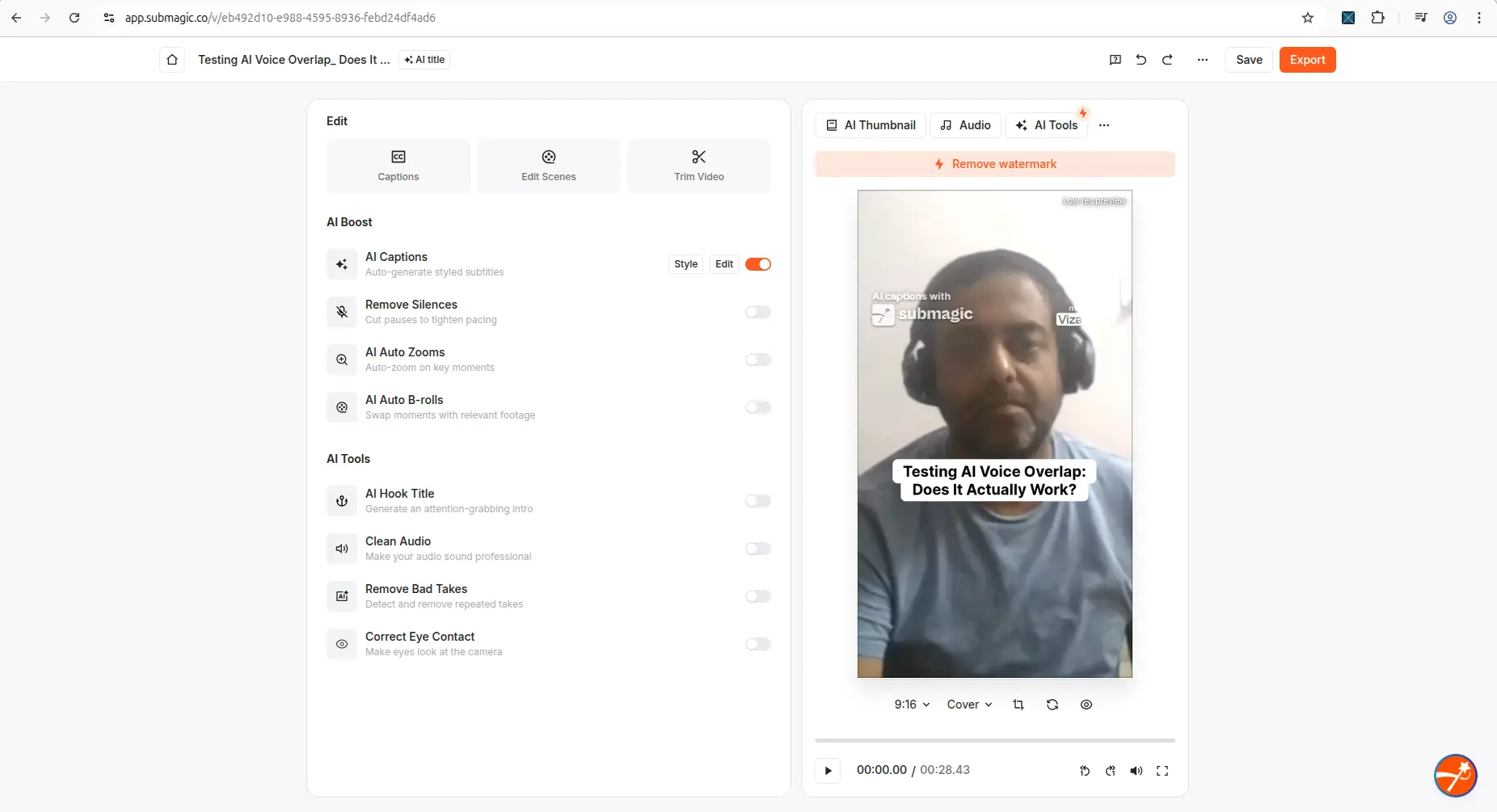
The editor preview, with captions, the trial watermark and the AI tools panel.
I did not test caption accuracy across different videos, accents or languages. Read the captions before you publish.
Export: blocked in the editor
The export settings open normally. They offer HD 720p, 30fps, captions burned in, and a note that the watermark will be applied. When you press Export, an upgrade screen appears instead of a download.
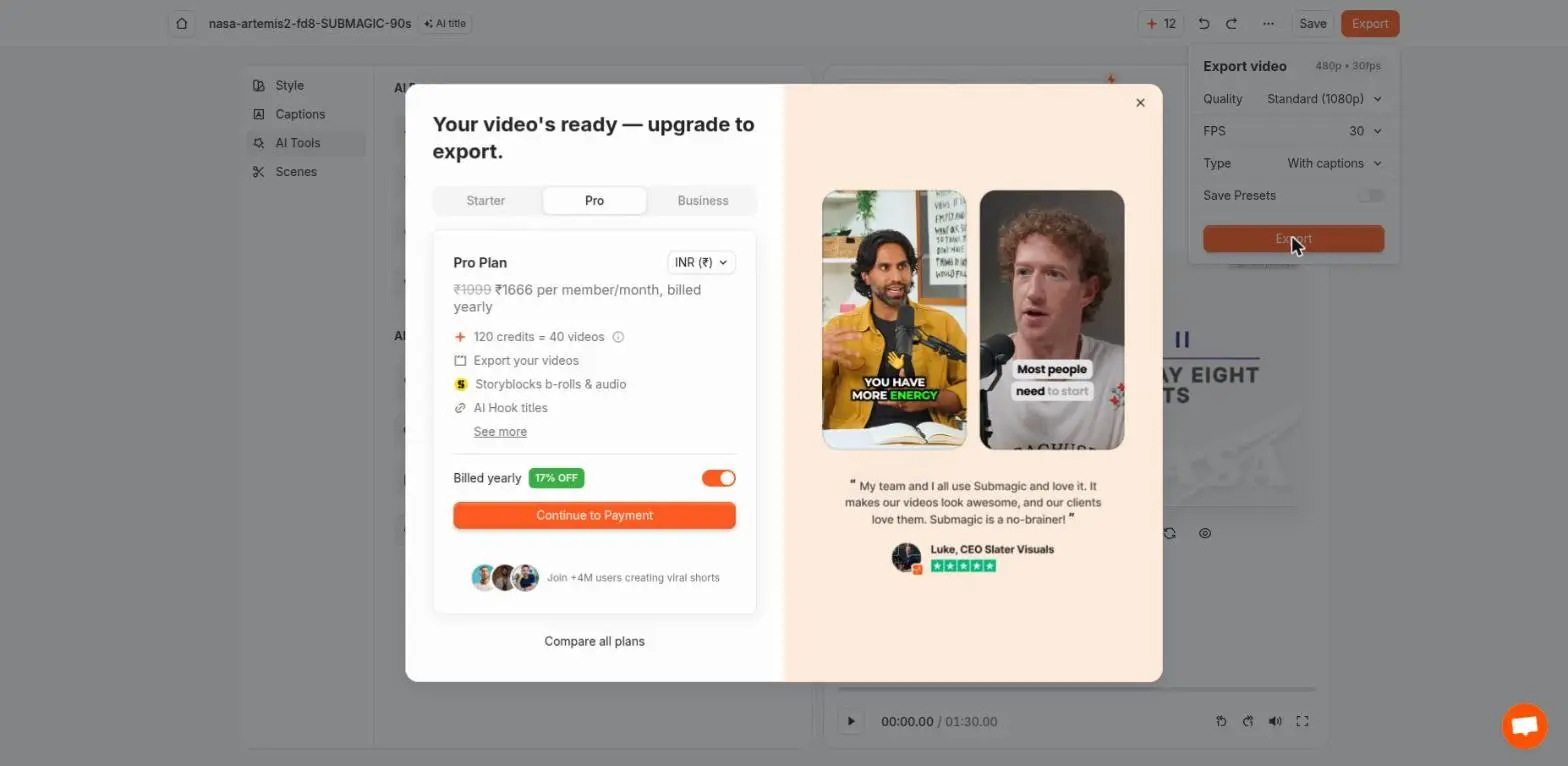
The upgrade screen that replaces the download, 27 August 2026.
If you close it, a second screen offers 15 free videos if friends sign up through your referral link. Pressing Export again brings back the upgrade screen. Neither screen leads to a file. A failed export costs no credits: the balance stayed at 12.
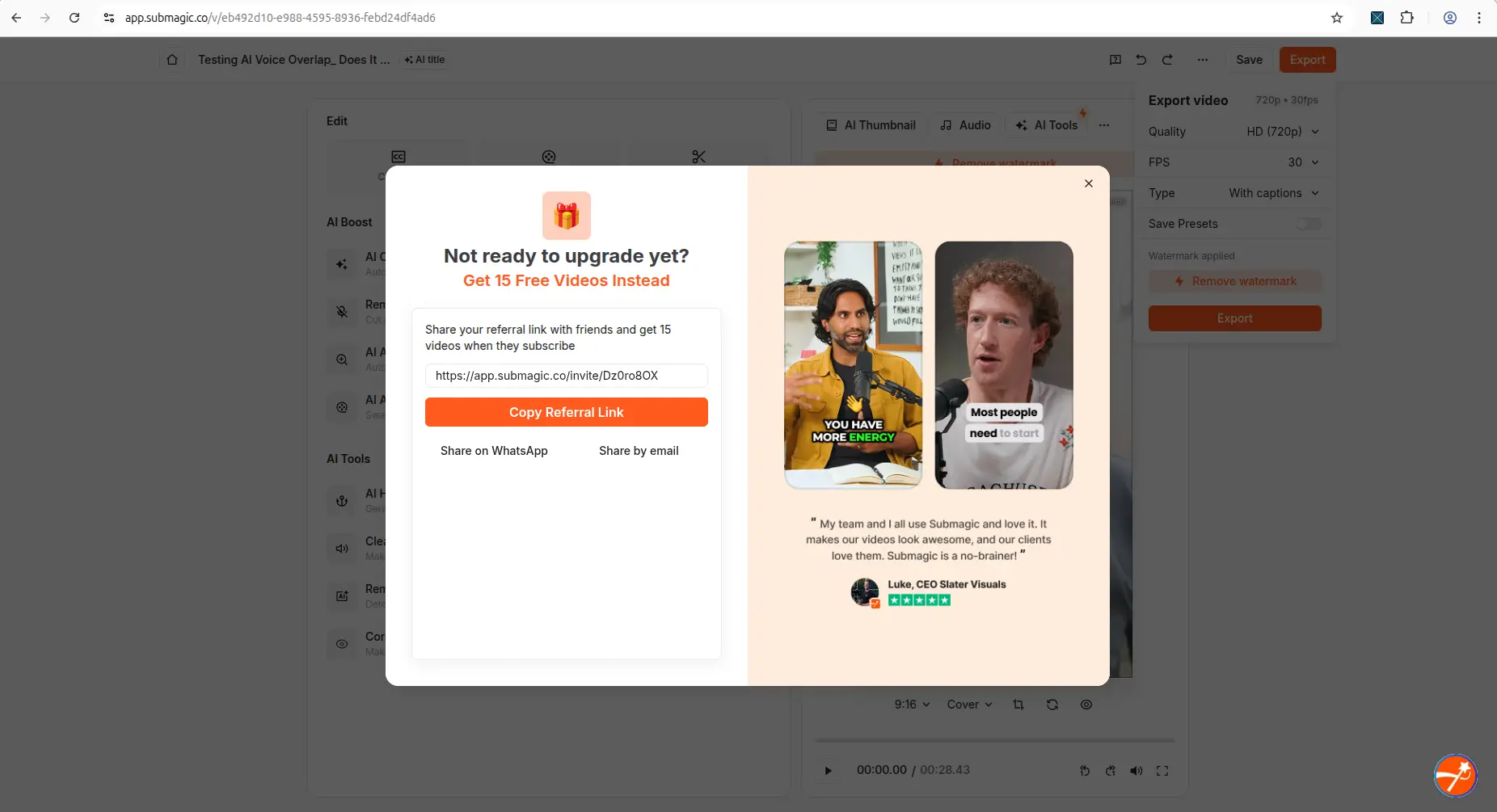
The referral offer that appears after you close the upgrade screen.
This changed during 2026. In May, the upgrade screen said "Ready for watermark-free exports? Upgrade now." That wording sold watermark removal, which suggests a watermarked export was the free option then. We did not complete a download in May, so we cannot be sure a file came out. By 27 August, the screen said "Your video's ready — upgrade to export", and Submagic's plan list sold "Export your videos" as a paid feature. It was the same on 22 September. If an older review promises a free watermarked Submagic export, check its date.
Export: works through the API
The trial includes Submagic's API. On 22 September 2026 I used it on the same trial account.
- The key is free. The API & Integrations page issues one straight away, with no upgrade step.
- It rendered a video. One API request took a 90-second clip through captioning and export, and returned a download link.
- The file has no watermark. We checked it frame by frame, in all four corners. The full check is in Submagic Watermark: Can You Remove It Free?
- It uses a separate allowance. The API has its own 10 minutes a month, at 1 credit per minute of video. The 90-second clip took the API counter from 10 to 8. The editor's 15 credits did not change.
So a 90-second clip uses 2 of the 10 monthly API minutes. The clips come back captioned and unwatermarked. The API needs more setup than a download button: an API key, and a public link to the video you want processed.
On 24 September 2026 we checked a second, new trial account. It already had 10 unused API minutes before we created a key, listed in My Account as "API Minutes 0/10" next to "Credits 0/15". Submagic says the allowance renews monthly. We have not yet seen it renew.
What we did not test
Magic Clips quality, B-roll relevance, AI Auto Edit, scheduling, AI avatars and long podcast workflows.
Still not sure which tool to use?
Get a match based on our hands-on tests of all four tools - and what each one actually allows for free.
Submagic pricing
Submagic sells three paid plans: Starter, Pro and Business + API. Starter costs $19 a month on monthly billing, or $12 a month on annual billing. The plans differ in videos per month, minutes per video, AI credits, export quality, B-roll and API credits. Paid plans remove the watermark and unlock export from the editor.
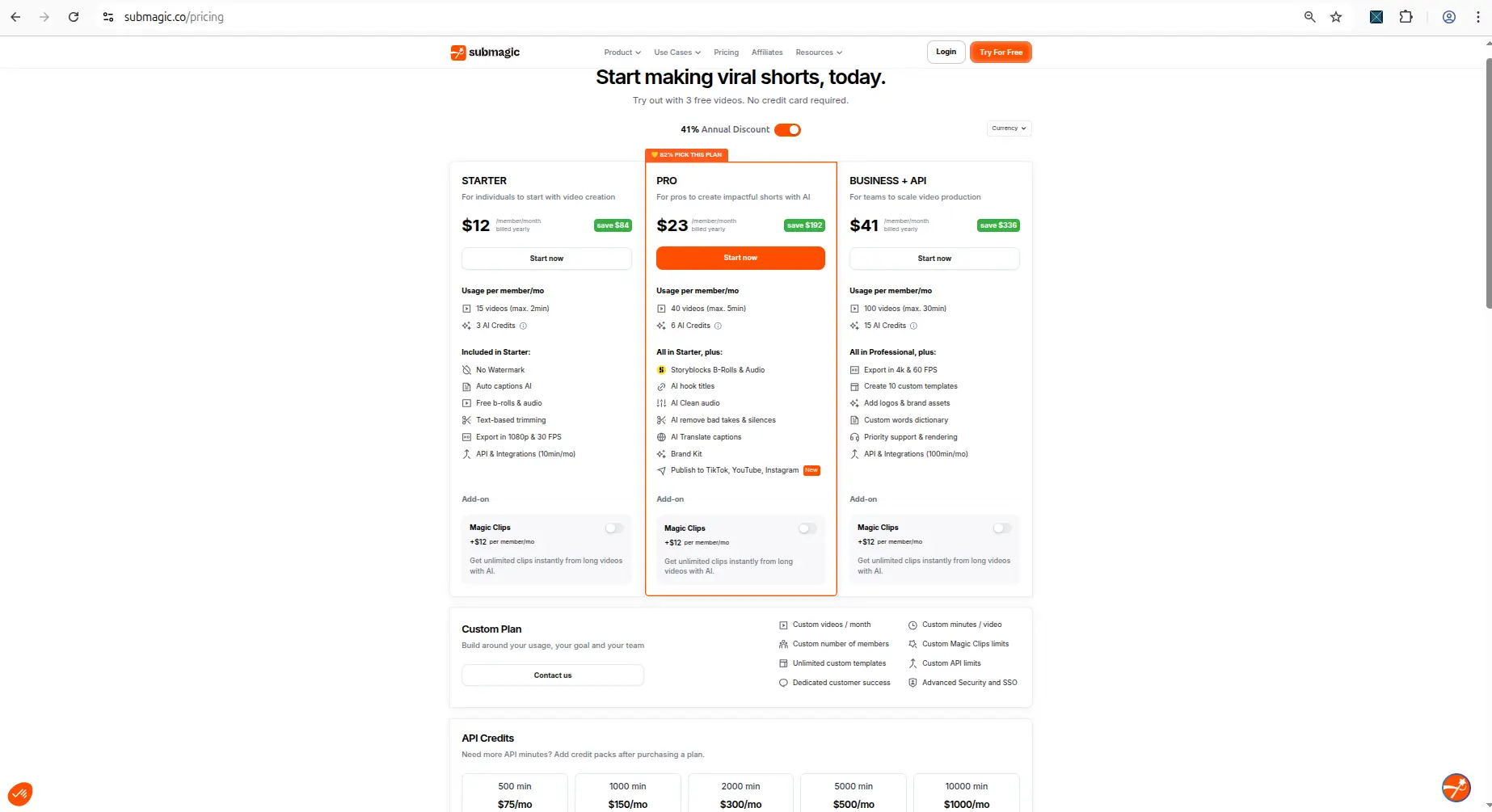
Submagic's plan table, showing the limits for each paid plan.
Submagic's pricing page shows several currencies at once. We read the US dollar prices with a script that checks the currency, and we track them against five other tools in our creator tool pricing tables.
Is Submagic legit?
Yes. Signup, upload, captioning and the editor all worked as described, and the credit costs matched what the app quoted. What the free trial does not give you is an export from the editor. Submagic says so plainly on its upgrade screen, and it is the main thing to know before you spend time editing.
Pros and cons
Pros
- Signup needs no credit card.
- Upload limits are shown before you upload.
- Credit costs are shown before you use a tool.
- Captions generate quickly, and the editor is easy to follow.
- A failed export does not cost credits.
- The free API returns an unwatermarked file.
Cons
- The editor will not export on the free trial.
- The upgrade and referral screens loop into each other.
- 15 credits buys only about five caption runs a month.
- The free API needs technical setup and covers only 10 minutes of video a month.
- Captions still need a manual check.
Who should try Submagic, and who should skip it
Try it if you want to judge Submagic's captions and editor before paying, or if you can use an API and want a few clean clips a month.
Skip the free trial if you need to download finished videos from the editor without paying. For a free plan that gives you a file from the editor, see Vizard AI. Its free file is watermarked and 720p. We also compare Submagic with OpusClip in Submagic vs OpusClip.
Final verdict
Submagic is easy to start, and its free trial shows you what its captions and editor can do. The editor will not export for free, so treat the trial as a preview, not as a way to publish.
The exception is the API. If you can set it up, it gives you a few short, unwatermarked clips a month for free. Among the tools we test, that makes Submagic the hardest to get a file out of, and the only one whose free file is clean.
Used one of these tools? Share your experience with CreatorIntelHQ so we can improve future reviews, comparisons, and free-plan guides for small creators.
FAQ
Is Submagic free?
It has a free trial with 15 credits a month. You can caption and preview videos, but the editor will not export them without a paid plan.
Can I export a Submagic video for free?
Not from the editor. Pressing Export opens an upgrade screen. Submagic's API does return a file on the free trial, using a separate allowance of 10 API minutes a month.
Does Submagic add a watermark?
The trial editor shows a watermark on the preview. The file we got through the free API on 22 September 2026 had no watermark.
How many credits does the Submagic free trial give?
15 a month. Captions cost 3 credits, so that is about five caption runs. The API has its own separate 10 minutes a month.
Does Submagic need a credit card for the free trial?
No. We reached the dashboard without entering payment details.
What files can I upload to Submagic?
MP4, MOV or MP3, up to 10 minutes long and 2GB in size.
Are Submagic captions accurate?
They generated quickly in our test, but we did not measure accuracy across accents or languages. Read them before you publish.
Is Submagic better than Vizard AI?
For a free file, Vizard is easier: its free plan downloads a watermarked 720p clip from the normal interface. Submagic's editor will not export for free, but its API gives an unwatermarked file. For judging captions and editing tools, Submagic's trial is enough.
Is Submagic worth paying for?
Test the free trial first. Pay if you like the captions and editor and you need to export from the editor, or need more than the API's free allowance.