
Vizard AI Free vs Paid: What I Found Testing It
Vizard AI has a free plan, but the real question for small creators is not simply whether Vizard AI is free. The better question is:
Can you use the free plan to properly test the workflow before paying?
Based on CreatorIntelHQ’s hands-on testing, the answer is yes — with limits. The free plan was useful enough to test upload, AI clip generation, captions, 9:16 reframing, preview, editor access, and download behavior. But the free plan also introduced practical limits around credits, watermark, export quality, storage, and upgrade prompts.
This is not a full Vizard AI review. This page focuses only on the free-vs-paid upgrade decision: what the free plan lets you test, where the limits appear, and when a small creator should consider upgrading.
For the full hands-on workflow with screenshots, MP4 upload, credits, captions, editor access, download behavior, and watermark notes, read my Vizard AI review. If you are still comparing AI clipping tools, also see my Vizard AI vs OpusClip comparison.
Quick verdict: Vizard AI’s free plan is useful for testing whether the tool fits your workflow. It is not ideal as a long-term production plan if you need watermark-free exports, higher-quality output, longer storage, or repeated publishing volume.
Testing basis: This guide is based on hands-on Vizard AI testing using Gmail signup, onboarding, the free dashboard, credits, local MP4 upload, AI-generated clips, captions, 9:16 reframing, preview/playback, editor access, download behavior, watermark behavior, and pricing-plan review.
Based on hands-on testing · How we test creator tools
Quick Answer
If you are a small creator, Vizard AI’s free plan is best for workflow validation.
Use the free plan to check:
- whether your video uploads correctly
- whether Vizard can generate usable AI clips
- whether captions are good enough after light editing
- whether 9:16 reframing keeps the subject visible
- whether the editor feels usable
- whether watermark/export limits are acceptable
- whether credits reduce in a way you understand
Upgrade only if the free test proves that Vizard AI can create clips you would actually publish and the watermark, export quality, storage, or credit limits become real blockers.
What The Vizard AI Free Plan Includes
During pricing review, Vizard AI showed three visible plans: Free, Creator, and Business.
The Free plan showed:
- $0 pricing
- 60 credits/month
- AI-generated clips
- 720p export
- full editor access
- 3-day storage
The paid Creator plan showed yearly-billing pricing, higher credits, no watermark, 4K export, scheduled social posts, and videos stored forever. The Business plan added collaboration and brand-management features such as shared workspace, brand kit, custom fonts, and more social accounts.
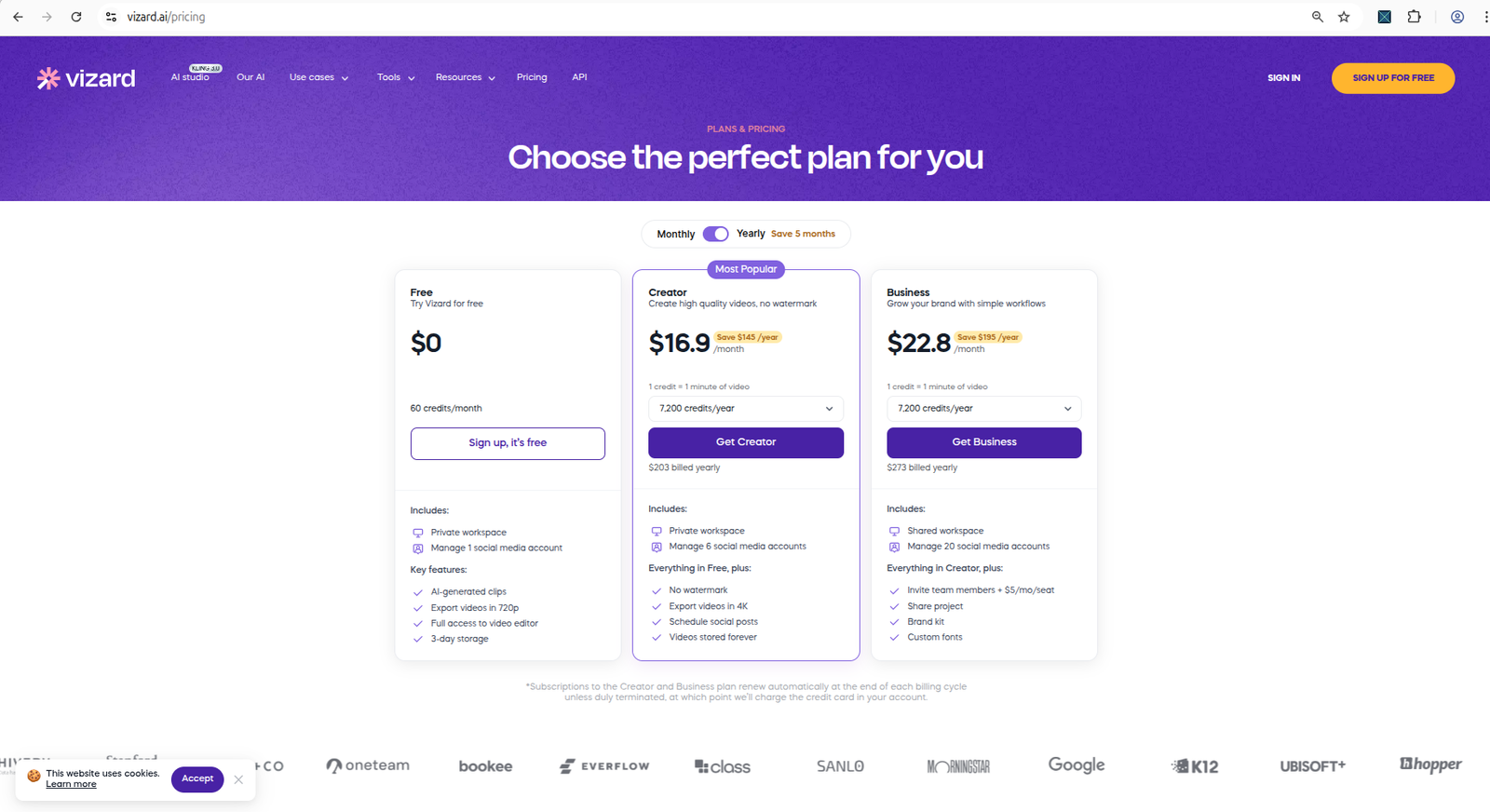
Vizard AI pricing page showing free-plan and paid-plan differences.
Free vs Paid At A Glance
| Area | Free plan | Paid plan matters when... |
|---|---|---|
| Credits | 60 monthly credits were visible during testing | You need more processing volume |
| Export quality | Free plan showed 720p export | You need higher-quality exports |
| Watermark | Free export included a visible Vizard watermark in testing | You need clean, brand-ready clips |
| Editor access | Full editor access was shown on the Free plan | You need to use the editor repeatedly for production |
| Storage | Free plan showed 3-day storage | You need longer access to videos/projects |
| Upload limits | Free plan showed limits in the compare-plan table | You work with larger or longer files |
| AI features | AI clipping and auto reframe appeared available | You need faster processing or paid-only AI/social features |
| Collaboration | Limited for solo testing | You need brand kit, shared workspace, or team workflow |
What I Could Do For Free
The free workflow was more than a locked demo.
In testing, I could:
- sign up with Gmail
- complete onboarding
- enter the workspace
- see the Free plan and 60 credits
- upload a supported MP4 file
- generate one AI clip
- preview and play the clip
- see auto-created captions
- open the editor
- download the result after closing an upgrade prompt
The test used a short 27-second horizontal MP4 source video. Vizard generated one AI clip and showed a title, an 8.0/10 score, a 720p label, transcript/caption segments, publish/download/edit options, and a visible watermark.
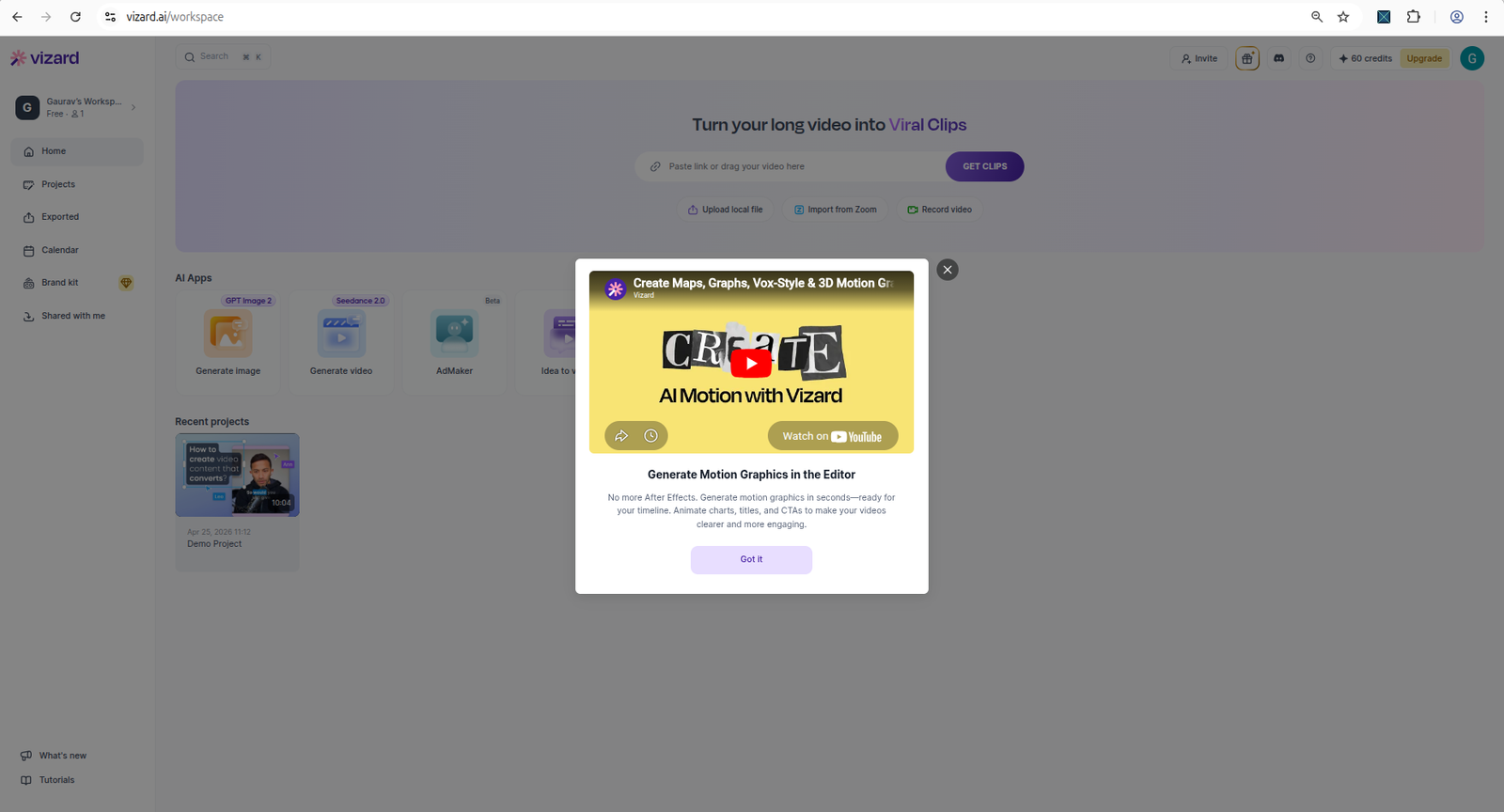
Vizard AI dashboard showing workspace options and available credits.
Upload Format Limits Matter
One important limitation appeared before the successful MP4 test.
I first tried to upload an MKV file from my local drive. Vizard immediately showed an unsupported file format error and listed supported formats: MP4, MOV, 3GP, AVI, MP3, WAV, and M4A.
That is important for small creators because MKV is common for OBS recording. It does not block the workflow completely, but it can add an extra conversion step before using Vizard.
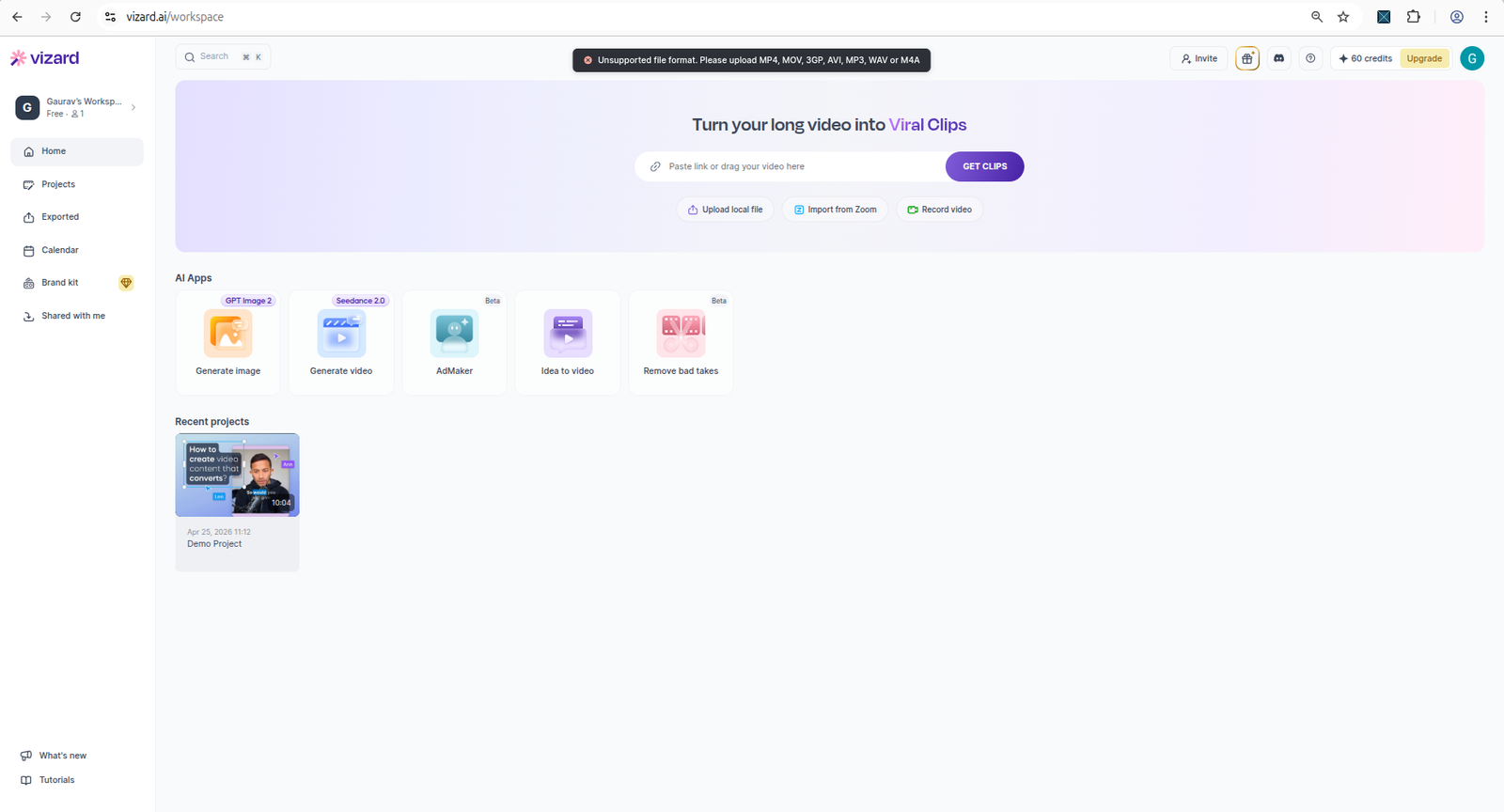
Vizard AI upload screen showing the tested file workflow or format limitation.
Credits And Free-Plan Limits
Credits are one of the biggest practical limits in the free workflow.
In my test, credits reduced from 60 to 59 after upload/processing. Downloading the generated clip did not appear to consume another credit in this test.
That means the free plan is useful for testing, but you should be careful with credits. Do not use random files just to explore. Use one real source video that represents the content you actually want to repurpose.
A good test video should be:
- similar length to your real content
- similar speaking style
- similar audio quality
- similar visual framing
- similar to the Shorts/Reels output you want
This gives you a much better answer than testing with a random sample file.
Watermark And Export Behavior
Watermark behavior is the biggest free-vs-paid difference I observed.
When I clicked the small download icon inside the generated clip card, Vizard first showed an upgrade modal with Creator and Business plan options. After closing the popup and trying again, I was able to download the generated file on the free plan.
But the downloaded video included a visible Vizard watermark.
The preview also showed a visible watermark and a “Remove watermark” bar at the bottom of the page. This makes the free plan useful for testing output quality, but less suitable for final publishing if you want clean branded videos. For a narrower breakdown of this specific issue, see the dedicated Vizard AI free plan limits guide.
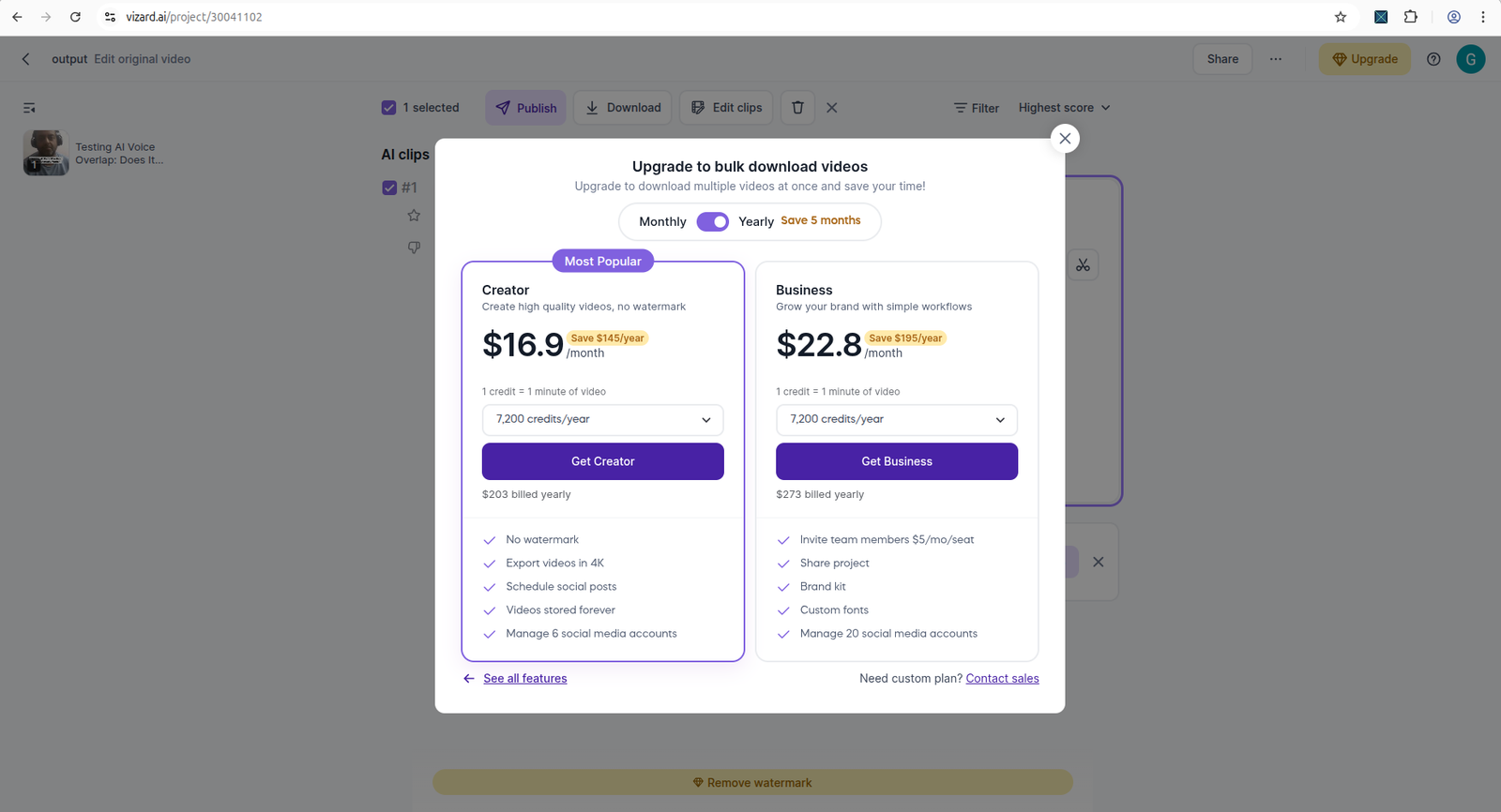
Vizard AI result screen showing the free download workflow, visible watermark state, and export-related upgrade friction.
Captions, Reframing, And Output Quality
Vizard generated a vertical AI clip with captions from the test MP4. The captions appeared on the video and were mostly understandable, but not every word looked correct.
The bigger issue was reframing. Even though I selected 9:16, the subject was not kept properly centered during playback, and part of the face/body moved toward the edge of the frame.
This does not mean Vizard AI will always reframe poorly. It only means the free test showed that captions and reframing still need manual review before publishing.
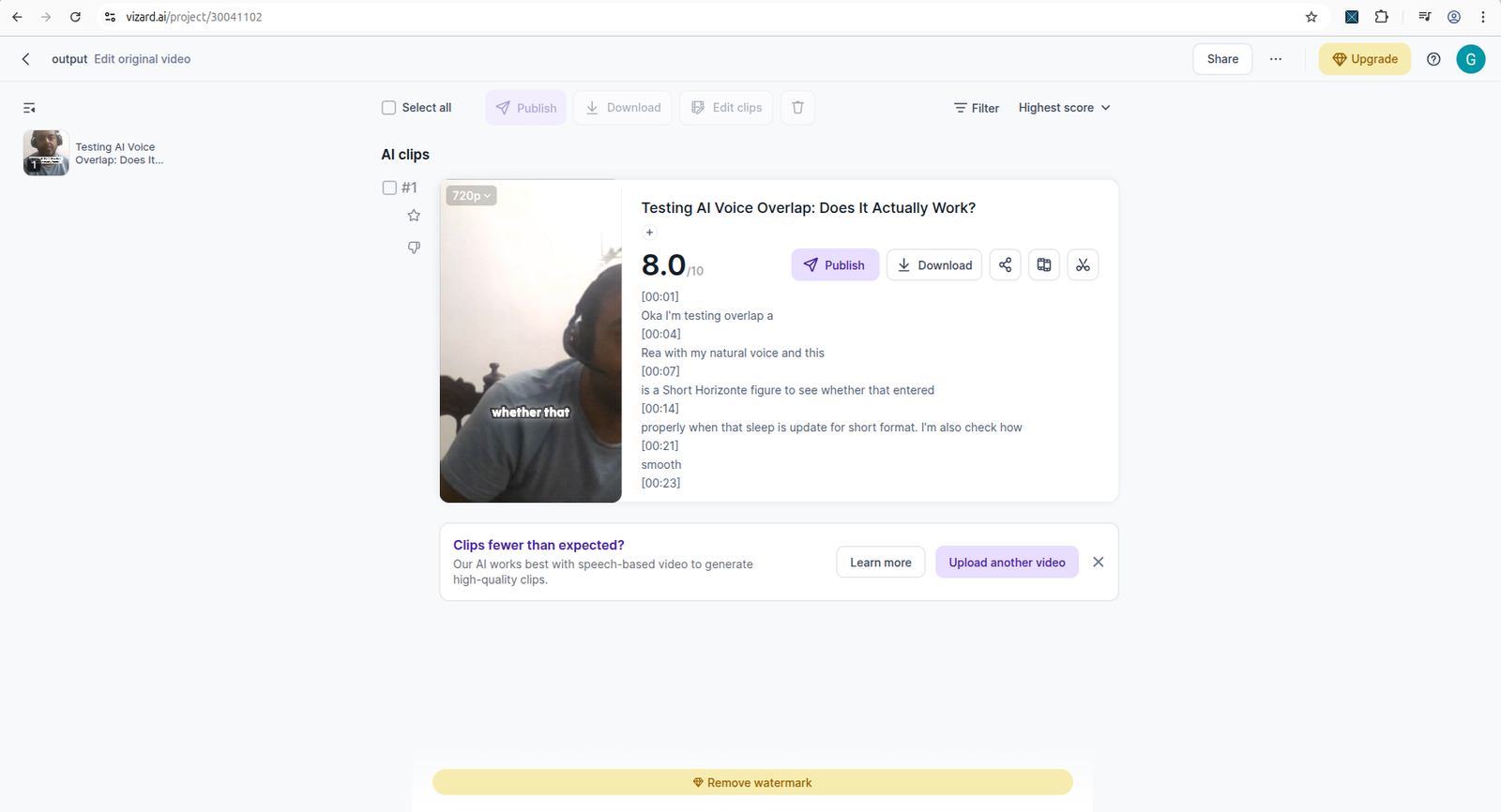
Vizard AI result screen showing generated clip, captions, and output controls.
What Changes When You Upgrade?
Based on the pricing and compare-plan information reviewed, upgrading mainly appears to change these areas:
| Upgrade area | Why it matters |
|---|---|
| Watermark removal | Important if you want clean clips for YouTube Shorts, clients, or brand channels |
| Higher export quality | Paid plans showed 4K export compared with 720p export on Free |
| More credits | Useful for regular repurposing instead of one-off testing |
| Longer storage | Important if you want to keep projects/videos accessible |
| Larger/longer uploads | Useful for longer source videos or bigger files |
| Faster processing | Paid plans appeared to have higher AI processing speed |
| Social scheduling | Creator and Business showed scheduled social posts |
| Collaboration and brand controls | Business added shared workspace, brand kit, custom fonts, and team features |
For most small creators, the most important paid benefits are likely watermark removal, more credits, higher export quality, and longer storage.
Is The Free Plan Enough?
The free plan is enough if your goal is to test whether Vizard AI fits your workflow.
It is enough for:
- first workflow testing
- checking MP4 upload
- testing AI-generated clips
- reviewing captions
- checking 9:16 reframing
- previewing editor access
- downloading a sample output
- understanding watermark behavior
It is not enough if you need:
- watermark-free production exports
- repeated publishing volume
- higher export quality
- long-term project storage
- team workflow
- brand kit or custom fonts
- a reliable production pipeline without upgrade friction
Who Should Stay On The Free Plan?
Stay free if:
- you are still comparing AI video repurposing tools
- you have not tested Vizard with your own content yet
- you do not publish Shorts consistently
- watermark-free export is not needed for testing
- you only want to understand the workflow before paying
- you are not sure your source videos generate useful clips
The free plan is a good research and validation plan.
Who Should Consider Paid?
Consider upgrading only if Vizard AI proves it can repeatedly create clips you would actually publish.
Paid may make sense if:
- the watermark is a real blocker
- captions and editor tools reduce your editing time
- the AI-selected clips are close to usable
- you publish short-form clips regularly
- you need more credits
- you want higher export quality
- you want longer storage
- you use Vizard as part of a repeatable content pipeline
For small creators, the upgrade decision should be based on time saved and usable output, not just the feature list.
Used Vizard AI yourself?
If you have tested Vizard AI’s free or paid plan, share what worked, what disappointed you, and whether you would recommend it to other small creators.
Vizard AI Free vs Paid: Practical Verdict
Vizard AI’s free plan is useful because it lets you test more than a marketing demo. In my test, I could sign up, access the dashboard, see credits, upload an MP4, generate a clip, preview it, open the editor, review captions, and download a watermarked result.
But the free plan also showed real limits. The watermark, 720p export, credits, storage window, and upgrade prompt all matter if you want to move from testing to regular publishing.
My recommendation: test Vizard AI free with one real video first. Upgrade only if the tool creates clips you would actually publish and saves enough time to justify the cost.
FAQ
Is Vizard AI free?
Yes, Vizard AI showed a Free plan during testing. The free plan showed 60 monthly credits, AI-generated clips, 720p export, full editor access, and 3-day storage. Pricing and limits can change, so verify the current plan details before upgrading.
Does Vizard AI free plan add a watermark?
In my free workflow test, the downloaded video included a visible Vizard watermark. The preview also showed a watermark and a “Remove watermark” bar.
Can I download videos on Vizard AI free?
In my test, Vizard showed an upgrade modal first, but after closing it and trying again, I was able to download the generated clip on the free plan. The downloaded file included a visible watermark.
How many credits does Vizard AI free plan include?
During this review, the Free plan showed 60 credits/month. In my test, the credit balance reduced from 60 to 59 after upload/processing.
Is Vizard AI free plan enough for YouTube Shorts?
It is enough for testing whether the workflow can help you create Shorts. It may not be enough for final publishing if you need watermark-free exports, higher export quality, or regular publishing volume.
When should I upgrade Vizard AI?
Consider upgrading only after testing your own video and confirming that Vizard AI creates clips you would actually publish. Upgrade is more likely to make sense if watermark removal, more credits, higher export quality, or longer storage matter to your workflow.