
Vizard AI Free Plan Limits: What You Actually Get
This page lists the exact limits of Vizard AI's free plan — credits, export quality, clip length, storage, and what gets paywalled — so you can decide whether to upgrade without guessing. Every number below was confirmed on Vizard AI's pricing page and in a hands-on free-plan test.
This is not a workflow narrative. If you want to know what the free plan feels like to use — the signup, the clip quality, the caption cleanup — read the full Vizard AI Review 2026. If you are weighing whether to pay, the Vizard AI Free vs Paid guide walks through the upgrade decision. This page just answers one question: what are the hard limits?
Pricing and plan details can change, so verify the current numbers on Vizard AI's official pricing page before relying on them.
Based on hands-on testing · How we test creator tools
Quick Answer
Free credits: 60 per month.
Credit cost: 1 credit = 1 minute of video.
Export quality: 720p only.
Max clip length: 10 minutes.
Storage: 3 days only.
Watermark: Yes — on all free downloads.
Bulk download: Paywalled.
Brand templates: Paid only (Creator plan and above).
Sign-up required: Yes — despite the homepage badge suggesting otherwise.
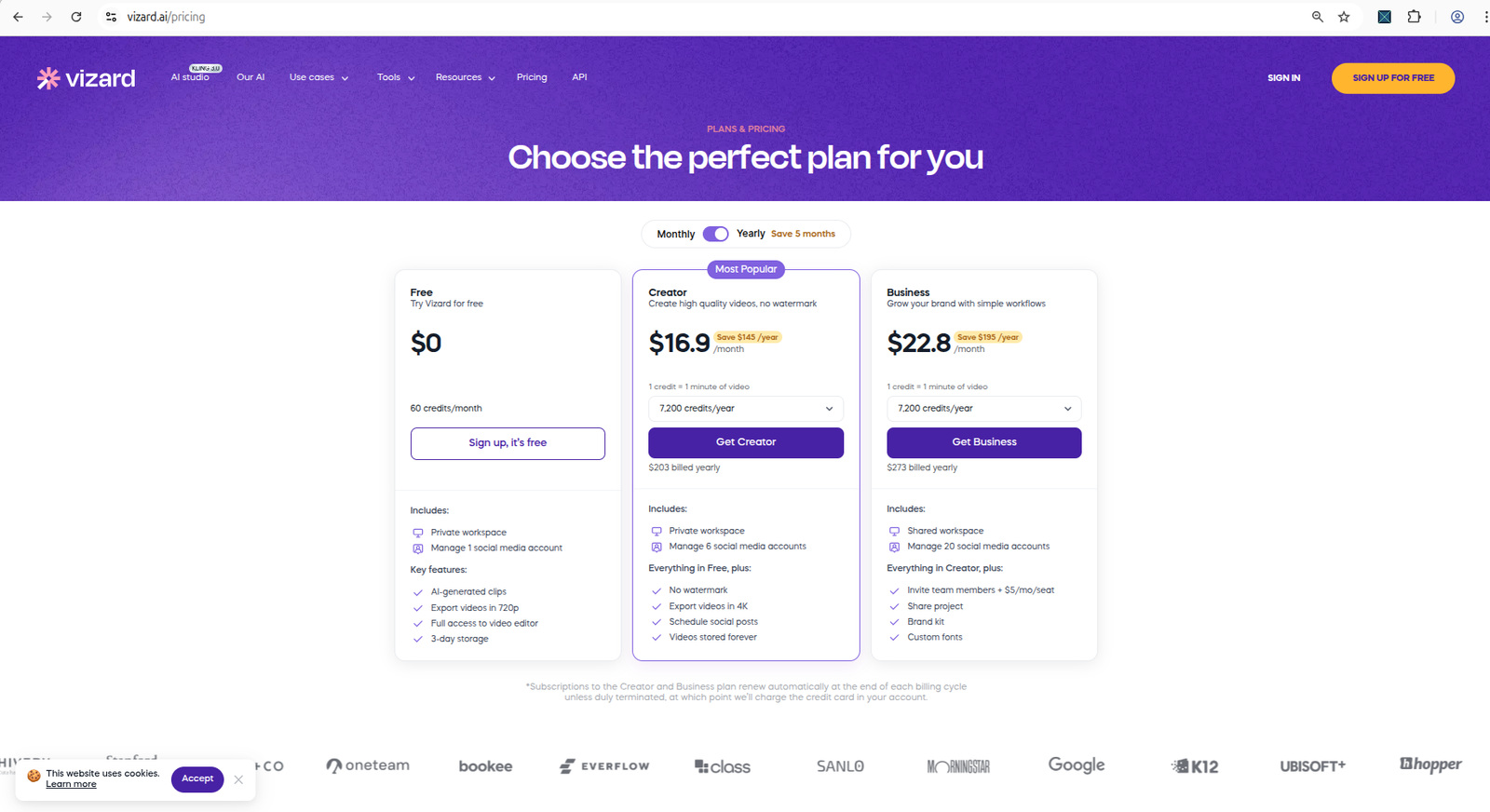
Vizard AI pricing page confirms the free plan includes 60 credits per month.
The exact free plan limits (tested)
| Limit | What it means for creators |
|---|---|
| Credits per month | 60 credits, refreshing monthly. This is your hard ceiling on how much video you can process for free. |
| Export quality | 720p only. No 1080p or 4K on free — those are locked to paid plans. |
| Max clip length | 10 minutes per exported clip. Longer exports require a paid tier. |
| Storage | 3 days. Your projects and clips are removed after that, so download promptly. |
| Watermark | Present on every free download. Removal is paid-only. |
| Bulk download | Blocked. Downloading multiple clips at once triggers an upgrade wall. |
| B-Roll | Availability varies by plan; check Vizard AI's current pricing page before assuming it is included on free. |
| Brand templates | Paid only (Creator plan and above). |
| Supported formats | MP4, MOV, 3GP, AVI, MP3, WAV, M4A. MKV is rejected as unsupported. |
| Sign-up required | Yes. A mandatory sign-up modal appears before any processing. |
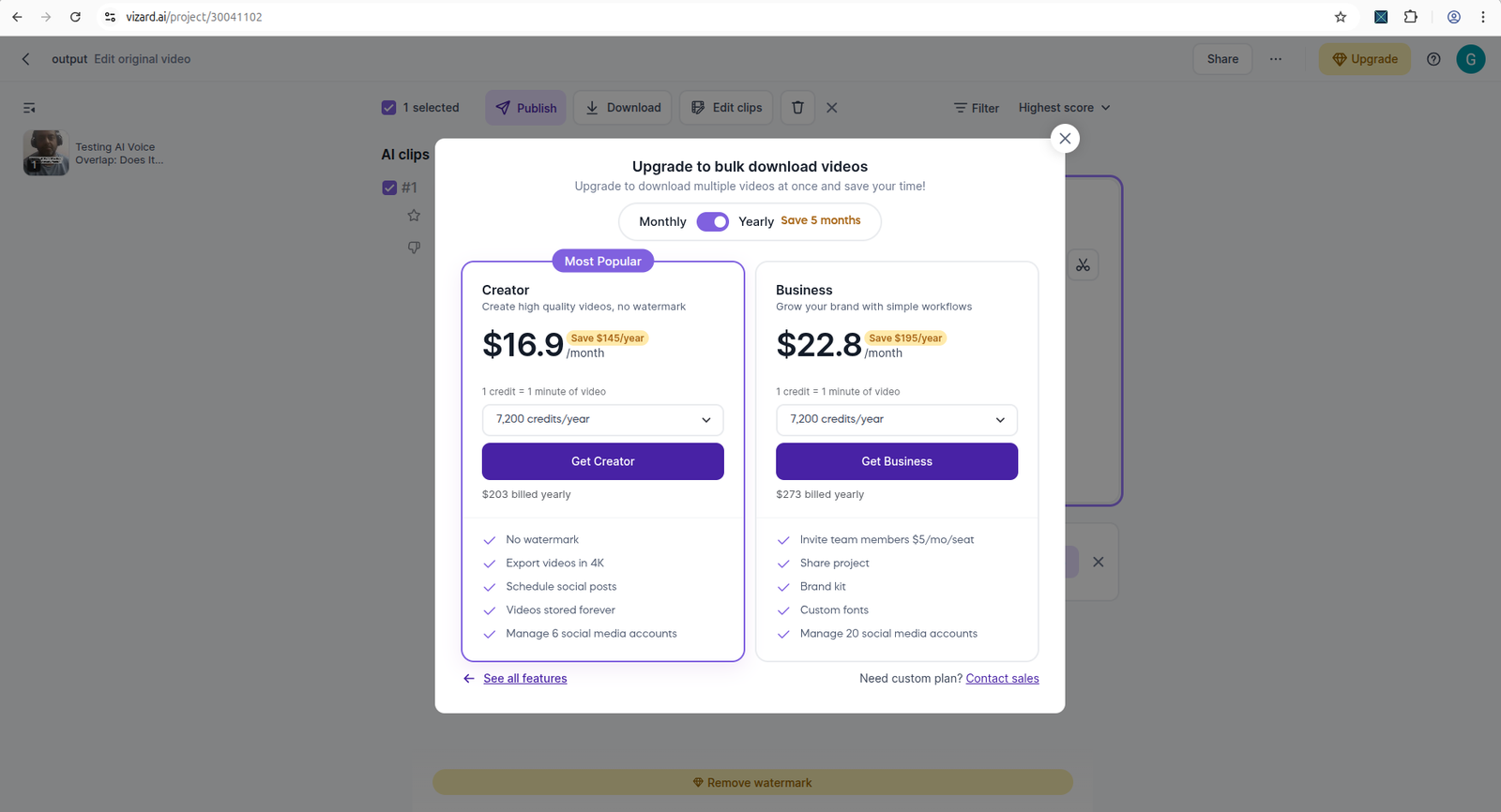
The free plan download had a visible Vizard watermark on the exported clip.
Credit math — how many clips can you make?
The headline number is 60 credits a month, but what that buys depends on how long your videos are. Vizard charges 1 credit per minute of video processed.
Here is what 60 credits actually means for a real creator workflow:
- A 10-minute clip uses 10 credits → about 6 clips per month at the maximum length.
- A 5-minute clip uses 5 credits → about 12 clips per month.
- A 27-second clip uses 1 credit → up to 60 clips per month (but the 10-minute export cap still applies).
So the free plan is generous if you make short clips and tight if you process long videos. A creator repurposing full podcasts or long talks will burn through 60 credits fast; a creator making quick Shorts can get dozens of clips before hitting the wall.
What gets paywalled on the free plan
These features are locked behind a paid tier:
- Watermark removal → Creator plan ($16.9/mo billed yearly).
- 4K export → Creator plan (free is capped at 720p).
- Bulk download → paid (free downloads clips one at a time, behind an upgrade prompt).
- B-Roll — availability varies by plan; check Vizard AI's current pricing page before assuming it is included on free.
- Brand templates → paid only (Creator plan and above).
- Translation / subtitle translation → paid tiers.
- More than 60 credits → paid (paid plans show 7,200 credits per year).
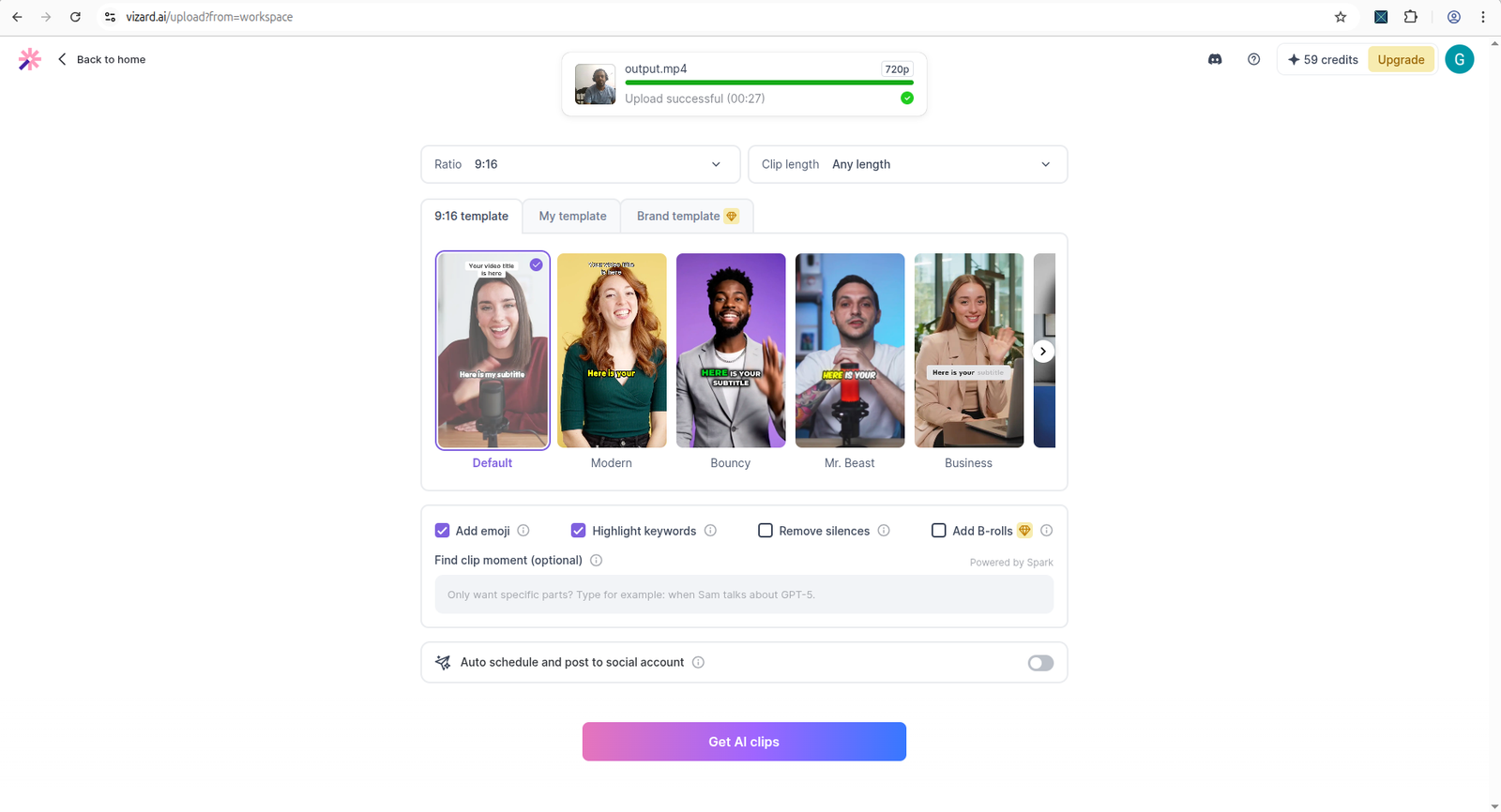
Some features in the clip setup screen showed indicators of paid-only access.
The sign-up contradiction
Vizard AI's homepage shows a "Try it free. No sign up needed" style badge — but in the tested workflow, a mandatory sign-up modal appeared before any processing could begin, offering Google or email/password registration. The "Paste a YouTube link" input and Upload button were visible underneath but blocked until an account was created. Expect to sign up before you can generate a single clip, regardless of what the homepage badge implies.
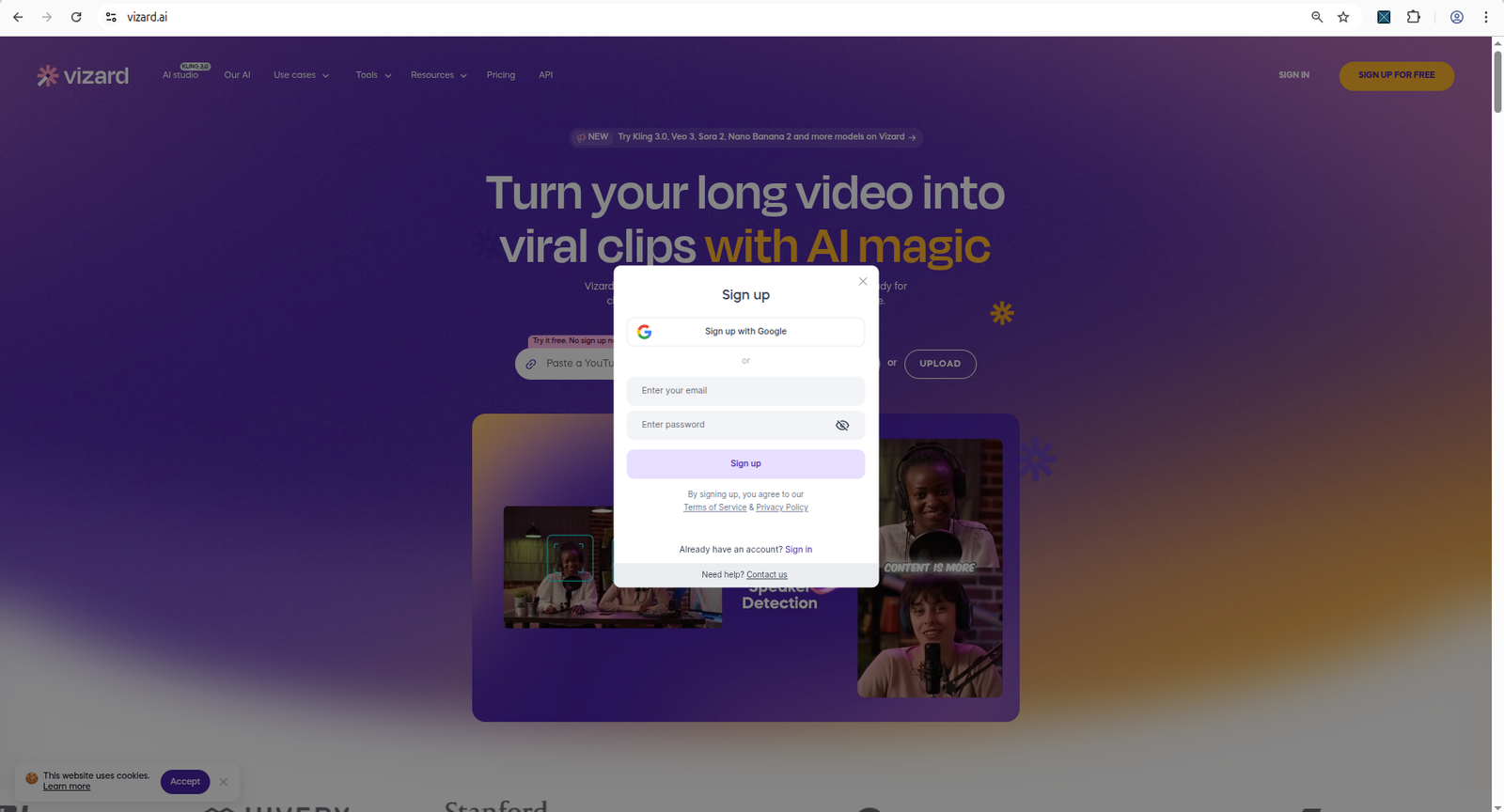
A sign-up modal appeared before processing — despite homepage messaging suggesting otherwise.
How this compares with OpusClip
If you are choosing between the two free plans, three numbers matter most:
| Limit | Vizard AI | OpusClip |
|---|---|---|
| Free credits | 60 / month | 60 / month |
| Export cap | 720p, 10-min clip limit | 60 credits, no editing on free |
| Watermark removal | Creator plan, $16.9/mo billed yearly | Starter plan, $15/mo billed monthly |
For the full side-by-side on the free tiers, read Vizard AI vs OpusClip: Free Plan. For the broader feature comparison, see Vizard AI vs OpusClip.
Not sure the free plan fits at all? The Vizard AI Review 2026 covers the hands-on experience, and the Vizard AI Free vs Paid guide covers the upgrade decision.
FAQ
How many credits does Vizard AI give for free?
Vizard AI's free plan includes 60 credits per month. Credits refresh monthly, and 1 credit equals 1 minute of video processed.
What is the export quality on Vizard AI free plan?
720p only. Higher resolutions, including 4K, are locked to paid plans such as Creator.
How long does Vizard AI store free clips?
3 days. Free-plan projects and clips are removed after 3 days, so download anything you want to keep promptly.
Can you use Vizard AI free plan without signing up?
No. Despite a homepage badge suggesting no sign-up is needed, a mandatory sign-up modal appears before any video can be processed.
Final Takeaway
Vizard AI's free plan gives you 60 credits a month, 720p exports capped at 10-minute clips, 3-day storage, and a watermark on everything you download. That is enough to test the tool and make a handful of short clips, but bulk download, watermark removal, B-Roll, brand templates, and higher export quality all require a paid plan.
For whether the free plan suits your content and how the workflow actually feels, see the Vizard AI Review 2026 and the Vizard AI Free vs Paid guide.
Used Vizard AI or another video repurposing tool? Share your experience with CreatorIntelHQ so future reviews can reflect real creator workflows, not just product marketing pages.