
Vizard AI vs OpusClip: Which Tool Is Better for Small Creators?
Weighing more than two tools? See all 4 tools compared in our AI video repurposing guide.
Vizard AI and OpusClip both help creators turn longer videos into short-form clips for platforms like YouTube Shorts, TikTok, Instagram, and other social channels.
But for small creators, the real question is not which tool sounds better on a homepage.
The better question is:
Which tool fits your actual workflow, free-plan limits, editing needs, and export expectations?
This comparison is based on hands-on evidence collected for both tools. Vizard AI has strong evidence for signup, free credits, MP4 upload, MKV limitation, AI clip generation, captions, 9:16 reframing, watermark, download behavior, and pricing/free-plan limits. OpusClip also has strong evidence for dashboard access, AI Reframe workflow, visible credits, result view, transcript/scene analysis, editing actions, watermark/export limitations, and pricing/free-plan evidence. Current prices for both tools, and for the four others we test, are in our cross-tool pricing table.
This is not a claim that either tool is the best AI video clipping tool overall. The safer conclusion is that each tool fits a different type of creator workflow.
Disclosure: CreatorIntelHQ may earn a commission if you buy through some links. This comparison is based on hands-on testing and documented observations.
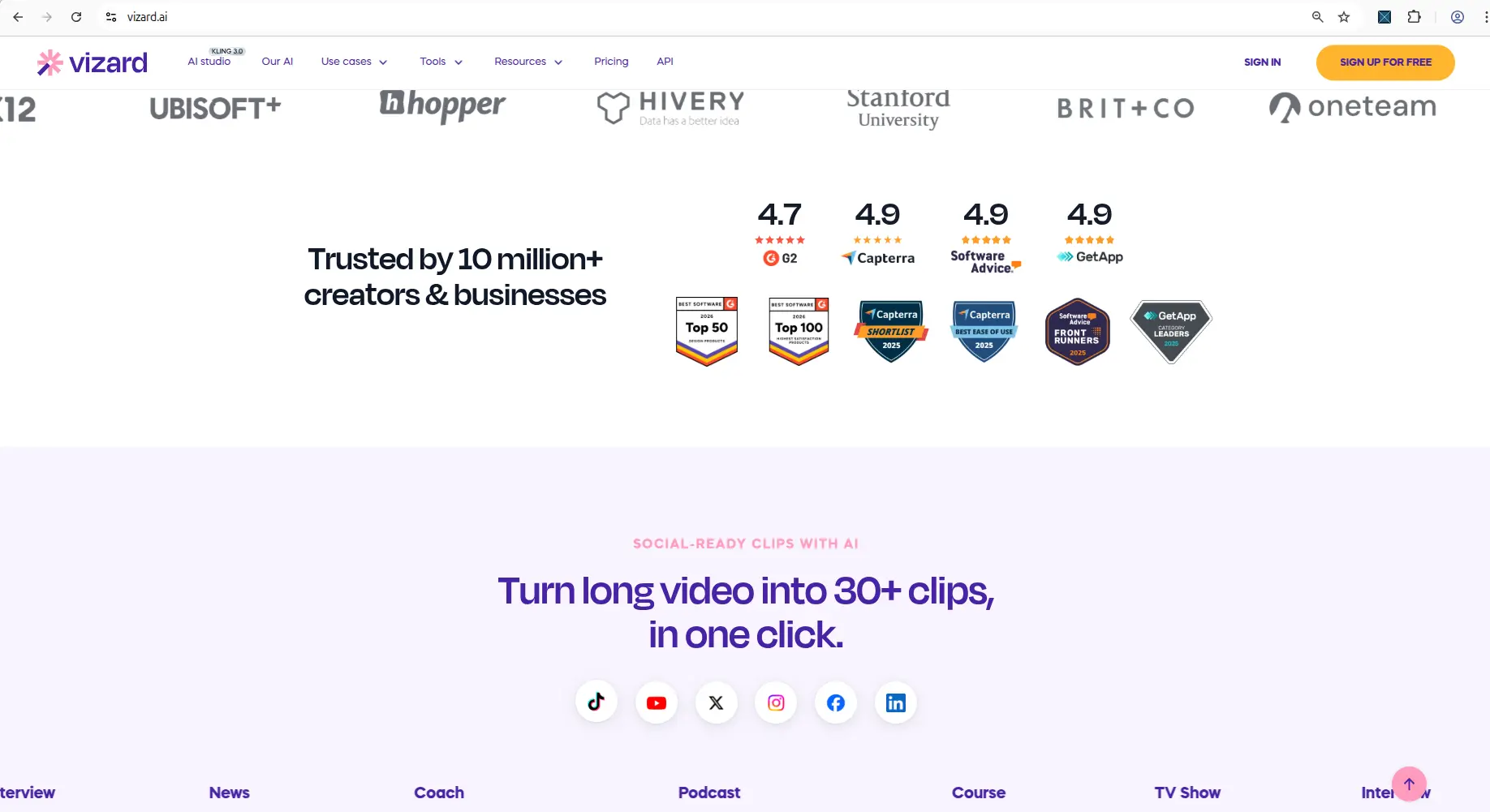
Vizard AI homepage explaining its AI video repurposing use case.
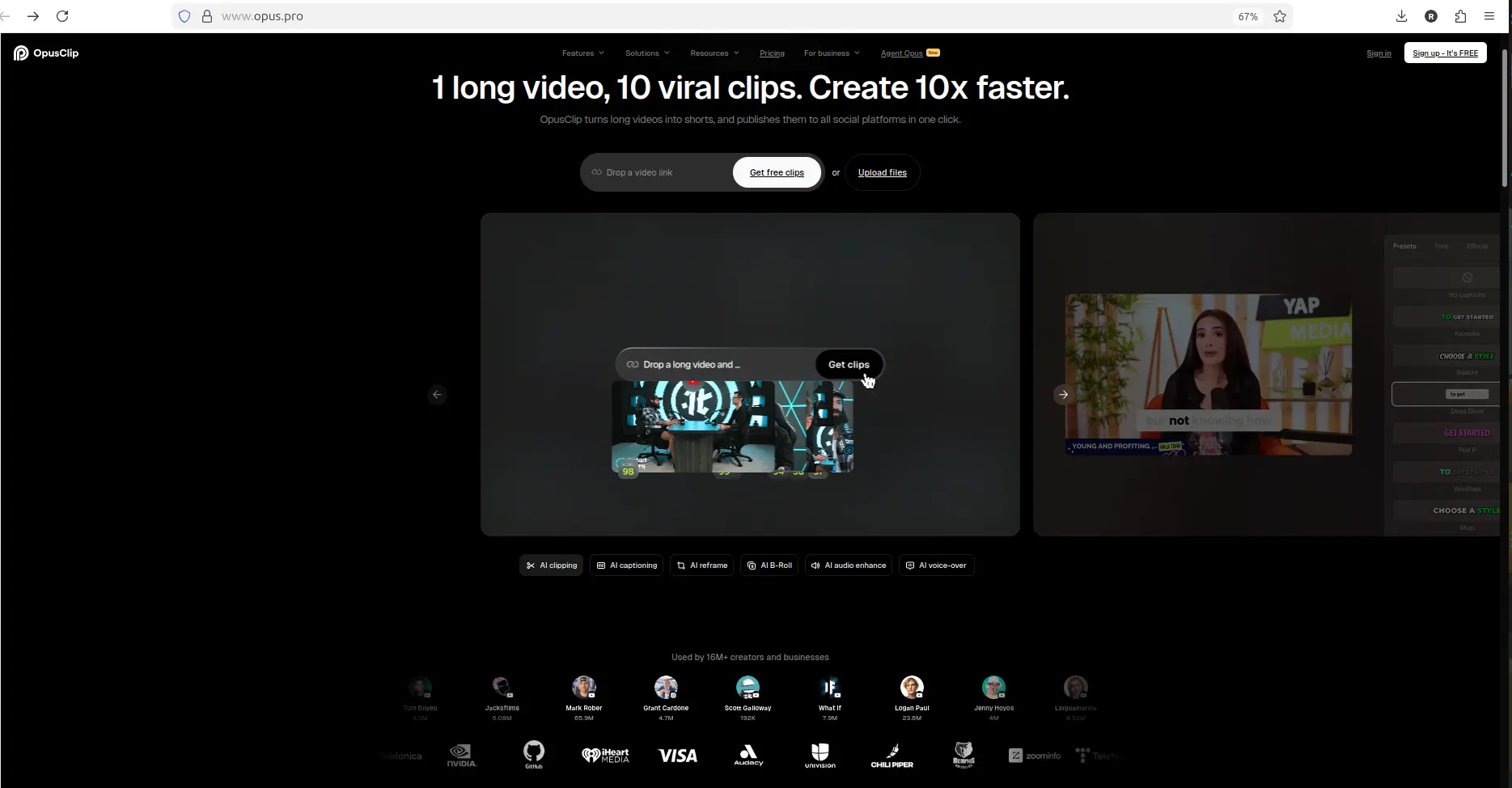
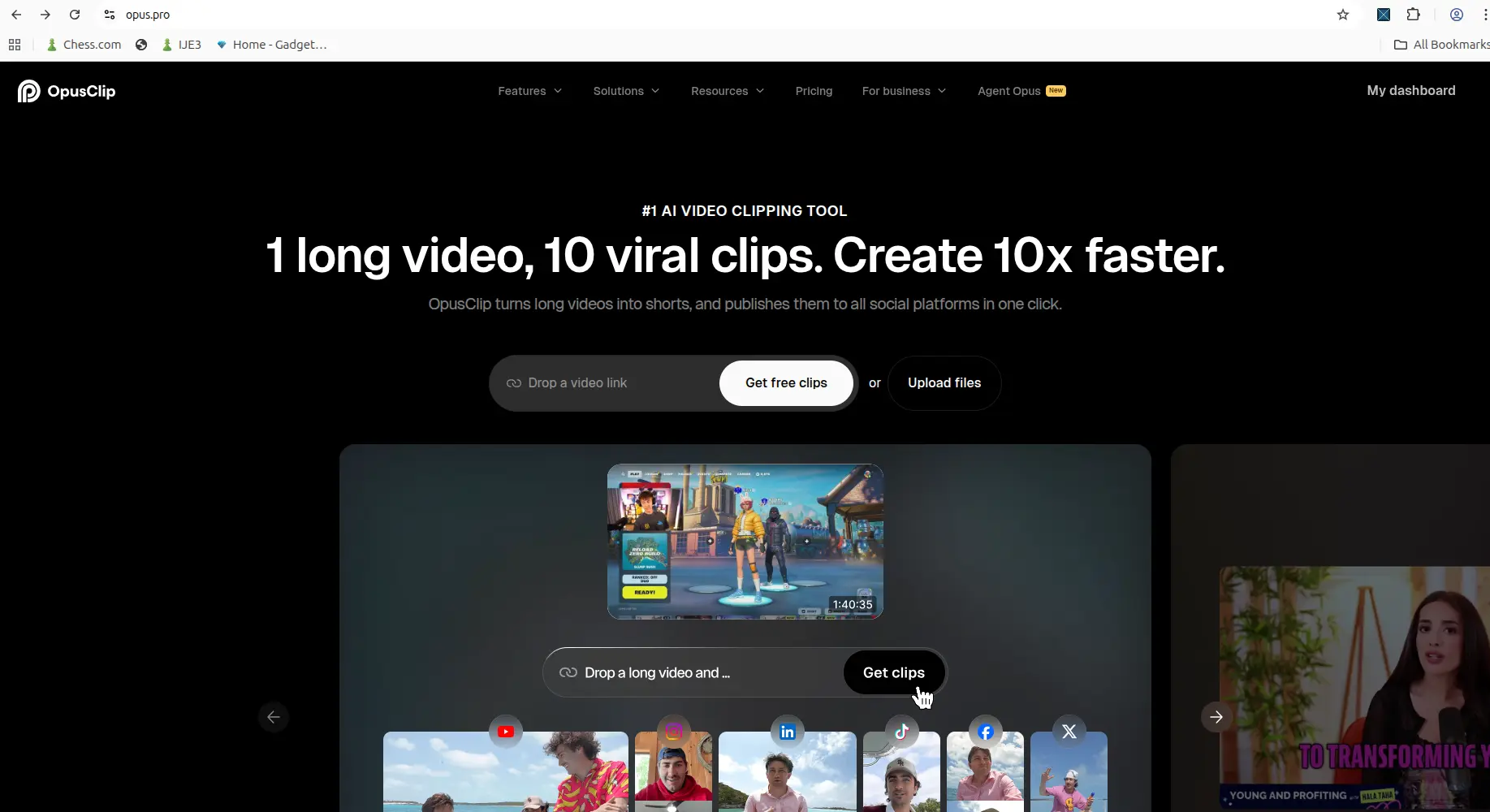
OpusClip homepage explaining its AI video repurposing use case.
Based on hands-on testing · How we test creator tools
Quick Winner
Choose Vizard AI if: you want to test an AI clipping workflow with visible free credits, MP4 upload, auto-created captions, editor access, and a free-plan download that keeps a visible watermark.
Choose OpusClip if: you want a workflow with visible post-generation actions such as editing, AI hook, speech enhancement, B-roll options, transcript/scene analysis, and result-screen controls after reframing.
Use neither tool blindly: captions and reframing still need manual review before publishing, and free-plan export or watermark limits can affect whether the output is usable for serious publishing.
Best first test: run the same source video through both tools, download both outputs, and compare caption accuracy, framing, watermark/export behavior, and final file usefulness side by side.
Decision guide
Choose Vizard AI if: You want visible free credits, MP4 upload, captions, editor access, and a free watermarked download test before deciding whether to pay.
Choose OpusClip if: You care more about post-generation editing actions such as Edit clip, AI hook, Enhance speech, B-roll options, transcript/scene analysis, and result-screen controls.
Compare both first if: You are choosing a long-term AI video repurposing workflow and need to check caption accuracy, reframing quality, watermark behavior, credits, and export limits side by side.
Best next step: Run the same short MP4 through both tools, download the outputs where possible, and compare the actual files before upgrading.
Want the clearer free-download test first? In my current testing, Vizard AI gave stronger evidence for visible credits, MP4 upload, editor access, and a free watermarked download.
Vizard AI vs OpusClip comparison table
| Area | Vizard AI | OpusClip |
|---|---|---|
| Best for | Small creators who want visible free credits, MP4 upload, captions, editor access, and watermarked download proof. | Small creators who want AI Reframe plus visible post-generation edit/export actions. |
| Evidence confidence | Strong | Strong |
| Free-plan evidence | Free plan showed visible credits and a watermarked download. | Free/trial evidence showed visible credits and no-credit-card messaging. |
| Upload/import workflow | Local upload worked with MP4; MKV was rejected in the test. | Local upload worked in the AI Reframe workflow. |
| Credits/limits | 60 credits were visible; test reduced the balance from 60 to 59 after upload/processing. | Credits were visible and decreased during tested workflows. |
| Captions/transcript | Captions were auto-created, but still needed manual review. | Transcript/scene analysis was visible, but caption/transcript accuracy still needs review. |
| Reframing | 9:16 output was generated, but the subject was not always centered. | AI Reframe generated a vertical output, but framing still needs manual review. |
| Download/export | Free download worked after upgrade friction, but the file had a visible watermark. | Free/trial output appears to retain watermark or export limitations. |
| Editing controls | Result screen showed preview, publish, download, and edit options. | Result view showed actions like Download HD, Edit clip, AI hook, Enhance speech, and Add B-Roll. |
| Main strength | Free workflow was visible end to end, including credits and watermarked download proof. | Post-generation editing actions were more visible in the tested workflow. |
| Main limitation | Free-plan export includes watermark and upgrade friction. | Free/trial export limits and watermark state still matter. |
| Cheapest paid plan | Creator $14.5/mo billed yearly ($29/mo list price) | Starter $15/mo (monthly) or Pro $14.5/mo billed annually ($174/yr, $29/mo list price) |
| Free export cap | 720p, 10-min clip max, 3-day storage | 60 credits/mo forever or 10-credit 7-day trial; no editing; 3-day expiry |
| Max video input | Not confirmed in test | 120 minutes (confirmed in AI Reframe and AI Captions tests) |
| Sign-up honesty | Homepage badge says "Try it free. No sign up needed" — but workflow forced sign-up before processing | Sign-up required and stated upfront; no misleading badge |
| Silence & filler-word removal | Not offered on any plan — nine search terms checked against Vizard's published feature list, all absent (documented 26 Sep 2026) | "Filler & silence removal", included from Starter ($15/month) — the cheapest route to it of the four tools we track |
| Output score (tested) | 8.0/10 on one 27-second clip | 86/100, 87/100, 88/100 across three separate workflow tests (Hook/Flow/Value/Trend grades) |
Free plan comparison
Both tools have useful free-plan or trial evidence, but their free workflows are not the same.
In the Vizard AI test, the dashboard showed a Free plan with 60 credits. A short 27-second horizontal MP4 was uploaded, one AI clip was generated, the result could be previewed, the editor could be opened, and the result could be downloaded. However, the downloaded video had a visible Vizard watermark.
In the OpusClip evidence, the signup modal showed a free plan with no credit card required, and the dashboard/workflow showed visible credits. The AI Reframe test accepted a local horizontal file, processed it, and opened a completed result view with additional edit/export actions.
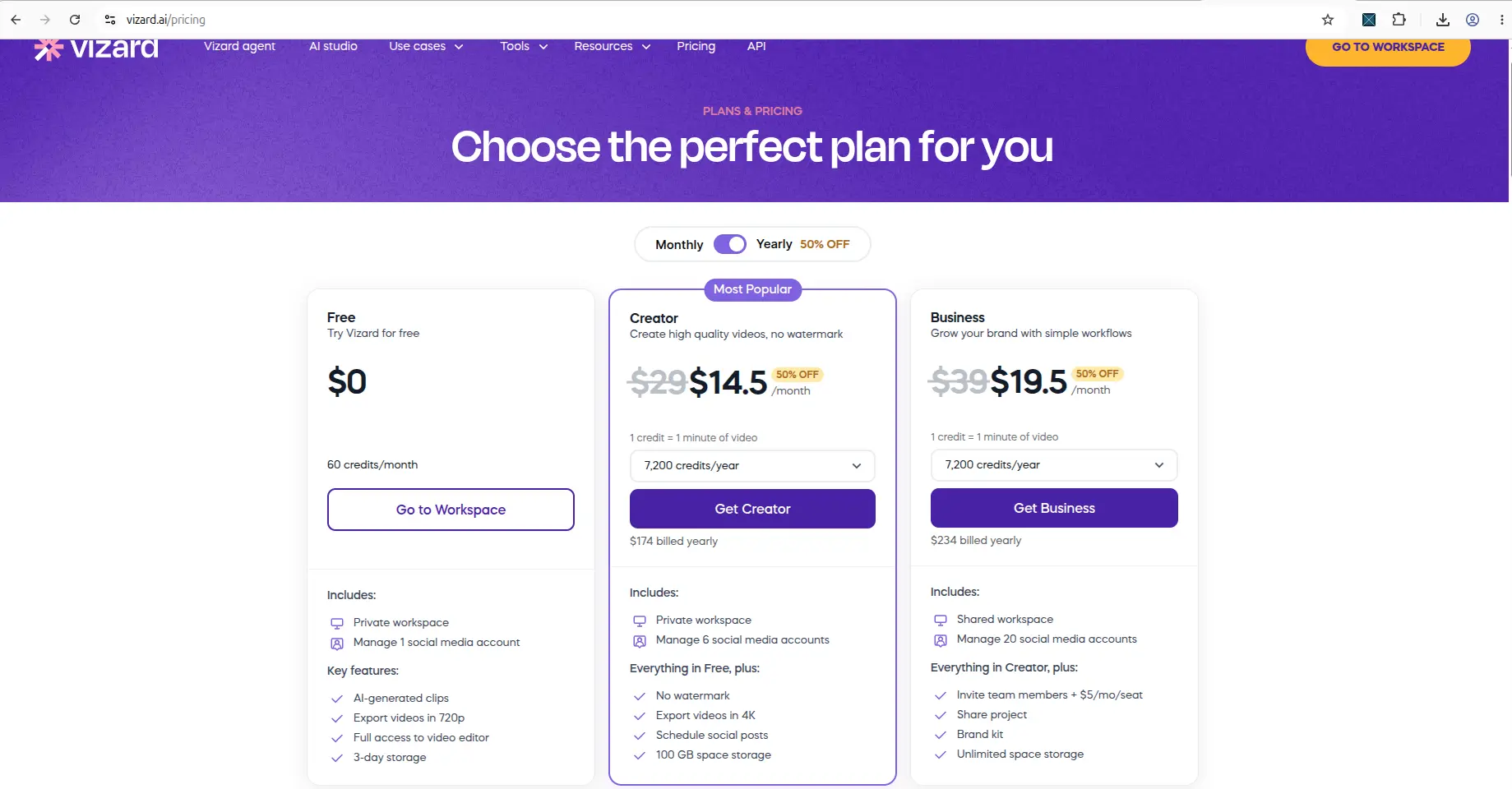
Vizard AI's pricing page as of 12 August 2026, showing Creator at $14.5/month and Business at $19.5/month on yearly billing.
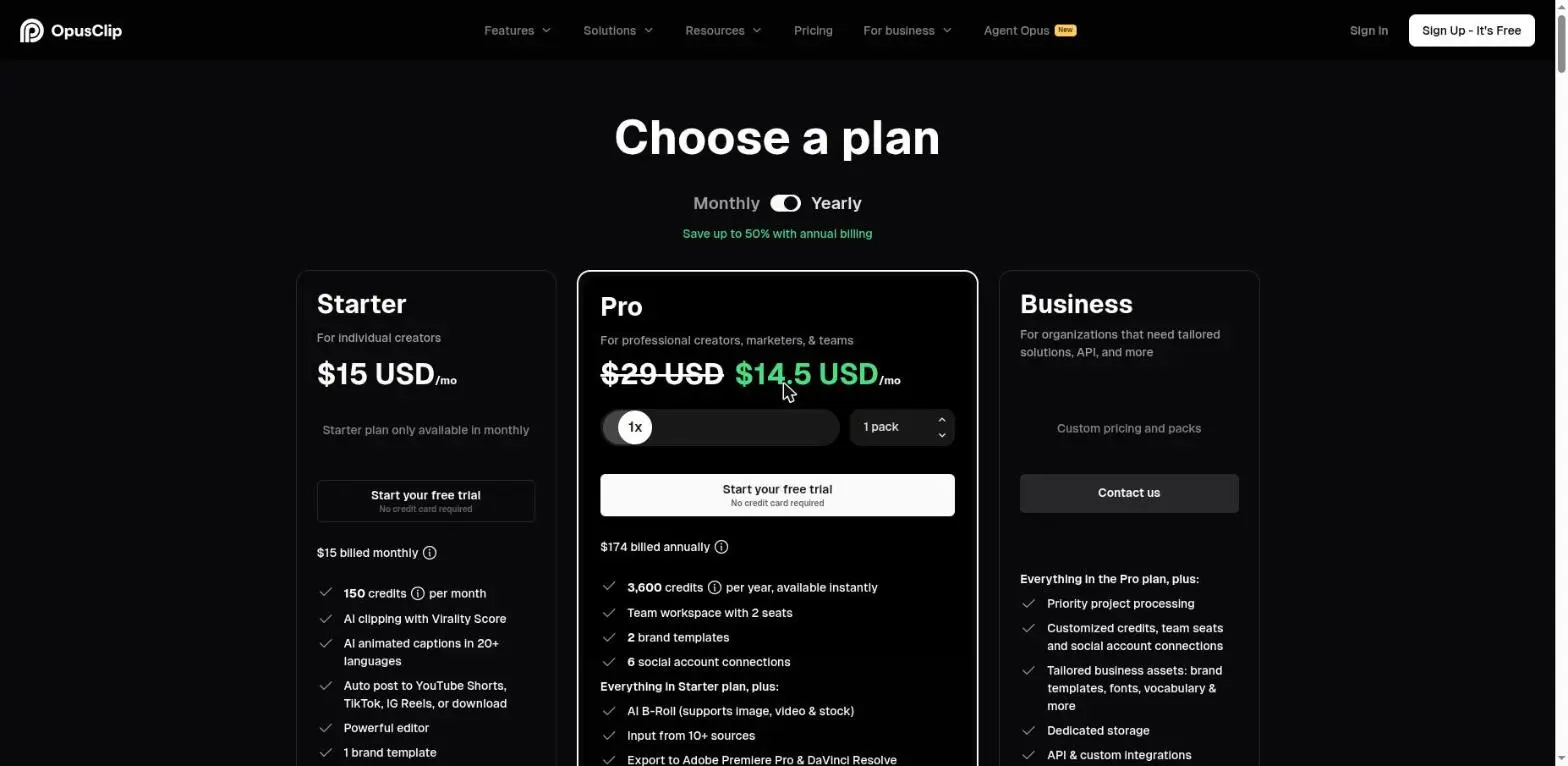
OpusClip pricing, captured 27 August 2026: Starter $15/month, Pro $29/month list price, in USD. OpusClip's annual price is promotional and changed between two checks on the same day, so read the yearly figure off their page yourself rather than trusting any screenshot — including this one.
The practical takeaway is simple: both tools can be useful for initial testing, but creators should not assume the free output is ready for final publishing. Watermark, credits, storage, export quality, and download rules should be checked before relying on either tool. For a deeper free-tier breakdown — credits, watermark, and export behavior side by side — see the Vizard AI vs OpusClip free plan comparison. For OpusClip's side specifically — where the watermark appears and what clearing it costs — see OpusClip's watermark and export limits.
Pricing and limits
During the Vizard AI review, the pricing page showed Free, Creator, and Business plans. The Free plan showed 60 credits per month, AI-generated clips, 720p export, full editor access, and 3-day storage. The Creator and Business plans showed higher limits, watermark removal, 4K export, and additional workflow or team features.
During the OpusClip review, the pricing page showed Free, Starter, Pro, and Business plans with credits, feature differences, and some free-plan limits. The pricing page also included a calculator that connects credits, clip views, category, and posting platform to OpusClip’s value framing.
Pricing can change, so manually verify the latest pricing and limits on each tool’s official pricing page before upgrading.
Workflow comparison
Vizard AI’s workflow felt straightforward in the free test. After Gmail signup and onboarding, the dashboard showed the Free plan and 60 credits. The main upload area offered options such as pasting a link, dragging a video, uploading a local file, importing from Zoom, or recording a video.
One important Vizard limitation appeared during upload: MKV was rejected. Vizard listed supported formats including MP4, MOV, 3GP, AVI, MP3, WAV, and M4A. That matters for creators who record in OBS using MKV and may need to convert files before upload.
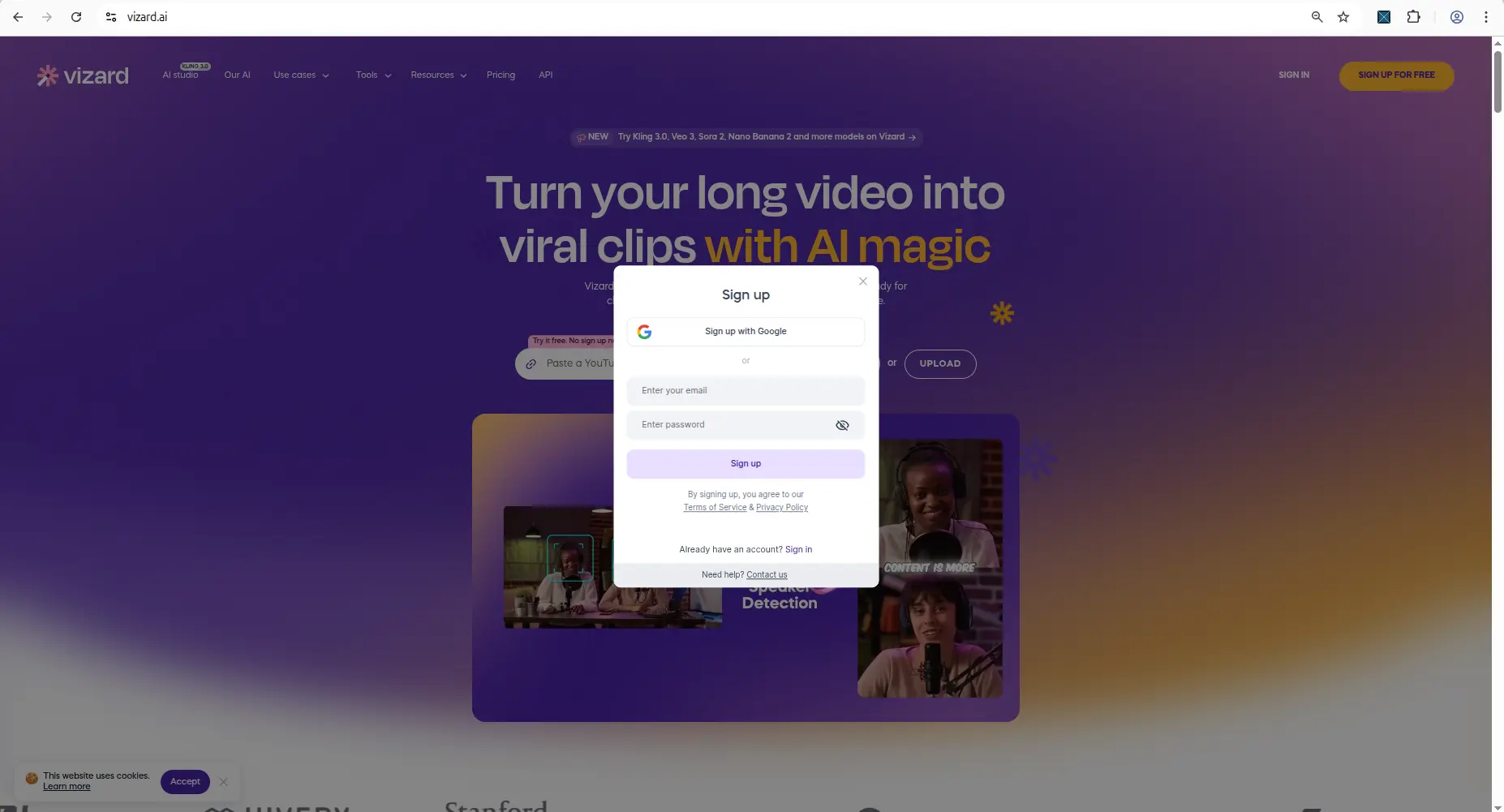
Vizard AI signup or onboarding screen from the hands-on test.
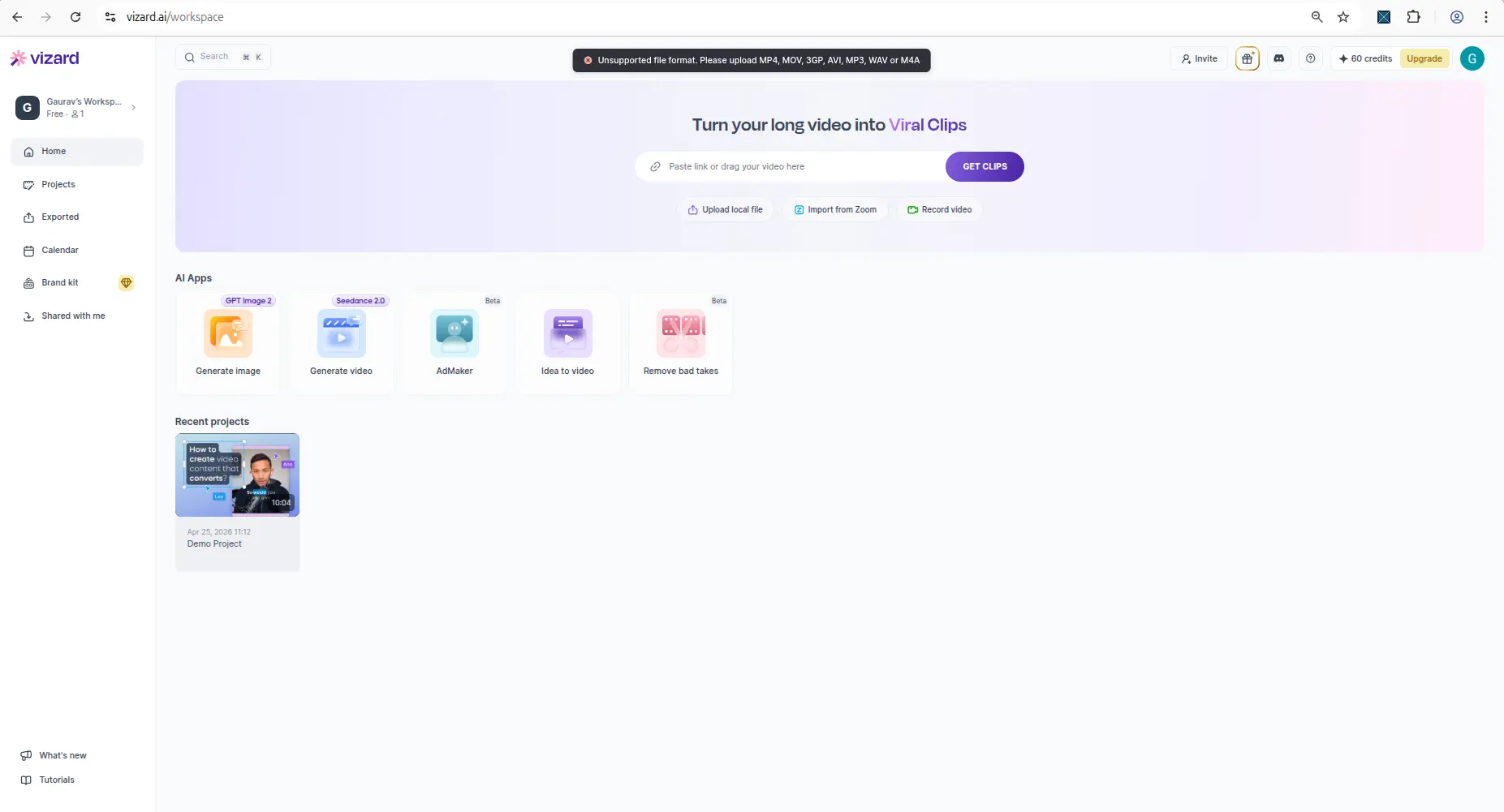
Vizard AI upload screen showing the tested file workflow or format limitation.
OpusClip’s AI Reframe workflow started from the main dashboard, where the feature was visible alongside other tools. The input flow offered link, upload, and Google Drive options before a file was provided. The AI Reframe test accepted a local horizontal file and showed upload progress before loading reframing options.
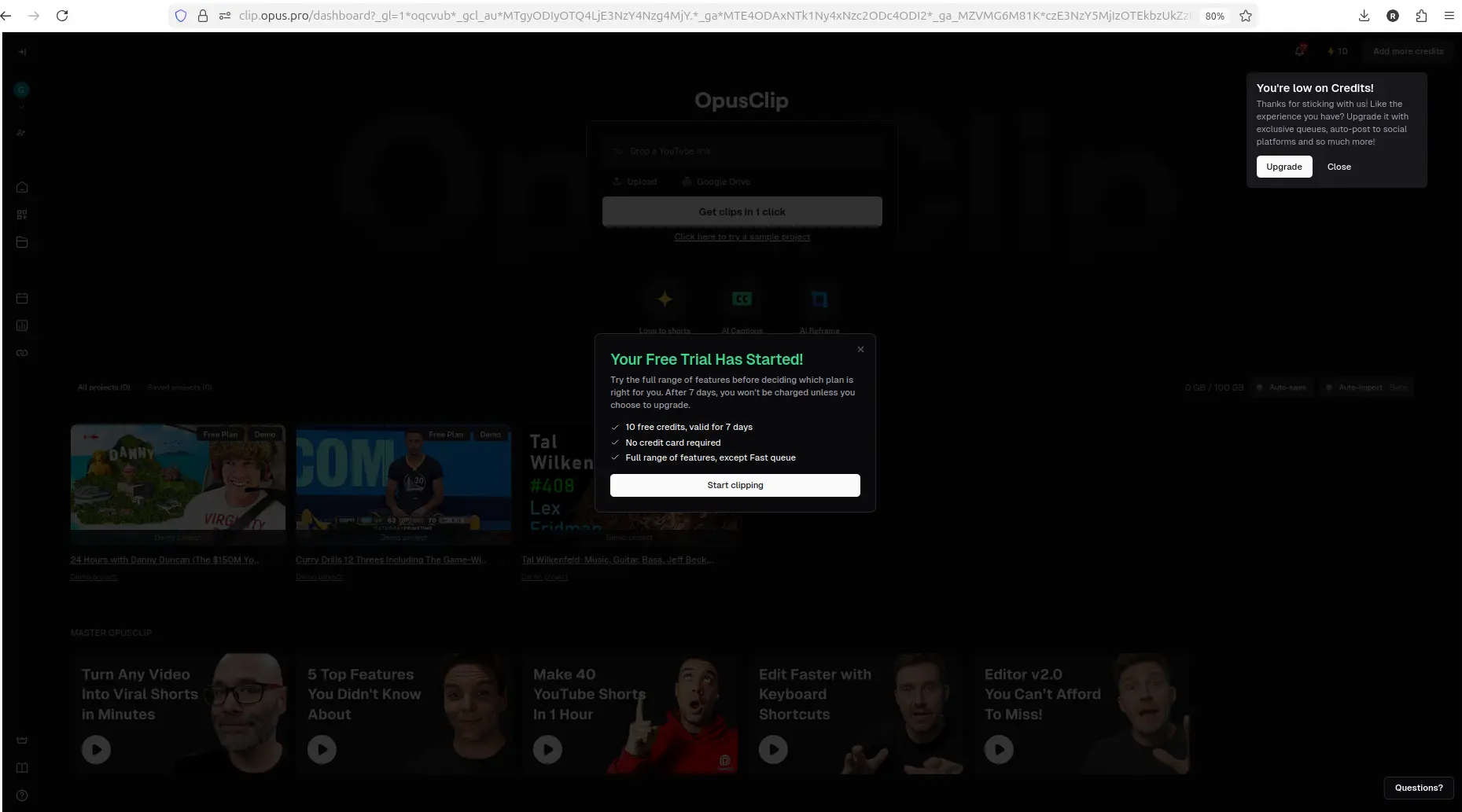
OpusClip dashboard showing workspace options and available credits.
OpusClip dashboard showing workspace options and available credits.
One onboarding note, updated. Vizard AI's homepage displays a badge stating "Try it free. No sign up needed", and in our April 2026 test that badge was misleading — a mandatory sign-up modal appeared before any processing could begin. We re-tested on 2026-08-25 in a logged-out browser and this has been fixed: a pasted link now processes anonymously, with sign-up offered only as an option to be notified when clips are ready. OpusClip still requires an account upfront. That makes Vizard significantly easier to evaluate. An anonymous run completes, returns a full set of watermarked 720p clips, and we confirmed the clips download without an account. The catch is retention — anonymous projects carry a 24-hour countdown, and signing up is what extends that to the free plan's 3 days. OpusClip, by contrast, requires an account before you see anything.
For workflow clarity, Vizard AI’s credit display and upload path were easy to understand in the test. OpusClip stood out more for visible post-generation action options after the AI Reframe result was created.
Every free plan runs out somewhere. Know where first.
The Free-Plan Reality Check: what OpusClip, Vizard AI, Submagic and Quso.ai actually let you do for $0 - from real signups, real uploads and real paywall hits.
Update: what changed on Vizard in 2026
Two things have changed since this comparison was written, both verified on 2026-08-25.
Vizard's free-plan export ceiling is 720p. We fed it a 1920x1080 source and the downloaded clips came back at 720x1280; 1080p, 2K and 4K all carry a paid badge. Worth weighing if output resolution is part of your decision.
Vizard now has two clipping models. Model v2 launched in July 2026 and both are available free. On identical footage, v1 returned 10 clips and v2 returned 5 longer ones, for about 30% more credits — Model v1 vs v2 covers it in full. Captions and export quality are the same either way.
Output quality comparison
Vizard AI generated one AI clip from a short 27-second horizontal MP4 test video. The result screen showed a title, an 8.0/10 score, a 720p label, transcript/caption segments, publish/download/edit options, and a visible watermark.
The clip used auto-created captions without needing a separate subtitle upload. However, the captions contained visible errors in the test — transcript segments showed garbled text including "Short Horizonte" and "Oka" for words that should have been recognisable. The 9:16 reframing did not keep the subject perfectly centered during playback. One short test clip is not enough to conclude these issues are consistent, but they were present in the evidence.
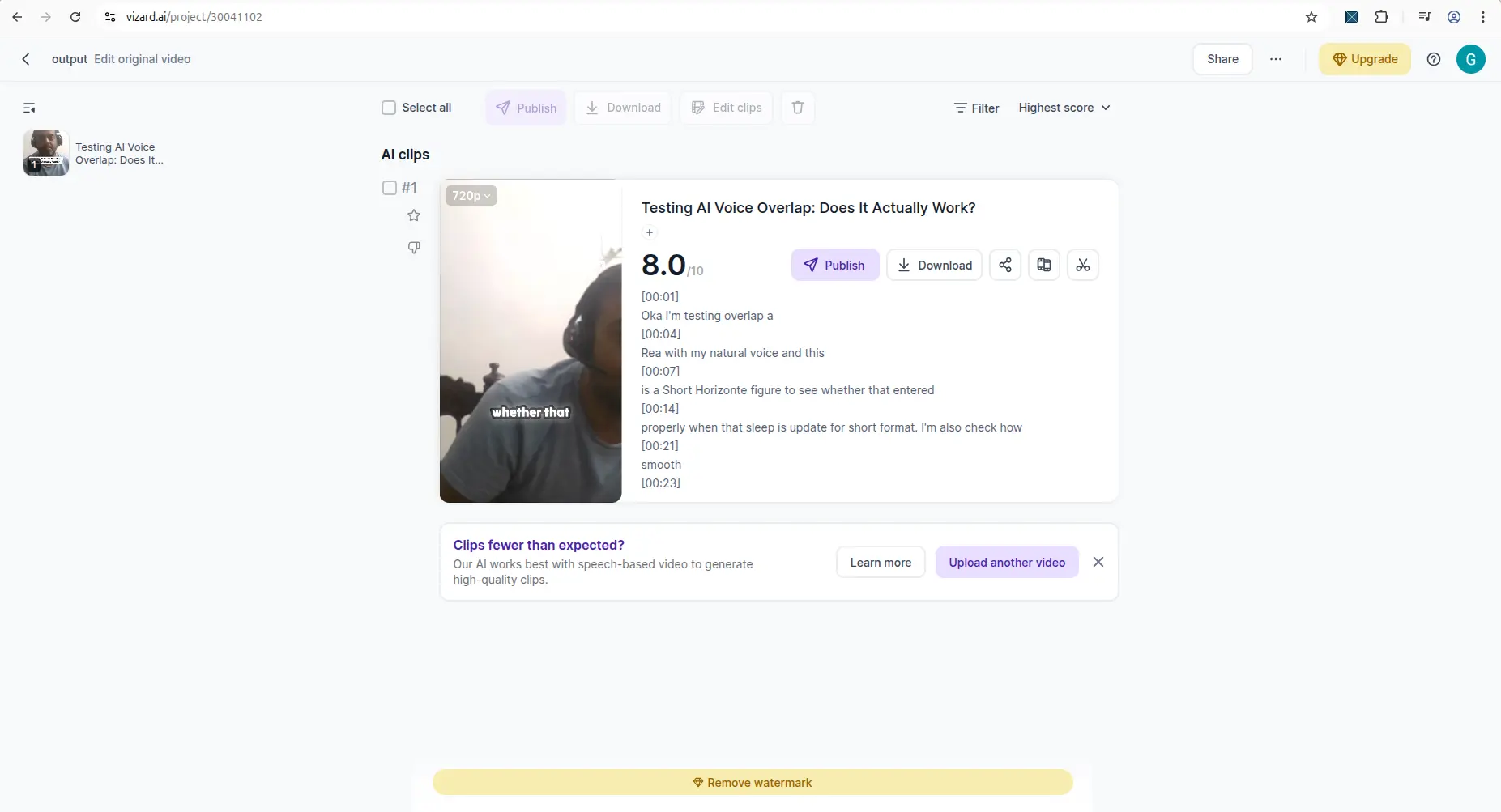
Vizard AI result screen showing generated clip, captions, and output controls.
OpusClip AI Reframe completed successfully and opened a final result view. The result showed a vertical reframed clip, transcript/scene analysis, score breakdown, and additional actions such as Download HD, Edit clip, AI hook, Enhance speech, and Add B-Roll.
Across three separate tests — Long to shorts, AI Reframe, and AI Captions — OpusClip scored 88/100, 87/100, and 86/100 respectively, each with per-category grades for Hook, Flow, Value, and Trend. All three tests used 1 credit and accepted videos up to 120 minutes. The consistency across three workflows is the strongest output evidence collected for either tool in this comparison.
The evidence does not prove performance on harder clips, complex motion, multiple subjects, or paid-plan export quality.
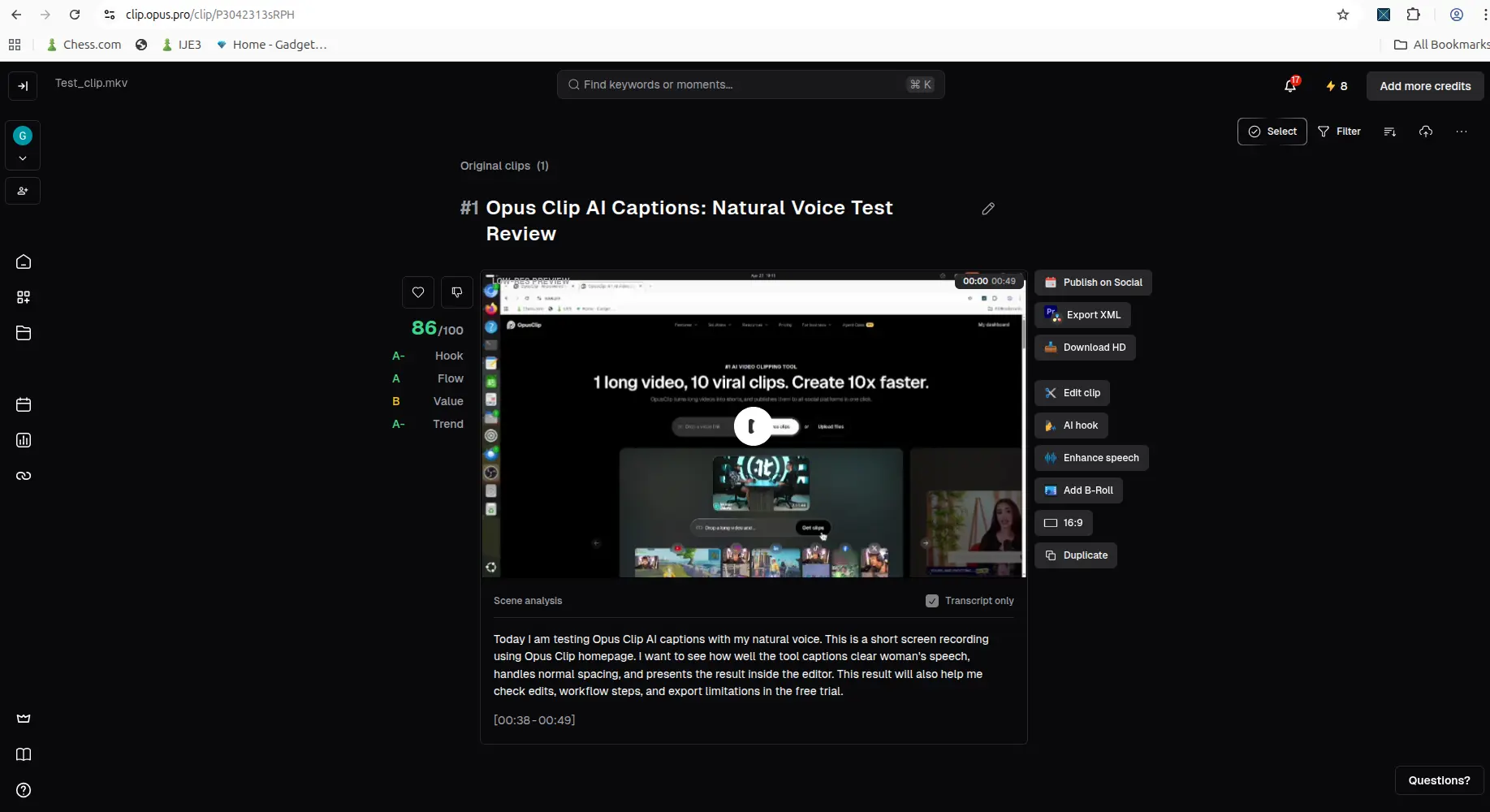
OpusClip result screen showing generated clip, captions, and output controls.
For output quality, both tools need manual review. Do not assume captions are always correct. Do not assume reframing will always keep the subject centered.
Watermark and export comparison
Vizard AI’s free-plan download behavior was very clear in the test. Clicking the small download icon first showed an upgrade modal. After closing the popup and trying again, the generated file could be downloaded on the free plan, but the downloaded video had a visible Vizard watermark. For the full watermark finding, see the Vizard AI watermark test.
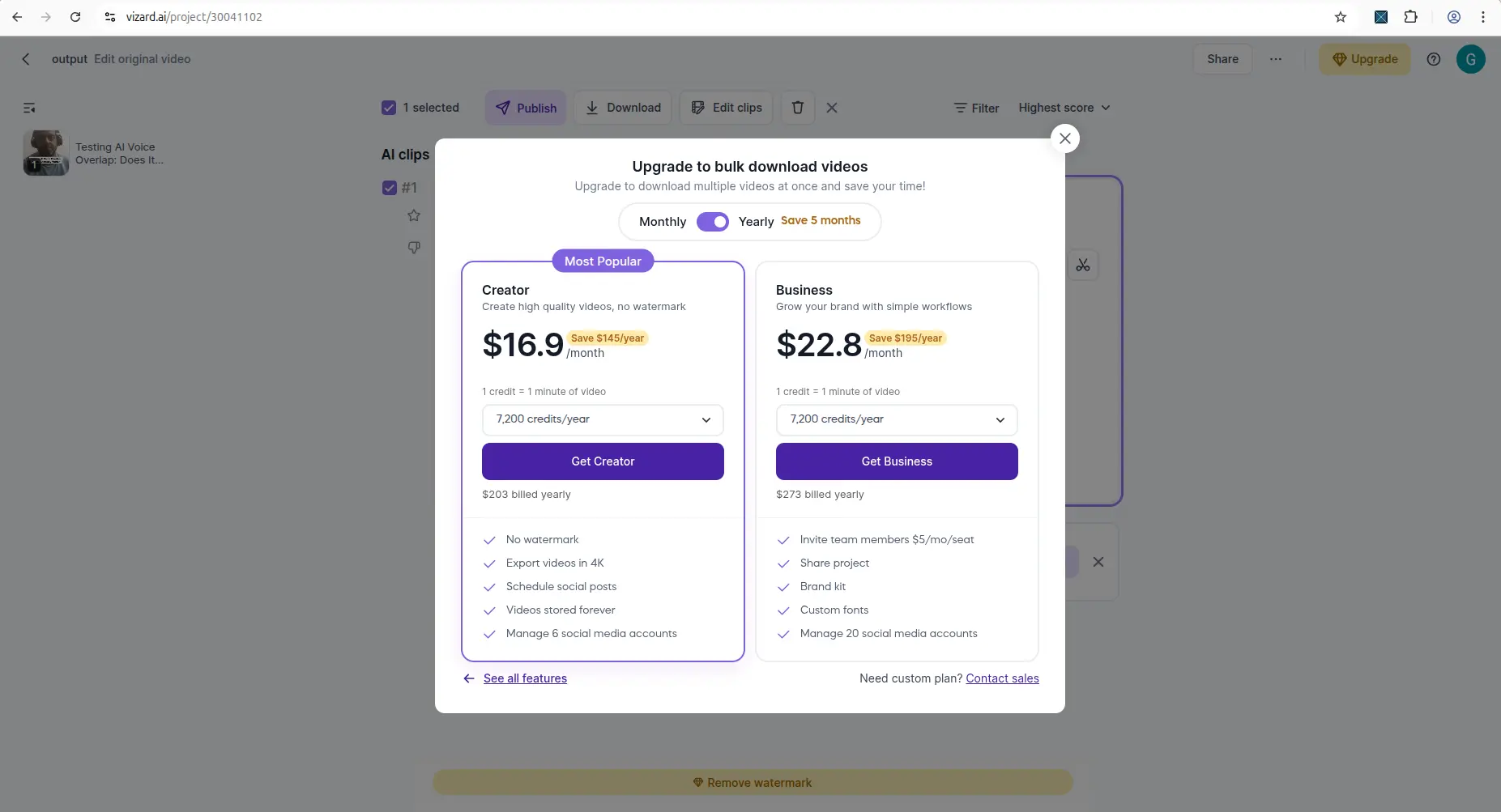
Vizard AI result or edit screen showing watermark, export, or upgrade limitation.
For OpusClip, the result view showed additional export and editing actions, including Download HD and Edit clip. The evidence also notes that the free/trial output appears to retain watermark or export limitations.
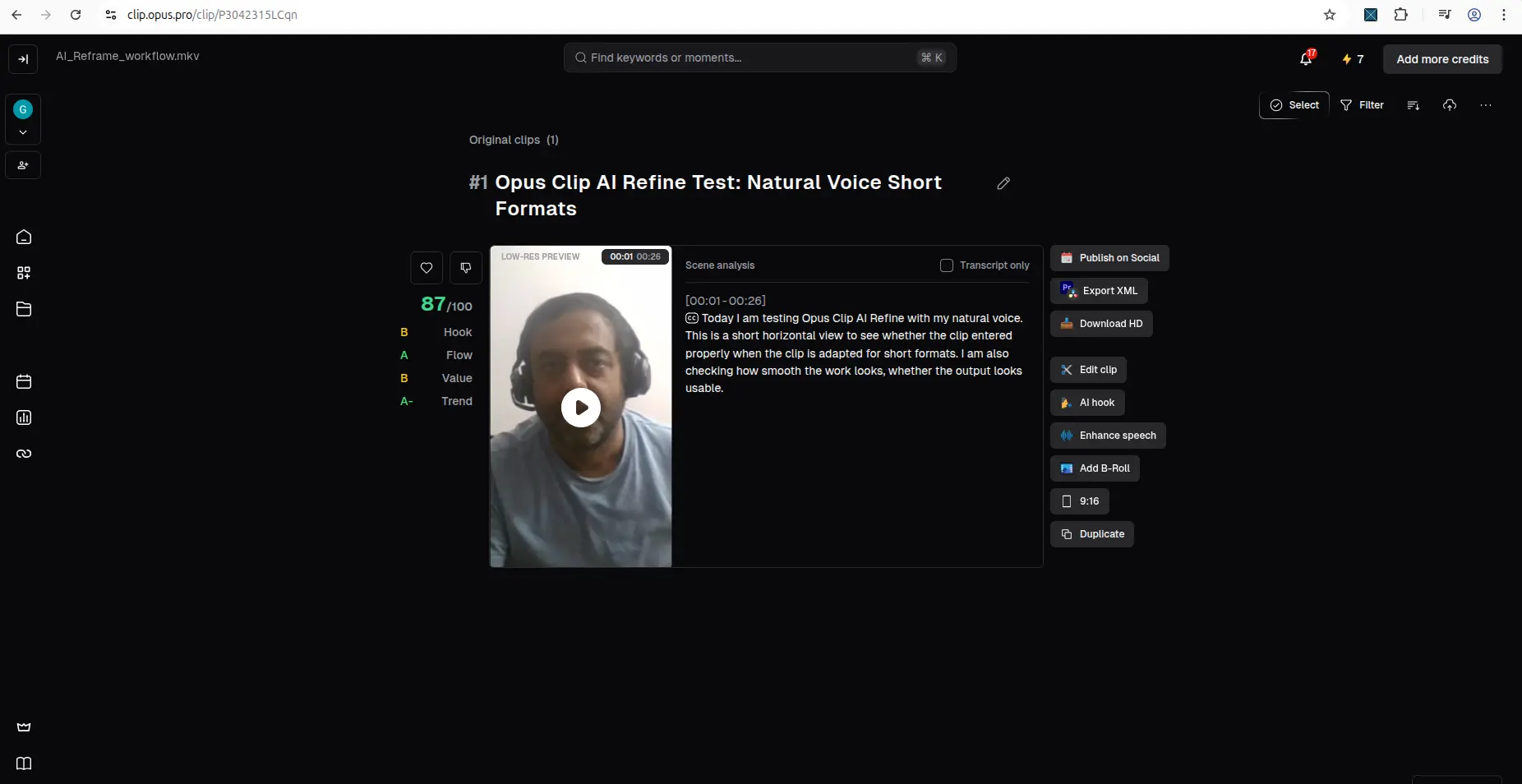
OpusClip result or edit screen showing watermark, export, or upgrade limitation.
The safest conclusion is that both tools are useful for workflow testing, but creators should verify watermark and export behavior before using either free output for public publishing.
Editing and post-generation controls
This is one area where OpusClip looks stronger in the current evidence.
Vizard AI’s result screen showed preview, publish, download, and edit options. That is enough to confirm that the generated result was not just a static demo screen.
OpusClip’s completed result view showed more visible post-generation actions, including Download HD, Edit clip, AI hook, Enhance speech, and Add B-Roll.
For creators who want to test more editing actions after clip generation, OpusClip may feel more action-oriented based on the current evidence. For creators who want clear free credits and watermarked download proof, Vizard AI has strong evidence from the hands-on test.
Best for each creator type
Choose Vizard AI if:
- You want to test AI clipping with visible free credits.
- You want an end-to-end free workflow test with MP4 upload, captions, preview, editor access, and download.
- You are okay with a watermarked free download for testing.
- You want to confirm whether your source format is supported before upgrading.
Choose OpusClip if:
- You want to test AI Reframe from a local horizontal clip.
- You care about visible post-generation actions like Edit clip, AI hook, Enhance speech, and Add B-Roll.
- You want a result view with transcript/scene analysis and additional export/edit options.
- You are comparing AI video repurposing tools before paying.
Use neither tool blindly if:
- You need perfect captions without manual review.
- You need perfect automatic reframing.
- You need a clean watermark-free output from the free plan.
- You are working with complex videos, multiple subjects, chaotic motion, or long-form podcast clips and have not tested your own footage yet.
Pros and cons
Vizard AI pros
Vizard AI showed a visible Free plan with 60 credits.
The MP4 upload and AI clip generation workflow worked in the test.
The result screen showed captions, score, 720p label, output controls, editor access, and download behavior.
The free-plan download worked after upgrade friction, though it kept a visible watermark.
The MKV limitation was clearly communicated with supported formats listed.
Vizard AI cons
The free-plan downloaded clip had a visible watermark.
The download flow showed upgrade friction before the free download worked.
MKV upload was rejected in the test.
Captions still needed manual review.
The 9:16 reframing did not keep the subject perfectly centered.
The free plan caps clips at 10 minutes maximum and stores output for 3 days only.
The test was based on one short 27-second MP4, so it does not prove performance on longer or more complex videos.
OpusClip pros
OpusClip showed a free-plan/no-credit-card signup message in the evidence.
The AI Reframe workflow accepted a local horizontal file.
The workflow showed visible credits and processing/project behavior.
The completed result view included transcript/scene analysis and extra actions like Download HD, Edit clip, AI hook, Enhance speech, and Add B-Roll.
The workflow is useful for creators who want post-generation editing options.
All three tested tools (Long to shorts, AI Reframe, AI Captions) accept videos up to 120 minutes — a meaningful ceiling for creators with longer source content.
OpusClip cons
Free/trial output appears to retain watermark or export limitations.
Credits and free-plan limits still matter.
Captions and transcript output still need manual review.
Auto-reframe results still need manual review for subject framing.
The evidence does not prove how it performs on harder clips, complex motion, long videos, or whether paid plans meaningfully improve final export quality.
Final verdict
Vizard AI and OpusClip are both useful AI video repurposing tools for small creators, but they are useful in different ways.
Vizard AI is better if you want to test a clear free workflow with visible credits, MP4 upload, AI clip generation, captions, editor access, and watermarked download proof.
OpusClip is better if you want a result workflow with visible post-generation actions such as Edit clip, AI hook, Enhance speech, Add B-Roll, transcript/scene analysis, and export/edit controls.
For small creators, the safest approach is to test both tools with your own footage before upgrading. Check caption accuracy, reframing, watermark behavior, export quality, storage limits, and whether the workflow saves enough time to justify paying.
If you already use CreatorIntelHQ, you can also start with our YouTube Tool Match Finder to decide which creator tool fits your workflow.
You can read the full Vizard AI review and the full OpusClip review for more detailed hands-on notes.
My practical recommendation: If free workflow proof matters most, test Vizard AI first with one short MP4 and check the watermarked download, captions, and reframing. Then compare OpusClip if you need stronger post-generation editing controls.
Used one of these tools? Share your experience with CreatorIntelHQ so we can improve future reviews, comparisons, and free-plan guides for small creators.
More on Vizard AI
- Vizard AI Review 2026 — the hands-on walkthrough: signup, clip quality, caption cleanup
- Does Vizard AI add a watermark? — the mark is burned into every frame, inspected with ffprobe
- Vizard AI Model v1 vs v2 — same video, both models: 10 clips vs 5, and 30% more credits
More on OpusClip
- OpusClip Review 2026 — the hands-on walkthrough and AI Reframe results
- Does OpusClip watermark your clips? — a real 1080p free export, with the mark absent for the first four seconds
Head to head
- Vizard AI vs OpusClip: Free Plan — the two free tiers side by side
- Which AI video tools remove silences free? — none of the four, and Vizard does not offer it at any price
Wider guides
- Best AI Video Repurposing Tools
- AI Subtitle Tools for YouTube Creators
- Best Tools for Small YouTube Creators
FAQ
Is Vizard AI better than OpusClip?
Not universally. Vizard AI is better if you want visible free credits, MP4 upload, captions, editor access, and a watermarked free download test. OpusClip is better if you want more visible post-generation actions like Edit clip, AI hook, Enhance speech, and Add B-Roll.
Is OpusClip better than Vizard AI?
OpusClip may be better for creators who want more visible editing actions after a clip is generated. But that does not mean it is better for every workflow. Vizard AI had stronger evidence for visible free credits and watermarked download proof in the tested workflow.
Which tool has the better free plan?
Both free workflows are useful for testing. Vizard AI showed visible 60 credits and allowed a watermarked download after upgrade friction. OpusClip showed free/trial evidence, visible credits, and an AI Reframe result view with additional edit/export actions. For serious publishing, verify watermark and export limits before relying on either free plan.
Does Vizard AI add a watermark?
In the Vizard AI free-plan test, the downloaded clip had a visible Vizard watermark. The preview also showed a visible watermark and a “Remove watermark” bar.
Does OpusClip add a watermark?
The OpusClip free/trial output appears to retain watermark or export limitations in the current evidence. You should verify the latest export behavior before publishing free-plan outputs.
Which tool is better for YouTube Shorts?
Both tools can help test short-form video workflows. Vizard AI generated a vertical clip from a short horizontal MP4, while OpusClip AI Reframe created a vertical reframed result with additional post-generation actions. For YouTube Shorts, captions and reframing should still be manually reviewed in both tools.
Can Vizard AI upload MKV files?
In the Vizard AI test, MKV upload was rejected. The tool listed supported formats such as MP4, MOV, 3GP, AVI, MP3, WAV, and M4A.
Should small creators pay for either tool?
Small creators should test the free workflow first. Upgrade only if the tool handles your footage well, saves editing time, and gives you acceptable export quality, watermark behavior, captions, and reframing.