
Review
Vizard AI Watermark: Can You Remove It Free?
We tested Vizard AI's free plan: exactly when the watermark appears, what it looks like on downloads, and whether removing it requires a paid plan.
Disclosure: CreatorIntelHQ may earn a commission if you buy through some links. This page is based on hands-on testing and documented observations.
This page answers one question in depth: does Vizard AI add a watermark, and what are your realistic options? If you want the full tool walkthrough instead, read our Vizard AI review. Here we stay narrow and go deep — when the watermark shows up, what the screens actually display, how it compares to OpusClip, Submagic and Quso.ai, whether any free workaround holds up, and when paying to remove it is the right call.
Based on hands-on testing · How we test creator tools
Can You Remove the Vizard AI Watermark Without Paying?
⚠️ Can You Remove the Vizard AI Watermark for Free?
No — and not because you have not found the right tool. The watermark is encoded into the video file itself, part of the pixels in every frame, not drawn over the preview player. There is no overlay to switch off and nothing for a remover to strip.
We downloaded free-plan clips and confirmed this with ffprobe, re-verified on 25 August 2026 on a 1080p source across both clipping models. The mark reads "made with Vizard.ai" and sits in the upper right.
It is also there the whole way through — no fade-in and no gap, sampled at 1, 2, 5, 20, 45 and 68 seconds. That is the difference from OpusClip, whose mark is absent for roughly the first four seconds.
Cropping, AI removers and re-encoding each cost you something real, covered below. Watermark removal is a paid Creator/Business feature — confirmed on Vizard's own pricing comparison and reproduced in our testing.
Honestly? Not in any way worth recommending — and the reason is structural rather than a matter of finding the right tool.
We downloaded clips from the free plan and inspected them with
ffprobe (re-verified 25 August 2026 on a 1080p source,
across both clipping models). The watermark is encoded into the
video file, part of the pixels in every frame. It is not an
overlay the player draws on top, so there is no setting, flag, or stream
to disable after the fact.
Here is what that looks like in a file we downloaded. The mark reads "made with Vizard.ai" and sits in the upper right of the frame:
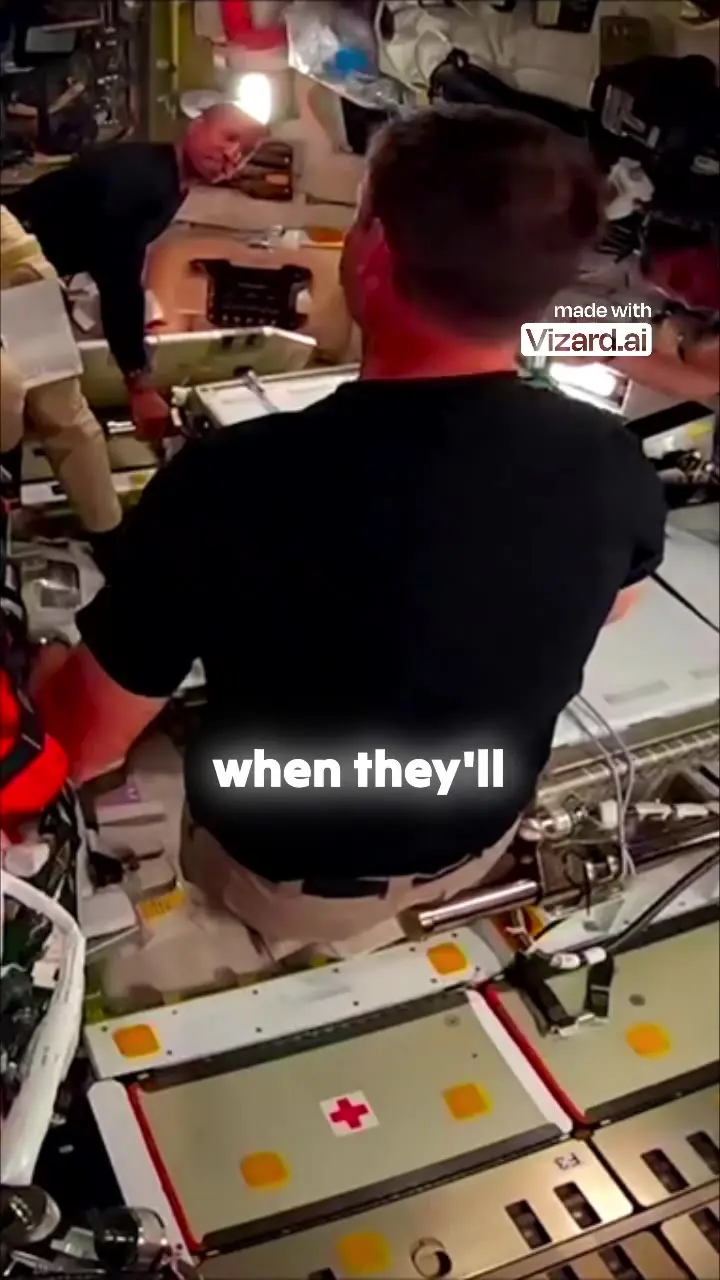
A 720x1280 clip downloaded from the free plan on 25 August 2026. The 720p ceiling is the free plan's, not a compression artefact of this screenshot.
It is also there the whole way through. These are crops of the same corner at six points across a 75-second clip — present at one second, unchanged at sixty-eight:
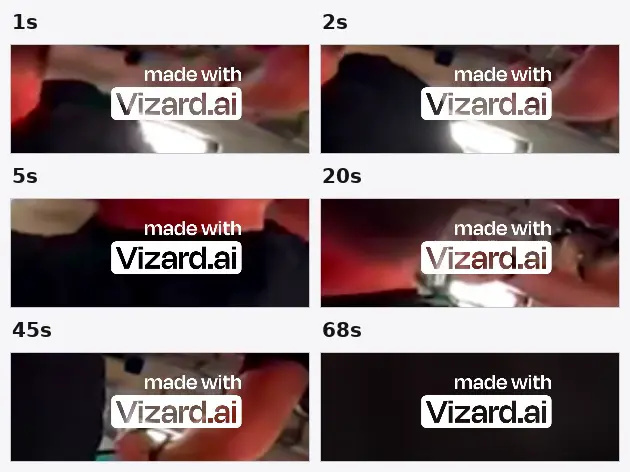
No fade-in and no gap. This is the difference from OpusClip, whose mark is absent for roughly the first four seconds — so on a very short clip OpusClip gives you unbranded footage and Vizard does not.
That rules out the entire category of "just strip the overlay" tools, and it means the remaining options all work by damaging the footage:
- Cropping it out — you can crop a video in a separate editor, but you'd be cutting part of every frame, which shrinks your usable area and can clip your subject or captions. If the mark sits anywhere near your content, cropping trades one problem for another.
- Third-party watermark removers — AI "watermark remover" tools tend to smear or blur the area they clean, leaving an obvious artifact on a 720p clip. You also inherit quality loss on an already quality-capped export, and many such tools sit in murky terms-of-service territory.
- Re-editing or re-encoding — running the file through another editor doesn't remove a baked-in mark; it just re-exports the same watermark.
The blunt conclusion from testing: there is no reliable free way to get a clean Vizard export. If a clip genuinely needs to be watermark-free for publishing, the dependable route is upgrading — not fighting the file afterward. The free plan is best treated as a way to evaluate output, not to produce finished, watermark-free clips.
What We Tested
We ran Vizard AI exactly as a small creator evaluating it would, on the free plan, with no paid features unlocked.
The setup:
- A fresh account on the Free plan with 60 monthly credits (Vizard counts 1 credit per minute of video)
- One short 27-second horizontal MP4 as the test clip
- The full path: upload → AI clip generation → result review → download
- The specific question at each step: is there a watermark, and can I get rid of it without paying?
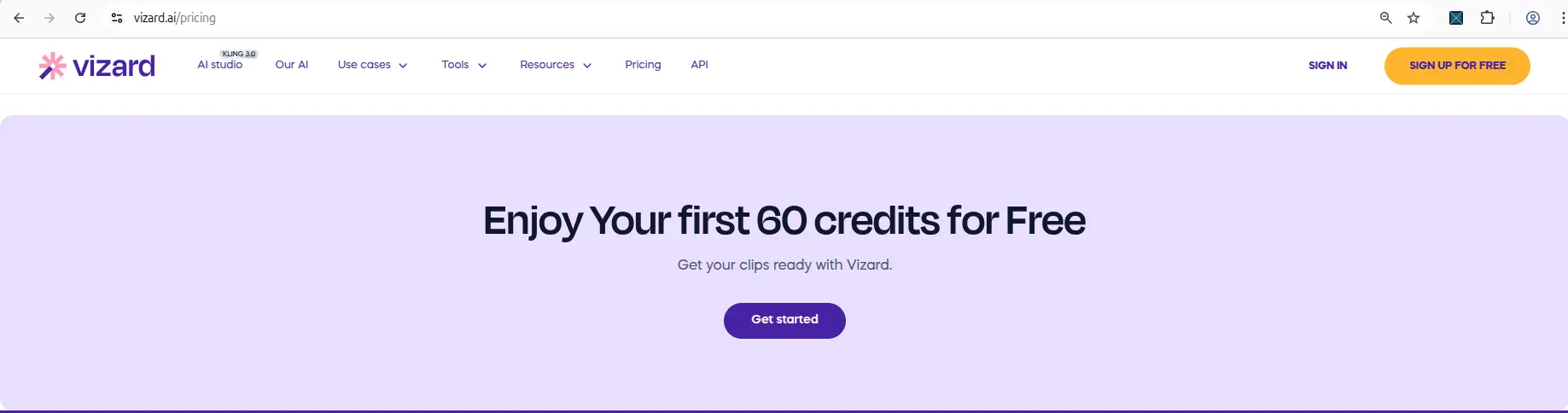
Vizard AI's free plan starts with 60 monthly credits — enough to test the workflow before deciding on watermark removal.
Sixty credits is plenty to test the watermark question — a single short clip costs about one credit, so you can run the full upload-to-download flow several times before limits become a factor.
Step-by-Step: When Does the Watermark Appear?
The useful detail most reviews skip is when in the workflow the watermark and its upgrade prompts actually surface. Here's what we saw, step by step:
- Upload — no watermark messaging. You drag in an MP4 (MKV is rejected with a format error), and the file uploads normally. Nothing here signals a watermark yet.
- Processing — Vizard consumes a credit and generates the AI clip. Still no watermark prompt; this is just the generation step.
- Result screen — this is where it first becomes visible. The generated clip appears with its score and a "Remove watermark" bar fixed along the bottom of the view. The export is labeled 720p with auto-generated captions burned into the preview.
- Download — clicking download is where the upgrade pressure peaks. Instead of an immediate file, Vizard first opens an upgrade modal. After closing it, the free download does complete — but the exported file is the watermarked version.
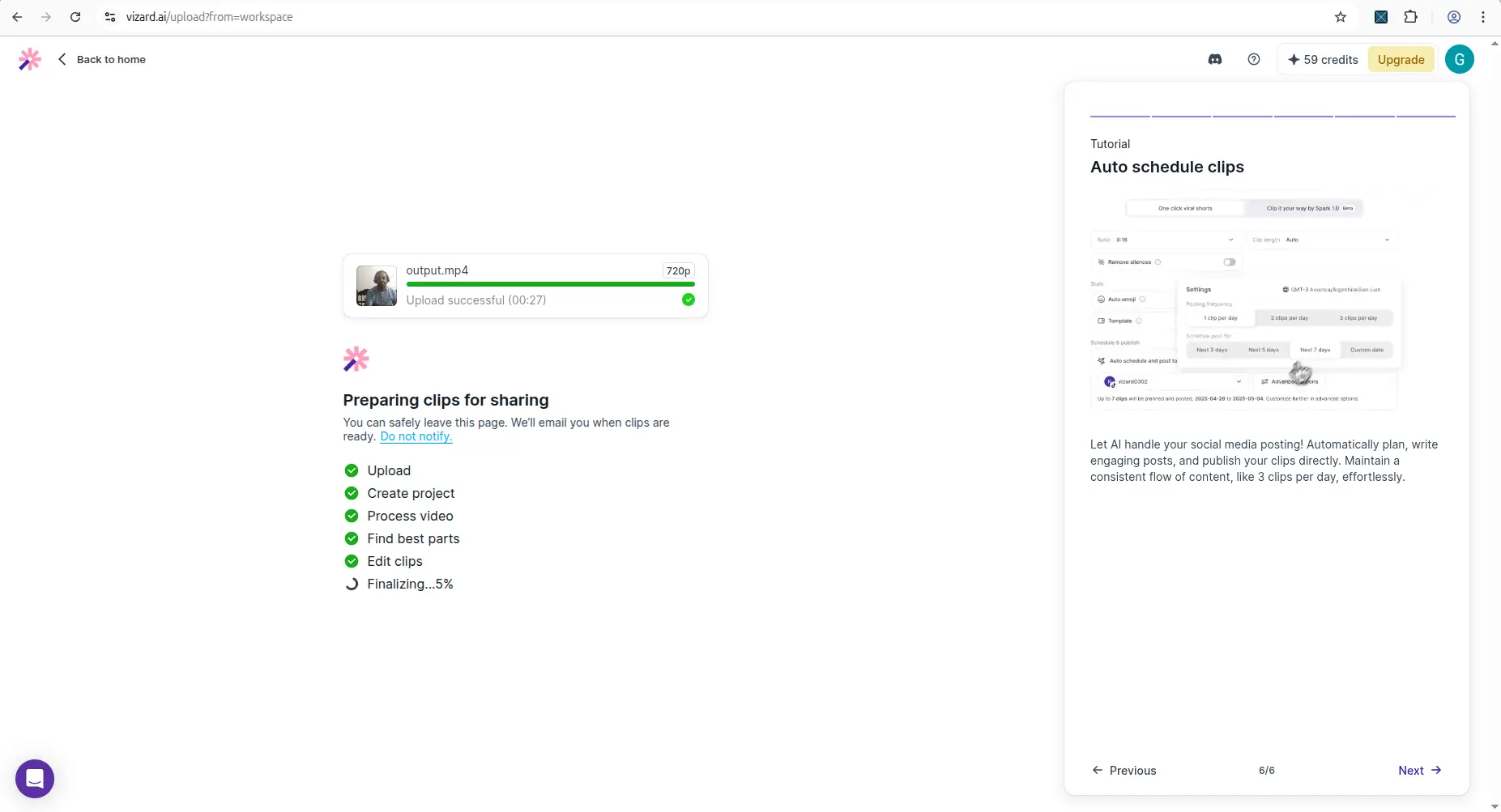
The clip processed on the free plan before reaching the result and watermarked-download steps.
The key takeaway: the watermark isn't a hard block. In our testing the free plan let us reach a real, downloadable file — the limitation is that the file carries Vizard's mark, with "Remove watermark" prompts standing between you and a clean export.
Every free plan runs out somewhere. Know where first.
The Free-Plan Reality Check: what OpusClip, Vizard AI, Submagic and Quso.ai actually let you do for $0 - from real signups, real uploads and real paywall hits.
What the Watermark Looks Like on Free Downloads
Here's where we'll be precise about what the evidence does and doesn't show. The result and download screens make the watermark status unmistakable, even though they don't zoom in on the mark itself.
On the result screen, the clip renders at 720p with burned-in captions, and a persistent gold "Remove watermark" bar sits at the bottom of the page — present the entire time you review the clip.
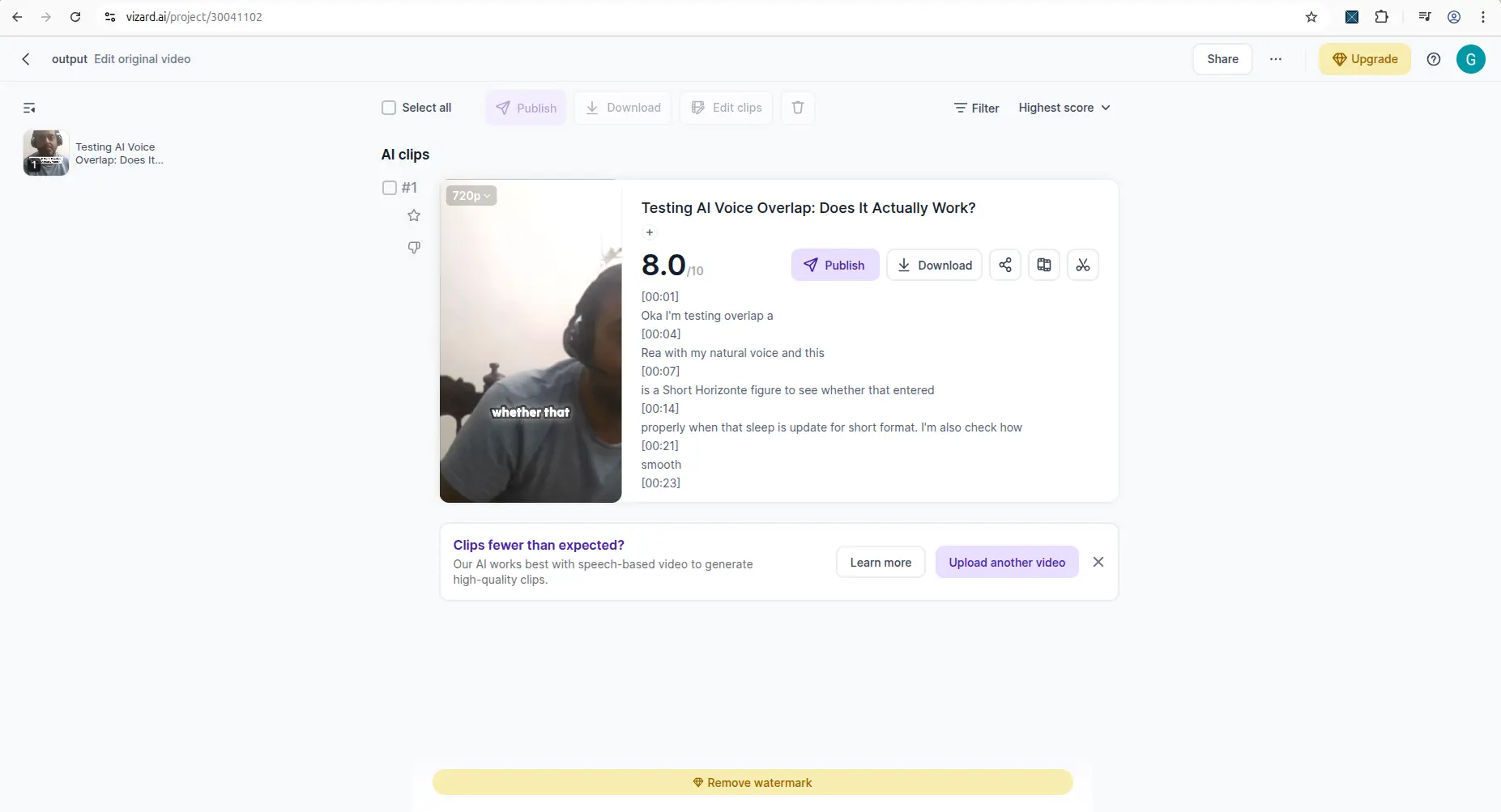
The result screen showed the 720p clip with burned-in captions and a persistent "Remove watermark" bar prompting an upgrade.
When you click download, Vizard opens an upgrade modal whose headline Creator-plan benefit is, in Vizard's own words, "Create high quality videos, no watermark." The same "Remove watermark" bar remains pinned beneath it.
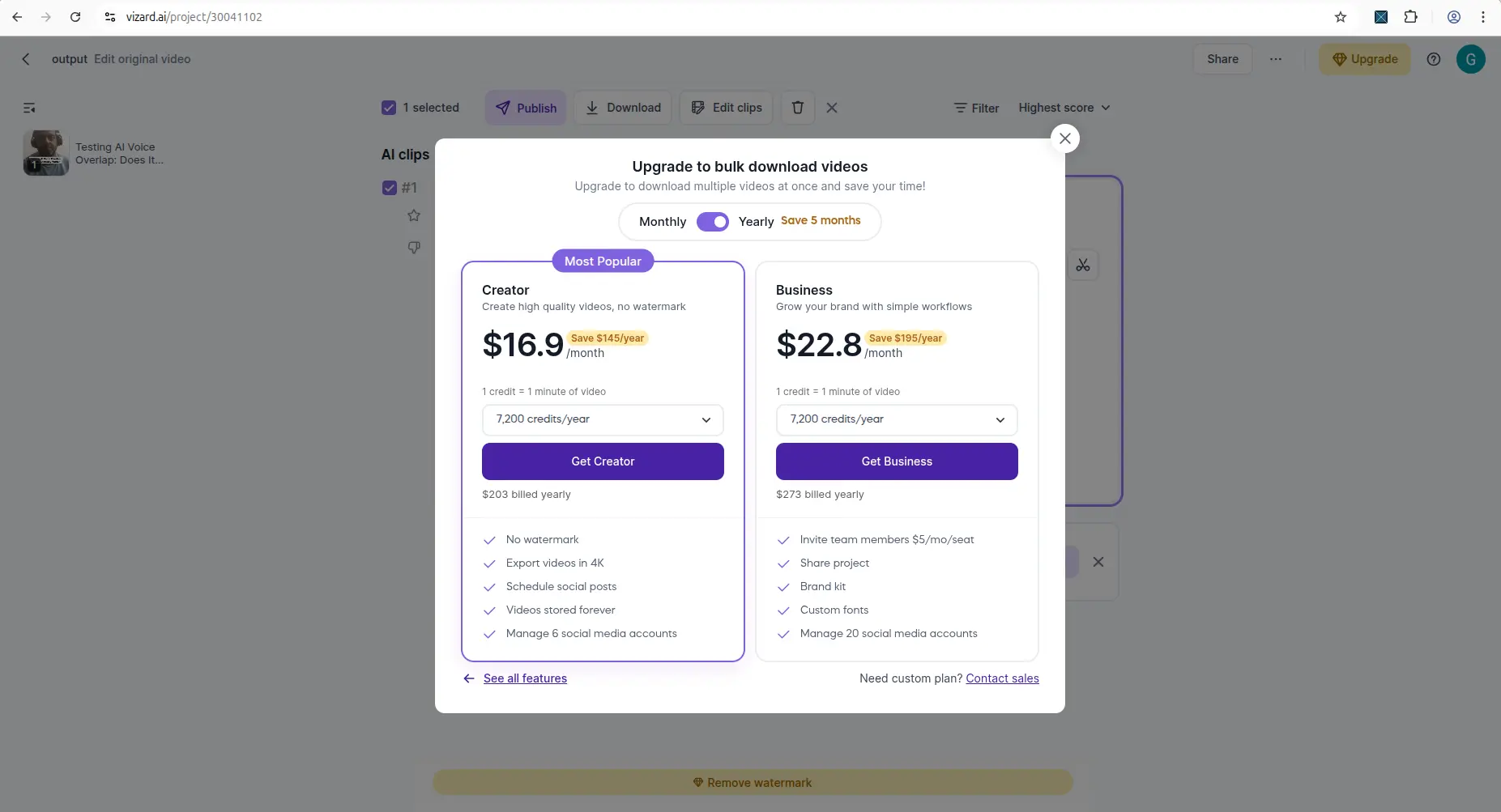
Clicking download on the free plan opened an upgrade modal — the Creator plan headlines "no watermark," with a "Remove watermark" bar fixed at the bottom.
In our hands-on test, the downloaded free file carried a visible Vizard watermark — the "made with Vizard.ai" wordmark in the upper right, present in every frame we sampled (see the frame and timeline crops above). The screens in this section show the prompts and upgrade flow around that file. What's firmly evidenced: the free export is 720p, captions are baked in, and Vizard brands the output unless you upgrade.
Is Watermark Removal on the Free Plan?
No — and Vizard's own pricing comparison removes any ambiguity. In the Video creation section of the compare-plan table, the "Watermark removal" row shows a dash (—) under Free, and a checkmark under both Creator and Business.
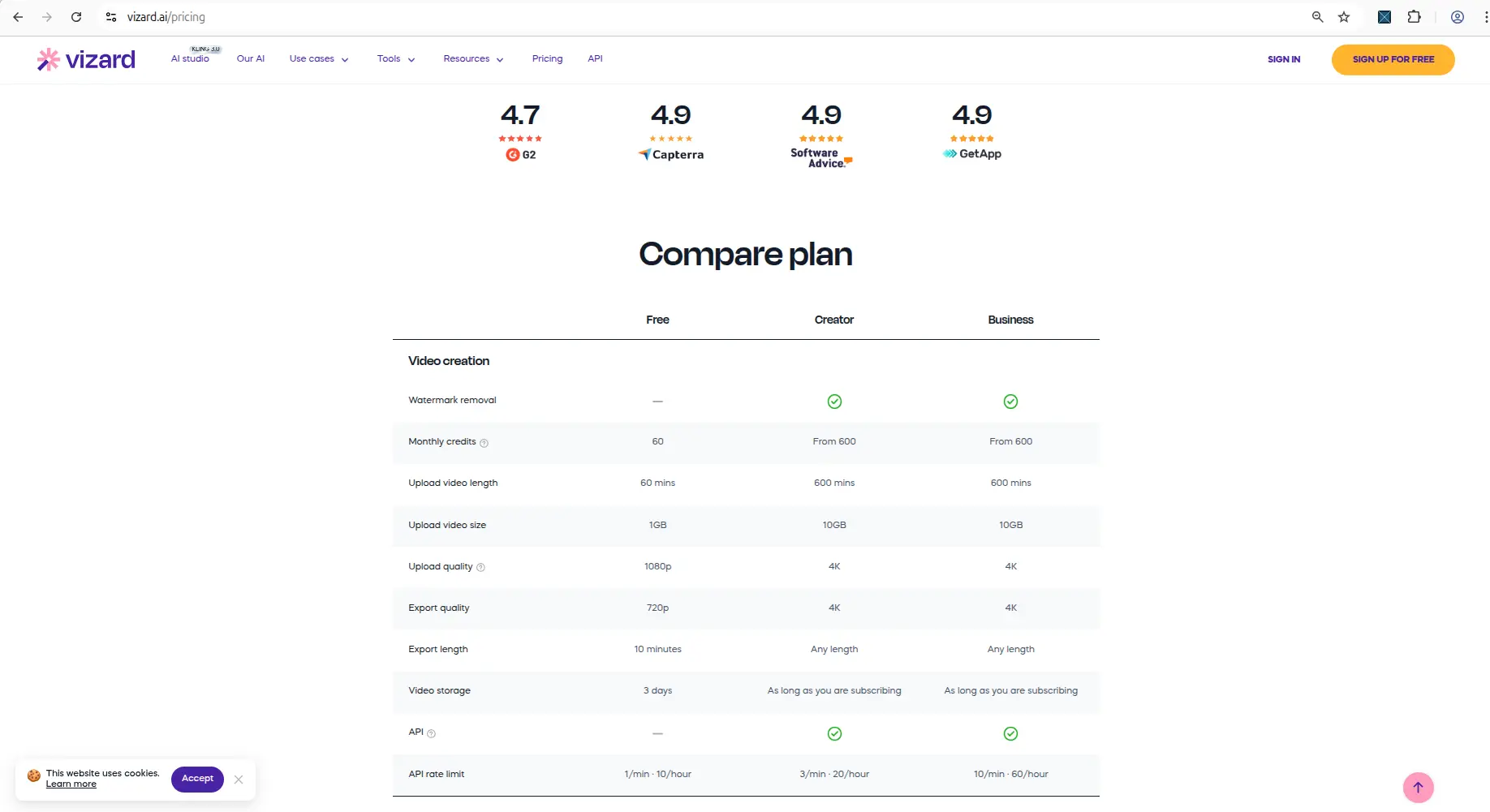
Vizard AI's plan comparison lists watermark removal under the paid Creator and Business plans — not the free plan.
The same table is worth reading for context, because watermark removal travels with other upgrades: Free exports at 720p with 3-day storage, while Creator and Business move to 4K export and keep videos as long as you subscribe. So removing the watermark isn't sold as a standalone toggle — it's bundled into the paid tiers alongside higher quality and longer storage.
Re-verified in August 2026
We ran the test again on 2026-08-25, this time on a 10-minute 1080p source put through both of Vizard's clipping models, and downloaded the finished clips to inspect them properly.
Three things were confirmed:
- The watermark is encoded into the video file, not drawn over the preview player. Downloaded clips carry it in the pixels, so there is nothing to toggle off after the fact.
- It appears on both clipping models. The newer Model v2 makes no difference — see Model v1 vs v2.
- The "Remove watermark" bar still carries a paid badge, alongside the 1080p, 2K and 4K export options.
Worth knowing if you are weighing the upgrade: watermark removal and the jump above 720p are gated together, so paying solves both at once. The full free-versus-paid boundary is in our Vizard AI review's free-plan section.
How Vizard AI's Watermark Compares to OpusClip, Submagic and Quso.ai
A watermark on a free plan is normal across this category — what differs is how far the free plan lets you get.
Vizard AI was the most transparent in our testing: the free plan actually produced a downloadable file. It's watermarked and capped at 720p, but you can hold the real output in your hands and judge quality before paying.
OpusClip behaves almost identically to Vizard, and
we confirmed it the same way on 14 September 2026: its permanent free
plan produced a real downloadable file, and ffprobe plus
frame extraction showed the OpusClip logo composited into the frames —
same mechanism, no overlay to strip. Two differences worth knowing.
OpusClip's free export comes out at 1080p where Vizard
caps at 720p, and OpusClip's mark is not on the whole
clip — it is absent for roughly the first four seconds, then
fades in and stays. Full teardown in does OpusClip
watermark your clips?.
Submagic is the most restrictive on this specific point: captions generate and the editor opens, but clicking Export returns "Your video's ready — upgrade to export." Confirmed 27 August 2026 — export is a paid feature. Where Vizard lets you download a watermarked file for free, Submagic gives you a preview and nothing to keep. Full teardown in why Submagic's export is paid-only.
Quso.ai does not get far enough to have a watermark question. Its free plan blocks clip generation outright, so no export — watermarked or otherwise — is ever produced. Details in what Quso.ai's free plan actually blocks.
Net: Vizard and OpusClip both hand you a real watermarked file, Submagic stops at a preview, and Quso.ai never generates the clip. Vizard gives you the clearest "download it and see" path of the four.
When Is It Worth Paying to Remove the Watermark?
Upgrade for watermark removal when the math is about output you'll actually publish, not curiosity:
- You publish Shorts regularly (several a week). A watermark on every clip reads as unfinished, and re-doing exports manually wastes more time than the subscription costs.
- You do client or brand work. Watermarked deliverables aren't acceptable, full stop.
- Your channel is growing or monetized, where a consistent, clean look matters to how the channel is perceived.
- You need better than 720p. Since Creator unlocks 4K export and longer storage alongside no-watermark, you're buying a quality tier, not just removing a logo.
Stay on free if you're testing the workflow, making the occasional clip, or still deciding whether Vizard's AI clipping and reframing are good enough for your content. In our testing the free plan was perfectly adequate for that evaluation job.
Decided a clean export is worth it? Test the workflow free first, confirm the AI clips are good enough for your channel, then upgrade for watermark removal plus 4K export and longer storage.
FAQ
Can I use Vizard AI without signing up?
Yes — and it is the only tool of the four we have tested that allows this. Re-tested on 25 August 2026 in a logged-out browser: pasting a video link starts processing immediately, and the finished clips download with no account. The catch is retention — an anonymous project carries a 24-hour countdown, and creating a free account extends that to 3 days. The clips are watermarked either way. (This changed since our April 2026 test, when a sign-up modal blocked processing.)
Is Vizard AI completely free?
No, but the free plan is real and permanent rather than a trial. You get 60 credits a month at 1 credit per minute of source video, and clips export at 720p with a watermark burned into every frame. Removing the watermark and exporting above 720p are paid features.
How many free credits does Vizard AI give you?
60 credits a month. We read this from Vizard's public pricing page on 15 September 2026 without signing in, so no account-specific promotion could affect what we saw, and it appears in three separate places on that page. If you have received an email offering "120 free minutes", treat it as a promotion attached to your account rather than the plan, and check your own balance before relying on it.
Does the Vizard AI watermark cover the whole clip?
Yes. We sampled frames at 1, 2, 5, 20, 45 and 68 seconds across a 75-second export and the mark is present in all of them — no fade-in and no gap. This is the difference from OpusClip, whose mark is absent for roughly the first four seconds, so a very short OpusClip clip can come out unbranded where a Vizard one cannot.
Bottom Line
Yes, Vizard AI watermarks free-plan exports, and removal is a paid Creator/Business feature — confirmed on Vizard's pricing and reproduced in our hands-on test, where the free download arrived watermarked at 720p with a standing "Remove watermark" prompt throughout the flow.
Stay on the free plan if you're evaluating the tool, making occasional clips, or fine with a watermark on test content — it genuinely lets you download and judge real output.
Upgrade if you publish regularly, do client work, or need clean 4K exports — at which point you're paying for a quality tier, with watermark removal as one part of it. Either way, test free first; don't pay to remove a watermark until you've confirmed the clips underneath it are worth publishing.
Related Pages
- Vizard AI Review 2026
- Vizard AI Model v1 vs v2
- Does OpusClip Add a Watermark?
- Submagic: Export Is Paid-Only
- Quso.ai: No Free Export At All
- Vizard AI vs OpusClip
- Is OpusClip free?
- AI Video Tool Free Plan Checklist
- Which AI video tools remove silences free? — none of the four, and Vizard AI not at any price