
Vizard AI Review: Free Plan Limits, Watermark & Credits Tested
Before you test this tool: New to AI video tools? Read our free plan checklist and how to test any tool in 15 minutes first. Choosing between tools? Compare Vizard vs OpusClip.
Vizard AI is an AI video repurposing tool that helps turn longer videos into shorter clips for platforms like YouTube Shorts, TikTok, Instagram, and other social channels.
But the important question for small creators is not just whether the tool looks good on the homepage.
The real question is:
Can you actually use Vizard AI’s free plan to test the workflow, generate a clip, preview it, and download the result?
I tested Vizard AI using the free workflow with Gmail signup, onboarding, dashboard access, a short 27-second horizontal MP4 video, AI clip generation, captions, 9:16 reframing, preview, editor access, and download.
This review is based on that hands-on test plus the pricing and feature limits visible during the review. Pricing and plan details can change, so you should manually verify the latest details on Vizard AI’s official pricing page before purchasing.
For a focused upgrade-decision breakdown, read my Vizard AI Free vs Paid guide. If you are deciding between AI clipping tools, also see my Vizard AI vs OpusClip comparison.
Disclosure: CreatorIntelHQ may earn a commission if you buy through some links. This review is based on hands-on testing and documented observations.
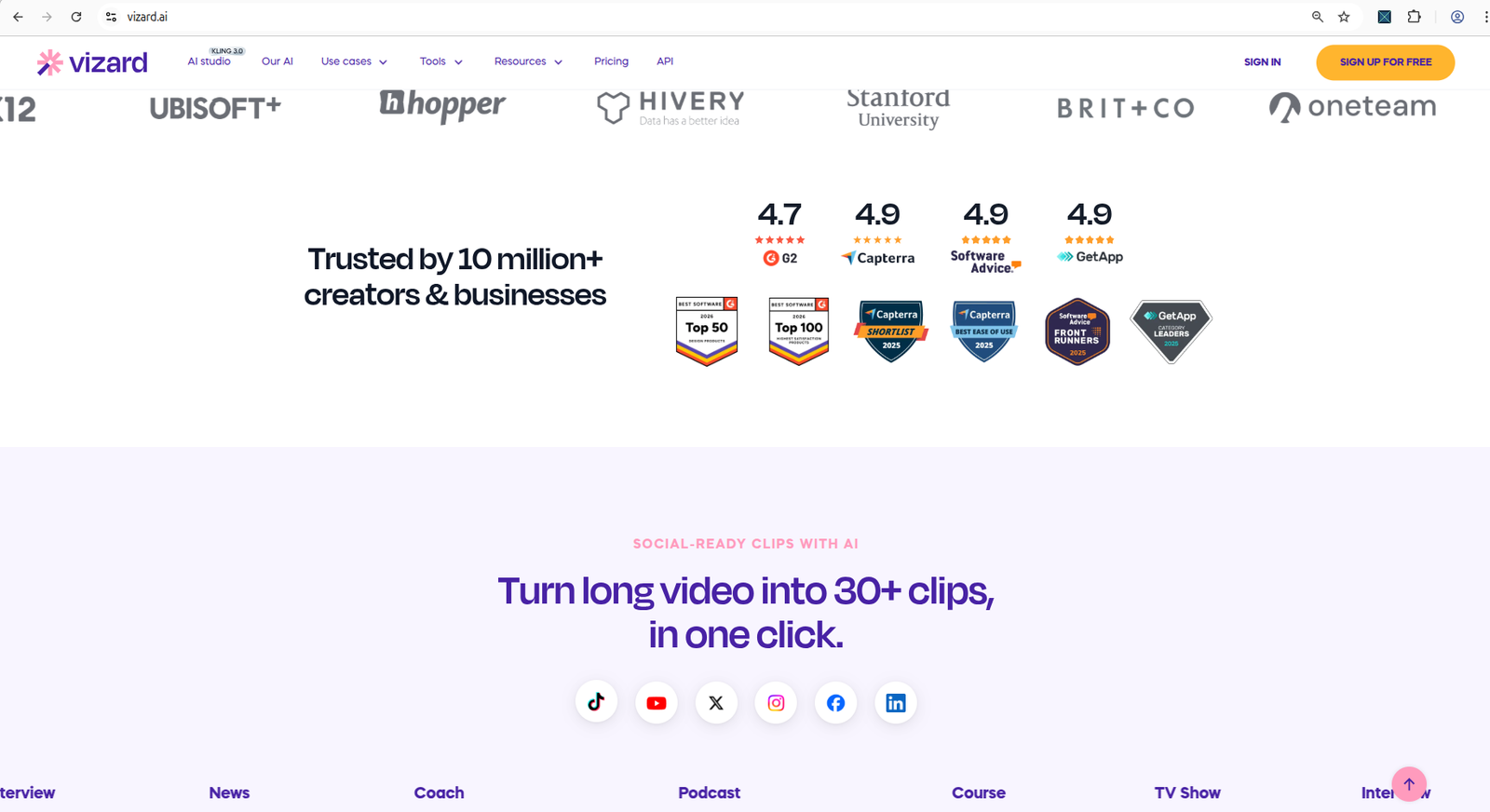
Vizard AI homepage explaining its AI video repurposing use case.
Based on hands-on testing · How we test creator tools
Quick Verdict
Best for: Small creators who want to test an AI video repurposing workflow with visible credits, MP4 upload, captions, editor access, and a watermarked free download.
Not best for: Creators who need a clean free export without watermark or who expect auto-generated captions and reframing to be ready without review.
Free plan usefulness: Useful for testing the workflow. In my test, the dashboard showed a Free plan with 60 credits, MP4 upload worked, and one AI clip was generated from a 27-second MP4.
Main limitation I noticed: The downloaded free video had a visible Vizard watermark, and the workflow included upgrade friction before the download completed.
My tested result: Vizard AI generated one clip, auto-created captions that still needed review, and produced 9:16 output where the subject was not perfectly centered.
Decision guide
Try Vizard AI if: You want to test AI clipping, captions, vertical reframing, editor access, and a free watermarked download before deciding whether to pay.
Compare first if: You are mainly choosing between AI clipping tools like Vizard AI and OpusClip, or if caption-first editing is more important than long-video repurposing.
Do not pay yet if: You have not checked the watermark, caption accuracy, reframing quality, credit use, and export result with your own video.
Best next step: Upload one short MP4 test video, generate a clip, download the free watermarked output, and decide whether the paid plan is worth it for watermark removal and higher limits.
Want to test the same workflow? Start with Vizard AI’s free plan and check upload, credits, captions, reframing, watermark, and download behavior with your own video before upgrading.
Vizard AI free plan test summary
| Test area | What I found |
|---|---|
| Signup | Gmail signup worked |
| Credits | 60 credits visible; test reduced balance to 59 |
| Upload | MP4 worked; MKV was rejected |
| Output | One AI clip generated from a 27-second MP4 |
| Captions | Auto-created, but needed review |
| Reframing | 9:16 worked, but subject was not perfectly centered |
| Download | Free download worked after upgrade prompt |
| Watermark | Downloaded video had visible Vizard watermark |
What is Vizard AI?
Vizard AI is positioned as a tool for turning longer videos into short social clips.
On its homepage, Vizard presents a workflow where users can upload or link a video, get AI-generated clips, and repurpose content for platforms like TikTok, YouTube, Instagram, or other social channels.
The homepage also shows claims such as turning long videos into multiple social-ready clips and highlights trust signals from review platforms.
These are official marketing claims, not my own test results.
My hands-on test was narrower: I tested whether a free user could move through signup, upload, AI clip generation, preview, captions, editor access, and download using a short 27-second MP4 video.
How I tested Vizard AI
For this review, I tested the free workflow as a small creator would.
My test included:
- Signing up with Google/Gmail
- Completing the onboarding questions
- Opening the first workspace/dashboard
- Checking the visible credit balance
- Uploading a short 27-second horizontal MP4 video
- Testing an unsupported MKV upload
- Generating an AI clip
- Previewing the result
- Checking captions and 9:16 reframing
- Opening the editor
- Trying the download flow
- Checking whether the free download included a watermark
After signing up with Gmail, Vizard showed a short onboarding survey. It asked about my role, how I heard about Vizard, and what goal I wanted to achieve.
After completing onboarding, I reached the workspace in about one minute. The first dashboard experience felt simple. A promotional popup appeared first, but I could close it easily.
The dashboard showed that I was on the Free plan with 60 credits available. The main area guided me toward the core workflow: paste a link, drag a video, upload a local file, import from Zoom, or record a video.
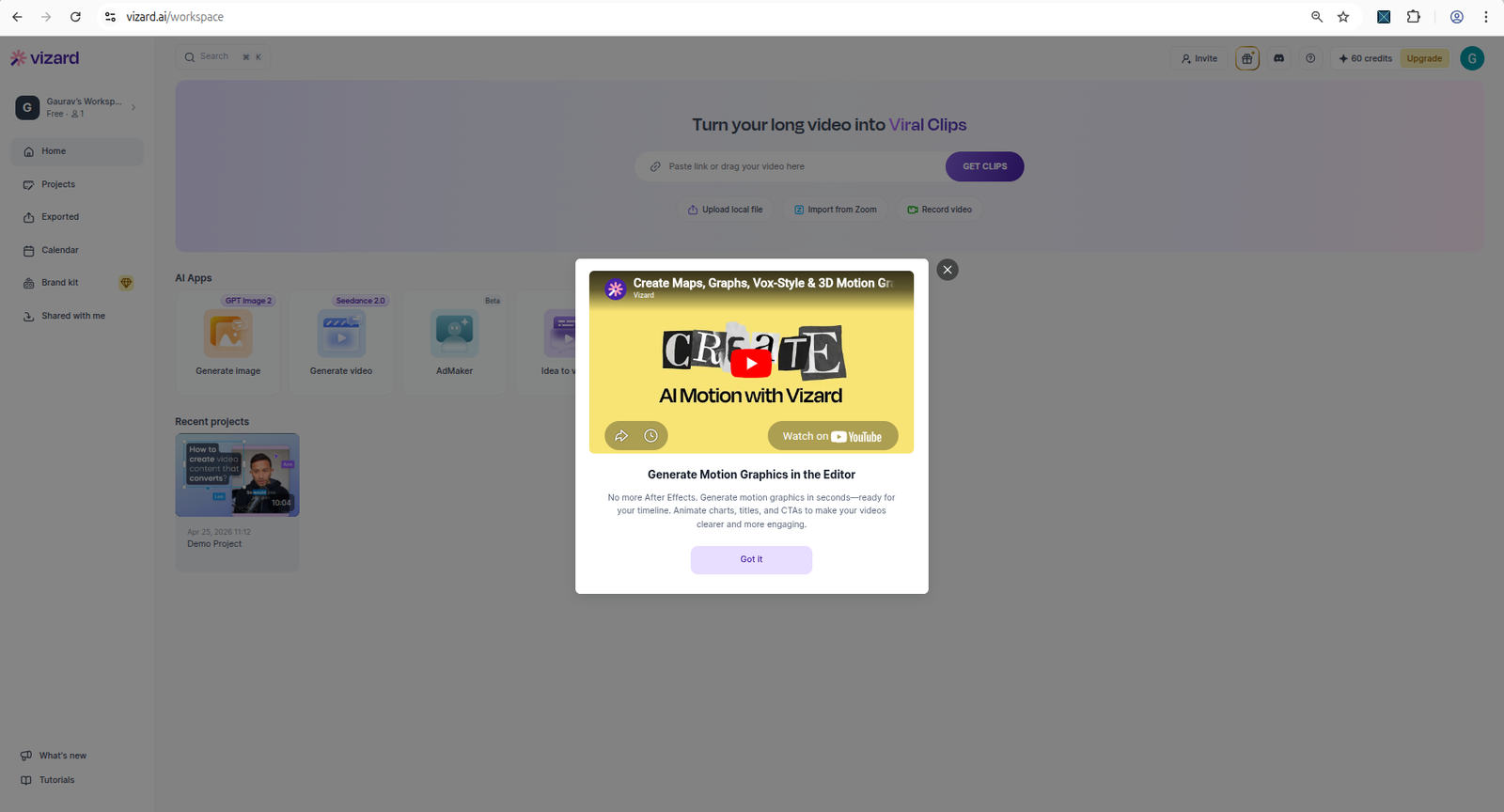
Vizard AI dashboard showing workspace options and available credits.
For a small creator, this first dashboard experience is helpful because the upload options and credit balance are visible without needing to search around.
Vizard AI free plan and pricing
During this review, Vizard AI’s pricing page showed three visible plans:
- Free
- Creator
- Business
The Free plan showed $0 with 60 credits per month, AI-generated clips, 720p export, full editor access, and 3-day storage.
During my test, the Creator plan was shown at $16.9/month on yearly billing, with 7,200 credits per year, no watermark, 4K export, scheduled social posts, and videos stored forever while subscribed.
During my test, the Business plan was shown at $22.8/month on yearly billing, with 7,200 credits per year and additional business features such as shared workspace, more social accounts, team members, shared project, brand kit, and custom fonts.
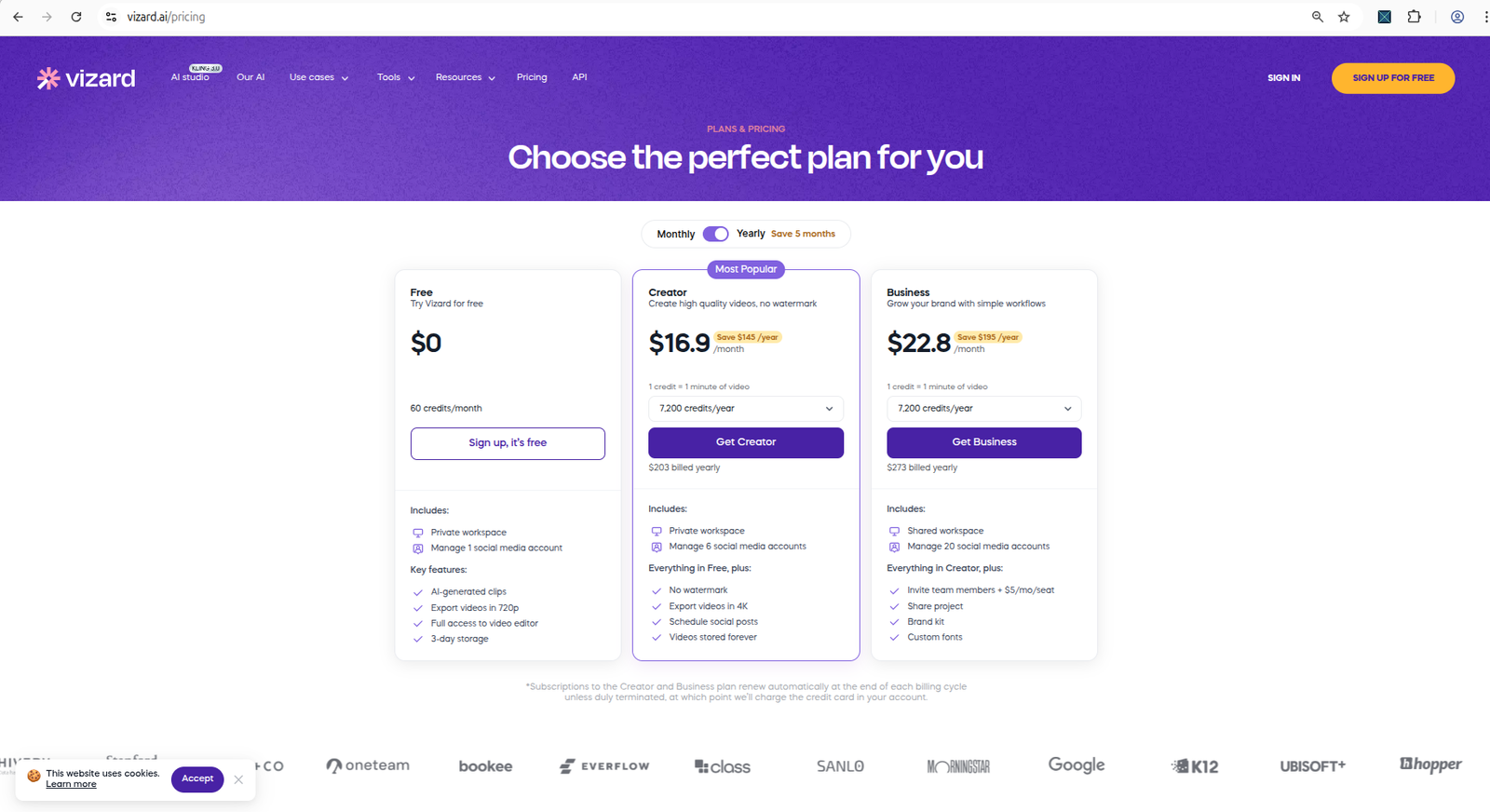
Vizard AI pricing page showing free-plan and paid-plan differences.
The compare-plan table also showed more detailed limits.
From the observed pricing table, the Free plan had:
- 60 monthly credits
- 60-minute upload length
- 1GB upload size
- 1080p upload quality
- 720p export quality
- 10-minute export length
- 3-day video storage
- No watermark removal
- No API access
- Lower API rate limits
Creator and Business showed higher limits, watermark removal, larger upload size, 4K upload and export, longer storage while subscribed, and API access.
Several AI and editor features appeared available across plans, including AI clipping, auto reframe, AI emojis, AI highlight keywords, and AI B-rolls. AI post suggestions appeared paid-only. AI processing speed appeared higher on paid plans.
Pricing and feature limits can change, so check Vizard AI’s official pricing page manually before purchasing.
Upload workflow and MKV limitation
The MP4 upload worked in my test.
However, I first tried uploading an MKV file from my local drive, and Vizard immediately showed an unsupported file format error instead of starting the upload.
The error message was useful because it listed the supported formats:
- MP4
- MOV
- 3GP
- AVI
- MP3
- WAV
- M4A
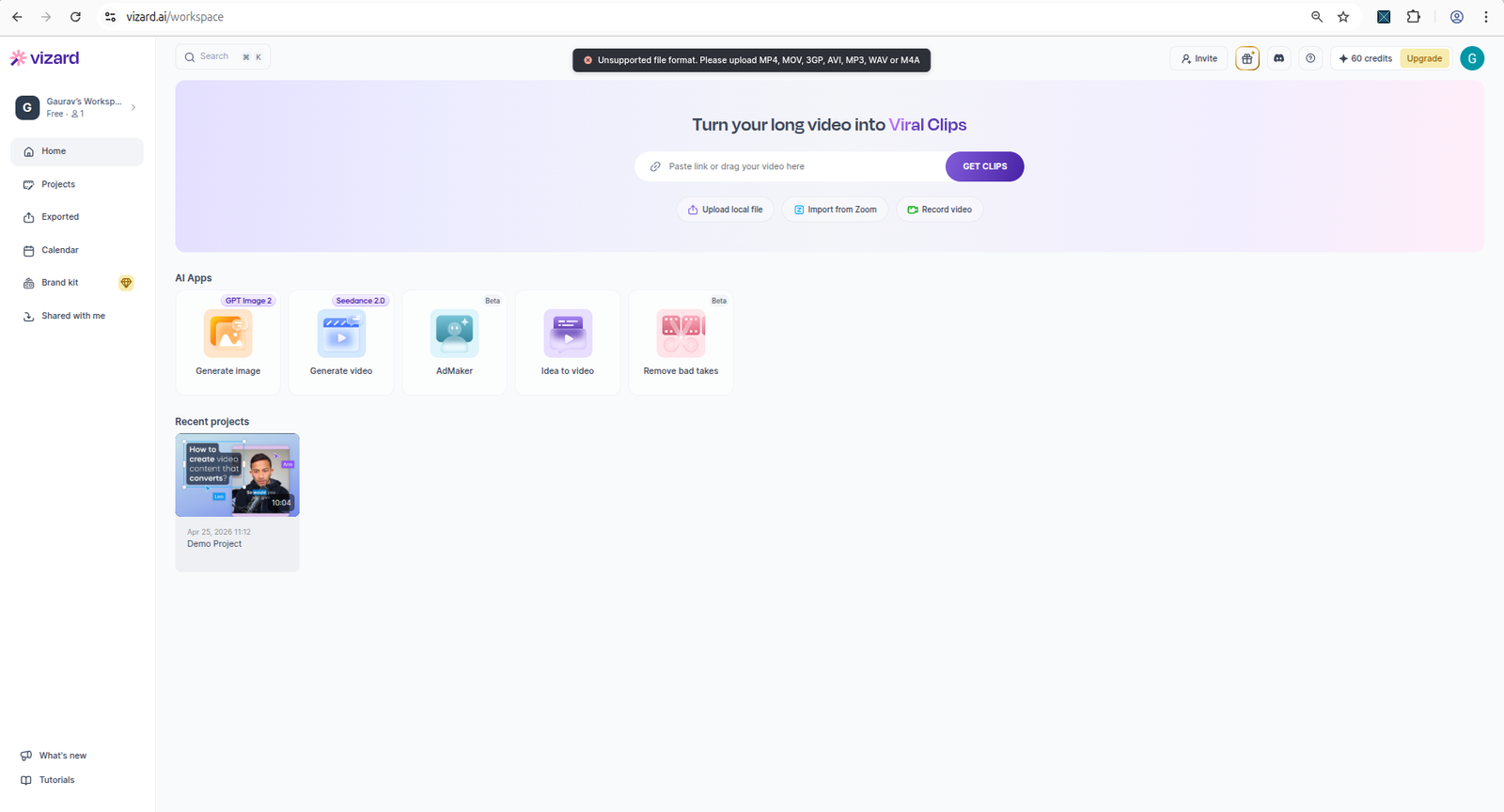
Vizard AI upload screen showing the tested file workflow or format limitation.
This matters for creators who record with tools like OBS, where MKV is a common recording format.
It does not completely block the workflow, but it adds an extra step. If your original file is MKV, you may need to convert it to MP4 before uploading it to Vizard AI.
AI clip generation result
Vizard generated one AI clip from my short 27-second horizontal MP4 test video.
The result screen showed:
- A generated clip title
- A score of 8.0/10
- A 720p label
- Transcript/caption segments
- Publish, download, and edit options
- A visible watermark
- A “Remove watermark” bar at the bottom
The clip used auto-created captions without requiring a separate subtitle file upload.
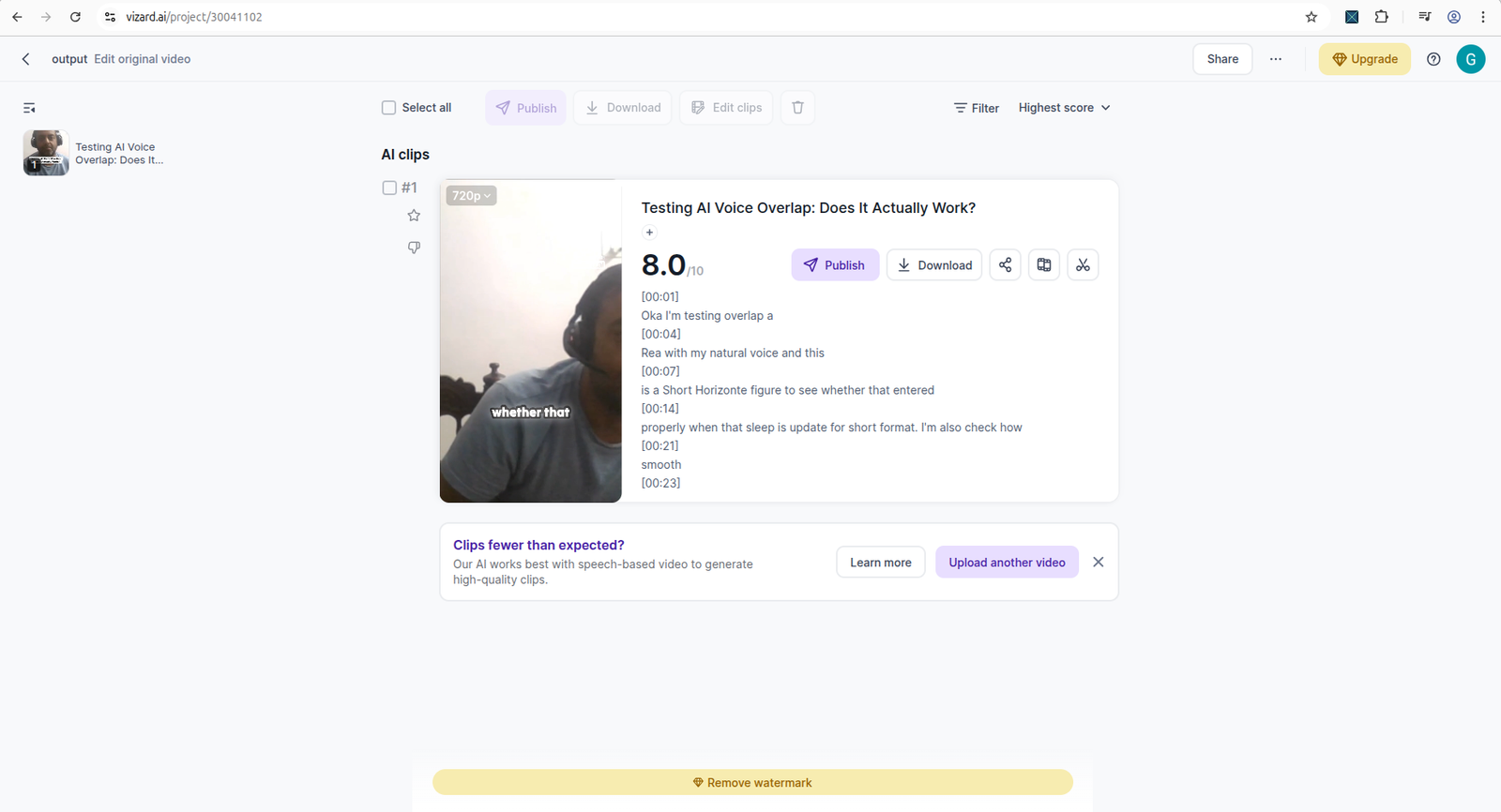
Vizard AI result screen showing generated clip, captions, and output controls.
This is a useful result for testing. It shows that the free workflow can go beyond a demo screen. In my test, Vizard accepted the MP4 upload, used credits, generated an AI clip, created captions, allowed preview/playback, opened the editor, and allowed download.
But this was only one short 27-second video.
This test does not prove how Vizard performs with longer videos, podcasts, interviews, multi-speaker videos, high-motion footage, or videos with different audio quality.
Captions and reframing
Vizard auto-created captions for the generated clip.
That is useful because I did not need to upload a separate subtitle file.
However, the captions still needed manual review. In my playback test, the captions were mostly understandable, but not every word looked correct.
The 9:16 reframing also needed review. Even though I selected a vertical format, the subject was not always kept properly centered during playback. Part of my face or body moved toward the edge of the frame.
So the safest conclusion is this:
Vizard AI can help create a short vertical clip with captions, but creators should still review the clip before publishing.
Do not assume the captions will always be perfect. Do not assume the reframing will always keep the subject centered.
Watermark and download behavior
The free-plan download behavior was one of the most important findings in this test.
When I clicked the small download icon inside the clip card, Vizard first showed an upgrade modal with Creator and Business plan options.
After closing the popup and trying again, I was able to download the generated file on the free plan.
However, the downloaded video included a visible Vizard watermark.
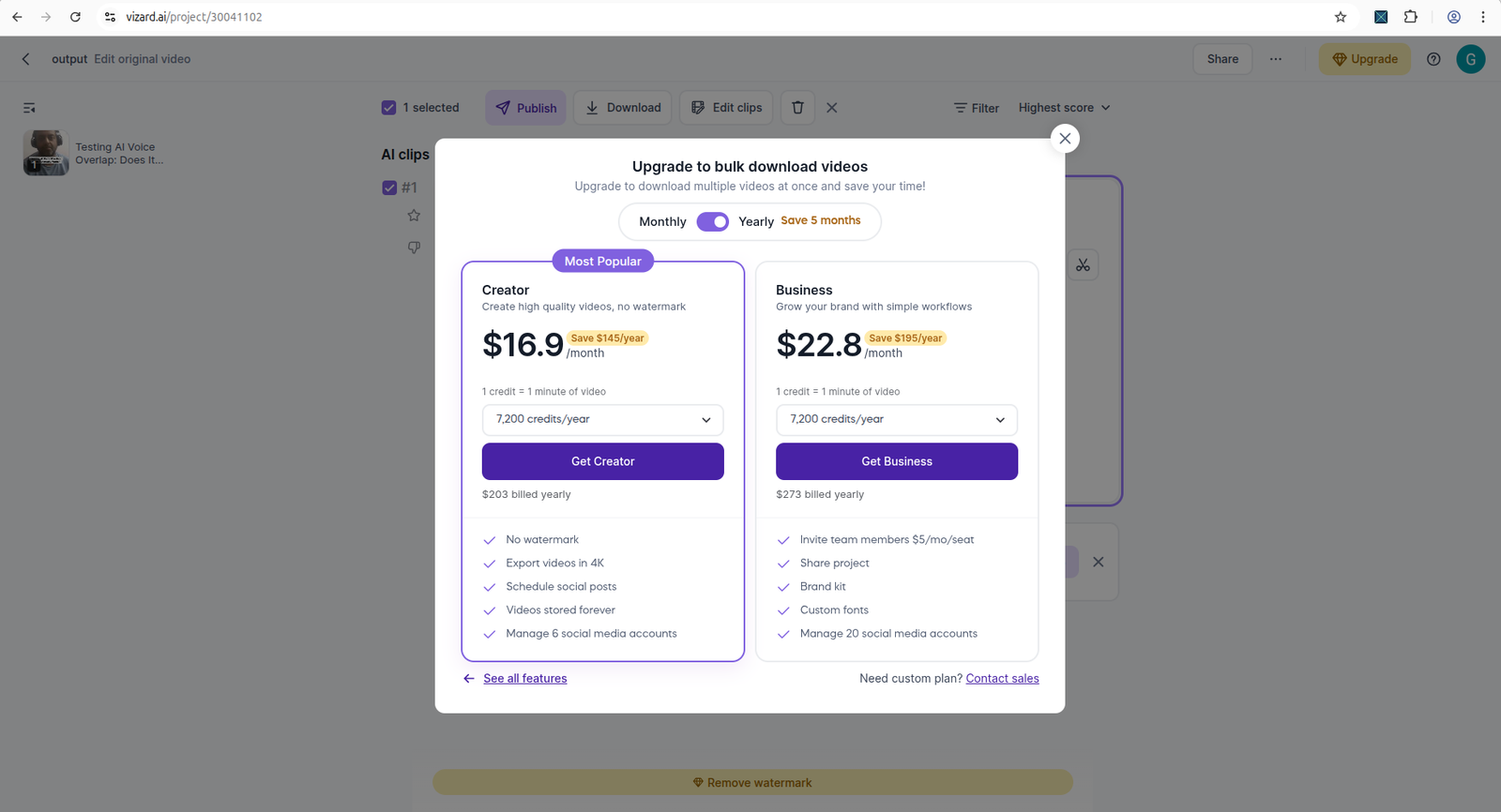
Vizard AI result screen showing the free-plan watermark and download/export state.
The preview also showed a visible watermark and a “Remove watermark” bar at the bottom of the page.
In this test, downloading did not appear to consume another credit. The credit balance reduced from 60 to 59 after upload/processing and stayed there after download.
So the practical takeaway is clear:
Vizard AI’s free plan allowed me to generate, preview, and download a clip, but the downloaded file had a visible watermark. For a dedicated upgrade-focused breakdown, see my Vizard AI Free vs Paid guide.
That makes the free plan useful for testing output quality, but not ideal for final publishing if you want a clean, unwatermarked video.
Pros and cons
Pros
Vizard AI’s free workflow was easy to start. I could sign up with Gmail, complete onboarding, and reach the dashboard quickly.
The dashboard clearly showed the Free plan and 60 available credits.
The upload workflow was visible and easy to understand.
The tool accepted a supported MP4 file and generated an AI clip from it.
Vizard created captions automatically without requiring a subtitle upload.
The result screen showed useful controls, including preview, transcript/caption segments, edit, publish, and download options.
The MKV error message was helpful because it clearly listed supported file formats.
The free plan allowed a watermarked download after the upgrade prompt was closed.
Cons
The downloaded free-plan clip had a visible Vizard watermark.
The download flow had upgrade friction before I could download the free result.
The free plan has meaningful limits around credits, export quality, export length, storage, and watermark removal.
The MKV upload did not work in my test, so some creators may need to convert files before upload.
Captions still need manual review.
The 9:16 reframing did not keep the subject perfectly centered in my short test.
The processing screen did not clearly communicate an ETA.
This test does not prove performance on longer videos, podcasts, multi-speaker content, or more complex footage.
Who should try Vizard AI?
Vizard AI is worth testing if you are a small YouTuber, creator, podcaster, or marketer who wants to quickly check whether AI clipping can help repurpose existing video content.
It is especially useful if you want to test:
- Whether your video can be uploaded
- How the AI clip result looks
- Whether captions are usable
- Whether the reframe works for your footage
- Whether the free-plan workflow is enough for evaluation
The free plan is less ideal if you need a clean final video without a watermark.
For publishing, you should check the paid plans carefully and verify the latest pricing, export, storage, and watermark rules before upgrading.
Who should skip Vizard AI?
You may want to skip Vizard AI’s free plan if you need a clean, watermark-free video for immediate publishing.
You should also be careful if your workflow depends on MKV files, highly accurate captions, or perfect automatic reframing. In my test, MKV upload was rejected, captions still needed review, and the 9:16 reframe did not keep the subject perfectly centered.
Vizard AI alternatives
If you are comparing AI video repurposing tools, Vizard AI should probably be compared with tools like OpusClip and other AI clipping platforms.
The key comparison points should be:
- Free-plan usability
- Watermark rules
- Credit limits
- Caption quality
- Reframing quality
- Export resolution
- Storage limits
- Editing controls
- Download behavior
- Social posting features
For a direct tool-by-tool comparison, read my Vizard AI vs OpusClip comparison.
If captions and short-form editing style matter more than full AI clipping, also read my Submagic Review to compare Vizard AI with a caption-first workflow.
You can also use our free tool to decide which creator tool fits your workflow:
Try the YouTube Tool Match Finder
You may also want to read our guide to the best YouTube tools for small creators or use this review as a reference when comparing Vizard AI with other AI video repurposing tools.
Final verdict
Vizard AI’s free plan is useful for testing the AI clipping workflow, but it has practical limits.
In my short 27-second MP4 test, Vizard allowed me to sign up, access the dashboard, see 60 credits, upload a supported MP4, generate one AI clip, preview it, open the editor, see auto-created captions, and download the result.
But the downloaded video had a visible Vizard watermark.
The tool also showed some areas that creators should manually review before publishing, especially caption accuracy and 9:16 reframing.
So my verdict is:
Vizard AI is worth testing if you want to quickly evaluate AI clipping and repurposing. The free plan is good for checking the workflow and output quality, but serious publishing may require upgrading if you do not want the watermark.
If you want to test the workflow yourself, start with the free plan and check whether the watermark, captions, and reframing quality are acceptable for your content before upgrading.
My practical recommendation: Test Vizard AI with one real MP4 before paying. If the free watermarked output, captions, and reframing are good enough for your workflow, then compare the paid plan for watermark removal, storage, and export quality.
Used one of these tools? Share your experience with CreatorIntelHQ so we can improve future reviews, comparisons, and free-plan guides for small creators.
Related AI video repurposing guides
- OpusClip Review 2026
- OpusClip Free vs Paid
- Submagic Review 2026
- Vizard AI Free vs Paid
- Vizard AI Free Plan Limits
- Vizard AI vs OpusClip
- Best AI Video Repurposing Tools
- AI Subtitle Tools for YouTube Creators
- Best Tools for Small YouTube Creators
FAQ
Is Vizard AI free?
Vizard AI had a Free plan during this review. The observed Free plan showed 60 monthly credits, AI-generated clips, 720p export, full editor access, and 3-day storage. Pricing and limits can change, so verify the latest details on Vizard AI’s official pricing page before purchasing.
Can I download videos on the Vizard AI free plan?
In my test, yes. When I clicked the download icon, Vizard first showed an upgrade modal. After closing the popup and trying again, I was able to download the generated clip. However, the downloaded video had a visible Vizard watermark.
Does Vizard AI add a watermark?
In my free-plan test, the downloaded clip included a visible Vizard watermark. The preview also showed a visible watermark and a “Remove watermark” bar.
How many credits did Vizard AI use in the test?
The dashboard showed 60 credits before the workflow. After upload and processing, the balance reduced from 60 to 59. Downloading did not appear to consume another credit in this test.
Does Vizard AI support MKV files?
In my test, the MKV upload was rejected as an unsupported file format. Vizard listed supported formats including MP4, MOV, 3GP, AVI, MP3, WAV, and M4A. If you record in MKV, you may need to convert your file to MP4 first.
Are Vizard AI captions accurate?
Vizard auto-created captions in my test without requiring a subtitle upload. The captions were mostly understandable, but not every word looked correct. You should manually review captions before publishing.
Does Vizard AI reframe videos for YouTube Shorts?
Vizard generated a vertical 9:16 clip in my test, but the subject was not always centered during playback. Reframing should be checked manually before publishing.
Is Vizard AI good for YouTube Shorts?
Vizard AI can help test AI clipping for YouTube Shorts-style content. In my test, it generated a vertical clip with captions from a short horizontal MP4. However, the free download had a watermark, and the captions and reframing still needed manual review.
Is Vizard AI worth it?
Vizard AI is worth testing if you want to evaluate AI video repurposing quickly. The free plan is useful for testing the workflow and output quality. Whether it is worth paying for depends on your need for watermark removal, higher export quality, longer storage, larger uploads, and paid workflow features.