
Five AI Clippers, One NASA Clip: Only Two Gave Us a File
Same video. Same length. Same goal: turn one short clip into a YouTube Short on the free plan, and walk away with a file.
Five tools. Five completely different experiences. Two of them never let the clip generate at all. This isn't a spec-sheet comparison where everything looks identical because every tool "supports 9:16 reframing" — it's a play-by-play of what actually happened when the exact same MP4 went into each one. If you want to genuinely compare AI video repurposing tools on the free plan as a small YouTuber in 2026, this is the honest version.
Based on CreatorIntelHQ methodology · How we test creator tools
Which AI Clippers Actually Give You a File?
⚠️ Which AI clippers actually give you a file on a free plan?
Two of five — OpusClip and Vizard AI. Everything else either blocks the export or never generates a clip at all.
- OpusClip — a real 1080p download, and our test export cost zero credits. The logo is composited into the frames, but absent for roughly the first four seconds.
- Vizard AI — 720p, watermark burned into every frame with no gap. The only one of the five that works with no account at all.
- Submagic — the editor refuses to export. Its API returns a file with no watermark on it, which needs an API key and a publicly reachable video URL.
- Quso.ai — generation is blocked before a clip exists. No export, watermarked or otherwise.
- Klap — no free plan at all. It displays a 120-clip allowance you cannot spend.
"Free plan" and "free export" are different things in this category, and only two of the five let you judge the output before paying.
The test setup
The rules were kept dead simple so the tools couldn't hide behind different conditions. Every tool was given the identical source file: a 90-second, 1080x608 clip from NASA's Artemis II Flight Day 8 highlights. It is public domain, so anyone can repeat this test on the same footage, and it contains real spoken narration rather than a synthetic voice.
That choice matters. A comparison where each tool gets different footage measures the footage, not the tools. This is the same file used across every tool review in this category, so the results here line up with the individual teardowns rather than contradicting them.
The goal for each tool was the same: upload it, let the AI clip and caption it, reframe it to vertical, and download the result on the free plan without paying.
"Success" meant one thing: a finished vertical clip in the downloads folder. Not a preview. Not a "you could upgrade for this." An actual file. Here's how each tool did against that bar.
Vizard AI — what happened
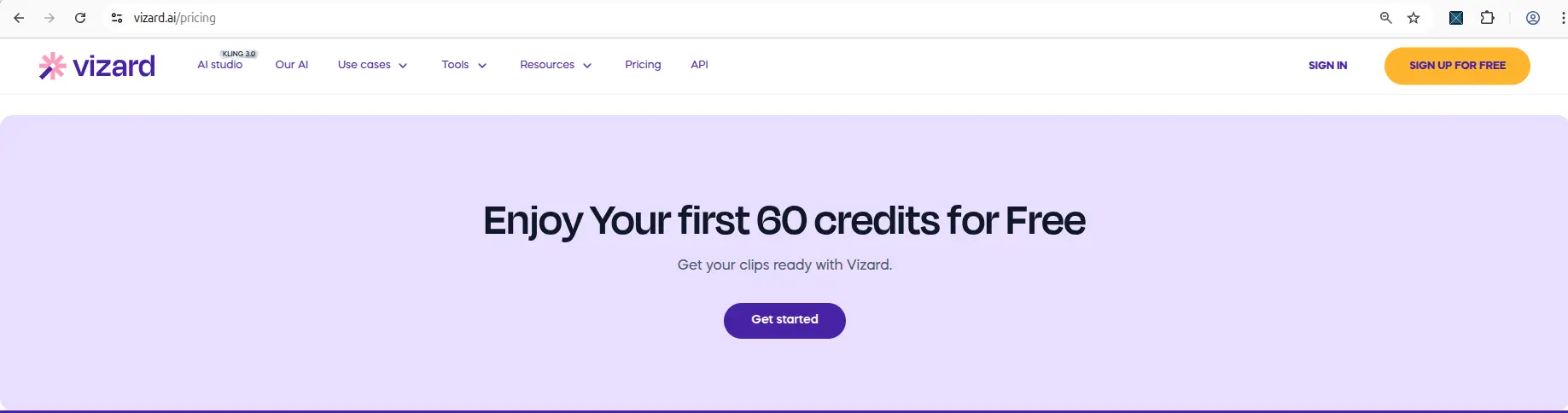
Signup was painless: Google login, no card, then a quick three-step survey asking about role, where you heard about it, and your main goal. Land on the dashboard and there they are — 60 credits, right out in the open. That transparency set the tone.
Uploaded the MP4 and the credit meter immediately ticked from 60 to 59, so you could see exactly what the job cost. (A quick aside: when an MKV was tried first, Vizard rejected it and listed its supported formats — MP4, MOV, 3GP, AVI, MP3, WAV, M4A — so the MP4 was the retry.) Processing was genuinely fast: the 90-second clip was done in under a minute. Vizard generated a clip with a score attached, its guess at how the moment would perform.
Then the two catches. Watching the vertical playback, the 9:16 reframe didn't keep the subject centered — the framing wandered. And clicking download brought up an upgrade modal (Creator and Business plans); closing it let the download proceed, but the finished file carried a visible Vizard watermark. Result: finished file — yes, watermarked. The clip exists in your downloads, it just has Vizard's name on it.
OpusClip — what happened
OpusClip gives you two doors, and which one you pick changes what you learn. There is a permanent free plan at 60 credits a month — the like-for-like match with Vizard — and a separate 7-day Pro trial with 10 credits, no card. Take the trial and you are previewing the paid tier, watermark removal included, which is precisely what the free plan does not give you. We have now run both. The interesting thing to watch on either is the credit meter, because it's brutally honest. Generate a clip and it drops by one. Run another action and it drops again. Every AI operation costs exactly one credit and you see it happen, so you're never guessing what you have left.
The clip opened with transcript analysis and edit actions ready to go, inside the full editor. The reframe is where OpusClip pulled ahead: the AI Reframe was configured explicitly — 9:16 aspect ratio, Fill layout, Original crop — and it completed as its own reviewable step, so you could actually check the vertical framing rather than hoping the AI got it right. The transcript itself was mostly understandable but had noticeable wording mistakes, so a caption cleanup pass was still needed.
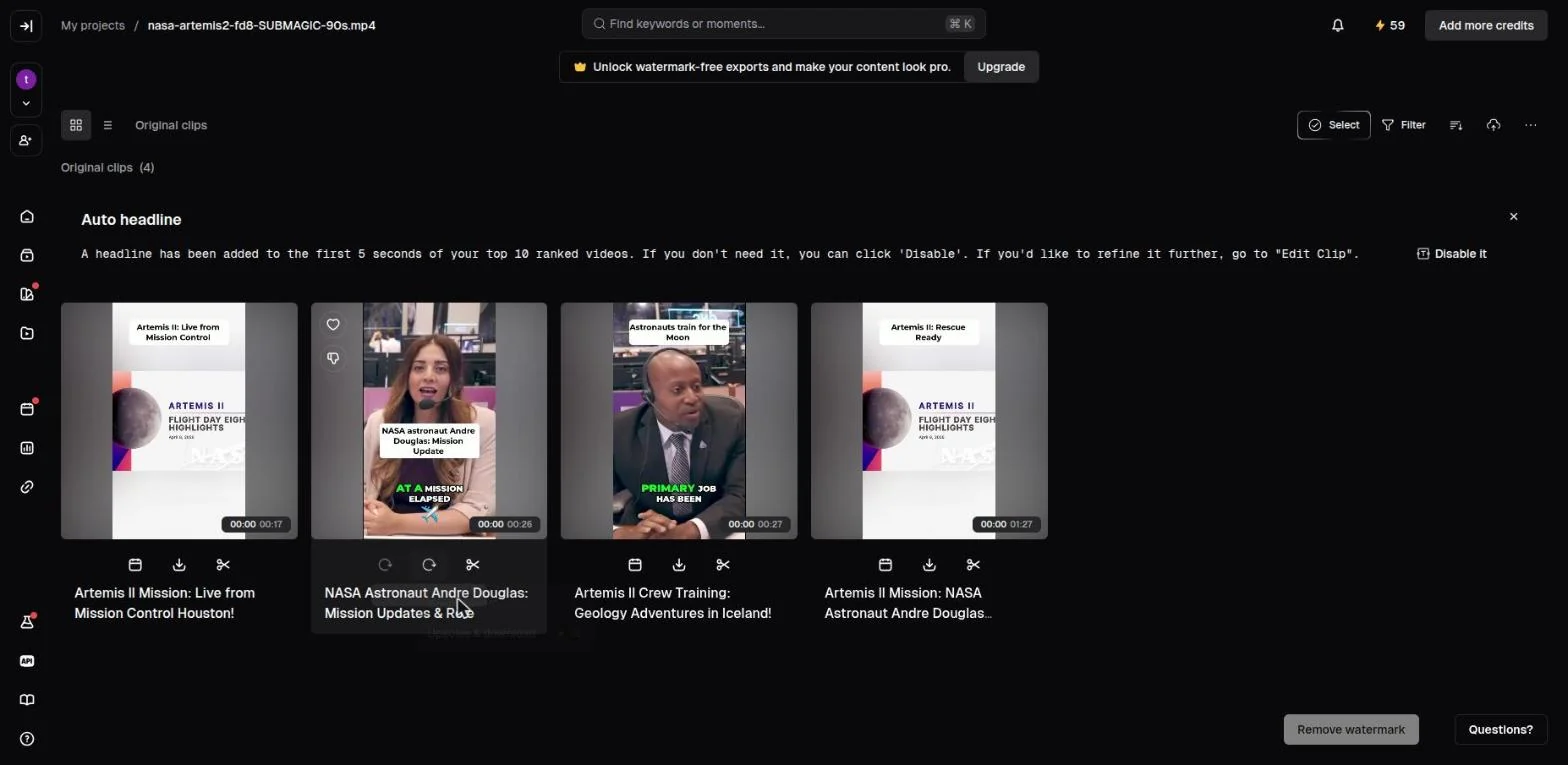
OpusClip on the permanent free plan, 14 September 2026. The
project name is nasa-artemis2-fd8-SUBMAGIC-90s.mp4 — the
same source file every tool here was given. Four clips generated, each
with a download control, credits at 59. The "Remove watermark" button
bottom-right is the only thing behind a paywall; the file itself is
not.
At the finish line, Download HD used to throw a popup stating plainly that free and trial users get an OpusClip watermark. It no longer does — re-tested September 2026, the file downloads silently and you find the logo when you open it. Result: finished file — yes, watermarked, with the most control over the reframe of any tool here.
Submagic — what happened
Submagic felt like the smoothest ride right up until the last step. Signup: no card, and the dashboard showed the free-trial allowance clearly — 3 video projects, 1 Magic Clip, 10 API minutes. Upload was clean (it takes MP4, MOV, or MP3, up to 10 minutes and 2GB), and the caption workflow was the fastest and nicest of the four. A captioned clip opened in the editor looking sharp. At this point you'd bet money it was going to work.
Then came Export — and the mood changed. In our May 2026 session an upgrade popup appeared, then a second referral popup, and the editor still showed "Watermark applied". We concluded at the time that a determined person could probably grind out a watermarked file.
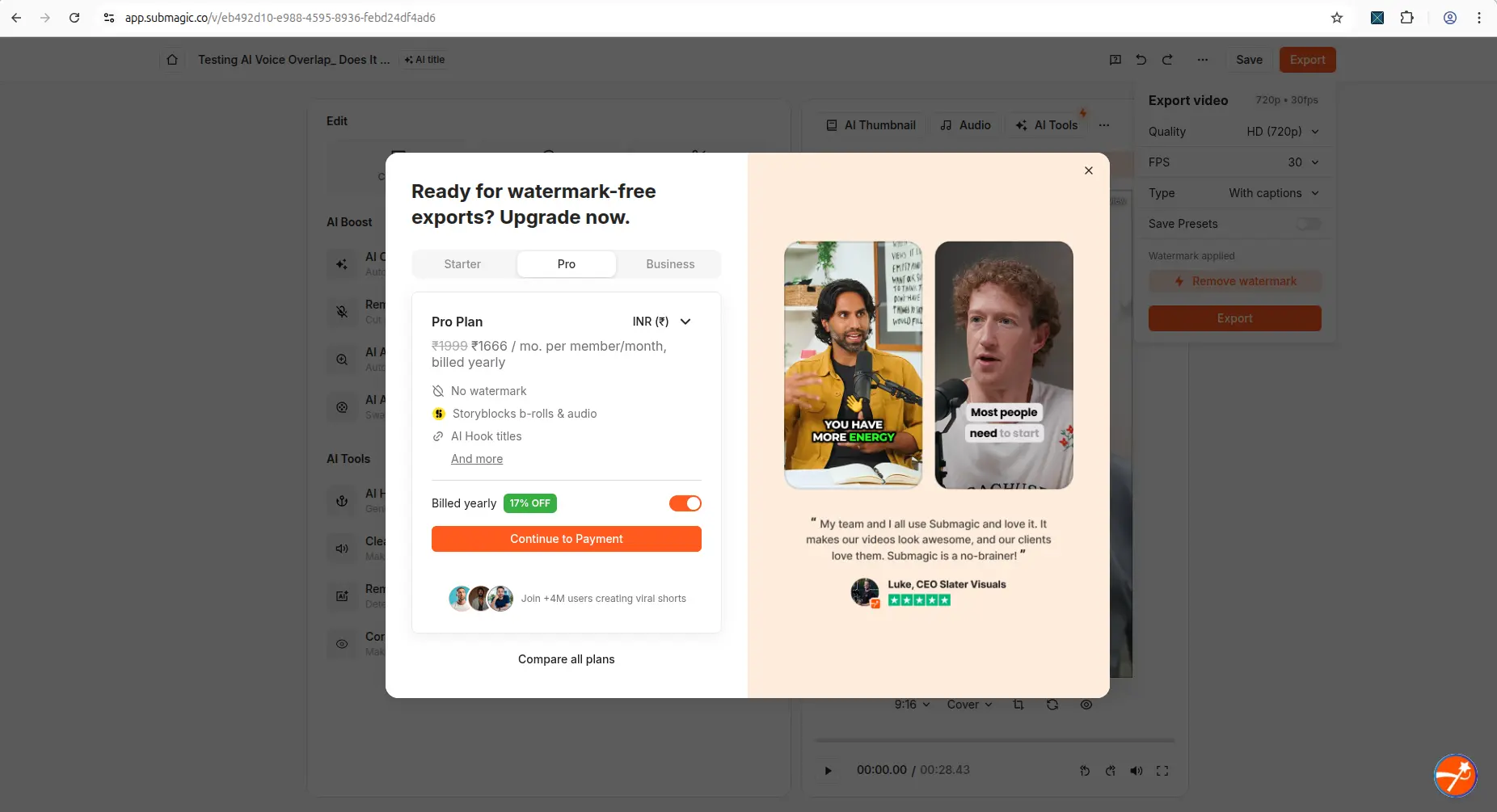
⚠️ Re-tested 27 August 2026 on a fresh account, that is no longer true. The wall is explicit: "Your video's ready — upgrade to export." No file, no partial file, no way through. Either our May reading was too generous or Submagic tightened the trial between May and August; we cannot tell from the outside and will not guess. Result: preview beautiful, export blocked — from the editor. Its API is the exception, covered below.
Quso.ai — what happened
Quso.ai looked the most promising on paper — a free plan advertising 75 credits a month, 720p, AI Clips and Captions, YouTube Chapters, direct TikTok publishing. The onboarding was the longest of the four: name, role, a goal question ("I just want shorts from my videos" versus "I need a system for my social media"), where you heard about it, and a live-training upsell before the dashboard would even load.
Then the actual test. The MP4 uploaded and reached the pre-generation screen, with an estimated cost of about 1 credit shown. (A YouTube-link test hit the same flow, estimated at ~8 credits.) Everything looked ready. Click Generate clips — and a paid-plan upgrade modal appeared instead, pushing Lite, Essential, and Growth. No processing. No credits deducted. No clip. The same thing happened on both the MP4 and the YouTube link.
And the walls didn't stop there — an upgrade modal after onboarding, "Unlock Now" on Posts, "Unlock AI Planner" on the Planner, sample-only data on Analytics. Even the billing page never showed the 75 credits the pricing page promised. Result: no file, no clip, no way to judge the output — generation was blocked before it began.
Side by side — the honest comparison
Same clip, four outcomes. Here's how they stack up on what actually matters.
| What matters | Vizard AI | OpusClip | Submagic | Quso.ai | Klap |
|---|---|---|---|---|---|
| Upload accepted the file | Yes (MKV rejected, MP4 fine) | Yes | Yes (MP4/MOV/MP3) | Yes (MKV rejected, MP4 fine) | Yes |
| Workflow completed on free | Yes | Yes | Editor yes, export blocked | No — blocked at generate | No — blocked at generate |
| Got a downloadable file | Yes, watermarked | Yes, watermarked | Not from the editor. Yes via its API | No | No |
| Watermark on free output | Burned into every frame, no gap | Composited into frames, absent for roughly the first four seconds | None at all on the API export | Never produced one | Never produced one |
| Export resolution | 720p | 1080p | 1080x608 via API | — | — |
| Account required to try | No — a pasted link processes and downloads anonymously | Yes | Yes | Yes | Yes |
| Credit transparency | High — 60 shown, ticks to 59 | High — 10→9→8→7 per action | Two pools: 15 credits + 10 API minutes | Low — estimate only, balance hidden | Misleading — shows 120 clips you cannot spend |
| Friction (1 smooth – 5 blocked) | 3 | 2 | 4 | 5 | 5 |
Every free plan runs out somewhere. Know where first.
The Free-Plan Reality Check: what OpusClip, Vizard AI, Submagic and Quso.ai actually let you do for $0 - from real signups, real uploads and real paywall hits.
Where export actually failed
The table above compresses this, but three of the five deserve the detail, because "free plan" and "free export" turned out to be very different things.
Quso.ai — stopped before generation even finished
Quso.ai has the most generous-looking free plan on paper. The pricing page lists 75 credits a month, 720p rendering, AI Clips and Captions, YouTube Chapters, and direct TikTok publishing. Reading that, you'd assume you're getting a real workhorse for zero dollars.
Then you actually use it. A YouTube link was pasted in, and Quso detected the video, showed a language selector, and displayed an estimated cost of about 8 credits to generate clips. Reasonable. Click Generate clips — and instead of processing, a paid-plan upgrade modal appeared, pushing Lite, Essential, and Growth. No clips generated. No credits deducted. Just the wall.
To be fair, a local MP4 was tried next, with a smaller estimate of roughly 1 credit. Same result: click Generate, get the upgrade modal. The quso ai free plan blocked generation both ways. And the pressure didn't stop there — an upgrade modal popped after onboarding, the Posts section threw up an "Unlock Now" wall, the Planner demanded an upgrade to "Unlock AI Planner," and the Analytics page only showed sample data with a banner telling you to upgrade for real numbers. It's less a free plan than a guided tour of everything you can't do.
The consequence for you: you cannot judge whether Quso's clips are any good, because you're never allowed to make one. Every minute spent learning its interface is a minute spent learning a paywall.
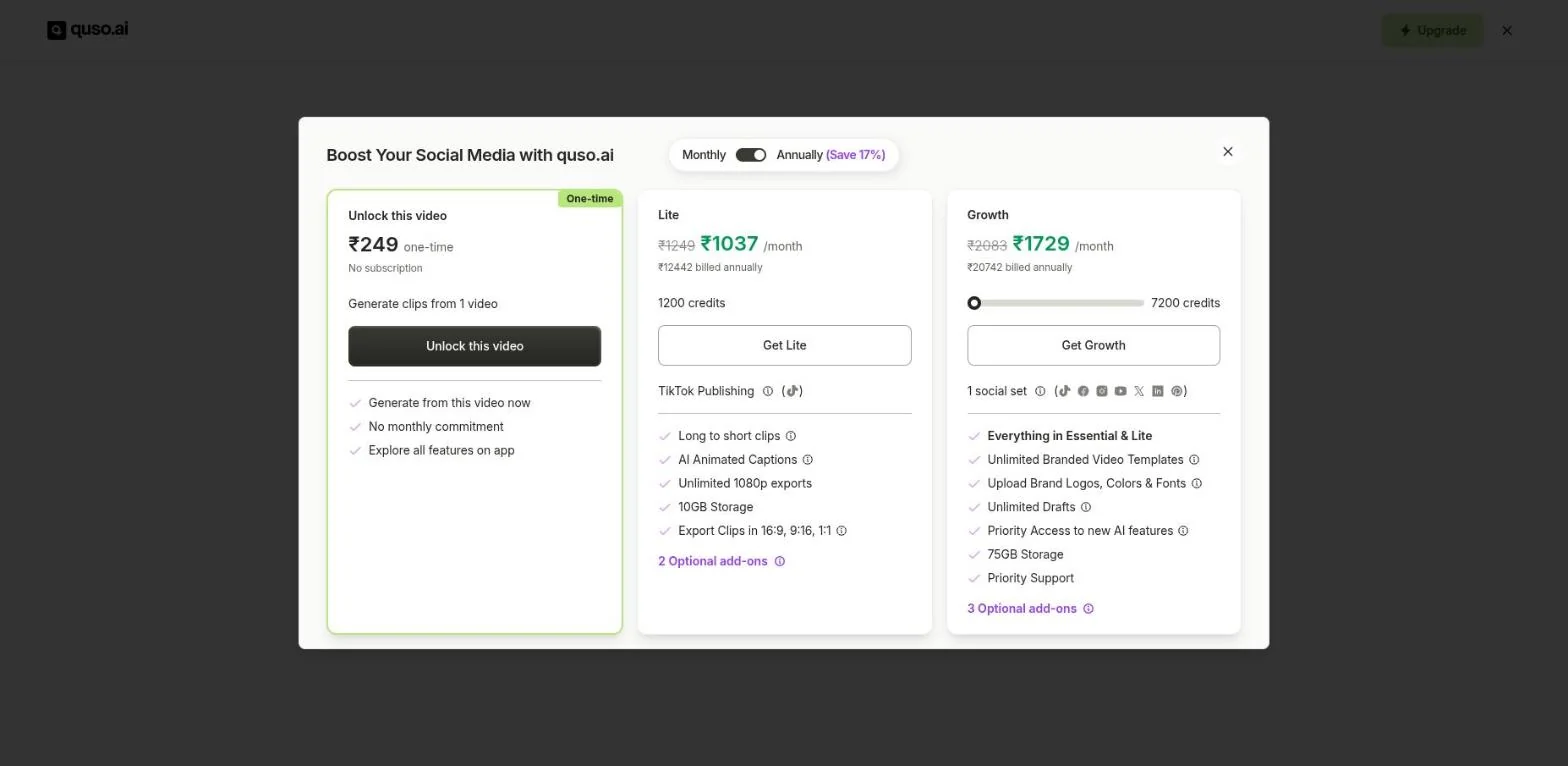
Re-tested 27 August 2026, and the wall had moved earlier. In May it appeared at Generate; by August a free user meets it immediately on upload, before the settings screen. It is dismissible — but it is now the first thing that happens after choosing a file.
Submagic — the editor will not export, but its API will
⚠️ Updated 2026-09-26. An earlier version of this page said a determined person could "grind out a watermarked file" from Submagic. That was our May 2026 reading and it no longer holds — we are correcting it here rather than quietly rewriting it.
Submagic feels like it works. Upload is clean, the caption workflow is fast, and a captioned clip opens in the editor looking sharp. At that point you are sold.
Then you click Export. On a fresh free account re-tested 27 August 2026 the message was unambiguous: "Your video's ready — upgrade to export." No file, no partial file, and no way through from inside the editor. Submagic's own feature list sells "Export your videos" as a paid benefit. Re-checked 22 September — still blocked.
But the editor is not the only way out, and the other way is Submagic's own. Its documented API, which the product advertises inside the dashboard, rendered our clip on the same trial account and returned a working download link. We inspected that file frame by frame: 1080x608, 90 seconds, captions burned in, and no watermark anywhere in it. The trial carries 10 API credits a month at one credit per minute, so roughly two 90-second clips — confirmed on a second fresh account on 24 September.
So Submagic is the strangest result of the five. Its editor gives you nothing, and its API gives you the only unmarked file in this comparison. It also asks the most of you: an API key and a publicly reachable video URL.

The wall itself, captured 27 August 2026. The browser tab reads
nasa-artemis2-fd8-SUBMAGIC-90s — the same source file every
tool here was given. The export panel on the right is fully configured
(Standard 1080p, 30 FPS, with captions); pressing Export returns this
message instead of a file. ⚠️ Cropped above the plan card on purpose:
Submagic's in-app modal renders prices in INR, not USD,
and those figures cannot be read as dollars.
Klap — a free allowance you are shown but cannot spend
Klap is the newest tool we tested (18 September 2026) and produced the bluntest result: it has no free plan at all.
Upload is accepted with no wall, and the Create shorts screen offers to "Generate ~7 shorts". Press Generate and a full-screen "Unlock Premium features" paywall appears instead of processing. We tried four times. The usage counter read Clips 0/120 before and 0/120 after — generation never ran, and nothing was consumed.
That 120-clip allowance is the part worth knowing: it is displayed prominently, it is more than the $29 Basic plan grants, and it is entirely unspendable. The product also names no plan and no expiry — billing shows only "Choose a plan" and "No invoices" — so you cannot tell from inside the product which tier you are on. Every other tool here displays that.
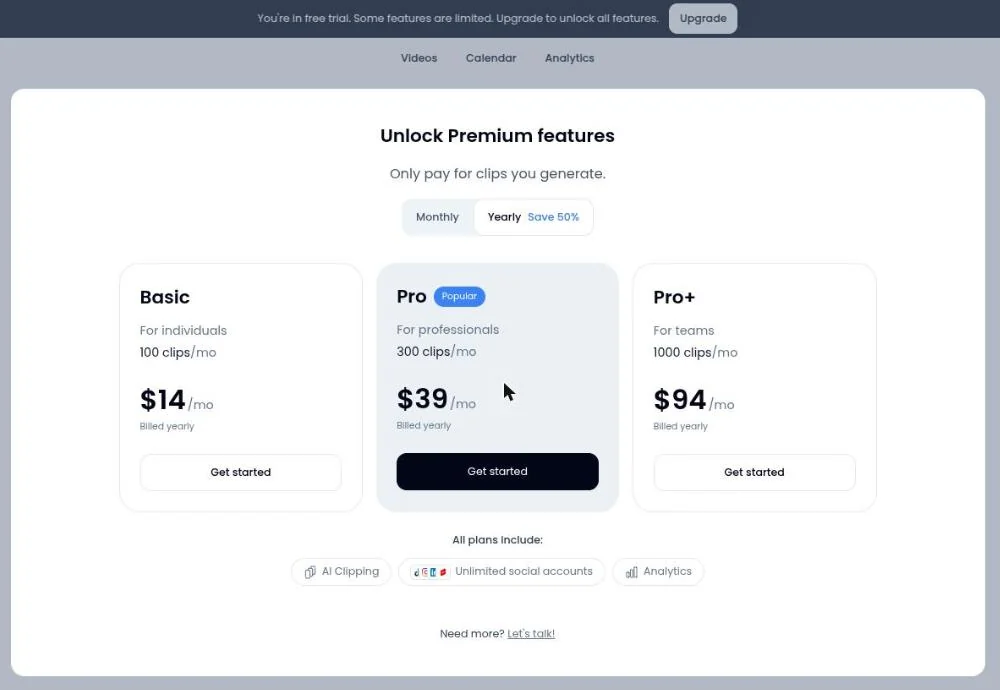
What Klap shows instead of processing your video, captured 18 September 2026. There is no free tier on it — the cheapest plan is Basic. ⚠️ Note the toggle is set to Yearly: the figures shown are $14, $39 and $94 per month billed yearly; billed monthly those same plans are $29, $79 and $189. Vendors reprice without notice, so treat the figures in this image as of the capture date.
Because nothing was generated, we still cannot say whether Klap watermarks its output. That question is unanswerable on a free account.
The two tools whose editor exports at all — with a catch
Of the five, only Vizard AI and OpusClip let you download from the interface itself. They did not block you; they made you accept a trade instead.
Vizard AI — the download works, the watermark stays
Vizard is the most honest of the five about what free actually means. Sign up (Google or email), get through a short three-step survey about your role and goals, and land on a workspace with 60 credits visible. Upload an MP4 and the balance ticks to 59 — you can watch it happen. A 90-second test clip processed in under a minute.
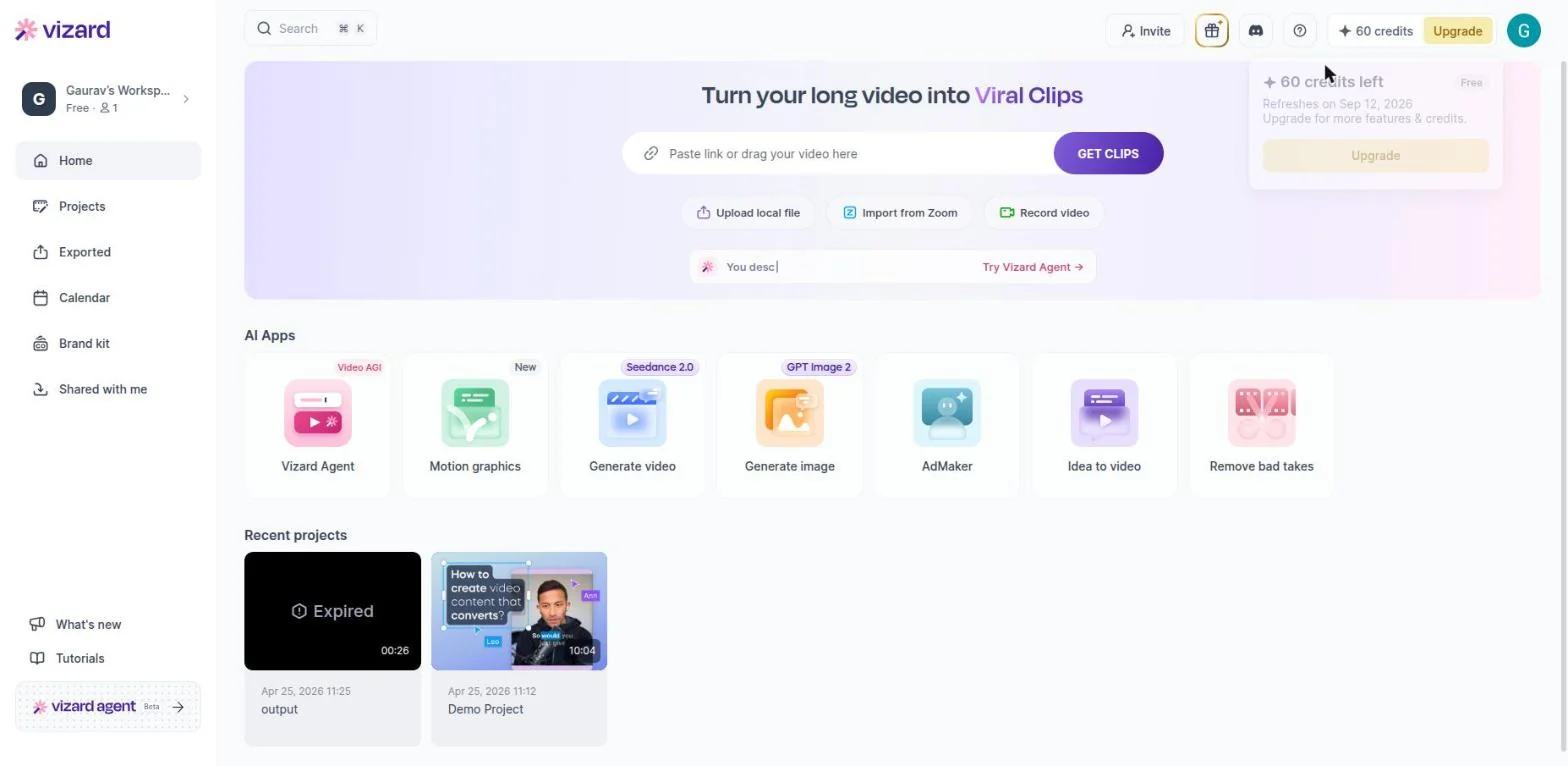
Vizard's free workspace, 25 August 2026: 60 credits with the refresh date shown in the tooltip. Credits are visible before you spend them and the balance ticks down as you work — the most transparent of the five on this point.
When it came time to download, an upgrade modal did appear (Creator and Business plans), but closing it let the download proceed. The catch: the finished file carried a visible Vizard watermark. That's the vizard ai free plan watermark on download reality — you get a real, usable file, it just has Vizard's name on it. The reframe also wandered a bit (the subject drifted off-center in the vertical crop), so plan a review pass. But nobody stopped you from leaving with a clip.
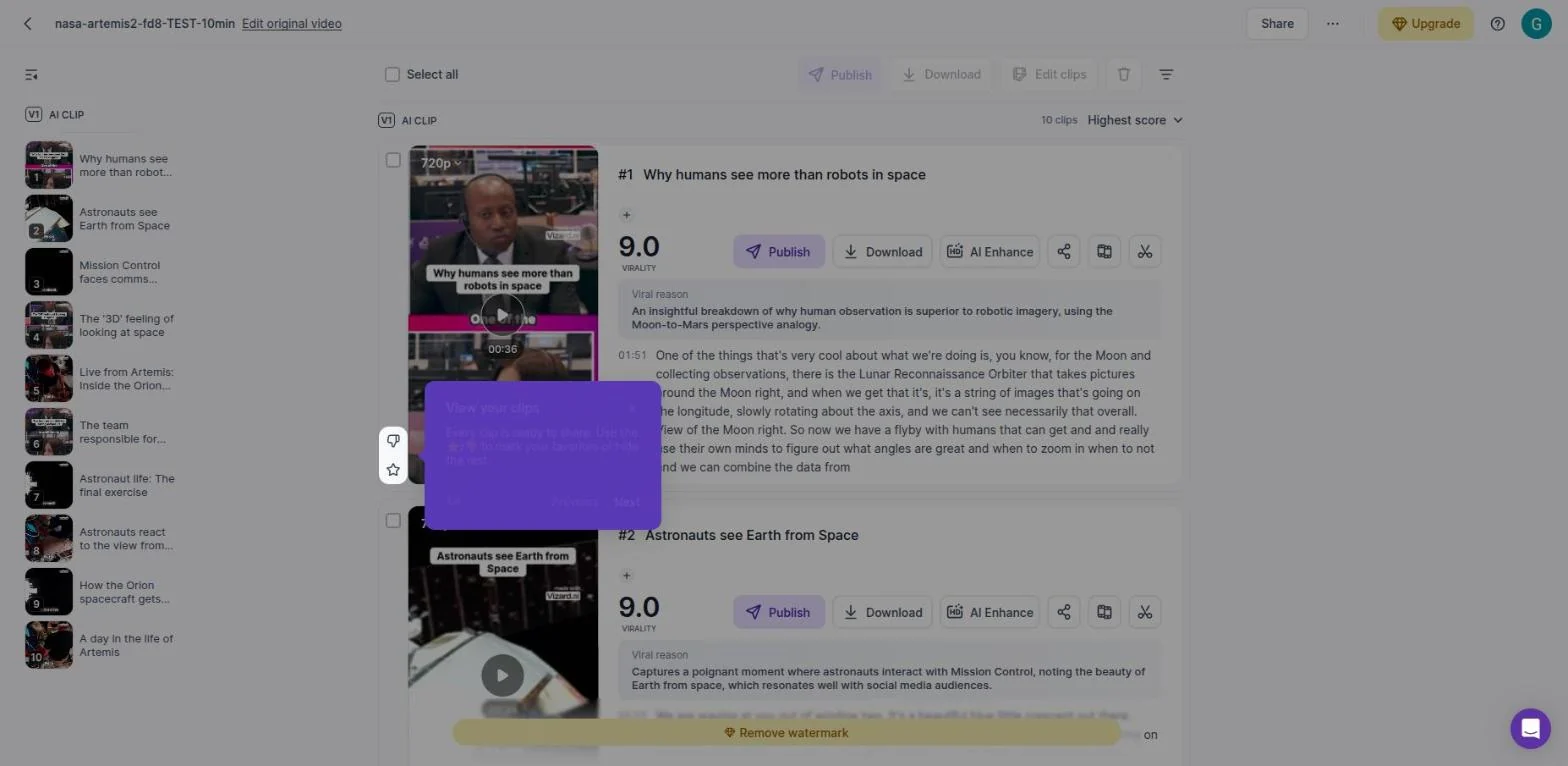
Ten clips from one source on Model v1, 25 August 2026 — every one
watermarked. The mark is encoded into the file rather than drawn over
the player, confirmed with ffprobe, so there is nothing to
switch off after download.
OpusClip — the download works, the watermark stays
OpusClip's permanent free plan runs on 60 credits a month with no card required — the tier to use if you want to know what OpusClip actually gives you for nothing. (Its 7-day, 10-credit Pro trial is a preview of the paid plan and strips the watermark, so it will not answer that question.) Each AI action burns one credit and you can watch the meter fall. On the free plan the full editor is not included, but generation, AI Reframe to 9:16, and transcript analysis on the result all completed cleanly, and the export came down at 1080p.
The wall is only at the end, and it is quieter than it used to be: clicking Download HD once raised a popup naming the watermark, but as of our September 2026 re-test it just downloads. The honest answer to does OpusClip watermark free videos is yes — we inspected an export and found the logo composited into the frames — but you will no longer be told at the point of download. The real limits are volume and shelf life rather than a countdown to zero: 60 credits a month, and clips stop being exportable after 3 days, so anything you generate has to be pulled down promptly. But you can actually finish — we did, and the file is a full 1080p export. Plan-by-plan export ceilings and what it costs to export without the watermark are broken out separately.
Want the one that lets you finish? Of the four tested, Vizard AI is the only one that gave a real downloadable file on free with a month of credits behind it. The trade is the visible watermark described above — fine for testing, not for publishing.
Which one should you try first
It depends entirely on your situation, and the honest recommendations fall out cleanly:
- You want the most control over how your face is framed → OpusClip. The configurable, reviewable 9:16 reframe is the best of the four, and the credit meter never lies to you. Use the permanent free plan (60 credits a month), not the 7-day Pro trial — the trial removes the watermark, so it won't show you what free output looks like. Just pull your clips down within 3 days.
- You want room to experiment across the whole month → Vizard AI. Sixty credits and a real downloadable clip give you the most free runway. Bring MP4, and double-check the reframe, because it drifted off-center.
- Captions are the whole reason you're here → Submagic, eyes open about the export gauntlet (what the export actually does).
- You want to actually finish a clip for free today → not Quso.ai. It's the most feature-rich on paper and the most locked-down in practice; leave it until you're ready to pay.
Same clip, four stories — and the spec sheets would've told you none of it. Before you commit to any of them, run the 15-minute test routine yourself — it includes a one-page checklist you can glance at mid-test.
Ready to run your own test? Two of the four are worth starting with on free, for different reasons — Vizard AI if you want a month of runway and a real downloadable clip (expect the watermark and the drifting reframe), Submagic if captions are the whole point (expect the export gauntlet).
Take a closer look
- Vizard vs OpusClip: the full head-to-head comparison — the two tools that finished the clip, compared in detail.
- Submagic vs OpusClip comparison — captions specialist against the all-rounder.
- All individual tool reviews — the complete hands-on write-up for every tool here.
Frequently asked questions
Which is better — Vizard AI or OpusClip for free plan users?
Both complete the full workflow on free and both watermark downloads, and both permanent free plans give 60 credits a month — we have now tested each. The differences are elsewhere. OpusClip's free export came out at 1080p against Vizard's 720p, but OpusClip makes clips unexportable after 3 days where Vizard's credits simply refresh monthly. OpusClip also runs a separate 7-day, 10-credit Pro trial, which is a preview of the paid tier and removes the watermark — useful for judging the paid product, useless for judging the free one. For predictable regular testing Vizard is still the simpler system; for a single higher-resolution export, OpusClip wins.
Do any AI video tools offer free export without a watermark?
In our tests of Vizard AI, OpusClip, Submagic, and Quso.ai — none offered completely watermark-free exports on the free plan. This is the most common limitation across all AI video repurposing tools.
Does Quso.ai support MKV uploads?
In our test, Quso.ai did not accept an MKV upload. The warning shown in the dashboard said supported formats were MP4, WEBM, and QuickTime (MOV). Convert MKV to MP4 before uploading.
Related guides
- How to turn a long video into YouTube Shorts with AI — the workflow behind this comparison.