
Submagic vs OpusClip: Caption Editor or AI Clipping Tool?
Weighing more than two tools? See all 4 tools compared in our AI video repurposing guide.
Submagic and OpusClip both promise to help creators turn video into short-form content faster.
But after testing them, I would not describe them as interchangeable.
Submagic is better framed as a caption-first editor test. In my hands-on test, I could sign up, upload a short video, generate captions, open the editor, and see additional AI editing tools. The hard limit is export: re-tested on 27 August 2026, clicking Export returns "Your video's ready — upgrade to export." Submagic's free tier is preview-only — OpusClip's, by contrast, produces a downloadable watermarked file. What that means for the watermark question specifically is covered in Submagic's watermark test.
OpusClip is better framed as a repurposing-first workflow test. In my evidence, OpusClip AI Reframe accepted a local horizontal clip, created a vertical short-form result, consumed visible credits, and opened a result view with transcript/scene analysis plus further editing/export actions.
So the better question is not:
“Which tool is best overall?”
The better question is:
“Where is your workflow stuck: caption styling on a short clip, or finding/reframing clips from longer video?”
Choose Submagic if you mainly want to test AI captions and a visible editor-preview workflow. Choose OpusClip if your main need is AI reframing or long-video repurposing into short-form clips. Use neither blindly: both tools still need manual review before publishing.
For the full Submagic evidence, read my Submagic Review 2026. For OpusClip context, read my OpusClip Review.
Disclosure: CreatorIntelHQ may earn a commission if you buy through some links. This comparison is based on hands-on testing and documented observations.
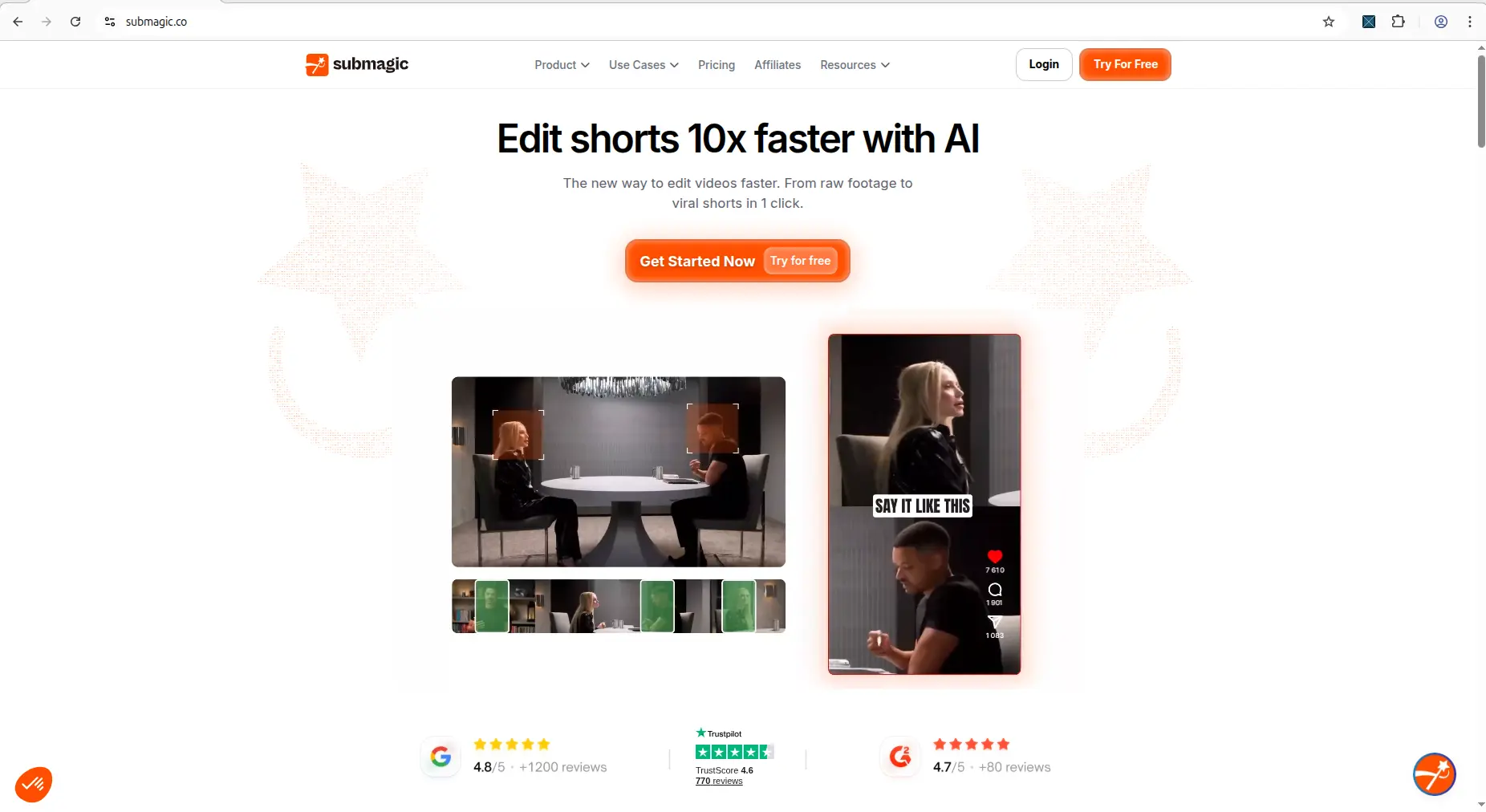
Submagic’s homepage positions the tool around AI editing for short-form video creation.
Based on hands-on testing · How we test creator tools
Quick verdict
Quick answer: Choose Submagic if you already have a short clip and want to test AI captions, visual editing controls, watermark behavior, and a caption-first editor workflow. Choose OpusClip if you have longer footage and want to test AI clipping, AI Reframe, transcript/scene analysis, and post-generation actions.
Small creator caution: Submagic’s editor would not export in my test — only its API returned a file, on a separate 10-credit monthly allowance. OpusClip showed credit use, result output, watermark/trial state, and additional edit/export actions, but captions and reframing still need manual review.
Alternative to test: If you want a free download straight from the browser, also compare Vizard AI, which confirmed a watermarked download — where Submagic's editor gave none and only its API did.
Best next fair test: Run the same source video through both tools and compare downloaded outputs, caption accuracy, framing quality, watermark, and export limits.
Testing the caption-first workflow first? In my testing, Submagic was the faster tool to evaluate for AI captions and editor preview — just confirm the export step with your own video before paying.
Test basis and evidence confidence
I do not treat homepage claims as proof. This comparison is based on separate hands-on evidence sessions.
| Tool | Evidence confidence | What was tested |
|---|---|---|
| Submagic | Hands-on workflow test; editor export blocked, API export confirmed unwatermarked | Public pricing, signup, dashboard counters, upload, caption generation, editor preview, watermark/export attempt, upgrade/referral popups, saved project |
| OpusClip | Hands-on workflow test; same-video benchmark still needed | Public pricing, free/signup evidence, dashboard/credits, AI Reframe workflow, local upload, 9:16 output, transcript/scene analysis, result screen, edit/export actions |
Important limitation: I did not run the exact same source video through both tools in a single controlled side-by-side benchmark. This article compares tested workflows, not identical-output quality.
Submagic vs OpusClip summary table
| Comparison area | Submagic | OpusClip |
|---|---|---|
| Best fit | Caption-first editing, short clips, editor-preview testing | Repurposing-first workflows, AI Reframe, long-video-to-short-form testing |
| Workflow tested | Generate Captions workflow with a short uploaded video | AI Reframe workflow with a local horizontal clip |
| Free/signup evidence | Pricing page said 3 free videos and no credit card required; dashboard showed trial/free-plan counters | Signup modal showed a free plan and no credit card messaging in the evidence |
| Output reached | Captioned editor preview opened successfully | Vertical reframed result opened with transcript/scene analysis and editing/export actions |
| Watermark/export | Trial watermark state visible; editor export blocked after upgrade/referral popups. API export returns an unwatermarked file | Free/trial output evidence showed watermark or export limitations; result view included actions such as Download HD |
| Main hidden cost risk | Time spent editing before discovering export friction | Credits consumed while testing workflows and outputs |
| Main caution | Preview generated does not equal download confirmed | AI reframing and captions still need manual review before publishing |
Free plan and signup comparison
Both tools had free-plan or free-trial evidence, but the practical question is different for each one.
Submagic free-plan evidence
Submagic’s pricing page said users could try the tool with 3 free videos and no credit card required. Inside the dashboard, I saw counters for:
- Video projects: 0 of 3
- Magic clips: 1 of 1
- API minutes: 0 of 10
The dashboard also showed a trial/watermark state.

Submagic pricing page showing free-plan and paid-plan differences.
OpusClip free-plan evidence
The OpusClip evidence showed a signup modal with Google, Apple, and email sign-up options, plus free-plan/no-credit-card messaging. It also showed dashboard/credit evidence during workflow testing.
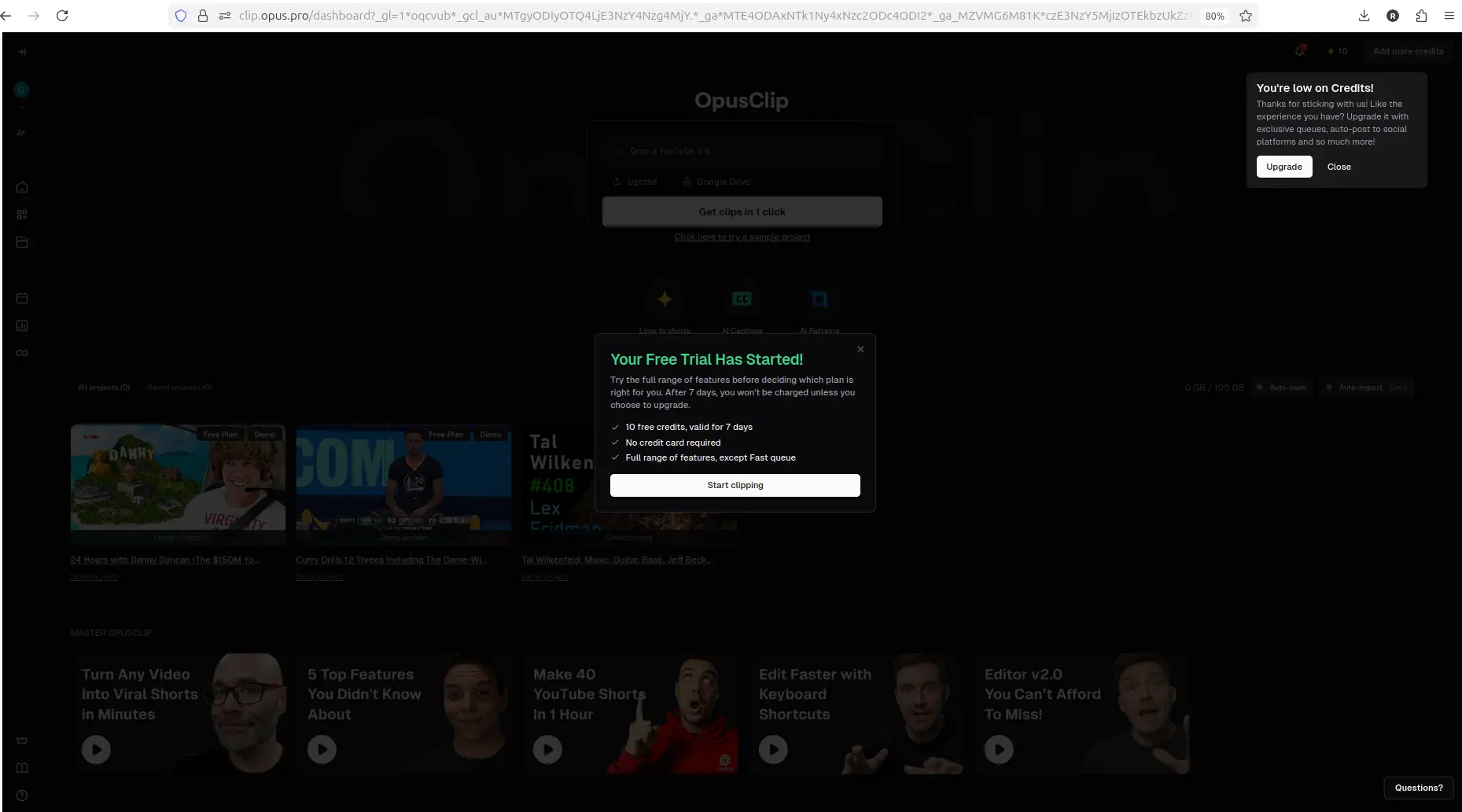
OpusClip dashboard showing workspace options and available credits.
Free-plan verdict: Both tools are testable before paying. Submagic made the trial counters very visible. OpusClip showed credit-based workflow evidence. For both, free access should be treated as a test path, not automatic proof of publish-ready output.
Workflow comparison: caption editor vs AI producer
The biggest difference is workflow focus.
Submagic: caption-first editor workflow
Submagic’s tested workflow was Generate Captions.
The workflow moved through signup, welcome/dashboard, upload modal, caption setup, AI processing, and editor preview.
The upload modal showed support for MP4, MOV, or MP3, with a max duration of 10 minutes and max size of 2GB.
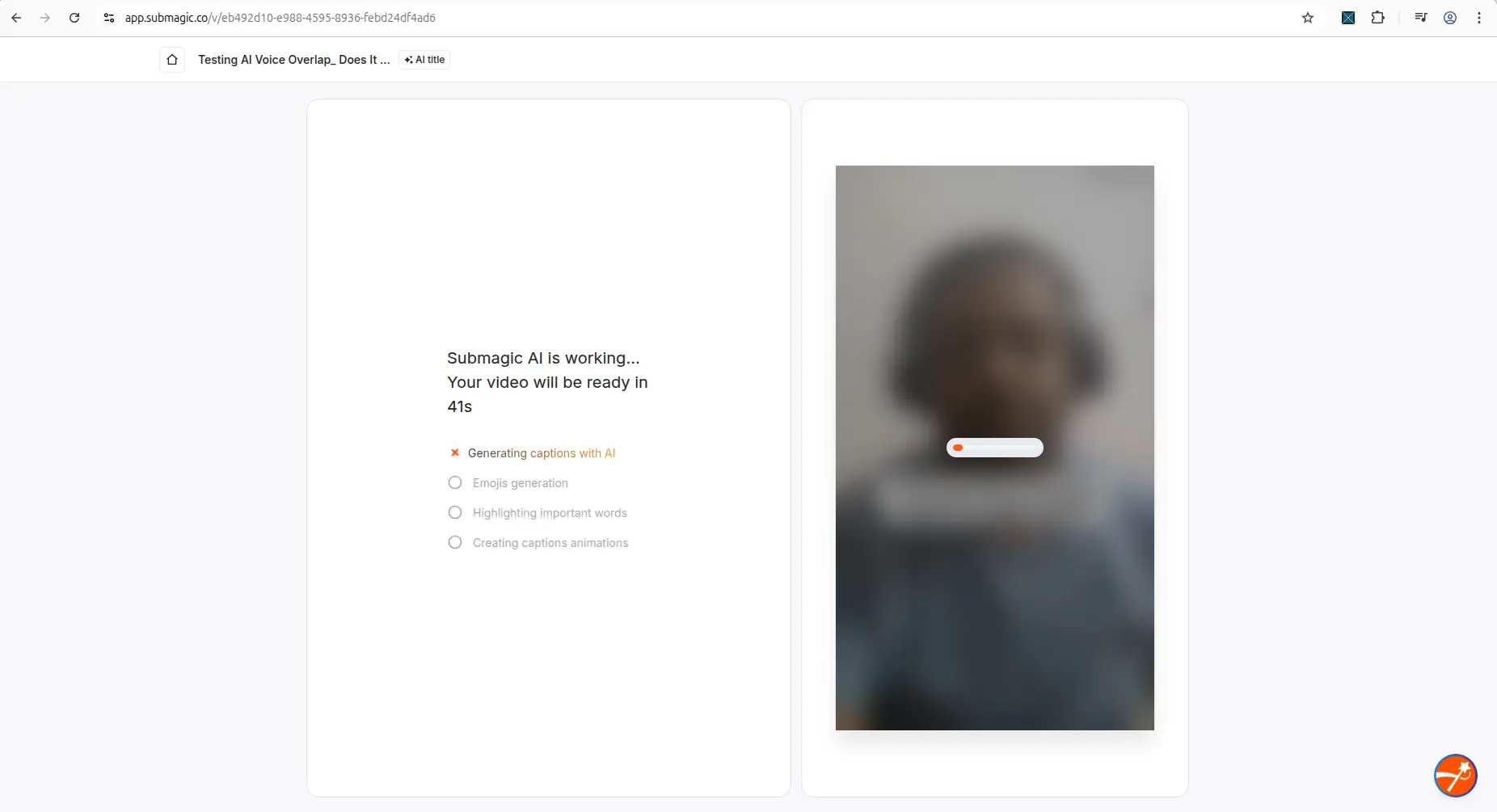
Submagic processing screen showing AI generation progress.
Submagic felt useful for a creator who already has a short video and wants to quickly see a captioned editor preview.
OpusClip: repurposing-first workflow
OpusClip’s tested workflow was AI Reframe.
The evidence showed dashboard access, upload/import options, local file upload, reframing options, project processing, completed vertical result, transcript/scene analysis, and further actions such as Download HD, Edit clip, AI hook, Enhance speech, and Add B-Roll.
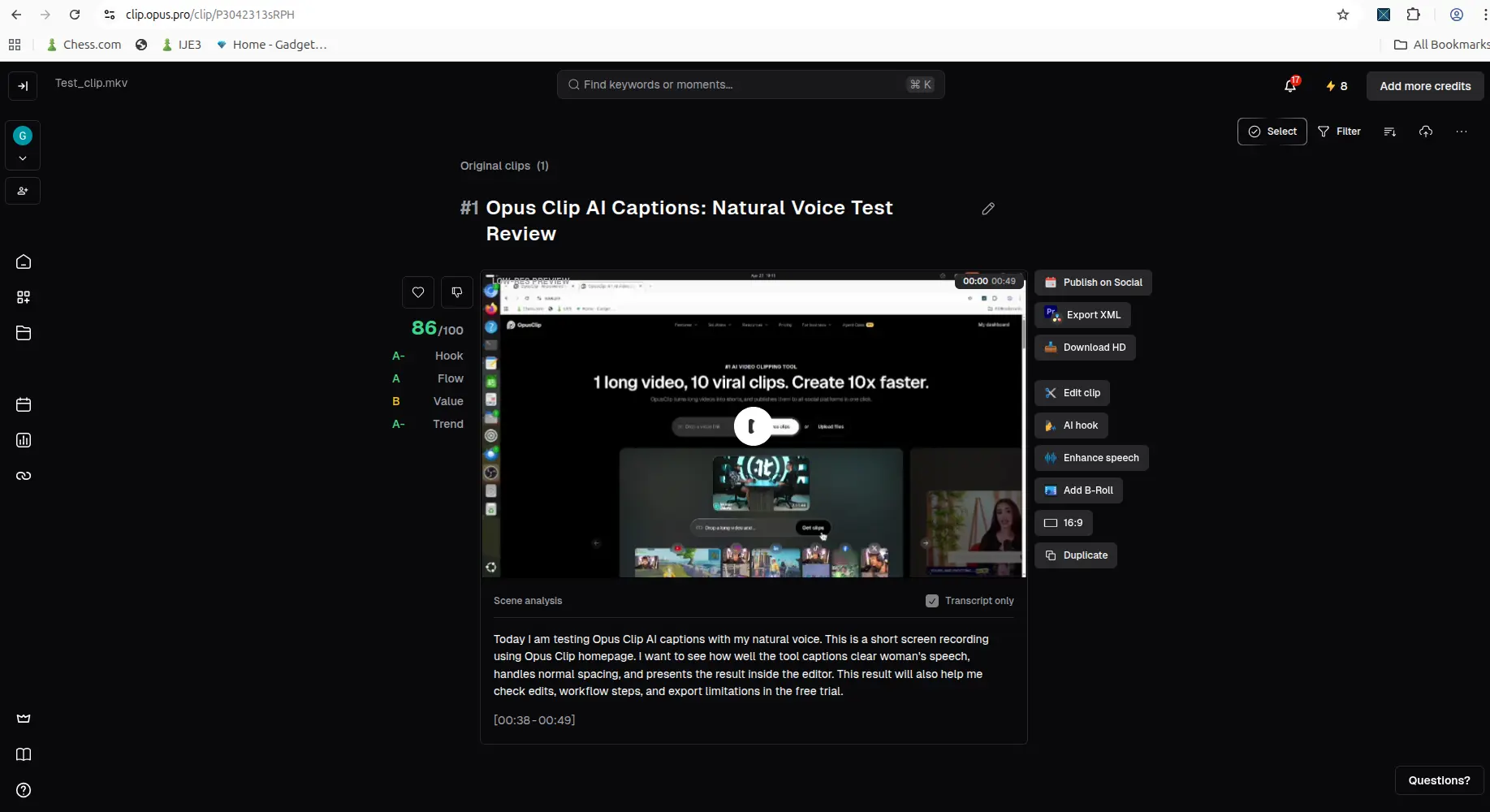
OpusClip result screen showing generated clip, captions, and output controls.
OpusClip felt more focused on converting or reframing existing video into short-form output.
Workflow verdict: Use Submagic if your first priority is caption workflow and editor-preview testing. Use OpusClip if your first priority is AI reframing or repurposing existing videos into short-form clips.
Every free plan runs out somewhere. Know where first.
The Free-Plan Reality Check: what OpusClip, Vizard AI, Submagic and Quso.ai actually let you do for $0 - from real signups, real uploads and real paywall hits.
Output quality comparison
I would not claim either tool creates perfect publish-ready output automatically.
The evidence supports a careful conclusion:
- Submagic generated a captioned editor preview.
- OpusClip generated a vertical reframed result with transcript/scene analysis and editing/export actions.
- Both caption/transcript outputs still need manual review.
- OpusClip auto-reframing still needs review for subject framing.
- Submagic’s Magic Clips quality, B-roll relevance, AI Auto Edit quality, and scheduling behavior were not fully tested in this evidence.
So the honest comparison is:
Both tools can get you to a useful output screen, but neither should replace human review before publishing.
Watermark and export comparison
This is the most important section for small creators, because a preview screen does not help much if you cannot publish the final file.
Submagic export finding
In Submagic, the editor preview opened successfully and the export panel showed settings such as HD 720p, 30 FPS, With captions, and Watermark applied.
But when I clicked Export, Submagic showed "Your video's ready — upgrade to export." Closing it produced a referral offer (15 free videos, but only when a referred friend subscribes), and closing that returned the upgrade modal. The two loop with no way through. Confirmed 27 August 2026.
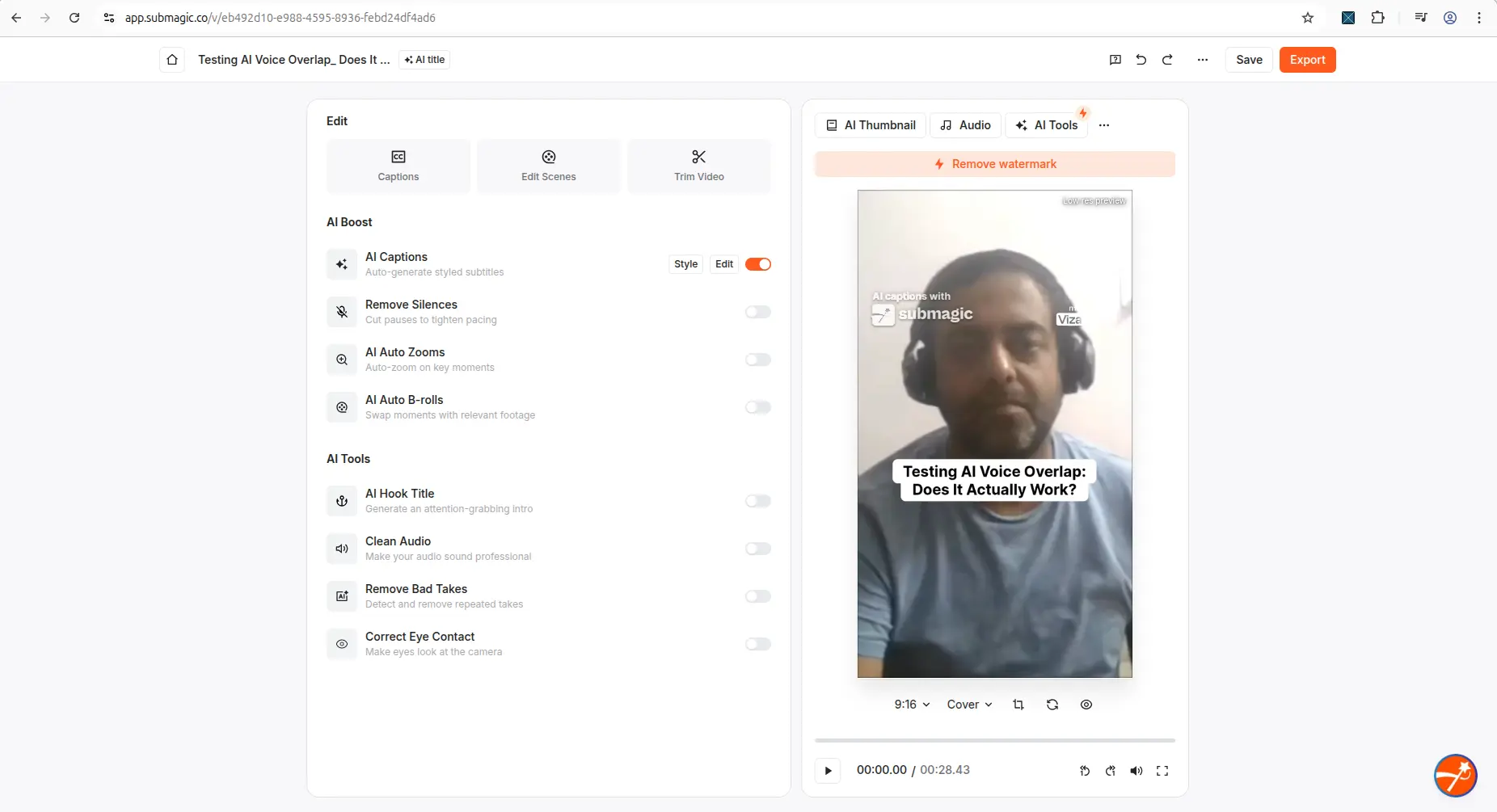
Submagic result or edit screen showing watermark, export, or upgrade limitation.
OpusClip export/action finding
The OpusClip evidence showed a completed AI Reframe result view with a visible generated vertical clip, transcript/scene analysis, and further actions such as Download HD, Edit clip, AI hook, Enhance speech, and Add B-Roll. The evidence also noted free/trial watermark or export limitations and that output quality without watermark still needs more testing. What that export carries, and the plan you need to clear it, is covered in OpusClip's free export limits.
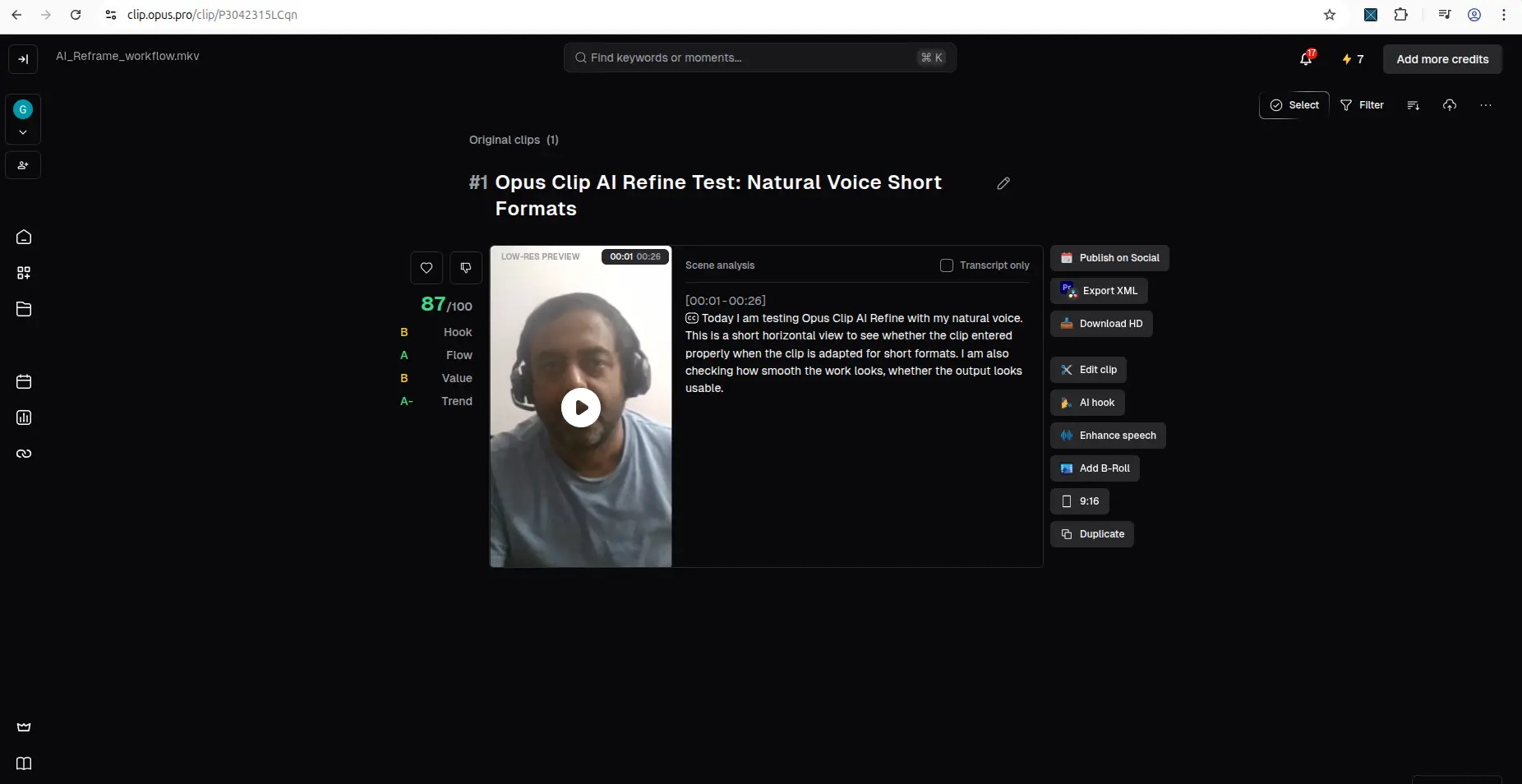
OpusClip result or edit screen showing watermark, export, or upgrade limitation.
Export verdict: Submagic’s editor would not export on the free trial, and only its API produced a file — an unwatermarked one, on a separate allowance. OpusClip showed a completed result view with further output actions, but watermark/export limits still need clear manual review before treating it as publish-ready.
Pricing and hidden-cost comparison
Both pricing pages showed free/paid differences, but pricing should always be manually verified before purchase because SaaS plans can change. We keep the current plan names and prices for Submagic, OpusClip and the other four tools we test in one creator tool pricing comparison.
Submagic pricing evidence
Submagic’s pricing evidence showed Starter, Pro, and Business + API plans, annual-discount pricing, usage limits, AI credits, included features, Magic Clips as an add-on, custom plan options, API credit packs, and paid-plan differences around watermark/export quality.
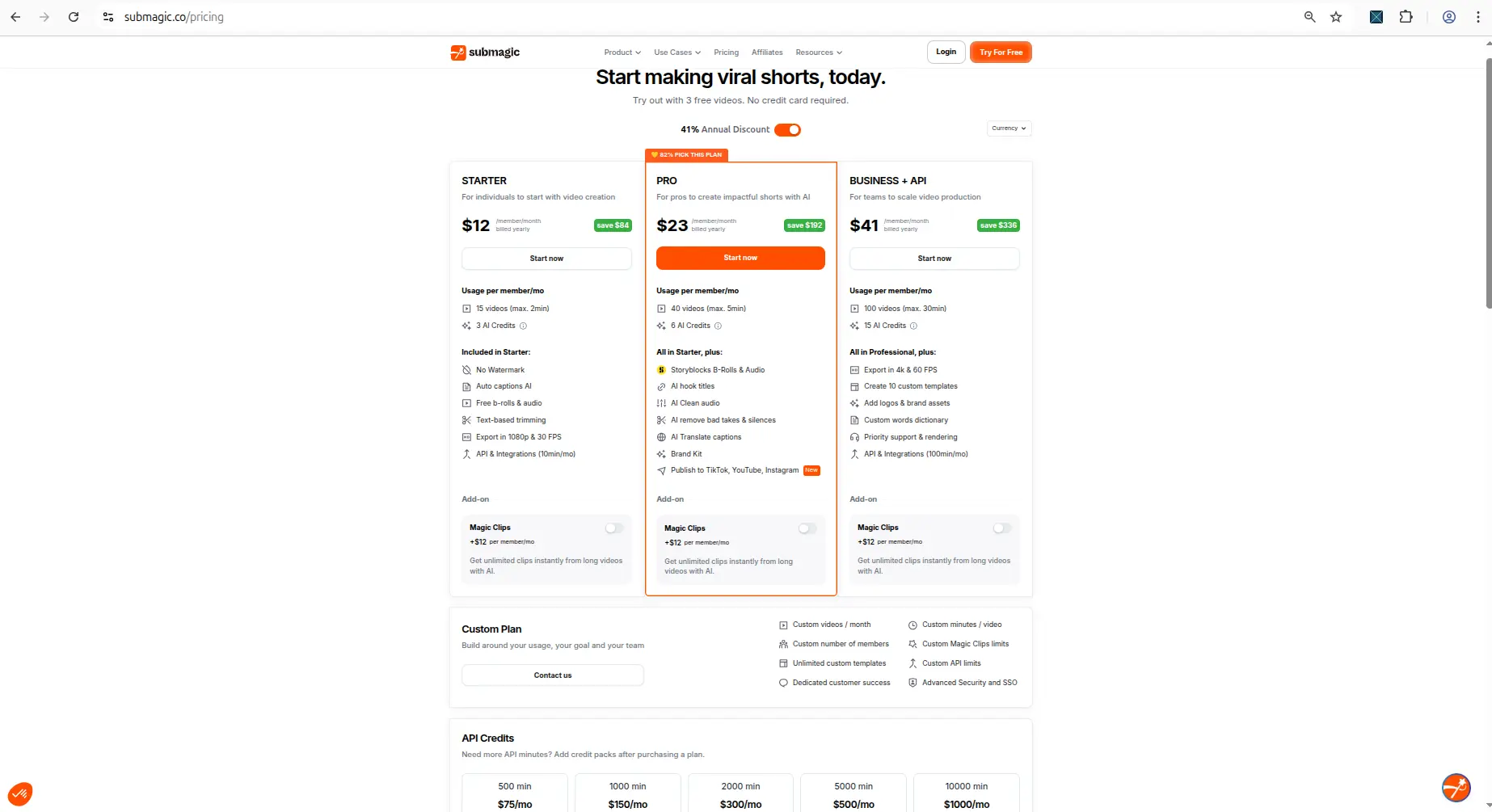
Submagic pricing page showing free-plan and paid-plan differences.
Submagic’s hidden-cost risk is mostly workflow friction: you may spend time editing and previewing before confirming whether export/download works the way you need.
OpusClip pricing evidence
OpusClip pricing evidence showed Free, Starter, Pro, and Business plans, with credits, feature differences, import sources, AI clipping-related features, and pricing-page value framing.
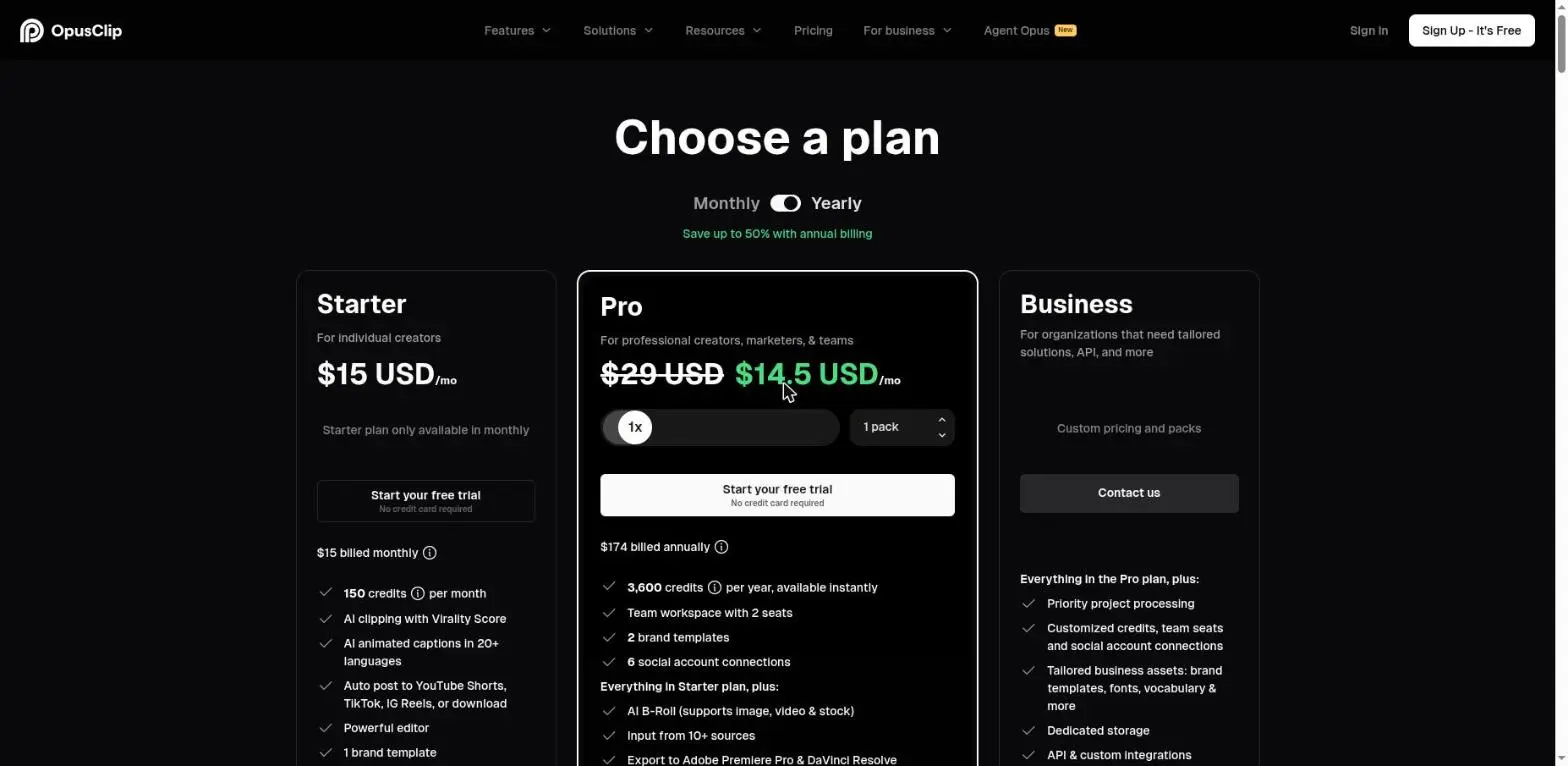
OpusClip pricing, captured 27 August 2026: Starter $15/month, Pro $29/month list price, in USD. OpusClip's annual price is promotional and changed between two checks on the same day, so read the yearly figure off their page yourself rather than trusting any screenshot — including this one.
OpusClip’s hidden-cost risk is credit usage: testing workflows can consume visible credits, so creators should avoid uploading low-value footage just to experiment.
Pricing verdict: Submagic’s pricing evidence is useful for understanding watermark, Magic Clips, AI credits, and API-related limits. OpusClip’s pricing evidence is useful for understanding credits, import sources, processing speed, and AI clipping features. In both cases, verify current pricing before upgrading.
Best for small YouTubers
For small YouTubers, choose based on the bottleneck.
Choose Submagic if your main need is:
- caption-first editing,
- quick editor preview,
- visible editing controls,
- checking watermark/export behavior before paying,
- short-form caption workflow.
Choose OpusClip if your main need is:
- repurposing longer video into short-form clips,
- AI Reframe,
- transcript/scene analysis,
- post-generation actions like editing, AI hook, speech cleanup, and B-roll,
- testing clip generation from existing videos.
Best for podcasters and long videos
If your starting content is a podcast, interview, webinar, or long talking-head video, OpusClip currently looks more directly aligned with repurposing and reframing workflows in this evidence.
Submagic may still be useful for captions and short-form editing, but my Submagic test used a short 28-second video and did not fully test long-form podcast repurposing or Magic Clips quality.
So for long-video repurposing, OpusClip has stronger current evidence from the tested workflow.
Choose neither if free export proof is your priority
If your main requirement is a clearly confirmed free watermarked download, do not assume either Submagic or OpusClip is enough.
In this cluster of tests:
- Submagic generated and previewed captions, but the editor would not export — only its API did.
- OpusClip showed generated result screens and workflow actions, but export/watermark limits still need review before treating output as publish-ready.
- Vizard AI had clearer watermarked download proof in my separate test.
That is why I would also test Vizard AI if free watermarked download proof matters to you.
You can also compare more tools in the Best AI Video Repurposing Tools guide.
Which should you choose?
Use this practical decision:
| Creator need | Better first test |
|---|---|
| Caption-first workflow | Submagic |
| Long video to short clips | OpusClip |
| AI Reframe / aspect-ratio workflow | OpusClip |
| Testing editor preview quickly | Submagic |
| Free downloadable output proof | Test Vizard AI too |
| Avoiding manual review | Neither |
| Comparing with another option | Also test Vizard AI |
Final verdict
Submagic and OpusClip are both useful AI video repurposing tools, but they answer different creator questions.
Submagic is better to test first if you care about AI captions, a simple editor-preview workflow, and checking whether the product feels easy before paying.
OpusClip is better to test first if you care about AI clipping, AI Reframe, and turning existing videos into vertical short-form output.
For small creators, the most important lesson is this:
Do not judge either tool by the homepage alone. Test your own video, check captions and framing manually, and confirm export/download rules before upgrading.
My practical recommendation: If AI captions are your priority, test Submagic first with one short clip and check caption accuracy, editor preview, and the export step before paying. Then compare OpusClip if long-video clipping and AI Reframe matter more.
Used Submagic, OpusClip, or another AI video tool? Share your experience with CreatorIntelHQ so we can improve future reviews, comparisons, and free-plan guides for small creators.
Related guides
FAQ
Is Submagic better than OpusClip?
Submagic is better to test first if you mainly want AI captions and an editor-preview workflow. OpusClip is better to test first if your main goal is AI clipping, AI Reframe, or turning existing videos into short-form clips.
Is OpusClip better than Submagic for YouTube Shorts?
OpusClip has stronger evidence for AI Reframe and repurposing workflows in my current testing. Submagic has stronger evidence for a caption-generation workflow and editor preview. The better choice depends on whether you need clipping/reframing or caption-first editing.
Which tool has a better free plan?
Both tools have free-plan or free-trial evidence, but neither should be treated as automatically publish-ready. Submagic let me generate and preview a captioned video, but the editor would not export it; only its API returned a file. OpusClip evidence showed credits, result output, and watermark/export limitations that still need review.
Which tool is better for captions?
Submagic generated captions in my test, and OpusClip result screens also showed captions/transcript-related output. I would manually review captions in both tools before publishing.
Which tool is better for long videos or podcasts?
Based on the current evidence, OpusClip is the better first test for long-video repurposing and reframing. Submagic may still be useful, but my Submagic test did not fully test long-form podcast repurposing or Magic Clips quality.
Can I use either tool for free publishing?
Do not assume that. Free plans are useful for testing, but export/download, watermark, credits, and quality limits must be checked before relying on either tool for publishing.
Should I test Vizard AI too?
Yes, especially if you want a free download from the browser. My Vizard AI testing confirmed a watermarked download; Submagic's editor gave none, and only its API produced a file.
More AI video comparison guides
If you are comparing AI video repurposing tools, also read the related guides linked above, especially the Submagic review, OpusClip review, Vizard AI review, and AI video repurposing tools hub.