
Submagic Free Plan Limits: What I Found After Testing Signup, Captions, and Export
Submagic looks attractive if you create YouTube Shorts, Instagram Reels, TikToks, podcasts, or short-form marketing clips. Its public pages position the tool around AI captions, faster editing, Magic Clips, B-roll, scheduling, and short-form repurposing.
But the real question for small creators is not just whether the homepage looks polished.
The real question is:
Can you actually use Submagic for free, create a captioned video, and export something useful?
I tested the Submagic free-trial workflow from public pricing page to signup, dashboard, upload, caption generation, editor preview, export attempt, and return to dashboard.
My finding: Submagic is easy to start and useful for previewing captioned output, but the free-trial export step became the main limitation in my test.
For broader AI repurposing options, you can also read my Vizard AI Review, Vizard AI Free Plan Limits, and OpusClip Review.
Disclosure: CreatorIntelHQ may earn a commission if you buy through some links. This article is based on hands-on testing and documented observations.

Submagic’s pricing page showed a free-trial message and paid plan options during my test.
Based on hands-on testing · How we test creator tools
Quick Verdict
Best for: Small creators who want to test Submagic’s signup, upload, AI caption generation, and editor preview before paying.
Not best for: Creators who need a clearly confirmed free download or a clean watermark-free export for immediate publishing.
Free trial usefulness: Useful for testing the workflow. In my test, signup worked without a visible credit-card step, the dashboard showed trial/free-plan counters, and a short video reached the caption editor.
Main limitation I noticed: Export/download was not confirmed. The editor showed “Watermark applied,” but clicking Export led to upgrade and referral popups.
My tested result: Submagic generated a captioned preview and saved the project, but I could not confirm a downloadable watermarked file in this test.
Submagic free-trial test summary
| Test area | What I found |
|---|---|
| Public free-trial claim | Pricing page said 3 free videos and no credit card required |
| Signup | No visible credit-card step before reaching the product dashboard |
| Dashboard state | Trial/free-plan state with watermark was visible |
| Visible dashboard counters | Video projects 0 of 3, Magic clips 1 of 1, API minutes 0 of 10 |
| Upload limits shown | MP4, MOV, or MP3; max duration 10 minutes; max size 2GB |
| Caption generation | Worked on a short 28-second test video |
| Editor preview | Captioned preview opened with watermark messaging |
| Export/download | Not confirmed; export attempts led to upgrade/referral popups |
What Submagic says you get before signup
On the public pricing page, Submagic said users could:
- try out with 3 free videos
- start with no credit card required
The paid pricing page also showed Starter, Pro, and Business + API plans, with plan differences around videos per month, minutes per video, AI credits, export quality, B-roll, watermark, and paid add-ons.
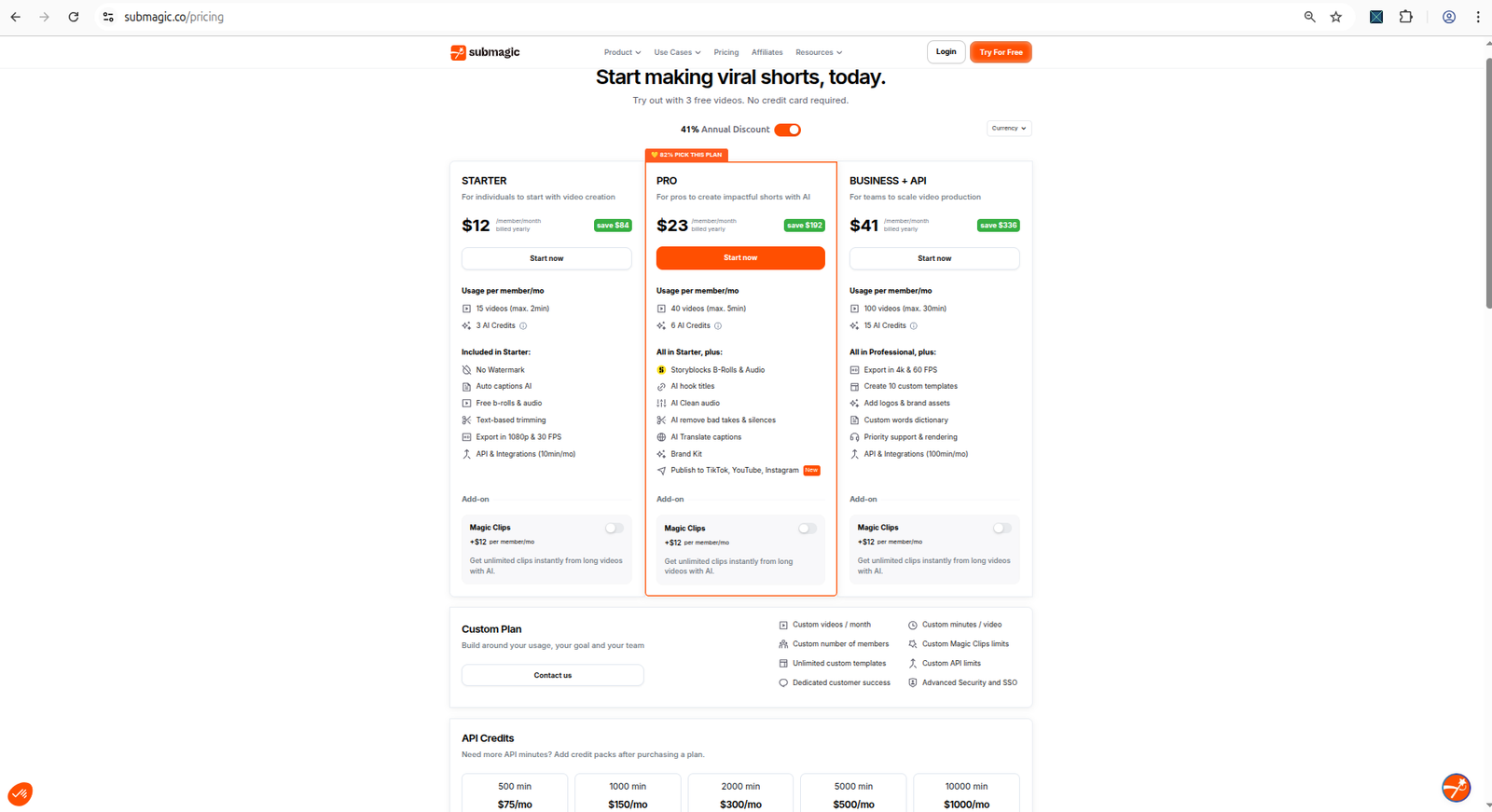
Submagic’s pricing page showed paid plan options and usage limits during my test.
The public pricing page was useful, but it did not answer every free-trial question. Before signup, I could not fully confirm:
- whether free exports could be downloaded,
- whether the final file would have a watermark,
- whether the Export button would complete the download,
- whether counters would update after processing,
- or which advanced editing tools would be locked in practice.
That is why I tested the actual workflow.
Signup: no credit-card step appeared in my test
After clicking the free-trial/signup path, I reached a signup screen that said:
“Free trial. No credit card required.”
The page offered:
- Google signup
- email/password signup
- terms and privacy links
- login link for existing users
In my test, I did not see a credit-card requirement before reaching the product dashboard.
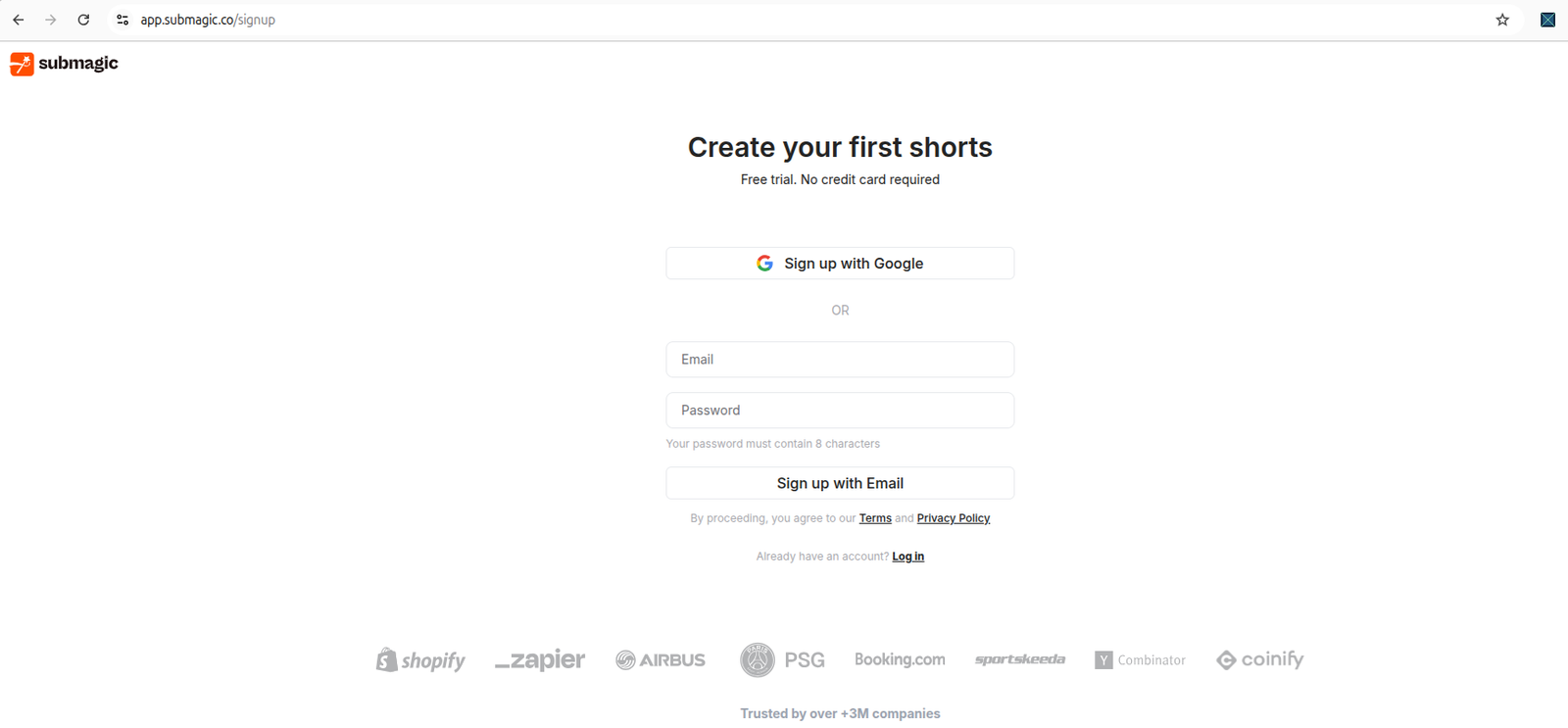
Submagic’s signup/onboarding flow let me move toward the product without a visible credit-card step.
Dashboard limits: what the free account showed
After signup, the dashboard showed a clear trial/free-plan state.
The most important dashboard message was:
“You’re on Trial with watermark.”
The dashboard also showed a free-plan usage panel with:
| Free/trial item | What I saw |
|---|---|
| Video projects | 0 of 3 |
| Magic clips | 1 of 1 |
| API minutes | 0 of 10 |
This is one of the strongest pieces of evidence from the test because it came from inside the dashboard, not just the public pricing page.
The dashboard also showed quick-start options:
- Generate Captions
- AI Auto Edit
- Magic Clips
- Combine Videos
- AI Avatar Studio
For a beginner, this part was clear. Submagic made it easy to understand where to start.
Technical note: API minutes appeared, but I did not test automation
One interesting detail in the Submagic dashboard was the free-plan counter for API minutes: 0 of 10.
That suggests Submagic may expose some API-related usage tracking inside the account. However, I did not test whether a free-trial user can actually access the API, generate an API key, or automate video workflows through Python, shell scripts, or a backend integration.
So I would not treat the 10 API minutes as confirmed automation access yet.
For technical creators, the next useful test would be:
- check whether the dashboard exposes an API key,
- confirm whether API access is available on the free trial,
- test a small request with curl or Python,
- see whether API minutes reduce after a successful request,
- confirm whether API export/download behaves differently from the web editor.
Upload limits shown inside the product
I chose Generate Captions because captions are one of Submagic’s core promises and easy to verify in a short test.
The upload modal showed:
| Upload detail | What I saw |
|---|---|
| Supported formats | MP4, MOV, MP3 |
| Max duration | 10 minutes |
| Max size | 2GB |
| Upload sources | computer, phone, Google Drive |
This was a positive part of the workflow. The upload requirements were visible before processing, and I did not hit a payment screen at this step.
Caption generation worked
I uploaded a short 28-second test video. Submagic opened a setup screen with the uploaded video preview and caption options such as:
- Presets
- Speech Language
- Multi-Speaker theme
- Translate
- Generate Captions
After clicking Generate Captions, Submagic showed a processing screen with an estimated wait time and steps such as:
- generating captions with AI,
- emoji generation,
- highlighting important words,
- creating caption animations.
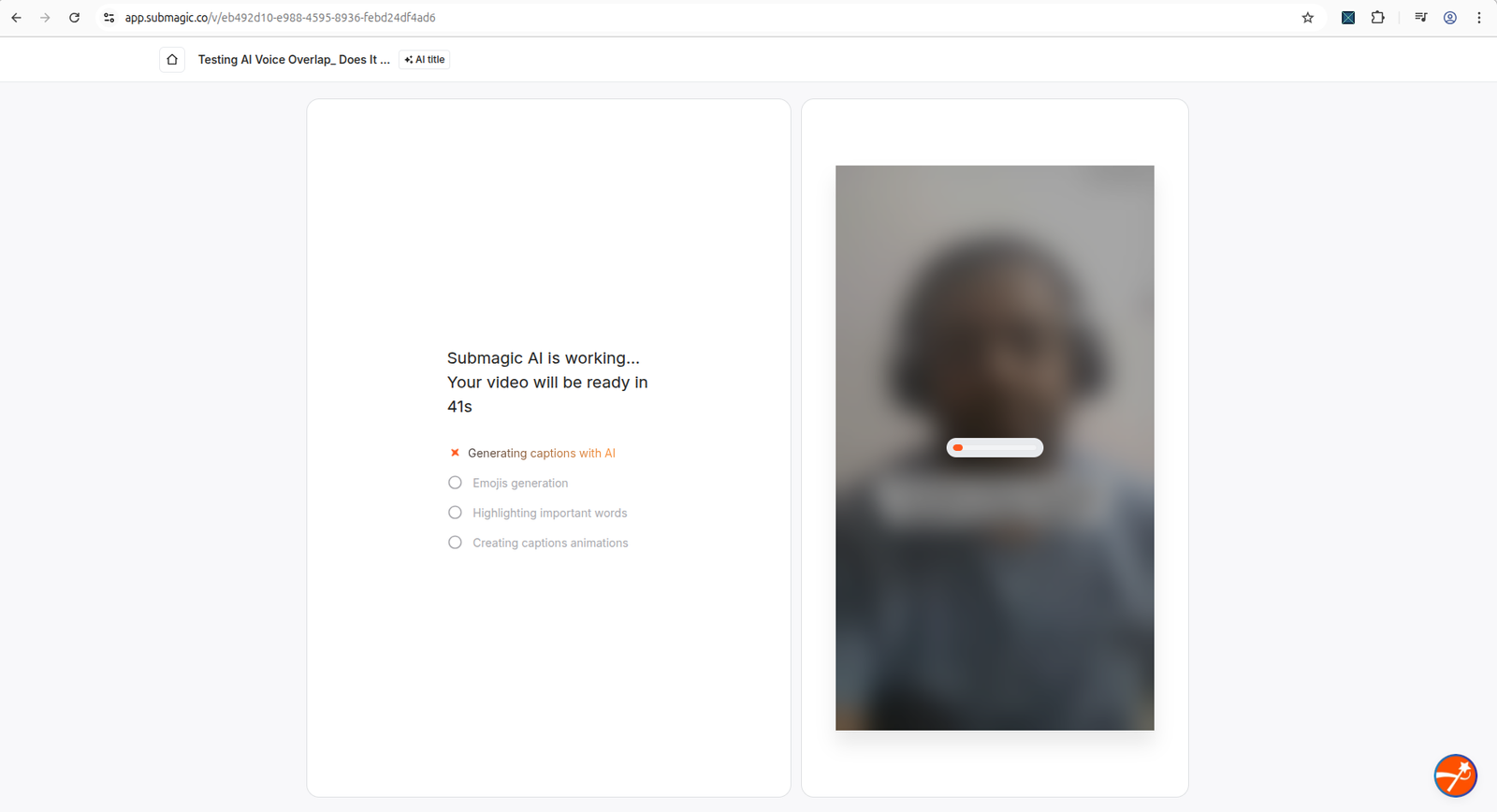
Submagic showed an AI processing screen after I started caption generation.
The editor then opened with the generated captioned video preview. This proves the free-trial workflow reached a real output preview.
Editor result: caption preview appeared, watermark was visible
After processing, Submagic opened the editor with my video preview.
The editor showed:
- AI Captions enabled
- generated caption/title text on the video
- a visible Submagic watermark/trial overlay
- a Remove watermark banner
- Export button
- AI tools such as Remove Silences, AI Auto Zooms, AI Auto B-rolls, AI Hook Title, Clean Audio, Remove Bad Takes, and Correct Eye Contact
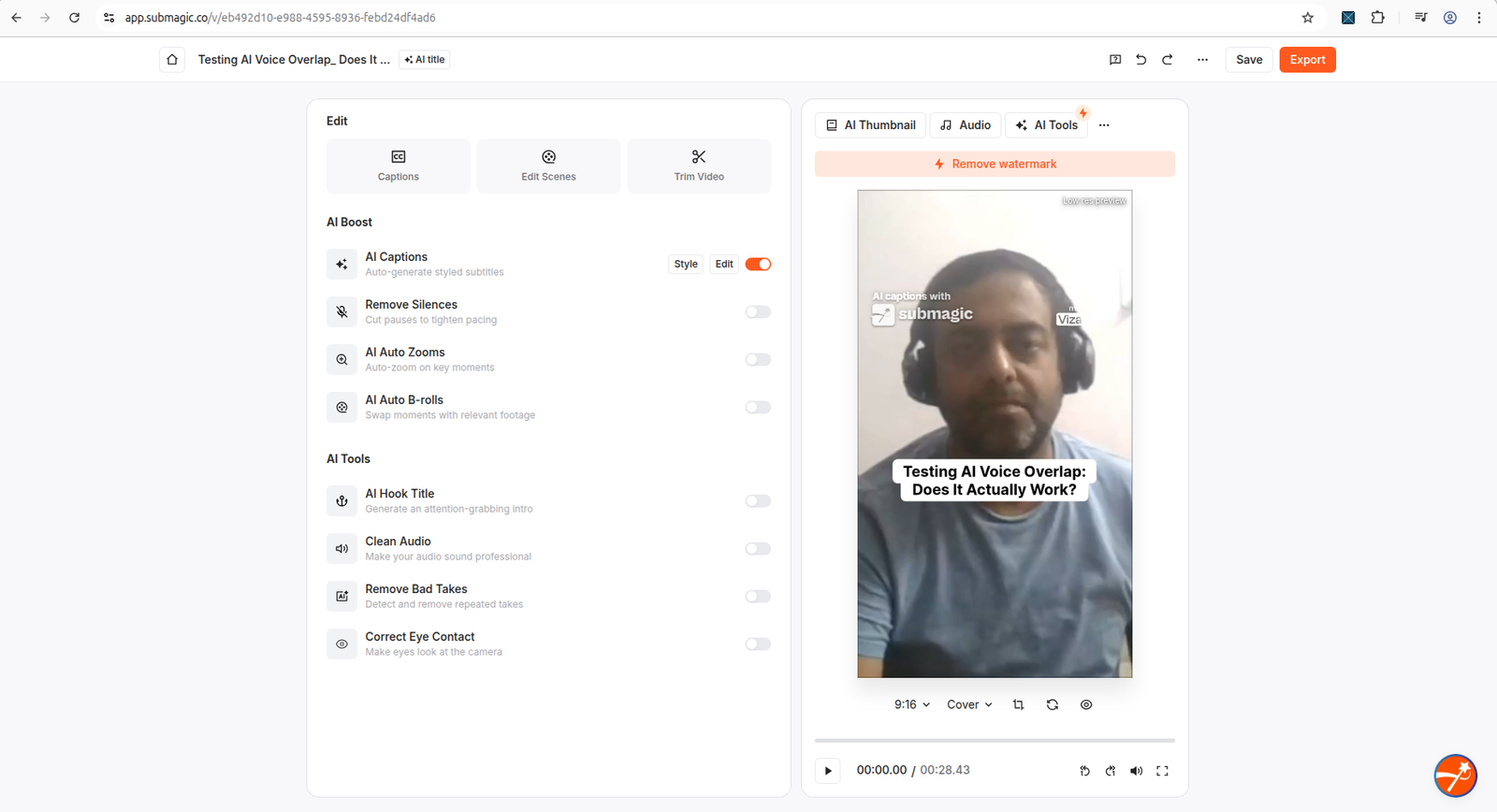
The editor showed a generated captioned preview, but the trial watermark and remove-watermark prompt were visible.
This is where the free trial became more limited.
The preview was useful, but previewing a captioned video inside the editor is not the same as downloading a publish-ready file.
Export test: this was the main limitation
The export panel showed:
- Quality: HD 720p
- FPS: 30
- Type: With captions
- Watermark applied
- Remove watermark button
- Export button
At this point, it looked like a watermarked export might be possible.
But when I clicked Export, Submagic showed an upgrade popup:
“Ready for watermark-free exports? Upgrade now.”
The popup promoted the Pro plan and included a payment button.
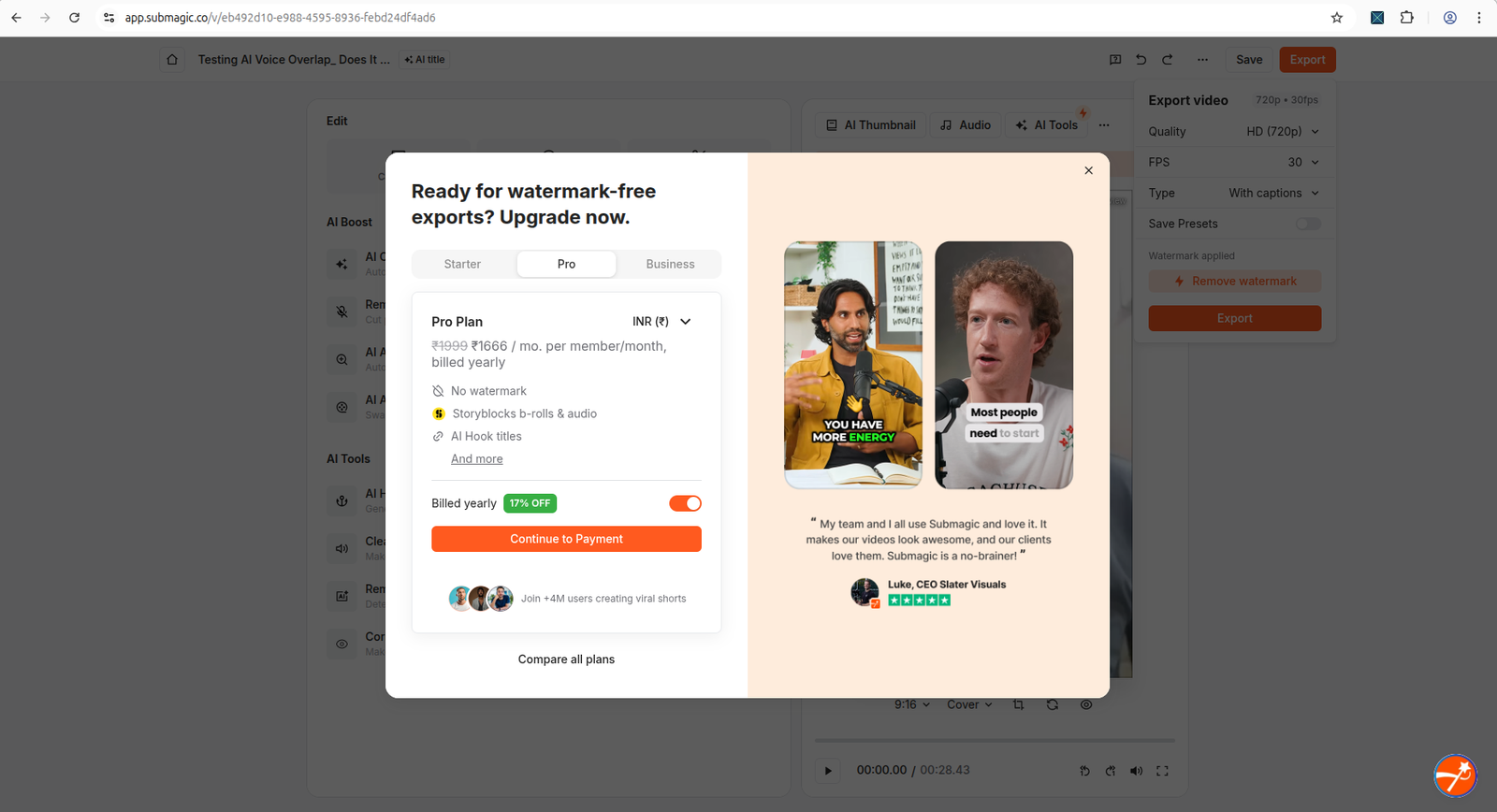
Clicking Export opened an upgrade prompt for watermark-free exports during my trial test.
After closing that popup, another popup appeared:
“Not ready to upgrade yet? Get 15 Free Videos Instead.”
That second popup offered a referral link and free videos if friends subscribed.
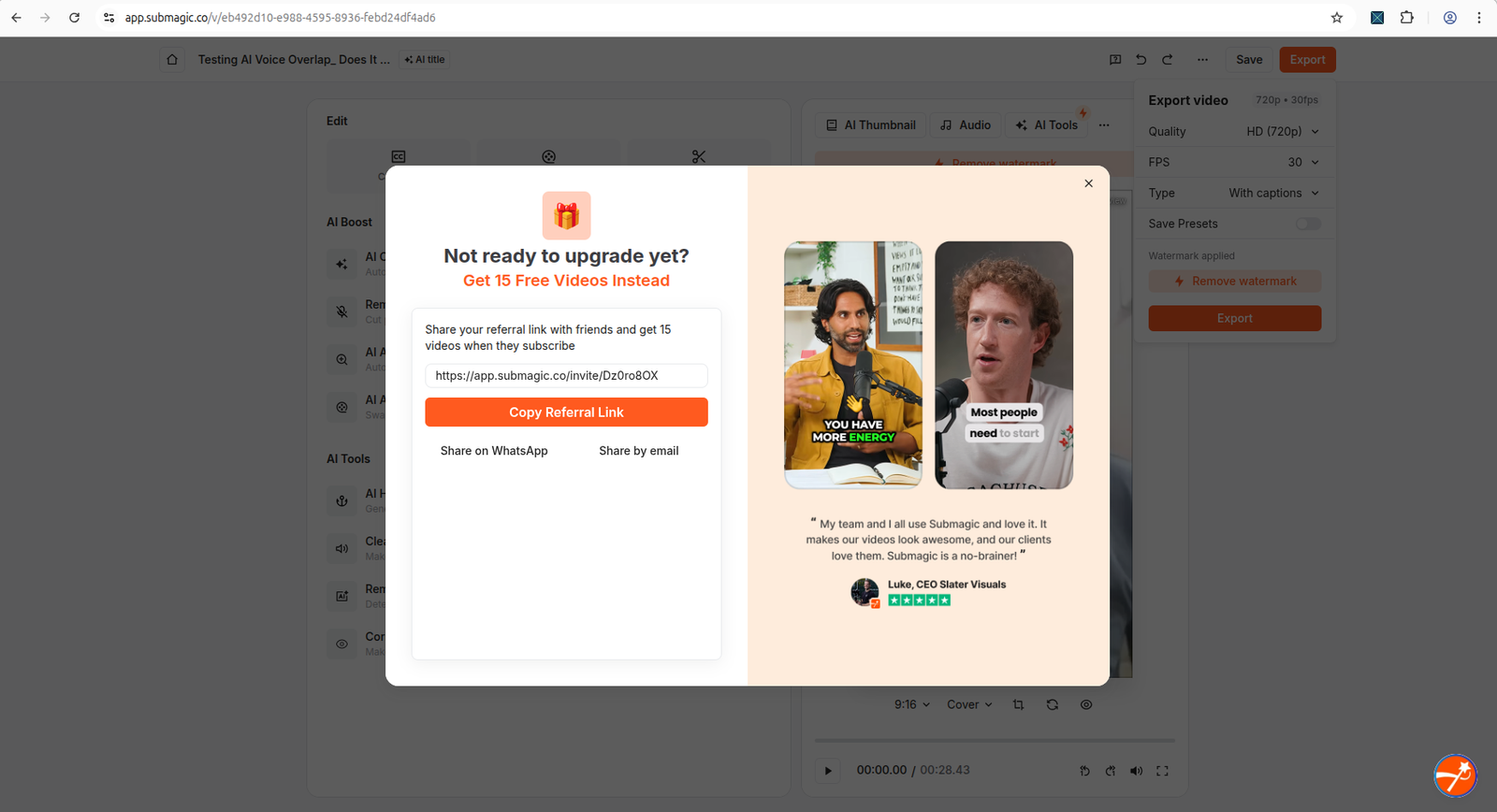
After closing the upgrade prompt, Submagic showed a referral popup instead of immediately confirming a watermarked download.
I tried clicking Export again, but the upgrade/referral flow continued. In this test, I could not confirm a downloadable watermarked export.
This is the key free-plan limitation.
What I could do for free
Based on this test, I could do the following without a visible credit-card step:
| Workflow step | Result |
|---|---|
| Sign up | Worked |
| Reach dashboard | Worked |
| See free/trial counters | Worked |
| Upload a short video | Worked |
| Generate captions | Worked |
| Preview captioned result | Worked |
| Save project in dashboard | Worked |
| Confirm downloaded export | Not confirmed |
The project appeared back in the dashboard after the workflow, with a thumbnail, title, one clip label, and 28-second duration.
That means Submagic did save the project. But export/download remained the unresolved part.
What the free trial seems best for
Submagic’s free trial is best for:
- checking the dashboard and workflow,
- testing whether the editor feels easy,
- uploading a short video,
- seeing how captions look,
- previewing the result,
- understanding the watermark and upgrade flow.
It is less reliable as a publishing workflow until export/download is confirmed.
For small creators, this matters because a tool is not fully useful if you can only preview inside the editor but cannot clearly download the result.
What I would not claim yet
Based on this test, I would not claim that:
- Submagic free trial always allows downloadable watermarked exports.
- Submagic captions are always accurate.
- Magic Clips quality is good or bad.
- AI B-roll is relevant or irrelevant.
- AI Auto Edit is publish-ready.
- usage counters always update immediately.
- Submagic’s free trial is enough for real publishing.
Those points need separate tests.
Pros and cons from this free-trial test
Pros
Submagic did several things well:
- signup was low-friction,
- no credit-card step appeared before dashboard access,
- dashboard usage counters were visible,
- upload limits were clearly shown,
- caption generation worked,
- the editor opened successfully,
- project was saved after processing,
- the interface was beginner-friendly through upload and preview.
Cons
The main concerns were:
- trial watermark was clearly present,
- watermark removal was promoted as an upgrade,
- export triggered upgrade/referral popups,
- downloadable watermarked export was not confirmed,
- caption accuracy still needs manual review,
- Magic Clips, B-roll, AI Auto Edit, and publishing features were not fully tested.
Is Submagic’s free plan enough for small creators?
For testing: yes, partly.
For publishing: unclear from this test.
If your goal is to see whether Submagic’s editor feels useful, the free trial gives you enough to test signup, upload, captions, and preview.
If your goal is to create and download finished Shorts for free, be careful. In my test, the export step created upgrade/referral friction, and I could not confirm a downloaded watermarked file.
My recommendation:
Try Submagic’s free trial only as a workflow test first. Before spending time editing a full video, confirm that your account can export or download the result in the way you need.
Submagic vs Vizard AI free-plan export behavior
This Submagic test was different from my Vizard AI test.
In my Vizard AI test, I was able to download a watermarked free-plan file after closing an upgrade prompt. In this Submagic test, I could not confirm a watermarked download because the export flow kept showing upgrade/referral friction.
That does not automatically make one tool better for every creator, but it does show why the export step matters.
For creators, the difference between preview generated and download confirmed is huge. A preview helps you evaluate the tool, but a downloaded file is what you need for publishing.
Related Submagic guides
FAQ
Does Submagic offer a free trial?
In my test, the public pricing page said users could try Submagic with 3 free videos and no credit card required.
Did Submagic ask for a credit card during signup?
I did not see a credit-card step before reaching the dashboard in this test.
What limits did the dashboard show?
The dashboard showed:
- Video projects: 0 of 3
- Magic clips: 1 of 1
- API minutes: 0 of 10
It also showed a trial/watermark state.
What upload limits did Submagic show?
The upload screen showed MP4, MOV, or MP3 support, a max duration of 10 minutes, and a max size of 2GB.
Did Submagic generate captions for free?
Yes. In my test, I uploaded a short video, generated captions, and reached the editor preview.
Was there a watermark?
Yes. The dashboard said I was on a trial with watermark, and the editor/export area showed watermark-related messaging.
Could I export the free video?
I could open export settings, but I could not confirm a downloaded watermarked export. Clicking Export triggered upgrade and referral popups in this test.
Is Submagic’s free trial useful?
It is useful for testing the workflow and previewing output. It is less clear for publishing because export/download was not confirmed during my test.
Is Submagic good for YouTube Shorts?
Submagic may be useful for testing captions and short-form editing workflows. However, for publishing YouTube Shorts from the free trial, you should first confirm whether your account can export/download the final result in the format you need.
Final verdict
Submagic’s free trial is easy to start and strong enough to test the product experience. I could sign up, upload a short video, generate captions, preview the edited result, and see the project saved in the dashboard.
But the free-trial limit that matters most is export.
The dashboard and editor made the watermark clear, and clicking Export pushed me into upgrade/referral prompts instead of a confirmed download. So the free trial is useful for evaluation, but I would not treat it as a reliable free publishing workflow until export/download is verified on your own account.
If you are comparing AI repurposing tools, also read our Vizard AI Review, Vizard AI Free Plan Limits, and OpusClip Review.
Used one of these tools? Share your experience with CreatorIntelHQ so we can improve future reviews, comparisons, and free-plan guides for small creators.