
Submagic Free vs Paid: What Changes When You Upgrade?
Submagic’s free trial is useful if you want to test the product before paying. I was able to sign up, reach the dashboard, upload a short video, generate captions, and preview the result in the editor.
But the upgrade decision is not really about the first few steps.
The real question is:
Do you need Submagic only for testing, or do you need it for finished, downloadable, publish-ready videos?
That is where the difference between free and paid becomes important.
In my hands-on test, Submagic’s free trial was good for evaluation, but I could not confirm a downloadable watermarked export. Clicking Export led to upgrade/referral popups instead of a clear download.
For the full workflow evidence, read my Submagic free plan limits test. For the broader product verdict, read my Submagic Review 2026.
Disclosure: CreatorIntelHQ may earn a commission if you buy through some links. This guide is based on hands-on testing and documented observations.

Submagic’s pricing page showed a free-trial message and paid plan options during my test.
Based on hands-on testing · How we test creator tools
Quick Verdict
Stay free if: You only want to test Submagic’s dashboard, upload flow, caption generation, and editor preview.
Consider paid if: You need watermark-free output, more usage, paid workflow features, or a clearer export/publishing path.
Biggest free-trial limitation: Export/download was not confirmed in my test. Clicking Export led to upgrade/referral popups.
Main upgrade trigger: Watermark-free export. Submagic clearly positioned watermark removal as an upgrade action.
My recommendation: Start free, test one real video, then upgrade only if the editor saves time and the paid export rules fit your publishing needs.
Submagic free vs paid: quick decision table
| Question | Stay free if... | Consider paid if... |
|---|---|---|
| You only want to test the tool | You want to check signup, dashboard, upload, captions, and preview | You already know Submagic fits your workflow and want to use it regularly |
| You need final downloadable files | You are okay with testing only and not publishing yet | You need reliable export/download for Shorts, Reels, TikToks, or client work |
| You care about watermark | You are only evaluating the result | You need watermark-free output for public publishing |
| You create many videos | You only need a few trial tests | You need more monthly usage, more credits, or a repeat workflow |
| You need advanced workflow features | You only want to check captions and editor preview | You need paid features, higher limits, more customization, or team/API options |
What the free trial is good for
The free trial is useful for evaluating Submagic before paying.
In my test, I could:
- sign up without seeing a credit-card step before the dashboard,
- reach the product dashboard,
- see trial/free-plan counters,
- open the Generate Captions workflow,
- upload a short 28-second test video,
- generate captions,
- preview the result in the editor,
- see the project saved later in the dashboard.
That is enough to answer an important early question:
Does Submagic feel easy enough to test?
In my test, yes. The early workflow was approachable and beginner-friendly.
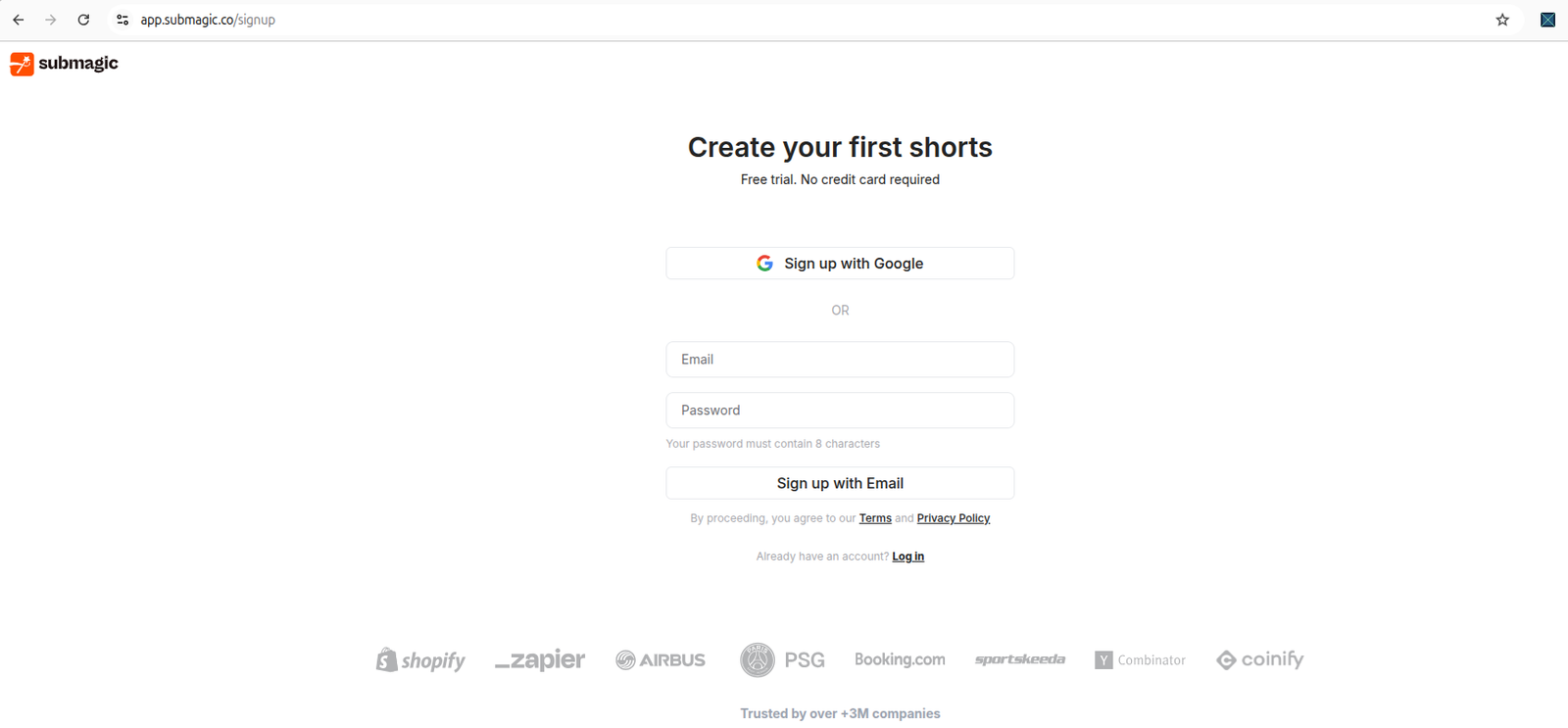
Submagic’s signup/onboarding flow let me move into the product without a visible credit-card step.
What the free trial is not enough for
The free trial was not enough for me to confirm a finished downloadable file.
That difference matters.
A preview inside the editor helps you evaluate the tool, but a downloaded file is what you need for publishing.
In my test, the editor showed a generated captioned preview and export settings, but clicking Export led to upgrade/referral popups. Because of that, I would not treat the free trial as a confirmed free publishing workflow.
Use the free trial to test the product. Do not assume it is enough to publish until you personally confirm download/export on your account.
Upgrade trigger 1: watermark removal
The clearest upgrade trigger I saw was watermark removal.
The dashboard showed that I was on a trial with watermark. In the editor/export flow, Submagic also showed watermark-related messaging.
The export panel showed Watermark applied, and the product displayed a Remove watermark action.
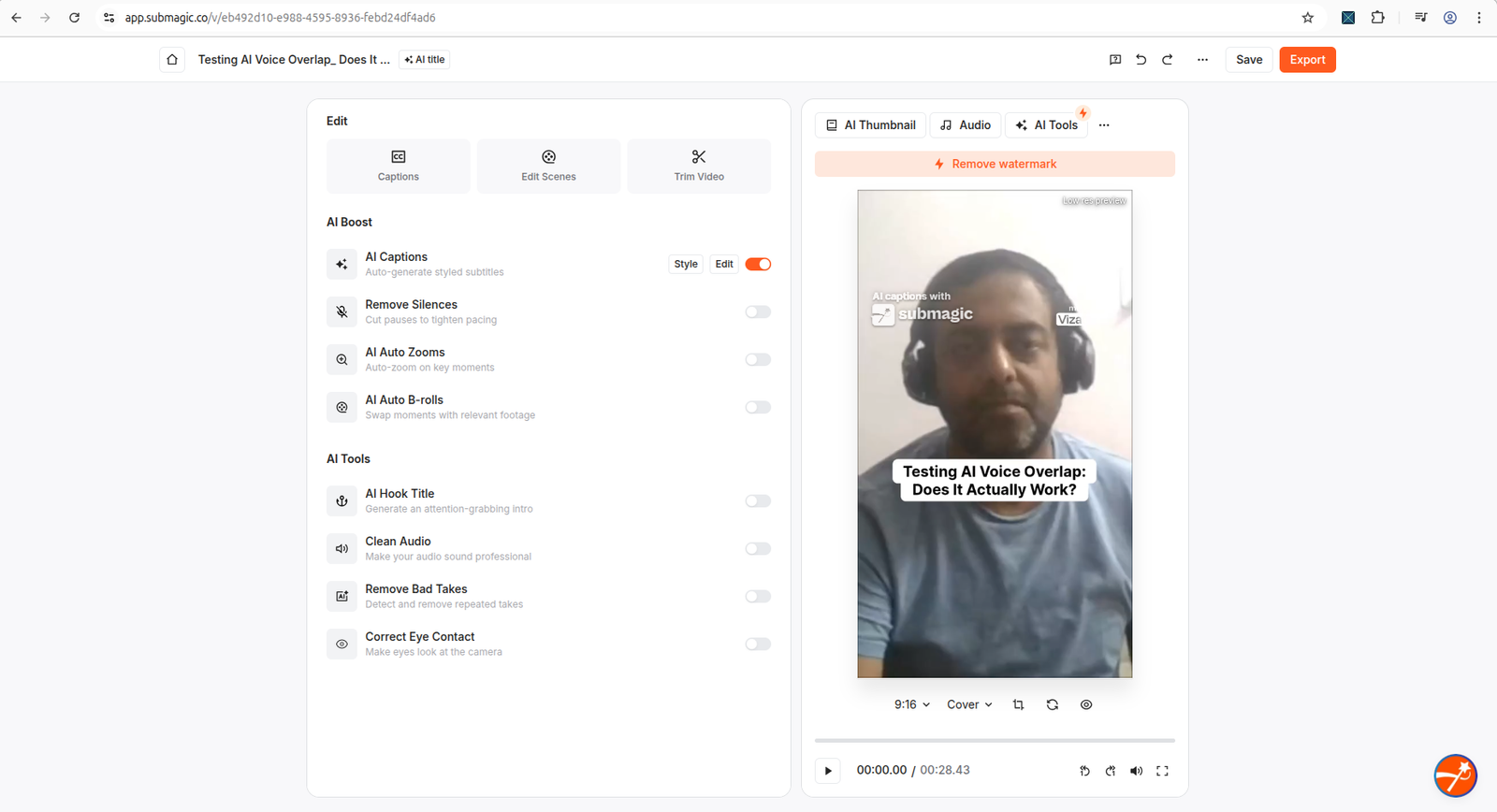
The editor preview showed generated captions and visible watermark-related messaging.
For creators, this is a simple decision point:
- If you are only testing, watermark may be acceptable.
- If you are publishing publicly, watermark-free output may be important.
- If you are doing client work, watermark-free output is usually essential.
So if Submagic works well for your content, watermark removal is one of the strongest reasons to compare paid plans.
Upgrade trigger 2: export/download confidence
Export was the most important part of my test.
The export panel looked promising because it showed settings such as:
- HD 720p,
- 30 FPS,
- With captions,
- Watermark applied,
- Export button.
But clicking Export opened an upgrade popup for watermark-free exports.
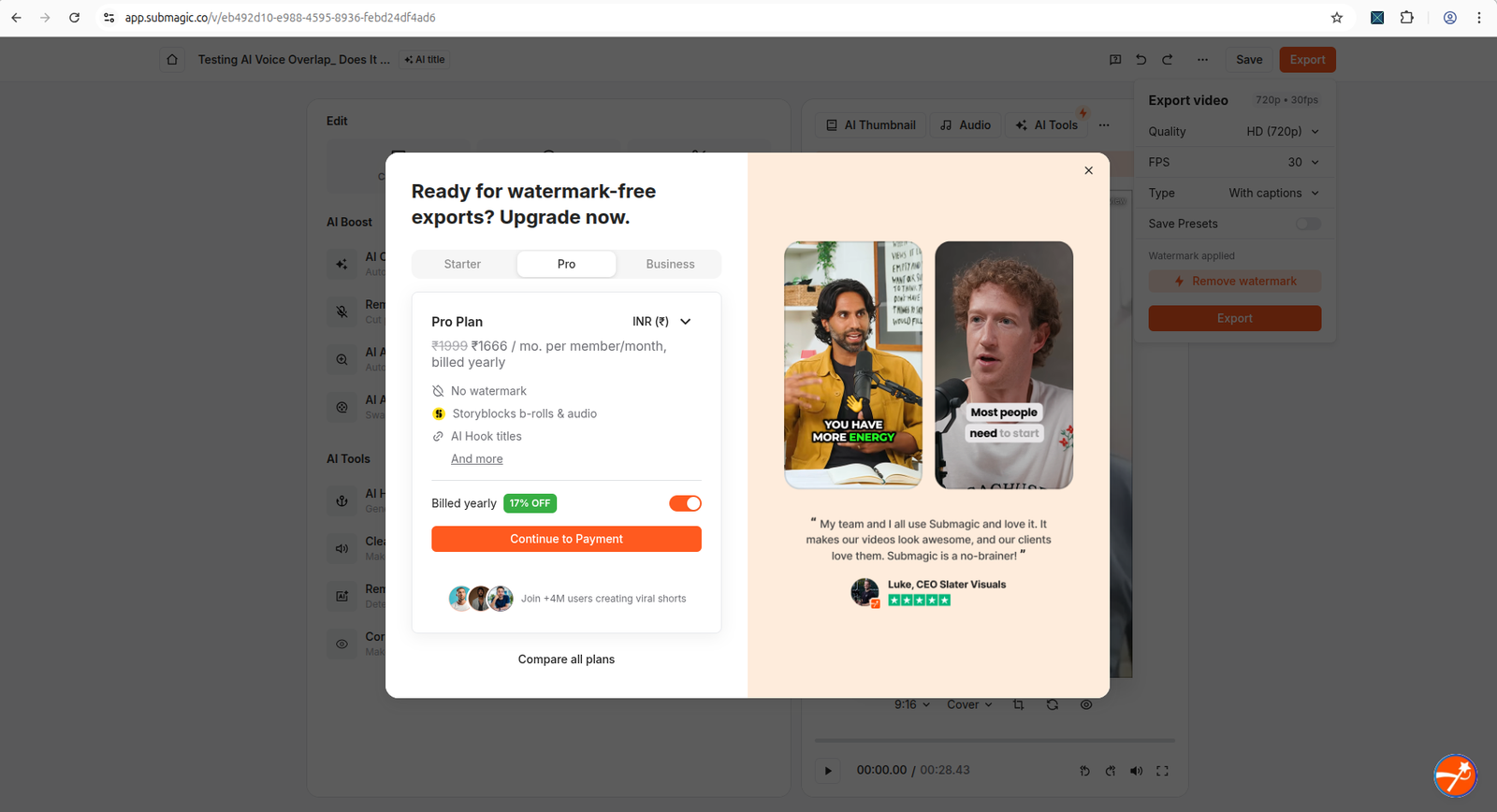
Clicking Export opened an upgrade prompt for watermark-free exports during my trial test.
After I closed that popup, Submagic showed a referral popup offering extra free videos.
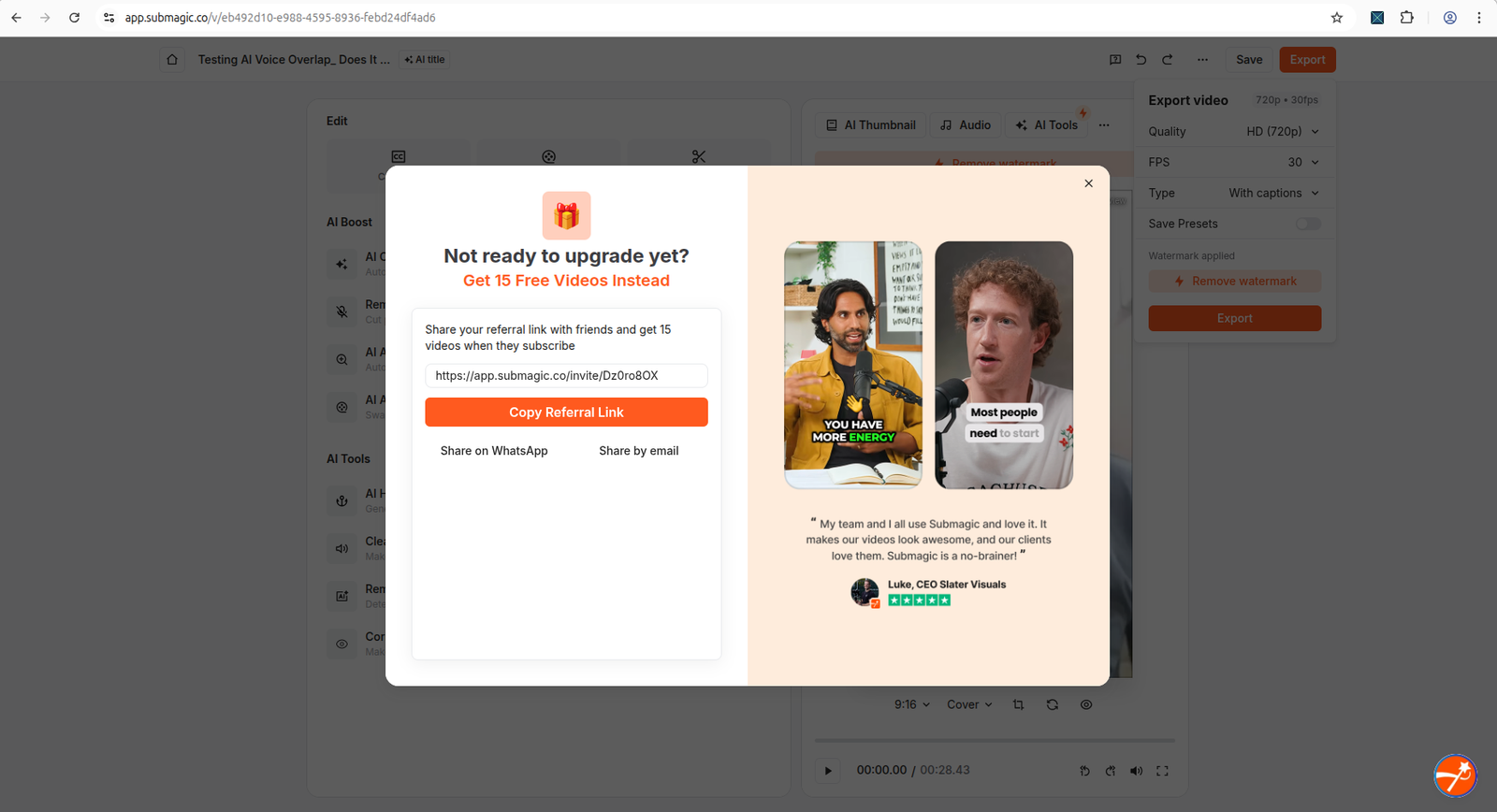
After closing the upgrade prompt, Submagic showed a referral popup instead of immediately confirming a watermarked download.
This does not prove that Submagic never allows free-trial exports. There may be another route, account condition, or later step.
But for an upgrade decision, the finding is still important:
If you need a reliable export/download workflow, verify that before spending time editing.
Upgrade trigger 3: higher usage limits
The dashboard showed a free/trial state with visible counters:
| Free/trial item | What I saw |
|---|---|
| Video projects | 0 of 3 |
| Magic clips | 1 of 1 |
| API minutes | 0 of 10 |
This is enough for testing, but not enough for a regular publishing workflow.
If you create Shorts, Reels, TikToks, podcast clips, or client videos every week, paid usage limits may matter quickly.
The public pricing page also showed paid plans such as Starter, Pro, and Business + API, with differences around usage, credits, export quality, watermark, B-roll, customization, and AI-powered tools.
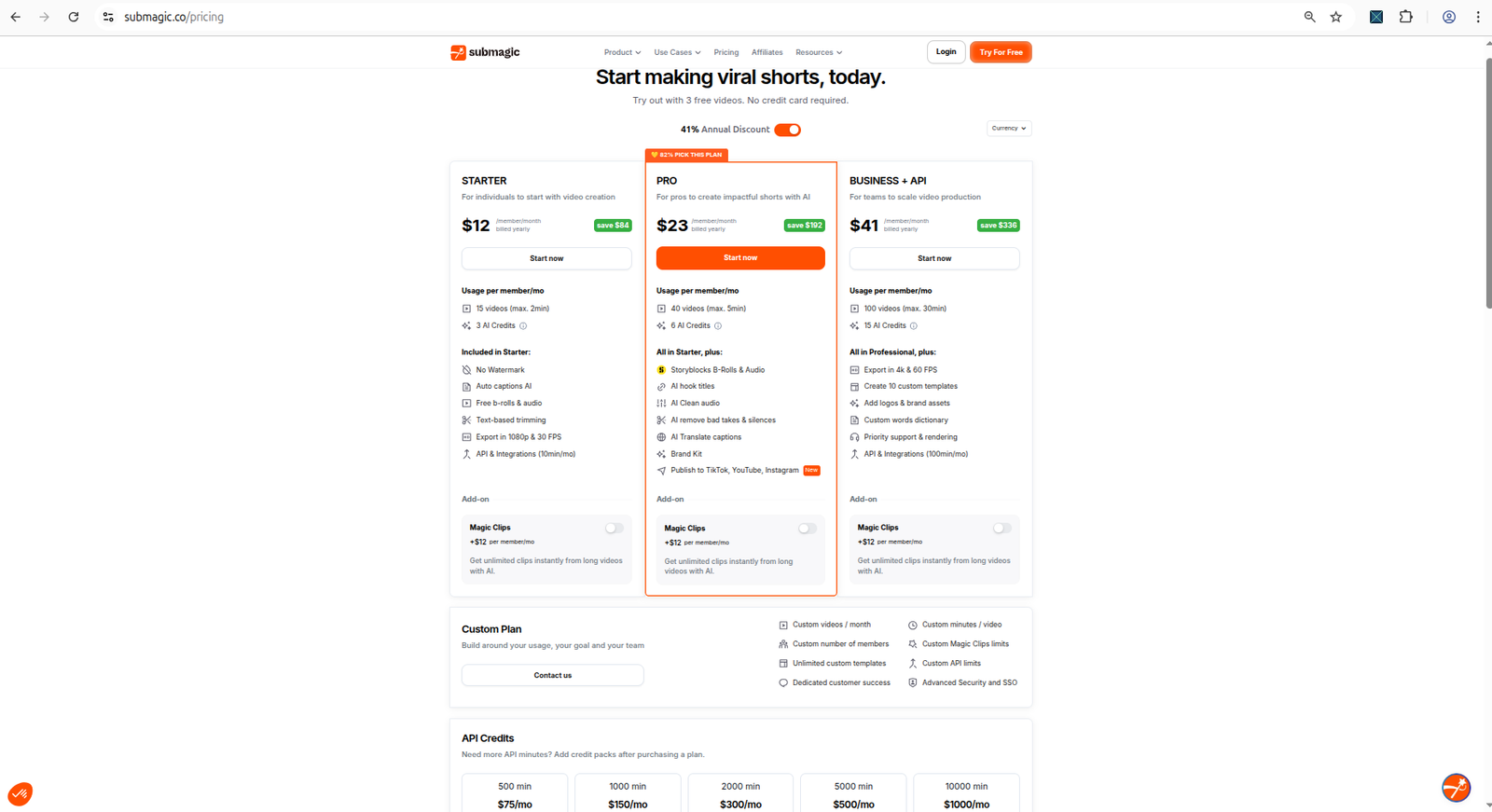
Submagic’s pricing page showed paid plan limits and feature differences.
Before upgrading, manually check the latest Submagic pricing page, because plan names, prices, credits, and limits can change.
API and automation users
The dashboard showed API minutes: 0 of 10, but I did not test API access directly.
If you want to automate Submagic through Python, shell scripts, or a backend workflow, do not assume API access is included just because API minutes appear in the dashboard. Before upgrading, check whether your plan includes API keys, request limits, export access, and downloadable outputs through the API.
Upgrade trigger 4: paid workflow features
Submagic’s public pages and pricing table showed differences around features such as:
- AI auto captions,
- duration per video,
- caption templates,
- AI credits,
- B-roll,
- API credits,
- export quality,
- FPS,
- watermark,
- customization,
- AI-powered tools.
In the editor, I also saw additional AI tools such as Remove Silences, AI Auto Zooms, AI Auto B-rolls, AI Hook Title, Clean Audio, Remove Bad Takes, and Correct Eye Contact.
I did not fully test all of those tools.
So the safest upgrade advice is:
Do not upgrade only because a feature is listed. Upgrade after testing whether the specific feature you need actually improves your workflow.
For example, if your main need is captions, test caption quality first. If your main need is B-roll, test B-roll relevance before paying. If your main need is AI clipping, test Magic Clips with your real content.
Who should stay free
Stay free if you are still evaluating Submagic.
The free trial is enough to answer basic questions like:
- Can I sign up easily?
- Can I upload my video?
- Does the editor feel simple?
- Do captions generate?
- Does the preview look promising?
- Does Submagic feel worth testing further?
Stay free if you are comparing Submagic with other tools like Vizard AI or OpusClip.
Stay free if you are not ready to publish from Submagic yet.
Who should consider upgrading
Consider a paid plan if you already tested your own video and Submagic clearly saves time.
Paid may make sense if you need:
- watermark-free exports,
- reliable export/download,
- more than a few projects,
- more Magic Clips usage,
- more AI credits,
- higher export quality or limits,
- paid AI workflow features,
- a more serious publishing workflow.
The key is not whether paid plans have more features. Most paid plans do.
The key is whether Submagic’s paid features solve your real bottleneck.
Who should test another tool first
Test another tool before upgrading if your main need is a proven free download path.
In my Vizard AI test, I was able to download a watermarked free-plan file after closing an upgrade prompt. In this Submagic test, I could generate and preview the captioned result, but download was not confirmed.
That does not mean Vizard AI is always better. It means the free-download evidence was clearer in that specific test.
If free export proof matters to you, compare Submagic with:
- Vizard AI Review
- Vizard AI Free Plan Limits
- OpusClip Review
- OpusClip Free vs Paid
- Best AI Video Repurposing Tools
My upgrade recommendation
Here is the simplest recommendation:
Start free. Upload one real video. Check the caption preview. Open export settings. Confirm whether download works the way you need. Only then consider paid.
That protects you from upgrading too early.
For small creators, Submagic’s free trial is useful as a test drive. It helps you evaluate the editor, but it did not give me a confirmed free publishing workflow in this test.
If Submagic’s editor saves you time and the paid plan clearly unlocks the export/watermark workflow you need, upgrading may make sense.
If your only goal is to test AI captions, stay free.
Final verdict
Submagic free vs paid comes down to this:
Free is for testing. Paid is for serious use only if export, watermark removal, and usage limits match your workflow.
In my test, Submagic’s free trial worked well up to the preview stage. I could sign up, upload, generate captions, and view the result.
But export/download was not confirmed because clicking Export led to upgrade/referral popups.
So my verdict is:
Try Submagic free first. Upgrade only if you need watermark-free output, more usage, or paid workflow features—and only after confirming the export path works for your content.
Used one of these tools? Share your experience with CreatorIntelHQ so we can improve future reviews, comparisons, and free-plan guides for small creators.
Related AI video repurposing guides
- Submagic Review 2026
- Submagic Free Plan Limits
- Vizard AI Review
- Vizard AI Free vs Paid
- Vizard AI Free Plan Limits
- OpusClip Review 2026
- OpusClip Free vs Paid
- Best AI Video Repurposing Tools
FAQ
Should I use Submagic free or paid?
Start with free if you are evaluating Submagic. Consider paid only if you need watermark-free output, more usage, reliable export/download, or paid workflow features.
What can I do on Submagic’s free trial?
In my test, I could sign up, reach the dashboard, upload a short video, generate captions, preview the result, and see the project saved in the dashboard.
Does Submagic free trial have a watermark?
Yes. In my test, the dashboard showed a trial with watermark, and the editor/export area showed watermark-related messaging.
Can I export from Submagic for free?
I could open export settings, but I could not confirm a downloaded watermarked export. Clicking Export triggered upgrade/referral popups in this test.
What changes when you upgrade Submagic?
Based on the pricing page and workflow, upgrading appears most relevant for watermark removal, higher usage limits, clearer export/publishing workflow, and paid AI workflow features. Verify the latest details on Submagic’s pricing page before buying.
Is Submagic Pro worth it?
Submagic Pro may be worth it if the editor saves you time and you need watermark-free exports or paid workflow features. I would first test your own video and confirm exactly what the paid plan unlocks.
Should small creators pay for Submagic immediately?
No. Small creators should start with the free trial, test one real video, check caption quality, and confirm export/download behavior before paying.
More AI video repurposing guides
If you are comparing Submagic with other creator tools, also read the related AI video repurposing guides linked above, especially the Submagic review, Submagic free-plan test, Vizard AI, and OpusClip guides.