OpusClip Review 2026: Can It Turn Existing Videos into Shorts Without Extra Filming?

Intro

If you already have long videos, tutorials, screen recordings, or talking-head content, the hardest part of making Shorts is often not filming. It is turning existing material into something short, usable, and fast enough to publish consistently.

OpusClip is built around that promise. It positions itself as an AI video repurposing tool that helps creators turn existing videos into short-form content with captions, reframing, editing, and related workflow tools. In this review, I am focusing on one specific question: can OpusClip really help you turn existing videos into Shorts without extra filming?

To answer that, I did not just review the homepage. I checked OpusClip’s pricing and feature claims, signed up for the free trial, tested AI Captions on both an AI-voice short and a natural-speech local file, and ran AI Reframe on a horizontal talking-head clip. That gave me a clearer picture of what works well, where the workflow feels real, and where the free trial starts pushing you toward an upgrade.

If you are comparing this with broader creator workflow tools, see our Best YouTube Tools for Small Creators, TubeBuddy Review 2026, vidIQ Review 2026, and AI Subtitle Tools.

Quick Verdict

Best for: Small creators who want to repurpose existing videos into Shorts and are willing to review captions, framing, and export limits before publishing.

Not best for: Creators who expect a free/trial workflow to produce fully publish-ready Shorts without manual cleanup or watermark/export checks.

Free plan usefulness: Useful for testing the workflow. In my test, signup was easy, no credit card was required, and credits were visible, but the free/trial path is still limited for publishing.

Main limitation I noticed: AI output still needs review. Captions, framing, watermark state, and export limits should be checked before using the result publicly.

My tested result: OpusClip opened the editor after generation, AI Captions worked with cleanup needed, and AI Reframe turned a horizontal talking-head clip into a usable vertical output.

The Test Lab Results
Onboarding Time: Less than 2 minutes, with no credit card required
Processing Speed: Fast enough for testing, though the visible ETA was not always exact
Caption Accuracy: Usable on natural speech, but not clean enough to call hands-off
Credit Burn: Roughly 1 credit per workflow run in my tests

Summary of My OpusClip Test

Test Area My Result
Signup Easy, with no credit card required in my test
AI Captions Worked, but natural speech needed manual cleanup
AI Reframe Turned a horizontal talking-head clip into a usable vertical output
Editor Access Available after generation
Free Trial Useful for testing, but limited for publishing
Best For Creators repurposing existing videos into Shorts

What OpusClip Claims to Do

On its public website, OpusClip presents itself as an AI video repurposing platform built to help creators turn longer videos into short-form content faster. The homepage positioning is centered on clipping, editing, and repurposing existing video into social-ready formats, while the feature pages expand that promise through tools like AI Captions, AI Reframe, AI B-Roll, ClipAnything, and Thumbnail Maker.

The broader message is that OpusClip is not just for one kind of creator. Its Solutions area and feature navigation suggest a wider audience that includes creators, podcasters, marketers, agencies, livestreamers, e-commerce users, and media teams. In other words, the product is positioned as an all-in-one workflow for people who want to repurpose video without building a manual editing process from scratch.

That official positioning matters, but it is still only the starting point. A feature page can make any tool look broad and polished. The more useful question is what actually happens once you sign up, upload a clip, and try to generate something usable inside the free trial.

OpusClip homepage hero screenshot

OpusClip’s homepage positions the platform as an AI tool for turning longer videos into short-form content faster.


What I Tested Before Writing This Review

This review is based on both public-page research and hands-on product testing. Before using the tool, I reviewed OpusClip’s homepage, pricing page, solutions positioning, and several key feature pages to understand how the company presents the platform. That gave me a baseline for what OpusClip claims to do before I moved into the real workflow.

From there, I tested the product directly through the free trial. I verified signup and dashboard access, then ran one AI Captions workflow on a short AI-voice HMQuiz clip, a second AI Captions workflow on a local natural-speech screen recording, and one AI Reframe workflow on a horizontal talking-head clip. I also tracked visible credit usage, editor access, and export-related limitations such as watermark pressure on free or trial output.

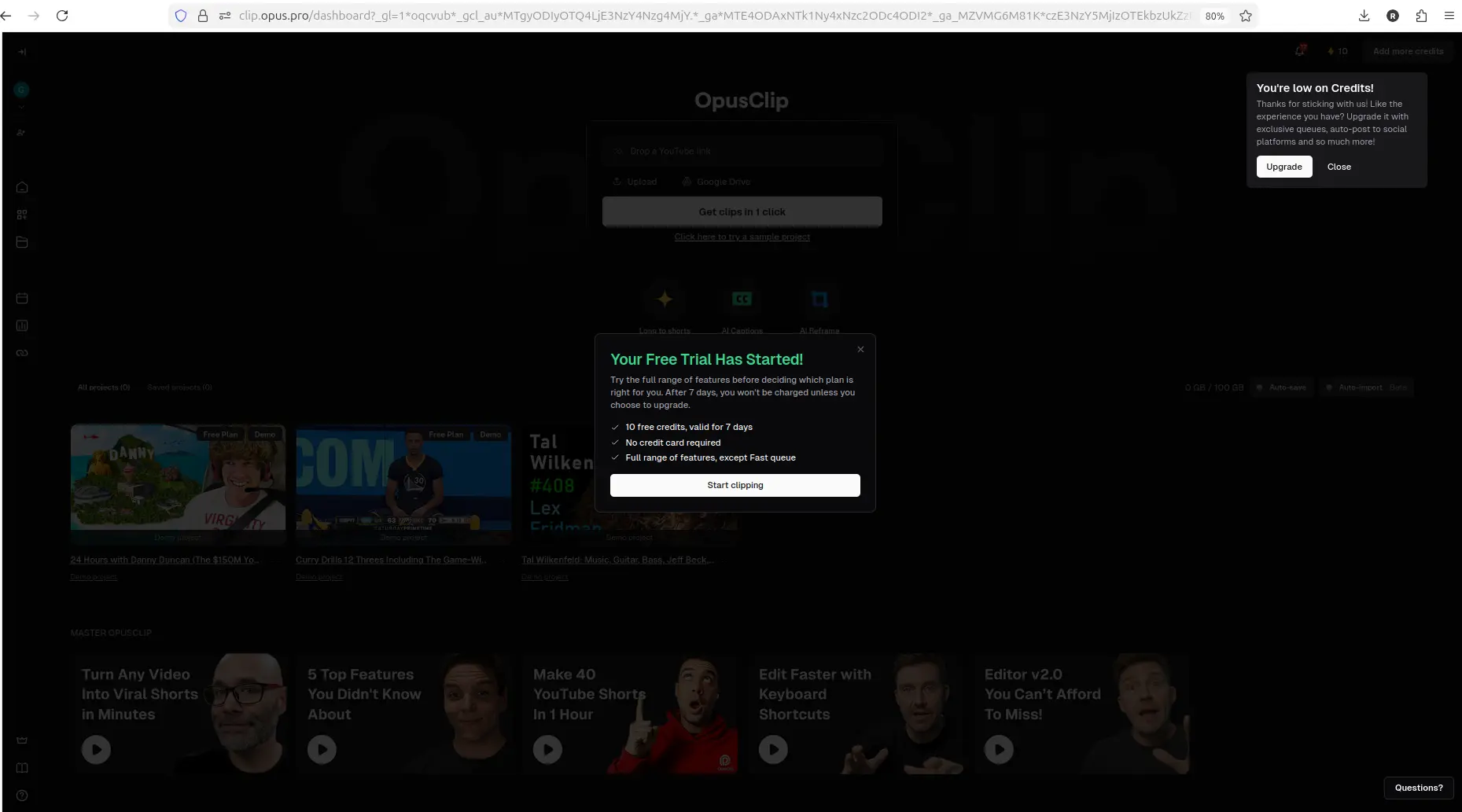
Dashboard trial popup showing 10 free credits for 7 days

I tested OpusClip through the free trial, including dashboard access, visible credits, and real workflows inside the product.


What You Can Actually Do in OpusClip’s Free Trial

One of the better things about OpusClip is that the free trial is not just a static landing experience. At signup, the product clearly stated that a free plan was available and that no credit card was required. Once inside the dashboard, the trial popup showed 10 free credits for 7 days, which immediately made the testing limits more visible and easier to understand.

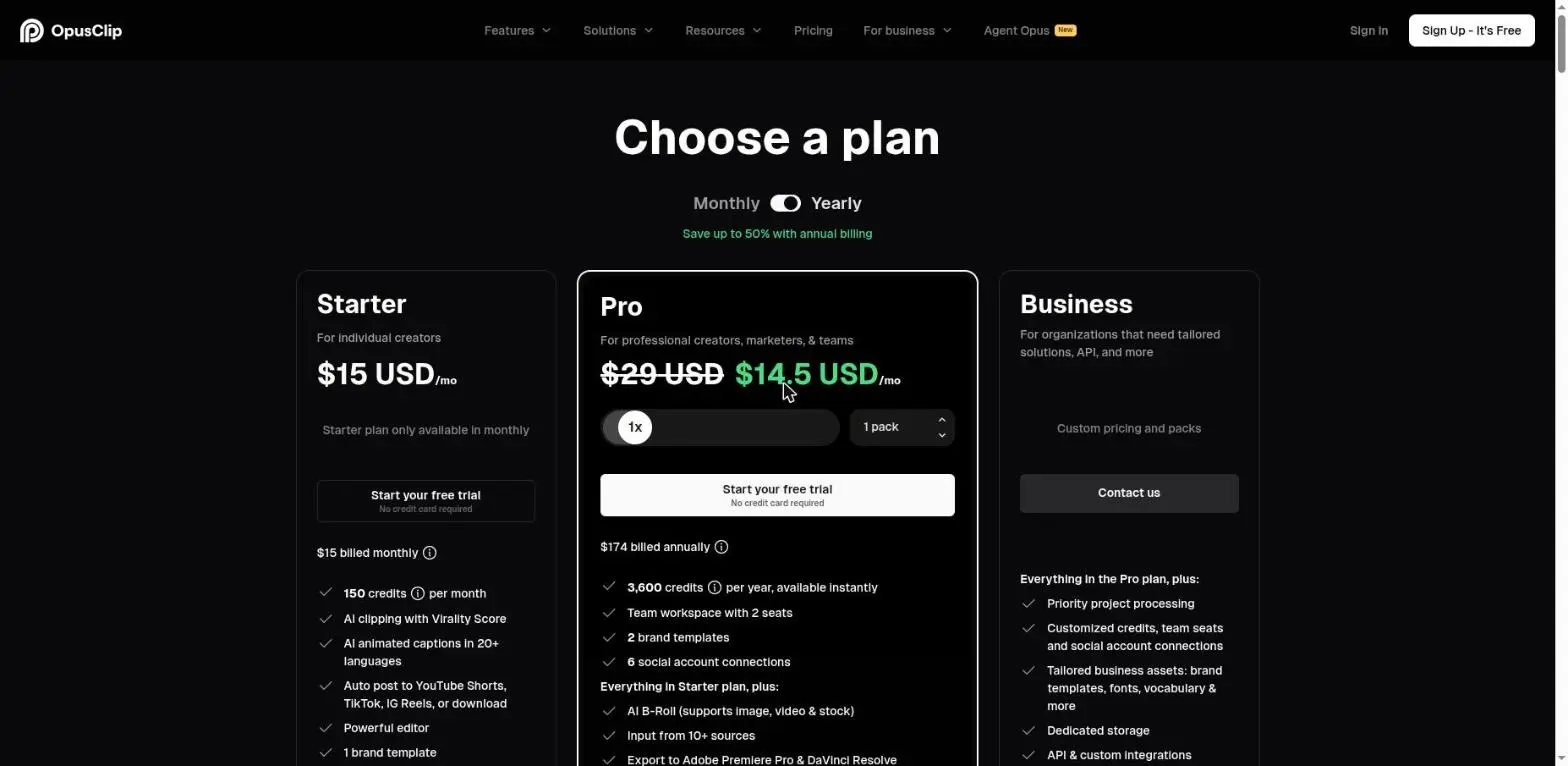
Pricing and trial-limit note: Free-plan and trial details can change. In my test account, OpusClip showed 10 free credits for 7 days. Before you decide based on credits, watermark rules, or export limits, check the current OpusClip pricing page because public plan details may differ from what appeared in my test dashboard.

Dashboard trial popup showing 10 free credits for 7 days

OpusClip’s free trial starts with visible credits and no credit card requirement, which makes the limits clear from the beginning.

More importantly, the dashboard was actually usable. It did not feel like a locked shell built only to push an upgrade. I was able to access real workflows, start AI Captions, run AI Reframe, generate outputs, and open the editor after processing. That matters because some creator tools only reveal the surface of the workflow before blocking the useful parts.

At the same time, the free trial is better for validation than for unrestricted use. It is strong enough to show how the workflow works, what the outputs look like, and whether the product fits your process. But export limitations appear quickly, especially when watermark-free output becomes tied to upgrading. So the free trial is real and useful, but it is still designed to move you toward a paid plan once you go beyond basic testing.

Dashboard home with upload, Zoom link, and Google Drive input options

The dashboard is usable immediately and gives access to real workflows instead of acting like a locked shell.


My First AI Captions Workflow Test

For the first real workflow test, I used a short HMQuiz clip with AI voice. The goal here was not to judge perfect caption quality yet. It was to see whether OpusClip’s AI Captions workflow was actually usable from start to finish inside the free trial.

The workflow moved cleanly from signup to the dashboard and then into AI Captions. I was able to open the feature, choose a caption template, generate a result, and open the full editor afterward. That is important because it shows OpusClip is not just a marketing surface with feature pages and promises. It produced a real clip and exposed a real editing environment inside the product.

AI Captions template selection screen

Before generation, OpusClip’s AI Captions workflow shows preset and aspect-ratio choices rather than jumping straight to a locked output.

I could also see the workflow cost in a practical way. The visible credit count dropped from 10 to 9 after this first run, which strongly suggests that one credit was consumed. The generated clip view included score breakdown, transcript or scene analysis, and several follow-up actions such as Download HD, Edit clip, AI hook, Enhance speech, and Add B-Roll. In other words, the workflow did not stop at a preview. It reached a usable output stage with clear next-step tools attached to it.

Generated clip view with transcript analysis and editor actions

The first AI Captions workflow produced a real output with transcript analysis, score breakdown, and follow-up actions like Edit clip and Download HD.


What Happened When I Tested Natural Human Speech

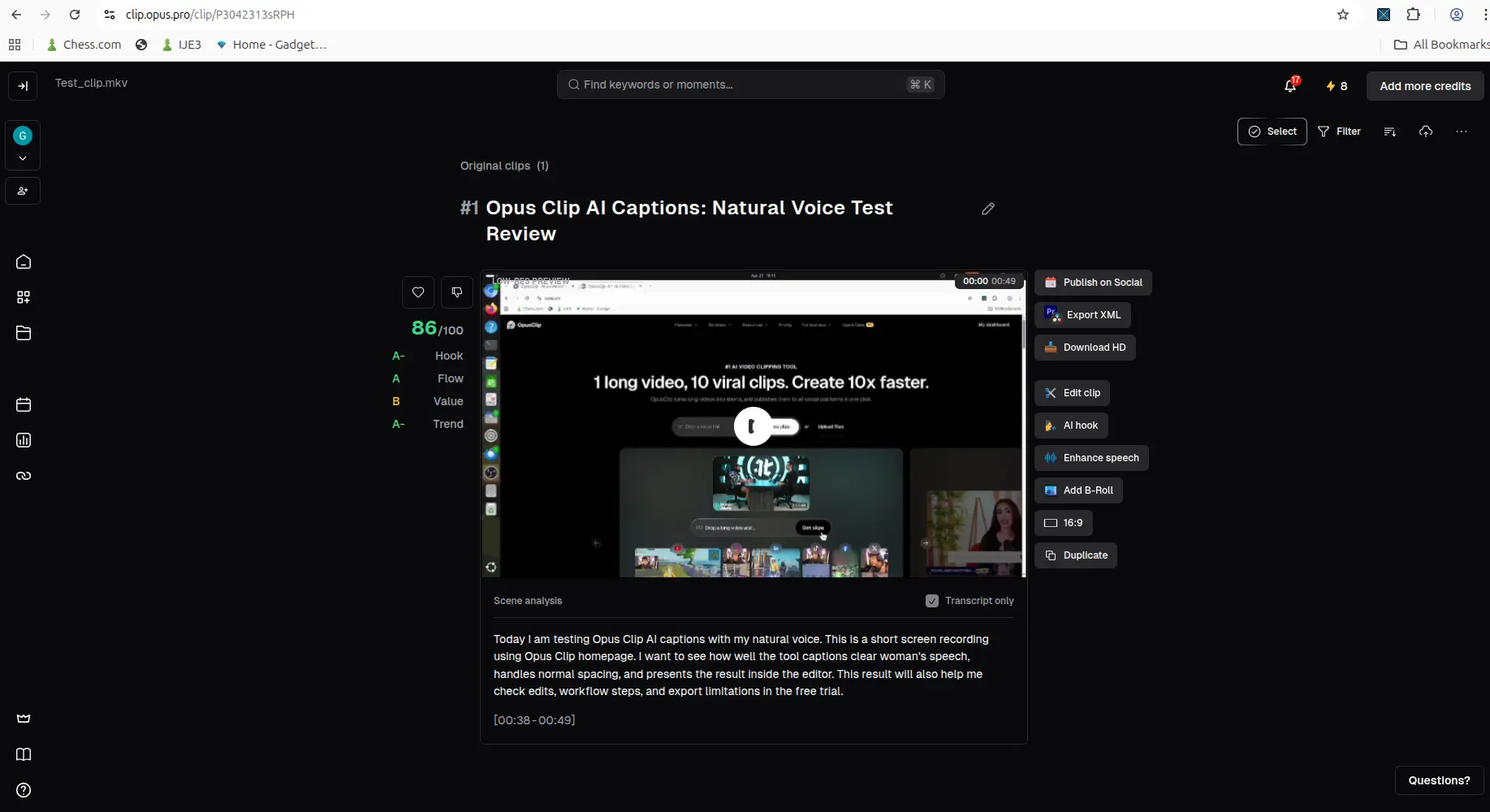
My second AI Captions workflow was more useful as a realism check because I used a local MKV file with my own natural voice instead of a short AI-voice clip. The workflow accepted the file, uploaded it successfully, loaded the preview, and generated an editor-ready result, which showed that OpusClip could handle a more realistic input than the first test. The visible credit count also dropped from 9 to 8 after this run, which again suggested that one more credit had been used.

AI Captions local-file upload in progress for the natural-speech test

For the second AI Captions test, I used a local MKV file with natural human speech rather than a short AI-voice clip.

The result was mostly understandable and usable, which is the good news. OpusClip did not break down on natural speech, and the workflow still reached a real output with transcript, score breakdown, and editor access. But the transcript was not perfectly accurate. A few mistakes stood out, including “OpusClip” becoming “Opus Clip,” “human speech” becoming “woman’s speech,” “normal pacing” becoming “normal spacing,” and “This test will also help me check credits” becoming “This result will also help me check edits.”

That leaves me with a balanced conclusion. AI Captions did not fail on natural speech, but it also was not flawless. The output was good enough to test the workflow and potentially useful with review or cleanup, but not accurate enough for me to describe as hands-off or perfectly reliable.

Natural-speech generated result with transcript visible

The natural-speech result was mostly usable, but the transcript included noticeable wording mistakes that matter if you want clean captions without manual review.


Testing AI Reframe: Can it Handle Horizontal Talking Heads?

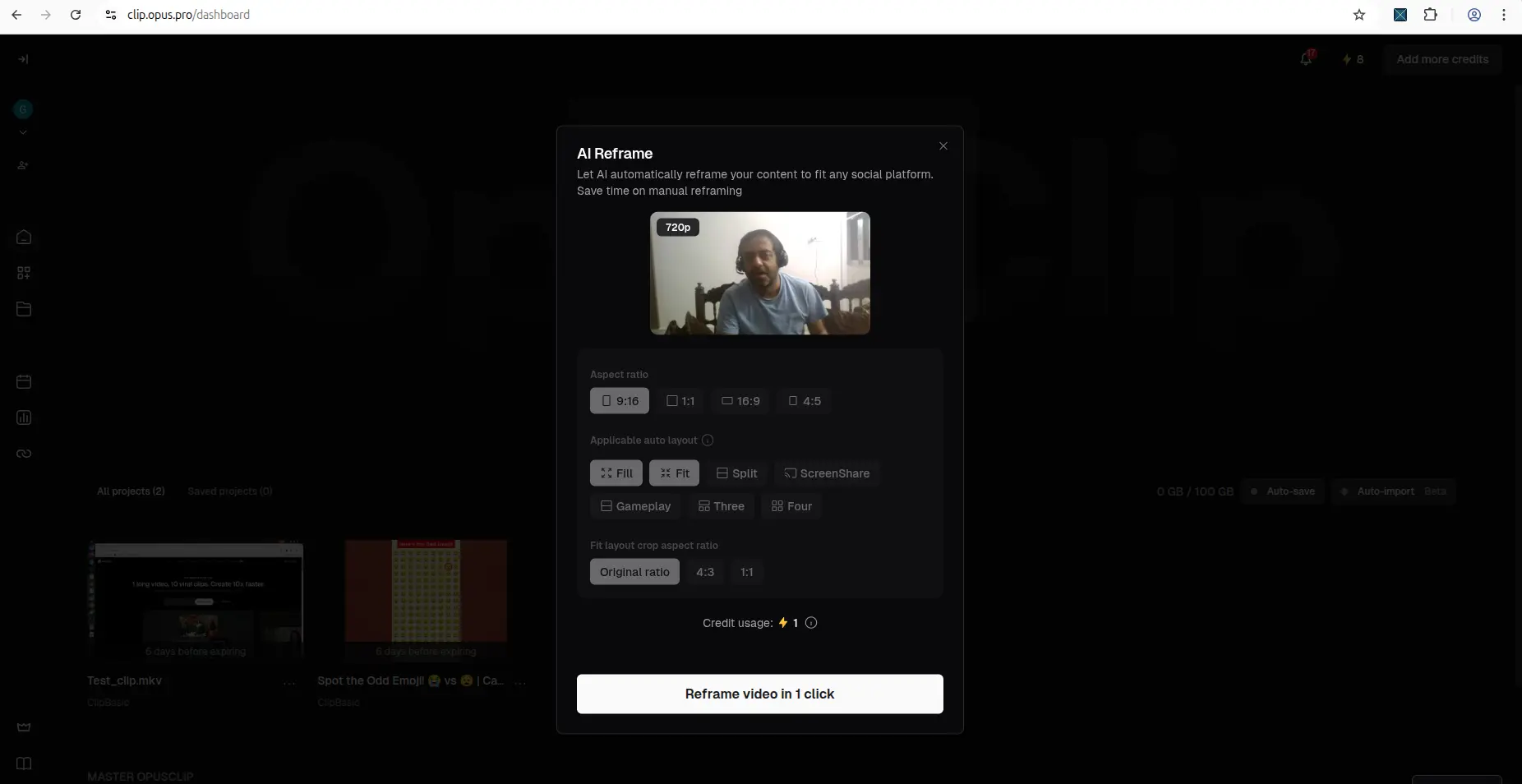
I created a separate workflow session for AI Reframe and used a local horizontal talking-head clip to test whether OpusClip could actually turn existing footage into a more Shorts-friendly format. The workflow accepted the file, loaded the reframe settings, and gave me control over the output format before processing started.

For this test, I selected 9:16 with Fill and Original ratio crop. That mattered because I wanted the tool to make a real framing decision rather than just keep the clip in a safer layout. After I started the run, the dashboard showed a processing project card with an ETA, and the visible credit count dropped to 7 by the time the workflow was underway, which suggested one more credit had been used.

AI Reframe options screen with 9:16, Fill, and Original ratio selected

For the AI Reframe test, I used a horizontal talking-head clip and selected a vertical 9:16 output with Fill layout.

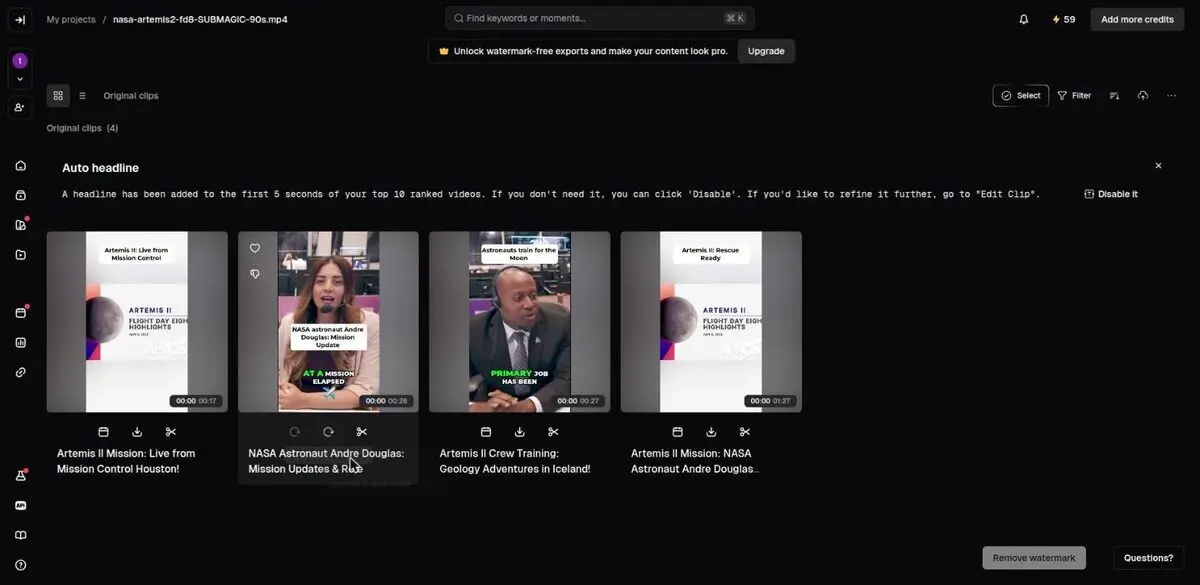
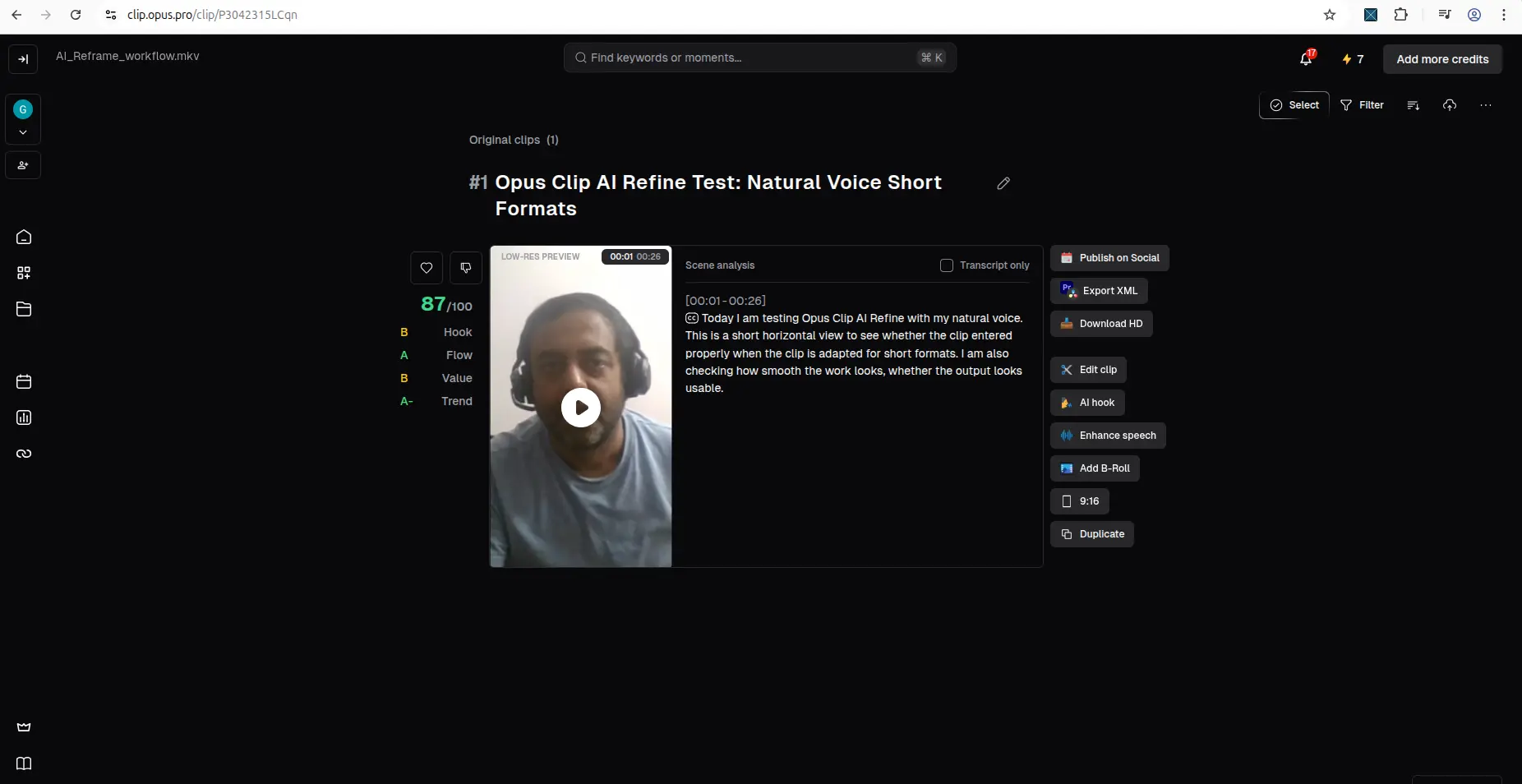
More importantly, the final result opened successfully and showed a usable vertical short-form output with transcript analysis and further editing actions. That is the clearest evidence from my testing that OpusClip can do more than add captions. It can also take a horizontal speaking clip and turn it into something that looks ready for short-form use without needing extra filming.

Final AI Reframe result showing vertical output and editor actions

The AI Reframe workflow produced a usable vertical result from a horizontal clip and opened a full result view with editing actions.

What I would not overclaim is the tracking quality. In my test, the output looked usable and centered enough for a basic talking-head clip, but I did not run a difficult enough motion test to say confidently whether OpusClip was doing strong subject tracking or mostly applying a smart center crop. This was still a controlled creator-style clip with one clear subject, not a harder scene with multiple moving focal points.


Where OpusClip Helps the Most

The biggest strength I found in OpusClip is that it reduces the friction between already having content and actually turning that content into short-form output. The onboarding is easy, the free trial starts without a credit card, and the dashboard makes it clear where to begin with options like upload, link-based input, and Google Drive. That matters because the platform does not hide the workflow behind a confusing setup or a locked shell.

Try OpusClip if: you already have long videos, interviews, screen recordings, tutorials, or talking-head clips and want to test a faster Shorts workflow before paying for a full editing setup.

Try OpusClip

Dashboard home with upload, link, and Google Drive input options

OpusClip reduces friction early by giving you immediate input options instead of hiding the workflow behind a complicated setup.

It also helps that the workflows are real. In my testing, AI Captions and AI Reframe both moved beyond feature-page promises and produced actual outputs inside the product. I was able to generate results, open the editor, view transcript or scene analysis, and reach the point where OpusClip clearly became a usable repurposing tool rather than just a marketing surface. That is the strongest reason to take it seriously if your main goal is to reuse videos you have already recorded.

Generated clip view with editor actions and analysis tools

The strongest part of OpusClip is that its workflows produce real outputs and open into a usable editing environment.

For creators with backlogs of tutorials, screen recordings, talking-head clips, or other existing videos, this is where OpusClip feels most useful. It shortens the path from “I already filmed this” to “I have something I can shape into a Short.” Even with the free-trial limitations, the platform is strong as a workflow validator for creators who want to test repurposing speed before deciding whether a paid plan is justified.


Where the Free Trial Gets Limited

The free trial is useful, but the limits become visible fairly quickly once you move past simple testing. The clearest limit is the credit system. In my workflows, the visible credit count dropped from 10 to 9, then 8, and then 7 as I ran real captioning and reframing tests. That does not make the tool unusable, but it does mean the free trial is built for evaluation, not for running a large volume of repurposing work.

Dashboard screenshot showing visible credit count

The free trial makes credit usage visible, which helps with evaluation but also shows that the workflow is not unlimited.

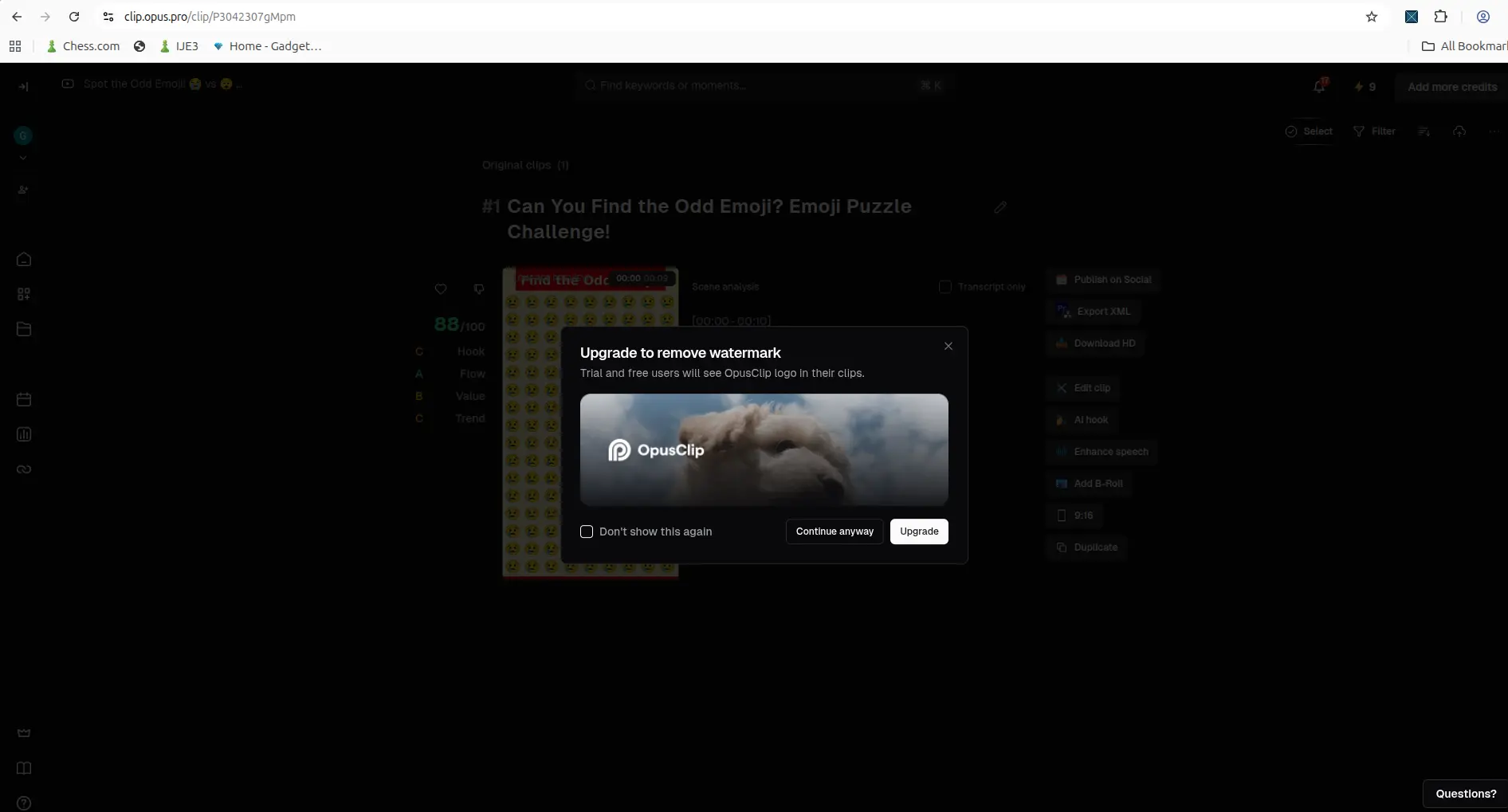
The second major limit shows up at export. When I clicked Download HD, OpusClip triggered an upgrade popup explaining that free and trial users would still see the OpusClip logo or watermark on their clips unless they upgraded. That is an important restriction because it changes the value of the free trial. You can validate the workflow, see the output, and reach the editor, but clean export is where the upgrade pressure becomes much more obvious.

Download HD popup showing watermark and upgrade requirement

OpusClip’s free trial is useful for testing, but export becomes limited quickly when watermark-free output is tied to upgrading.

Use the free trial for validation, not full publishing. Test one real video from your own channel, check caption accuracy, try reframing, open the editor, and confirm export limits before assuming it can replace your current Shorts workflow.

So my view is that OpusClip is generous enough to evaluate, but restrictive enough that it stops short of being a fully unrestricted publishing workflow. That is not unusual for creator tools, but it is something readers should know before assuming the free trial is enough to run an ongoing Shorts pipeline without friction.


Who Should Skip OpusClip

OpusClip is not the right fit for every creator. You may want to skip it, or at least test carefully before paying, if you do not already have longer videos to repurpose. The product is strongest when you feed it existing content, so it will not solve the problem of having no raw material.

You should also be cautious if you expect perfect captions without manual review. My natural-speech test was usable, but not flawless. The same applies if you need watermark-free exports from a free plan, because export restrictions appeared clearly in my testing. And if your main need is keyword research, tag suggestions, competitor tracking, or YouTube SEO audits, a broader YouTube growth tool like TubeBuddy or vidIQ may be a better match than OpusClip.


Pros and Cons

Based on my testing, OpusClip feels more useful as a real workflow tool than as a simple marketing surface. But the free trial also makes its limits clear fairly quickly.

Pros

  • Easy onboarding with no credit card required
  • Visible free-trial credits make testing straightforward
  • Real workflows for AI Captions and AI Reframe worked in practice
  • Editor access is available after generation
  • Good for turning existing videos into Shorts without extra filming
  • Useful for creators who want captions and reframing in one place

Cons

  • Credit limits become visible quickly
  • Watermark-free export requires upgrading
  • Natural-speech captions were usable, but not flawless
  • Free trial helps validate the workflow, but not fully replace a paid workflow
  • Harder cases like longer clips, noisier audio, or more complex scenes still need more testing

Who OpusClip Is Best For

OpusClip is best suited to creators who already have videos and want a faster way to turn them into short-form content. That includes YouTubers with backlogs of tutorials, talking-head videos, screen recordings, interviews, or other clips that can be repurposed instead of filmed again from scratch. Based on my testing, the platform is especially useful for creators who want captions and reframing inside the same workflow rather than stitching together several separate tools.

If you are still deciding between repurposing tools and broader YouTube growth tools, compare this with our TubeBuddy Review 2026, vidIQ Review 2026, and Best YouTube Tools for Small Creators.

It also makes sense for solo creators who care more about speed and workflow validation than about having perfect outputs on the first pass. The free trial is good enough to show whether the platform fits your process, and the dashboard, editor access, and visible feature set make it practical for creators who want to test before making a paid commitment.

Where OpusClip feels less ideal is in situations where you expect flawless transcription, unrestricted free exports, or a complete answer on paid-plan value from a very short test window. My natural-speech workflow showed that captions were usable but not perfect, and the export flow made it clear that watermark-free output is tied to upgrading. So the tool is a good fit for creators who want to validate a repurposing workflow quickly, but a weaker fit for anyone expecting a fully polished free publishing pipeline with no manual cleanup.

Solutions menu showing creator and business target users

OpusClip is positioned for a wide range of creator and business users, but it is most useful when you already have content to repurpose.


If captions are a major part of your short-form workflow, you may also want to read our guide to AI Subtitle Tools.

Final Verdict

OpusClip does help turn existing videos into Shorts without extra filming. That is the clearest takeaway from my testing. The workflows for AI Captions and AI Reframe were real, usable, and able to move from input to output inside the free trial without feeling like fake demo paths.

At the same time, the free trial is best used as a way to evaluate the product, not as a fully unrestricted publishing workflow. I was able to sign up without a credit card, access the dashboard, generate outputs, open the editor, and test multiple workflows. But export is where the limits become much clearer, especially once watermark-free output gets tied to upgrading.

The results were also strong enough to feel useful, but not flawless. AI Captions worked on both an AI-voice clip and a natural-speech clip, but the natural-speech transcript still included noticeable wording mistakes. AI Reframe successfully turned a horizontal talking-head clip into a usable vertical result, which is exactly the kind of workflow many creators want from a repurposing tool.

So my verdict is simple: OpusClip is worth trying if your main goal is to validate a faster repurposing workflow for existing content. But if you expect perfect outputs, unrestricted free exports, or enough trial depth to fully judge the paid plan, you will probably hit the limits fairly quickly. The free trial answers the question, “Does this fit my workflow?” much better than it answers, “Can I run my whole Shorts pipeline for free?”

Try OpusClip


Used one of these tools? Share your experience with CreatorIntelHQ so we can improve future reviews, comparisons, and free-plan guides for small creators.

Share your YouTube tool experience

FAQ

Is OpusClip free to use?

OpusClip offers a free-trial entry point, and in my signup flow it did not require a credit card. That makes it easy to test the product before paying. However, the free trial is not unlimited. Visible credits were consumed during real use, and export restrictions appeared once I moved beyond basic validation. Because OpusClip can change plan limits, credits, and export rules, verify the current pricing page before making a final decision.

Can OpusClip turn existing videos into Shorts?

Yes, based on my testing, that is one of the clearest things it does well. AI Reframe successfully turned a horizontal talking-head clip into a usable vertical result, and the platform’s broader workflow is clearly designed around repurposing existing content into short-form outputs.

Does OpusClip work on natural speech?

Yes, but not perfectly. In my natural-speech workflow, OpusClip produced a usable transcript and completed the workflow successfully, but the transcript included noticeable wording mistakes. So it worked well enough to test and potentially use with review, but not well enough for me to call it flawless.

Does the free trial add a watermark?

The export flow strongly suggests yes. When I clicked Download HD, OpusClip showed an upgrade popup explaining that free and trial users would still have the OpusClip logo on exported clips unless they upgraded.

Is OpusClip good for small creators?

It can be, especially for small creators who want to test whether a repurposing workflow fits their process before paying. The dashboard is usable, real outputs can be generated, and both captions and reframing worked in my testing. But the free trial is better for evaluation than for unrestricted publishing, especially once export quality and watermark limits matter.