
Vizard AI vs OpusClip: Free Plan Comparison
Weighing more than two tools? See all 4 tools compared in our AI video repurposing guide.
If you are a small creator deciding between Vizard AI and OpusClip, the real question is not "which tool is best?" It is: which free plan gives you the most useful test before you pay?
This comparison answers that one decision. I ran a hands-on free-plan workflow test on each tool. The two tests were separate: Vizard AI with a short 27-second horizontal MP4, OpusClip with its AI Reframe workflow on a local horizontal clip.
Both tools reached a real result/editor screen on the free plan. The biggest practical differences were in credits, upload/format handling, and what happened at the download step.
For the full single-tool evidence, see my Vizard AI review and OpusClip review. You can also read how I test tools in the editorial process.
Disclosure: CreatorIntelHQ may earn a commission if you buy through some links. This comparison is based on hands-on testing and documented observations, not on official marketing claims.
Based on hands-on testing · How we test creator tools
Quick verdict
Choose Vizard AI if: you want one-click AI clip generation from an uploaded video with auto-captions, a larger standing free balance (60 monthly credits in the tested account), and upfront format clarity — Vizard rejected an MKV upload and clearly listed supported formats. In my test it also let me download a clip on the free plan, but the file carried a visible watermark and the 9:16 reframing did not keep my subject centered.
Choose OpusClip if: you mainly want to test the AI Reframe (horizontal-to-vertical) workflow and a deeper set of post-generation editor actions — transcript/scene analysis plus Edit clip, AI hook, Enhance speech, and Add B-Roll. Use its permanent free plan (60 credits a month, no clock) rather than the 7-day Pro trial, unless you specifically want to try the paid features. Both reach a real download; the free plan's comes out watermarked at 1080p.
Use neither tool blindly: captions and reframing in both tools still need manual review before publishing.
Decision guide
Choose Vizard AI if: you want to see an AI clip, auto-captions, and an actual (watermarked) free download in one short session, and you value a clear unsupported-format message before uploading.
Choose OpusClip if: your priority is AI Reframe plus post-generation editing actions (AI hook, Enhance speech, Add B-Roll). Start on its permanent free plan — 60 credits a month, same as Vizard's — not the 7-day Pro trial.
Compare both first if: your real goal is publish-ready output — neither test proved a clean, watermark-free download on the free plan.
Test basis and evidence confidence
I do not treat homepage claims as proof. This comparison is based on separate hands-on workflow sessions, and pricing is screenshot-based. For the paid tiers sitting behind these free plans, see our side-by-side pricing tables.
| Tool | Evidence confidence | What I tested |
|---|---|---|
| Vizard AI | Strong throughout. Exported-file quality confirmed 2026-08-25: clips downloaded and inspected, free-plan export capped at 720p from a 1080p source | Gmail signup, onboarding survey, dashboard, 60 credits, MP4 upload (and MKV rejection), one AI clip generated, auto-captions, 9:16 reframe, editor, watermarked download after an upgrade modal |
| OpusClip | Strong throughout. Permanent free plan taken through Download HD on 14 September 2026: a 1080×1920 MP4, watermark composited into the frames from about five seconds in, export cost zero credits | Dashboard, AI Reframe, local horizontal upload, 9:16 Fill settings, generated result, completed result view with transcript/scene analysis and edit/export actions, visible credit consumption |
Important limitation: I did not run the exact same source video through both tools in a single controlled side-by-side benchmark. The same-video benchmark is still needed.
Vizard AI vs OpusClip summary table
| Comparison area | Vizard AI | OpusClip |
|---|---|---|
| Free plan tested | Free plan with 60 monthly credits visible in the dashboard | Two entry points, both now tested. Permanent free plan: 60 credits/month, watermark, no editing, clips unexportable after 3 days — exports at 1080p (tested 14 Sep 2026). 7-day Pro trial: 10 credits, no credit card, full features except Fast queue, and Pro includes watermark removal. |
| Workflow tested | Upload MP4 → generate one AI clip → captions → 9:16 reframe → editor → download | AI Reframe: upload horizontal clip → 9:16 Fill → generate → completed result view |
| Upload/format handling | Rejected MKV with an unsupported-format error; listed MP4, MOV, 3GP, AVI, MP3, WAV, M4A | Accepted a local horizontal file; supported formats not shown in my evidence |
| Output reached | AI clip with 8.0/10 score, 720p label, captions, and a visible watermark in preview | Vertical reframed clip with transcript/scene analysis and a score breakdown |
| Editor/result actions | Preview, publish, download, and edit options | Download HD, Edit clip, AI hook, Enhance speech, Add B-Roll |
| Download step | Download reached after closing an upgrade modal; file had a visible Vizard watermark | Download HD completed on the permanent free plan (14 September 2026): a 1080p file with the OpusClip watermark in the frames from about five seconds in |
| Credits behavior | 60 credits shown; credit change after download not separately confirmed | Credits dropped across generations (10 → 9 → 8 → 7) during testing |
| Main caution | Watermark on free download; 9:16 reframing did not keep the subject centered | Transcript had wording errors |
| Evidence confidence | Strong for tested workflow | Strong for tested workflow |
Free plan comparison
Both tools are testable before paying, but the free offers are structured differently.
Vizard AI showed a Free plan with 60 monthly credits in the tested dashboard, along with AI-generated clips, 720p export, full editor access, and short (3-day) storage on the pricing page. The free plan does not include watermark removal.
OpusClip offers two entry points. The one in this original test was a 7-day Pro trial with 10 credits, no credit card required, full features except the Fast queue. Separately it runs a permanent free plan at 60 credits a month — the like-for-like match with Vizard, and the one we tested on 14 September 2026. On both, the visible credit count dropped as I generated results, a practical reminder that experimenting consumes credits.
⚠️ That trial is not OpusClip's free plan, and this page previously implied it was. The trial is of the Pro plan — which is why it includes watermark removal. OpusClip separately advertises a permanent "Free — Free forever — $0 USD/mo" tier at 60 credits per month, the same headline number as Vizard's free plan. It carries three restrictions the trial does not: has watermark, no editing, and clips stop being exportable after 3 days. We have since tested it (14 September 2026): those restrictions are real, and the export it produces is a watermarked 1080p file.
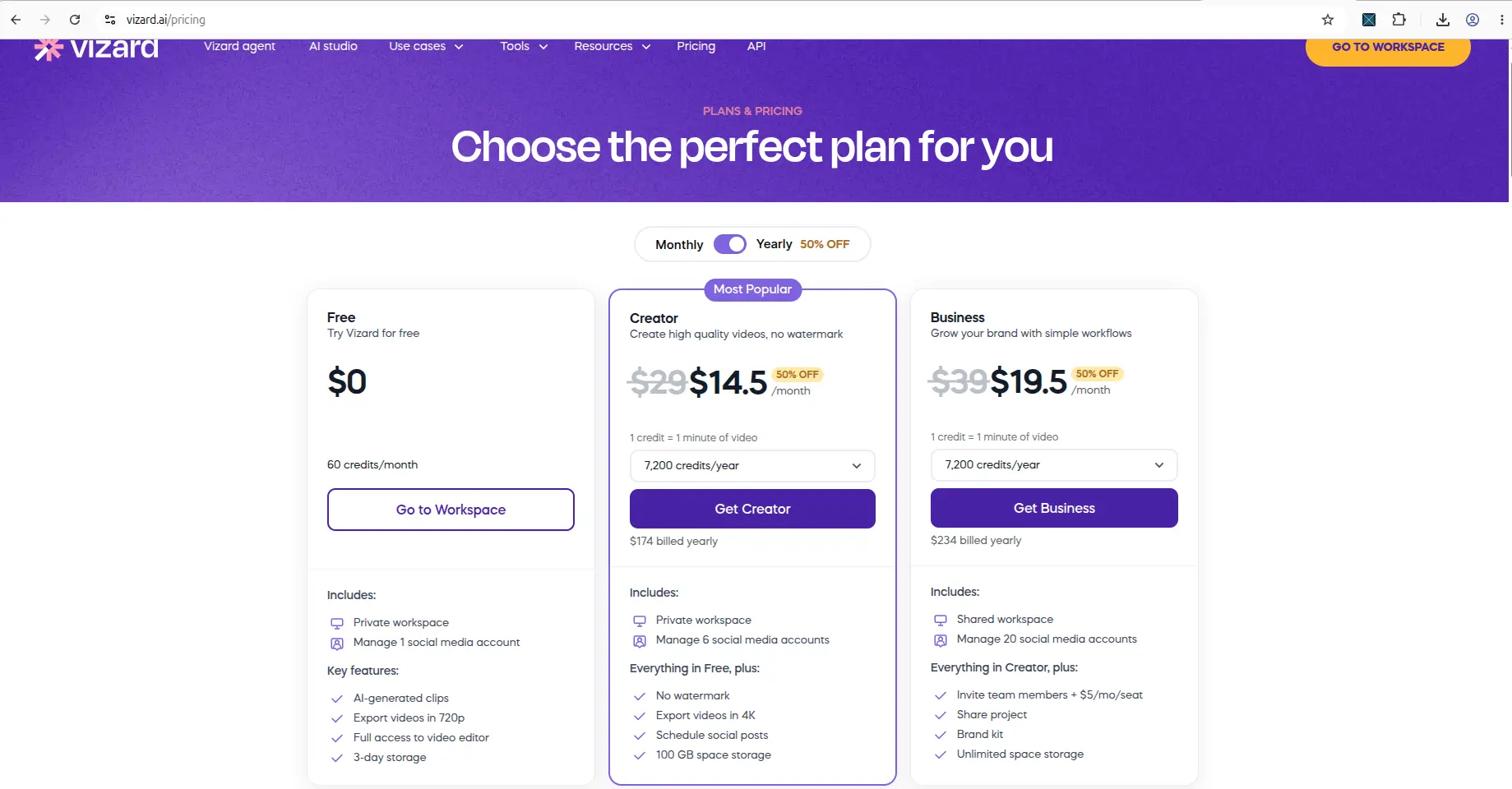
Vizard AI's pricing page as of 12 August 2026, showing Creator at $14.5/month and Business at $19.5/month on yearly billing.
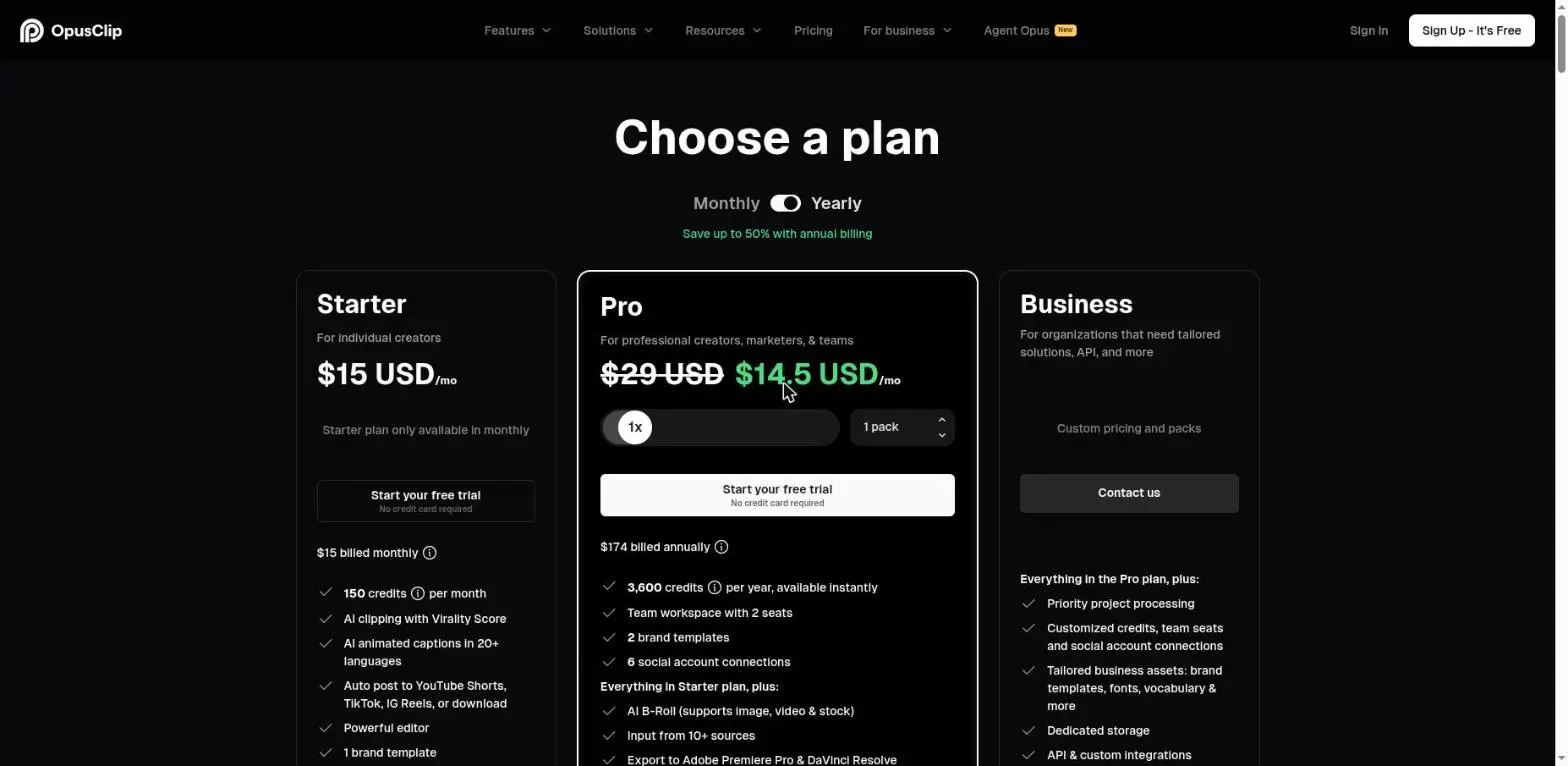
OpusClip pricing, captured 27 August 2026: Starter $15/month, Pro $29/month list price, in USD. OpusClip's annual price is promotional and changed between two checks on the same day, so read the yearly figure off their page yourself rather than trusting any screenshot — including this one.
Free-plan verdict: we have now run both permanent free plans and they are closer than this page once implied — 60 credits a month each, and each hands you a real watermarked download. The differences that remain are concrete. OpusClip exports at 1080p against Vizard's 720p, and OpusClip's watermark is absent for the first few seconds of a clip where Vizard's runs throughout. Vizard has no equivalent of OpusClip's 3-day export window, so anything you generate on OpusClip has to be pulled down quickly. Neither is proof of publish-ready free output: both mark the file, and on both the mark is composited into the frames rather than overlaid, so it cannot be cleaned up afterwards. We break OpusClip's export ceiling down separately in what OpusClip's free export actually gives you.
Workflow comparison
The two tools led me through different first workflows.
Vizard AI: upload and generate, with clear format rules
After Gmail signup and a short onboarding survey, I reached the workspace in about a minute and saw the Free plan with 60 credits. When I first tried to upload an MKV file, Vizard immediately showed an unsupported-format error and listed the supported formats (MP4, MOV, 3GP, AVI, MP3, WAV, M4A). That is a practical limitation if you record in MKV (common with OBS), but the message was clear and told me exactly what to convert to. After switching to a supported MP4, the upload started and Vizard generated one AI clip.
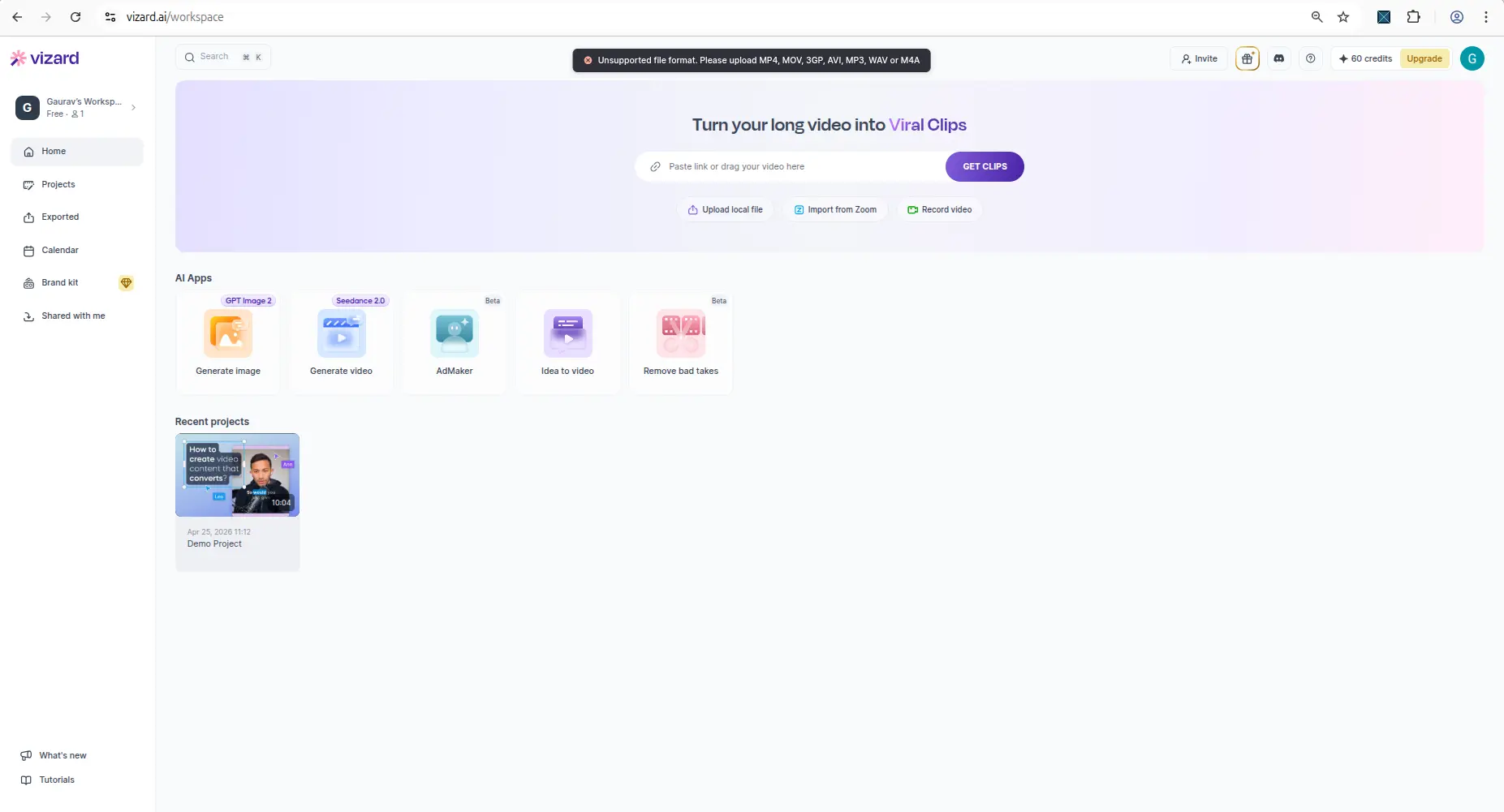
Vizard AI upload screen showing the tested file workflow or format limitation.
OpusClip: AI Reframe with deeper post-generation actions
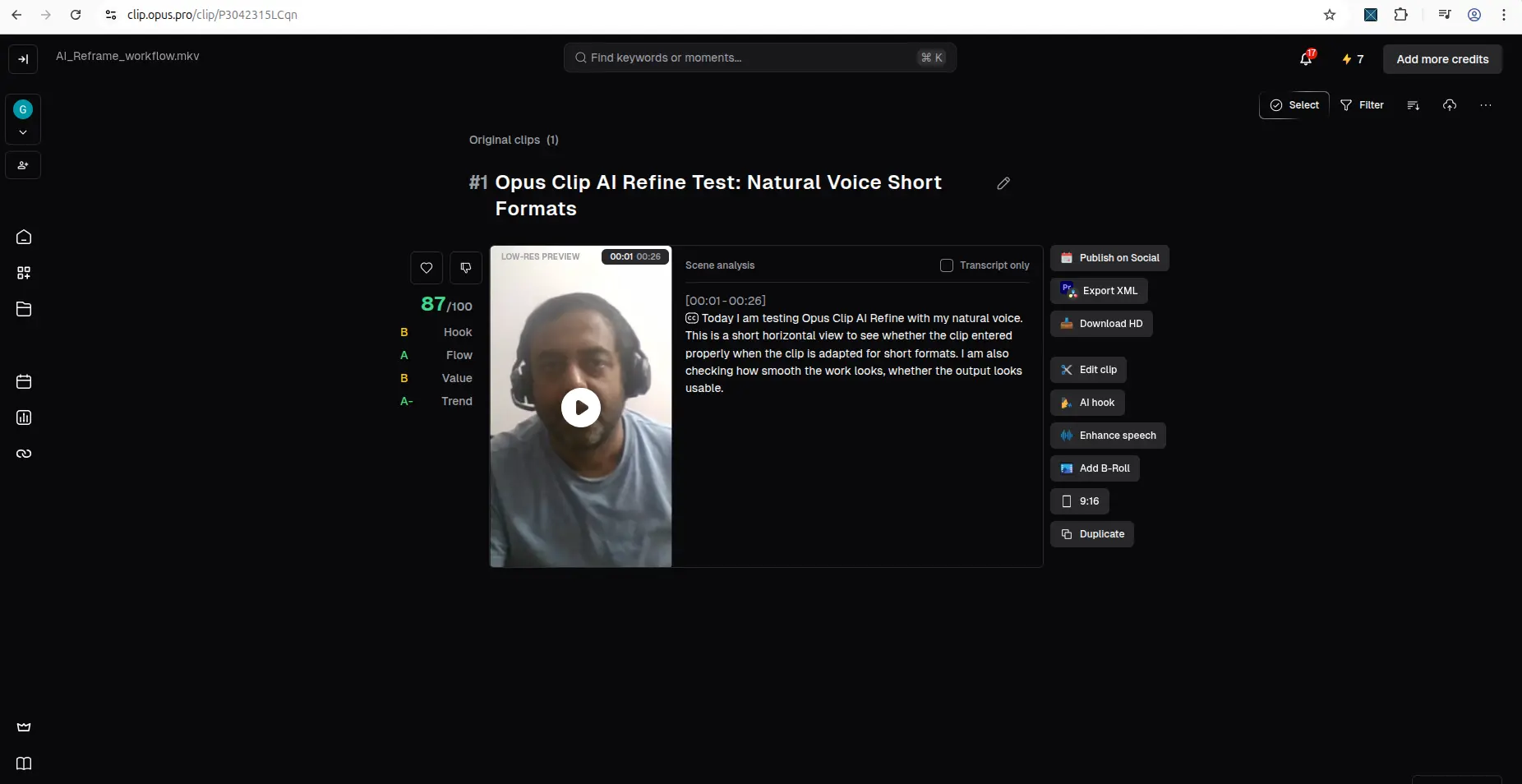
OpusClip's tested workflow was AI Reframe. From the dashboard I opened AI Reframe, uploaded a local horizontal clip, selected 9:16 Fill with Original ratio crop, and generated a result. The completed result view showed a vertical reframed clip, transcript/scene analysis, and a richer set of post-generation actions: Download HD, Edit clip, AI hook, Enhance speech, and Add B-Roll.
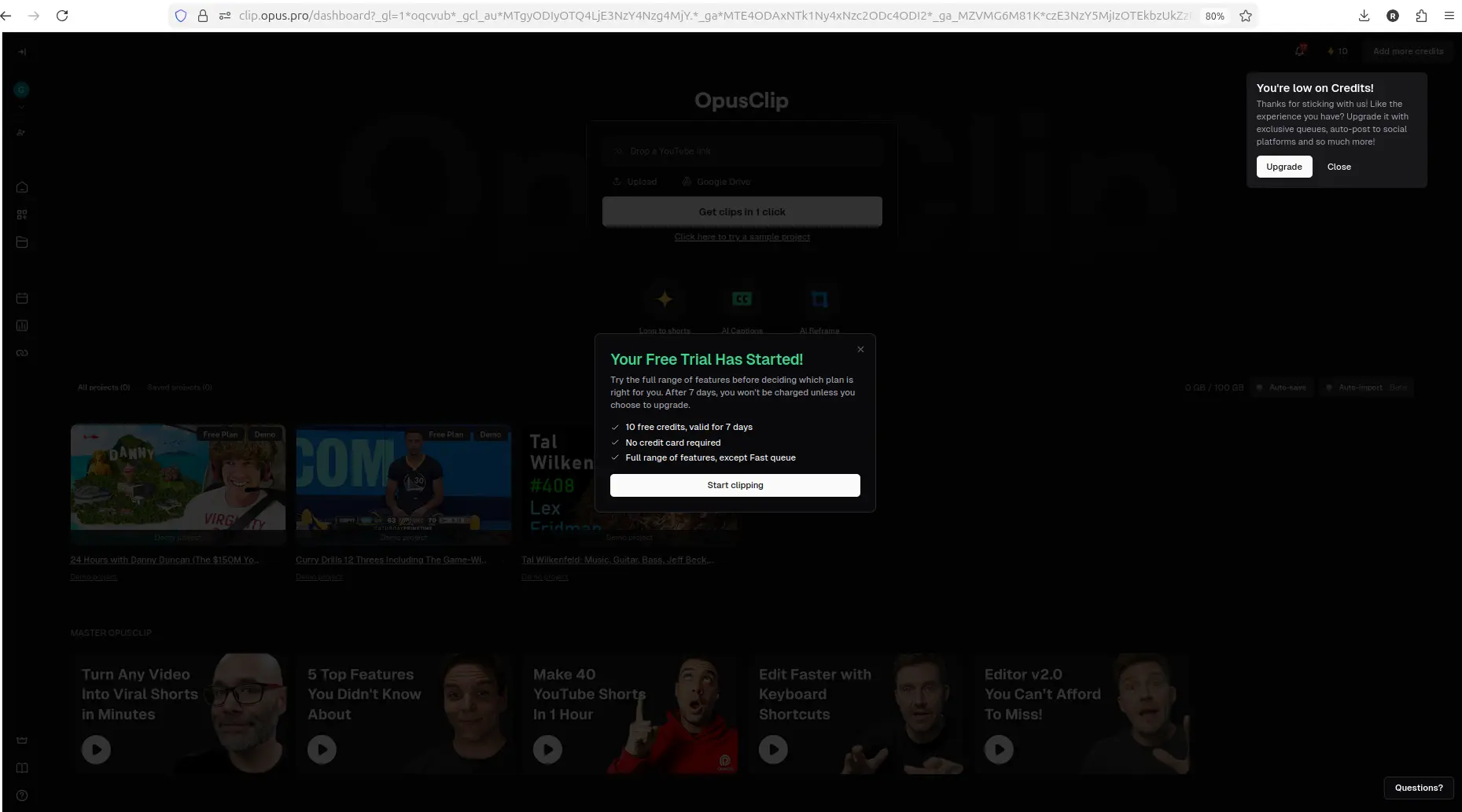
OpusClip dashboard showing workspace options and available credits.
Workflow verdict: Vizard AI is the cleaner test if you want a one-shot "upload, generate, see captions, try to download" flow with upfront format rules. OpusClip is the better test if you want to explore AI Reframe and post-generation editing actions, accepting that it runs on a shorter trial and consumes credits as you experiment.
Every free plan runs out somewhere. Know where first.
The Free-Plan Reality Check: what OpusClip, Vizard AI, Submagic and Quso.ai actually let you do for $0 - from real signups, real uploads and real paywall hits.
Update: Vizard's export ceiling, now measured
When this comparison was first written, Vizard's exported-file quality was still an open question — we had a watermarked download but had not verified what came out of it.
We closed that on 2026-08-25. Feeding Vizard a 1920x1080 source and downloading the finished clips showed the free plan exports at 720x1280, with 1080p, 2K and 4K each carrying a paid badge in the export menu. The watermark is encoded into the file itself.
Vizard has also added a second clipping model since this comparison was written. Both are free-plan selectable and behave quite differently — Model v1 vs v2 has the side-by-side. The full free-tier picture is in our Vizard AI review's free-plan section.
Output quality comparison
At the time of that original test I only saw preview/result screens, not verified downloaded files. Both tools' free exports have since been downloaded and inspected — Vizard on 25 August 2026, OpusClip on 14 September 2026 — so the export findings on this page are now file-level evidence rather than preview evidence.
- Vizard AI generated one AI clip from my 27-second MP4 with a title, an 8.0/10 score, a 720p label, transcript/caption text, and publish/download/edit options. On playback, the captions were mostly understandable but not every word looked correct, and despite selecting 9:16, the subject was not kept centered during the reframed playback.
- OpusClip produced a vertical reframed result with transcript/scene analysis and a score breakdown. The transcript introduced some wording errors (for example, "human speech" became "woman's speech" and "normal pacing" became "normal spacing"), and the result preview was low-resolution and retained the free/trial watermark state. (The preview being low-resolution turned out not to predict the export: a later test confirmed the downloaded file is 1080p — see the export finding below.)
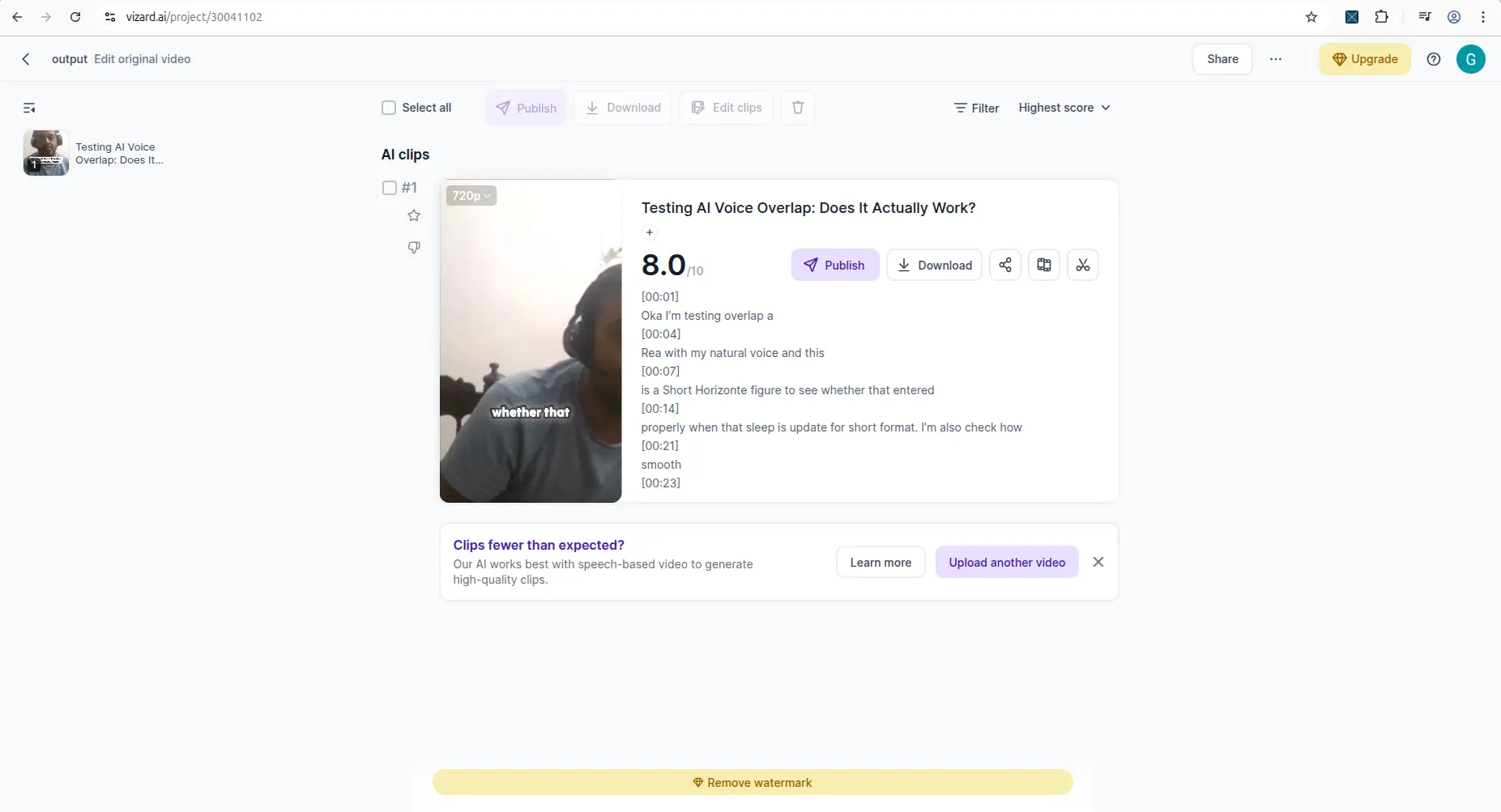
Vizard AI result screen showing generated clip, captions, and output controls.
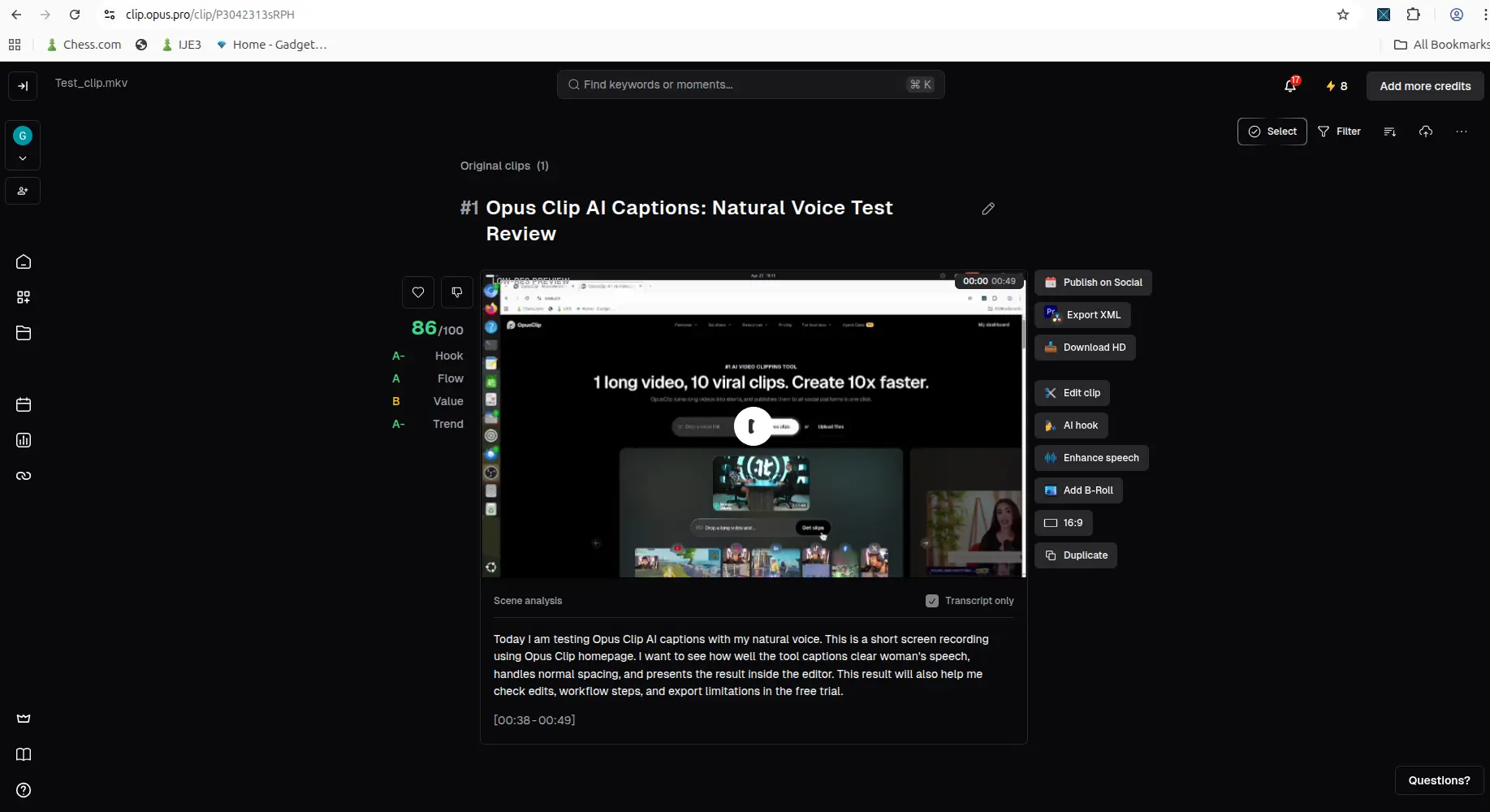
OpusClip result screen showing generated clip, captions, and output controls.
Output verdict: Both tools got me to a useful result screen, but both also showed caption/transcript imperfections, and Vizard's 9:16 reframing needed manual recentering. Neither output should be treated as publish-ready without manual review.
Pricing and limits comparison
Pricing below is screenshot-based and should be manually verified before purchase, because SaaS plans change.
- Vizard AI pricing showed three plans: Free ($0, 60 credits/month, 720p export, full editor, 3-day storage, no watermark removal), Creator ($14.5/month on yearly billing, $29/month list, ~7,200 credits/year, watermark removal, 4K export, 100GB storage), and Business ($19.5/month on yearly billing, $39/month list, adds shared workspace, up to 20 social accounts, team members, brand kit, unlimited storage). The compare-plan table indicated AI clipping, auto reframe, AI emojis, AI highlight keywords, and AI B-rolls appear available on Free, while watermark removal and 4K are paid-only.
- OpusClip pricing showed Free, Starter, Pro, and Business plans, with credits, feature differences, import sources, and processing-speed differences. The free trial messaging noted full features except the Fast queue.
Pricing verdict: Vizard AI's main free-plan cost is the watermark (removal is paid). OpusClip's main free-plan cost is credit consumption on a short trial.
Watermark and export comparison
This is the most important section for small creators, because a preview screen does not help if you cannot publish the final file.
Vizard AI export finding
After Vizard generated the AI clip, I clicked the small download icon in the clip card. An upgrade modal appeared first, offering Creator and Business plans. After closing it and trying again, I was able to download the clip on the free plan, but the downloaded video had a visible Vizard watermark, and the preview showed a "Remove watermark" bar. I did not separately verify export quality or resolution beyond that watermarked download. See the full Vizard AI watermark test for details.
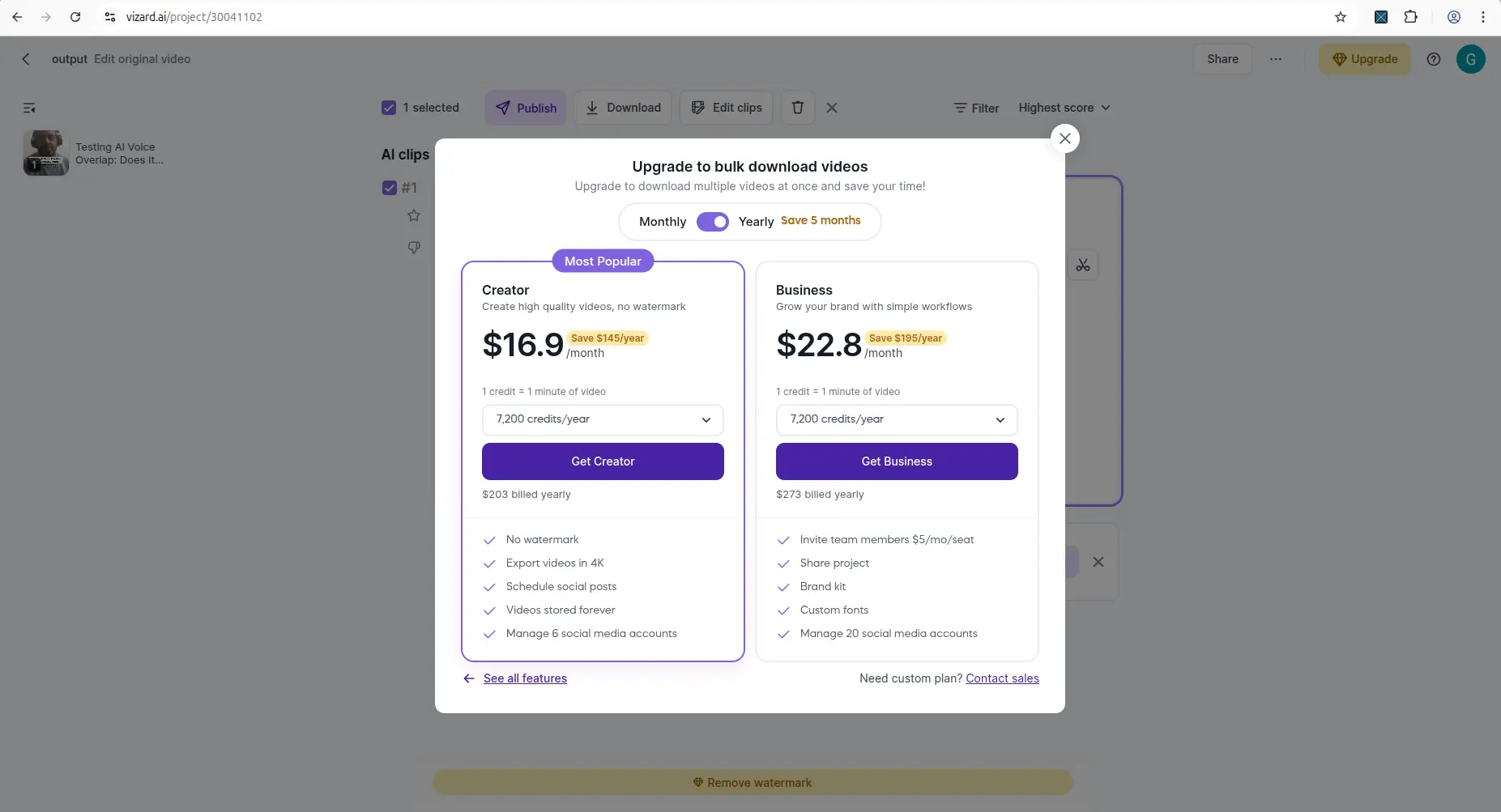
Vizard AI result or edit screen showing watermark, export, or upgrade limitation.
OpusClip export finding
OpusClip's completed result view showed a Download HD button alongside Edit clip, AI hook, Enhance speech, and Add B-Roll. In that original test I did not reach a confirmed completed download, so this page previously said the final file was an open question.
It is no longer an open question. On 14 September
2026 we ran OpusClip's permanent free plan end to end and inspected the
exported file with ffprobe and frame extraction. The free
download does work, and it is better than the preview suggested: a clean
1080×1920 MP4 — not low-resolution — carrying the
OpusClip logo composited into the video frames.
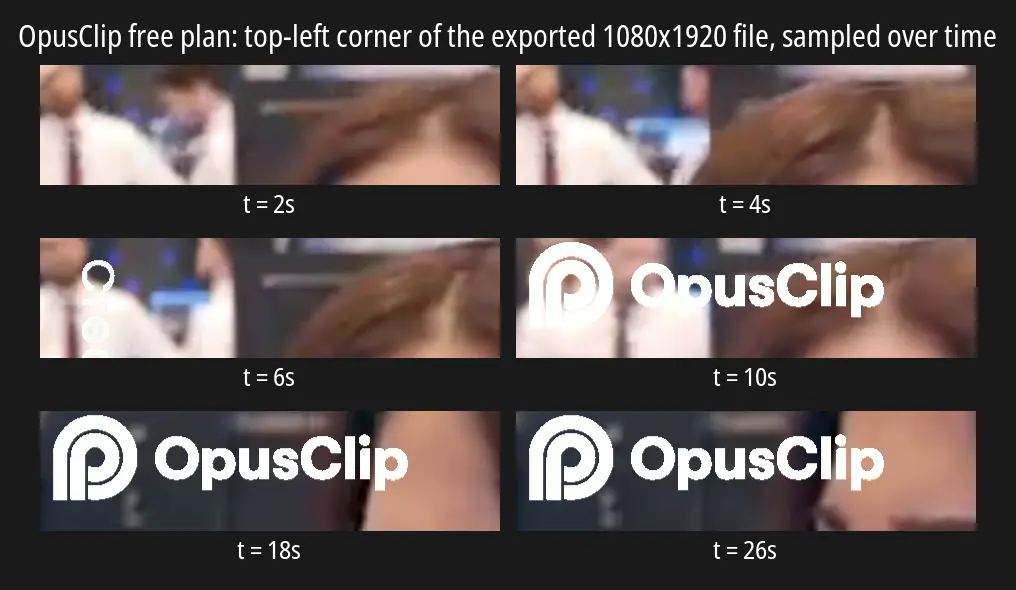
The exported OpusClip file, same corner sampled over time. The mark is absent for the first few seconds, then fades in and stays.
That changes the comparison on this page in OpusClip's favour on two counts. Vizard caps free export at 720p; OpusClip gave us a full 1080p file. And Vizard's watermark runs the whole clip, where OpusClip's is absent for roughly the first four seconds before fading in — so on a very short clip OpusClip is the less branded of the two. Both marks are composited into the frames, so neither can be cleaned up afterwards. The full teardown is in Does OpusClip add a watermark?
OpusClip result or edit screen showing watermark, export, or upgrade limitation.
Export verdict: both reach a real watermarked download. Vizard proved it first, at 720p; OpusClip's export was confirmed separately on 14 September 2026 and came out at 1080p. Neither gives you a clean file for free.
Best for small creators
Choose Vizard AI if your main need is:
- a free plan with a larger standing credit balance (60 monthly credits in my test),
- one-click AI clip generation with auto-captions from an uploaded file,
- clear upfront format rules before you upload,
- seeing an actual (watermarked) free download in one session.
Choose OpusClip if your main need is:
- testing AI Reframe (horizontal-to-vertical) specifically,
- deeper post-generation actions (AI hook, Enhance speech, Add B-Roll),
- transcript/scene analysis on the result screen,
- a short trial to evaluate the reframing workflow.
Choose neither blindly if your need is:
- guaranteed watermark-free free export (not proven for either tool on free),
- accurate captions without review (both had errors),
- perfect auto-framing (Vizard's 9:16 was off-center in my test).
Which should you choose?
Use this practical decision:
| Creator need | Better first test |
|---|---|
| Larger free credit balance to experiment | Vizard AI |
| Seeing a real (watermarked) free download | Vizard AI |
| Clear unsupported-format messaging | Vizard AI |
| AI Reframe workflow specifically | OpusClip |
| Post-generation editing actions (AI hook, B-Roll) | OpusClip |
| Confirmed clean free export | Test both with your own file |
| Avoiding manual review | Neither |
Final verdict
For most small creators starting free: Vizard AI. It was the only tool of the two where I finished with a downloaded file in hand — watermarked, and with 9:16 framing I had to recenter manually, but a real file at $0 in one short session.
Choose OpusClip instead if AI Reframe or its post-generation editor (AI hook, Enhance speech, Add B-Roll) is specifically your workflow, or if export resolution matters — its free plan gave us 1080p where Vizard caps at 720p. Evaluate it on the permanent free plan rather than the 7-day trial; the trial is a Pro preview and includes watermark removal, so it will not show you what the free tier actually produces.
One honest asterisk covers everything above: my two tests used different source videos, so a same-video benchmark is still the fair way to judge output quality head-to-head. Before you pay for either tool, run one short clip of your own to the download step and check the watermark, framing, and captions — and verify current pricing, since the numbers here are screenshot-based.
My practical next step: if a free, watermarked download in one session matters most, test Vizard AI first with one short MP4 and check the watermark, captions, and 9:16 framing. Then compare OpusClip if you need its deeper post-generation editing actions.
Tested Vizard AI, OpusClip, or another AI video tool? Share your experience with CreatorIntelHQ so we can improve future reviews, comparisons, and free-plan guides for small creators.
Related guides
FAQ
Is Vizard AI better than OpusClip?
Neither is universally better. In my tests, Vizard AI was the stronger free-plan test for one-click clip generation, a larger credit balance, and an actual (watermarked) free download. OpusClip was the stronger test for the AI Reframe workflow and post-generation editing actions. The right choice depends on which workflow you need.
Which free plan gives more before you pay?
Vizard AI showed 60 monthly credits in my tested account, and OpusClip's originally tested offer was a 7-day, 10-credit Pro trial. OpusClip's permanent free plan — 60 credits a month, watermarked, no editing, 3-day export window — has since been tested too: on 14 September 2026 it generated clips and produced a real 1080p download. Both tools therefore let you reach a watermarked file for free, and neither produces clean, watermark-free output without paying.
Does the free plan add a watermark?
In my Vizard AI test, the free download had a visible Vizard watermark, and watermark removal is a paid feature. OpusClip's result preview showed a free/trial watermark state, but I did not reach a confirmed download to verify the final file.
Can I export or download for free?
Both do. In my Vizard AI test I downloaded a watermarked clip on the free plan after closing an upgrade modal. OpusClip's free plan was confirmed separately on 14 September 2026 — it downloaded a 1080p file with no upgrade modal at all, watermark composited into the frames. Before paying, still verify the download step with your own footage.
Which tool is better for captions and reframing?
Both generated captions/transcripts, and both had errors that need manual review. Vizard's 9:16 reframing did not keep my subject centered. Treat captions and framing as drafts to review, not finished output, in either tool.
Is the pricing in this article current?
The pricing here is based on screenshots from the pricing pages and should be manually verified before purchase, because plans and prices can change.