
OpusClip Free vs Paid: What I Found Testing It
OpusClip gives small creators a way to test AI video repurposing before committing to a paid plan. But the important question is not only whether OpusClip has a free plan or trial entry point.
The real question is:
Can you test enough of the workflow to know whether OpusClip is worth paying for?
Based on CreatorIntelHQ’s hands-on testing, the answer is yes — with limits. I was able to test AI Reframe, upload a local horizontal clip, generate a vertical short-form result, see transcript and scene analysis, and access additional actions like Download HD, Edit clip, AI hook, Enhance speech, and Add B-Roll.
This is not a full OpusClip review. This page focuses only on the free-vs-paid upgrade decision: what you can test before paying, where limits appear, and when a small creator should consider upgrading.
For the full hands-on workflow with screenshots, credits, AI Reframe, captions, and export notes, read my OpusClip review. If you are still comparing AI clipping tools, also see my Vizard AI vs OpusClip comparison.
Quick verdict: OpusClip is useful for testing AI clipping and reframing before paying. The free/trial workflow gives enough visibility to judge upload, processing, credits, captions, reframing, and output quality, but creators should expect meaningful limits around credits, export quality, watermark/export friction, and repeated production use.
Testing basis: This guide is based on hands-on OpusClip testing covering signup availability, dashboard access, visible credits, AI Reframe, local file upload, 9:16 Fill settings, processing progress, generated result view, transcript/scene analysis, export actions, and pricing-plan review.
Based on hands-on testing · How we test creator tools
Quick Answer
OpusClip’s free/trial access is best for workflow validation.
Use it to check:
- whether your source video uploads correctly
- whether AI Reframe can create a usable vertical clip
- whether captions and transcript analysis are useful
- whether the generated output needs heavy manual cleanup
- whether credit usage feels predictable
- whether export/download limits are acceptable
- whether the tool saves enough time to justify a paid plan
Upgrade only if OpusClip repeatedly creates clips you would actually publish and the free/trial limits become real blockers.
What The OpusClip Free Plan Lets You Test
The free workflow is not just a homepage demo. In testing, OpusClip allowed meaningful workflow validation.
I could:
- enter the dashboard
- open AI Reframe
- upload a local horizontal file
- select 9:16 Fill settings
- generate a vertical reframed result
- open the completed output view
- review transcript/scene analysis
- see additional actions like Download HD, Edit clip, AI hook, Enhance speech, and Add B-Roll
That is enough to judge whether OpusClip fits your repurposing workflow before paying.
OpusClip Pricing And Plan Differences
The pricing page showed Free, Starter, Pro, and Business plans with credits, feature differences, and some free-plan limits.
It also included a calculator that links credits, clip views, category, and posting platform to OpusClip’s value framing. This matters because OpusClip is not only selling editing features; it is framing the paid plan around output volume and the potential value of repurposed clips.
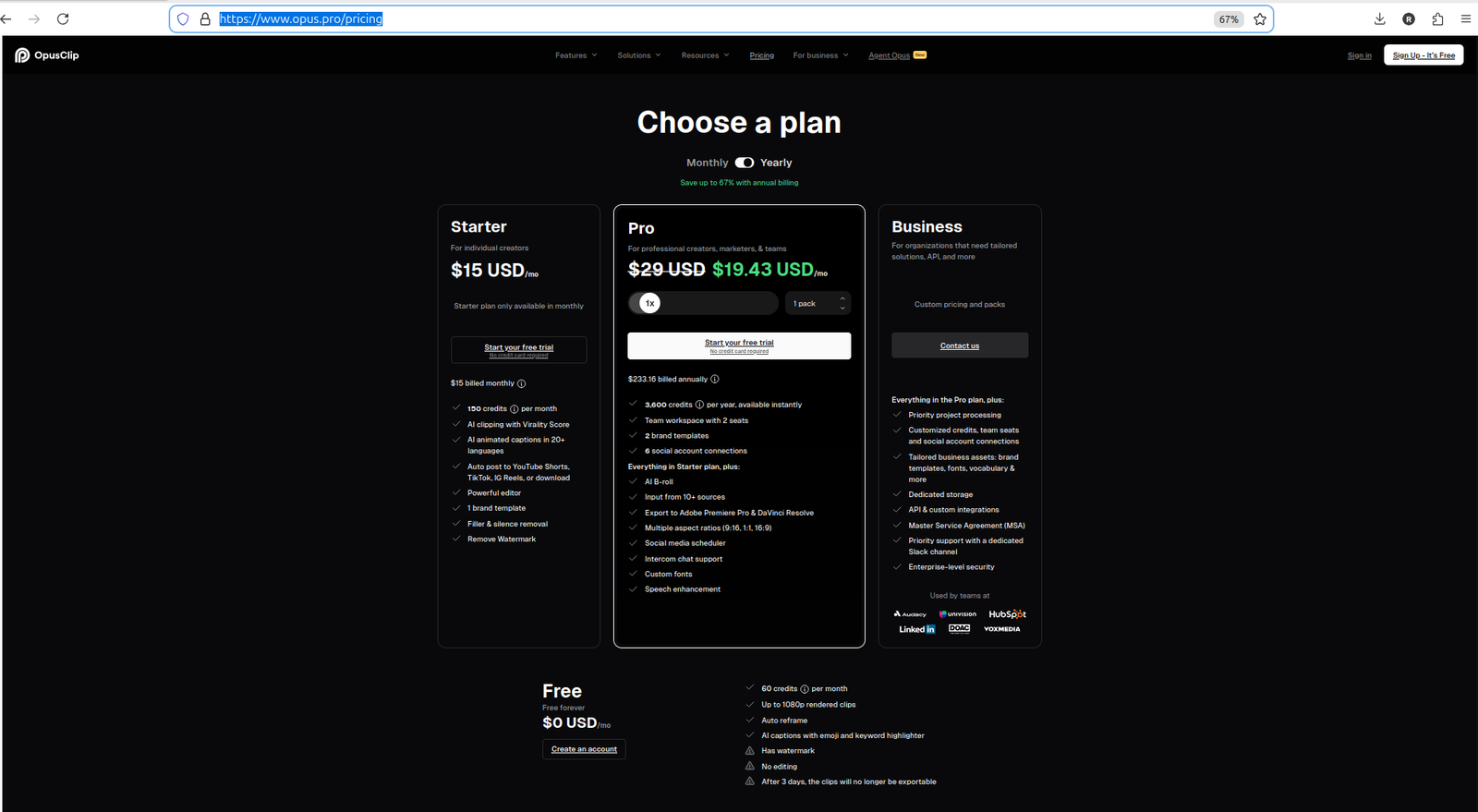
OpusClip pricing page showing free-plan and paid-plan differences.
Free vs Paid At A Glance
| Area | Free/trial workflow | Paid plan matters when... |
|---|---|---|
| Credits | Credits were visible and decreased during tests | You need repeated processing volume |
| AI Reframe | Local horizontal file could be reframed into vertical output | You use reframing as part of a regular workflow |
| AI Captions / transcript | Caption and transcript output could be reviewed | You need faster cleanup and repeated caption workflows |
| Export actions | Download HD and edit/export actions appeared in the result view | You need cleaner production exports |
| Watermark/export limits | Free/trial output retained watermark/export limitation signals in testing | You need publish-ready branded clips |
| Processing | Dashboard showed progress cards and credit changes | You process many clips and need predictable throughput |
| Best use | Testing whether OpusClip fits your workflow | Regular short-form publishing |
What I Could Do For Free
The dashboard made the workflow approachable because AI Reframe was visible alongside other tools, and the input area offered link, upload, and Google Drive options before a file was provided.
The signup flow also supported Google, Apple, and email sign-up, and the signup modal stated that a free plan was available with no credit card required.
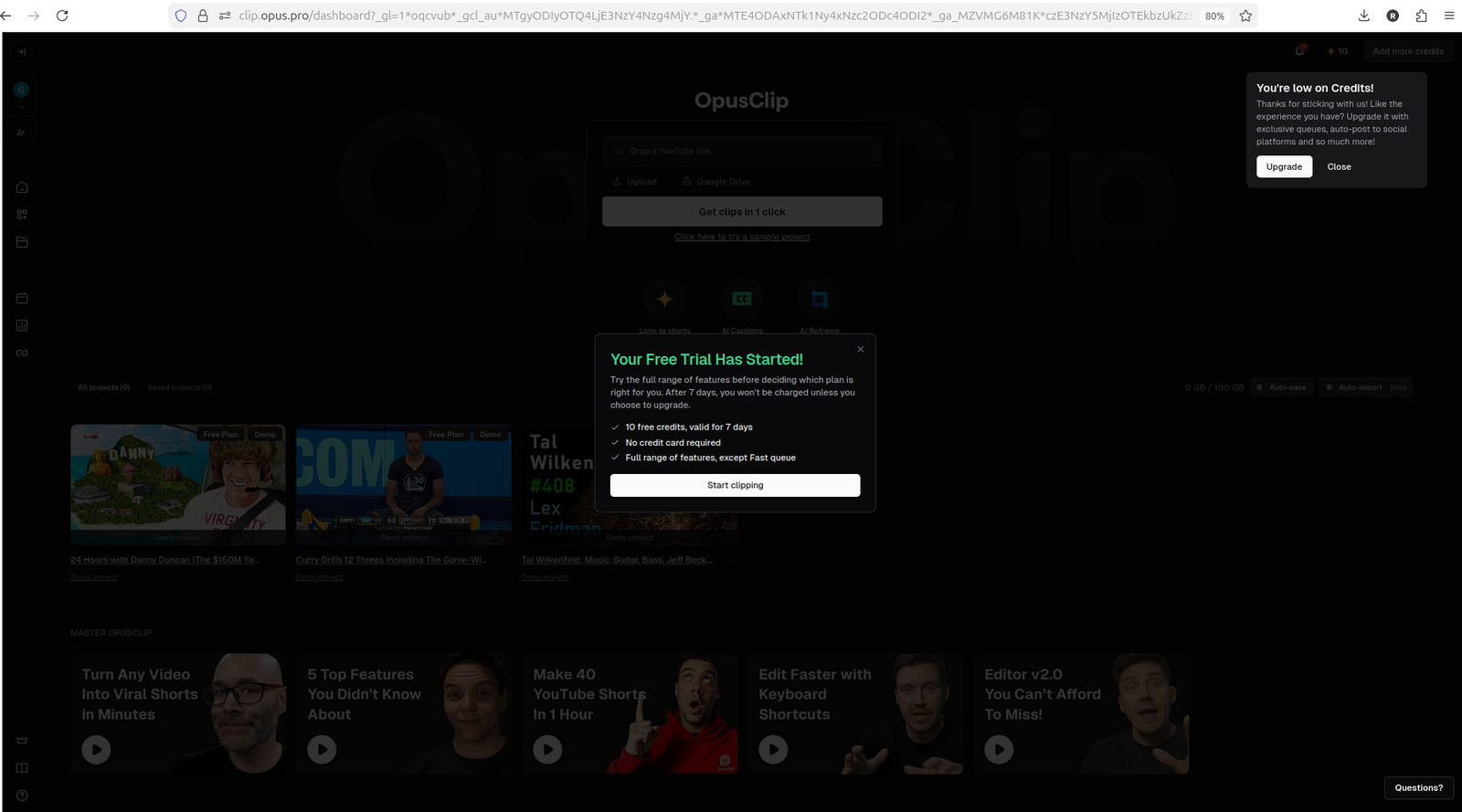
OpusClip dashboard showing workspace options and available credits.
AI Reframe Workflow
The AI Reframe workflow accepted a local input file and showed upload progress before reframing options loaded.
In the test, AI Reframe was configured with:
- 9:16 aspect ratio
- Fill layout
- Original ratio crop
That is useful for creators repurposing horizontal YouTube videos into vertical Shorts, Reels, or TikToks.
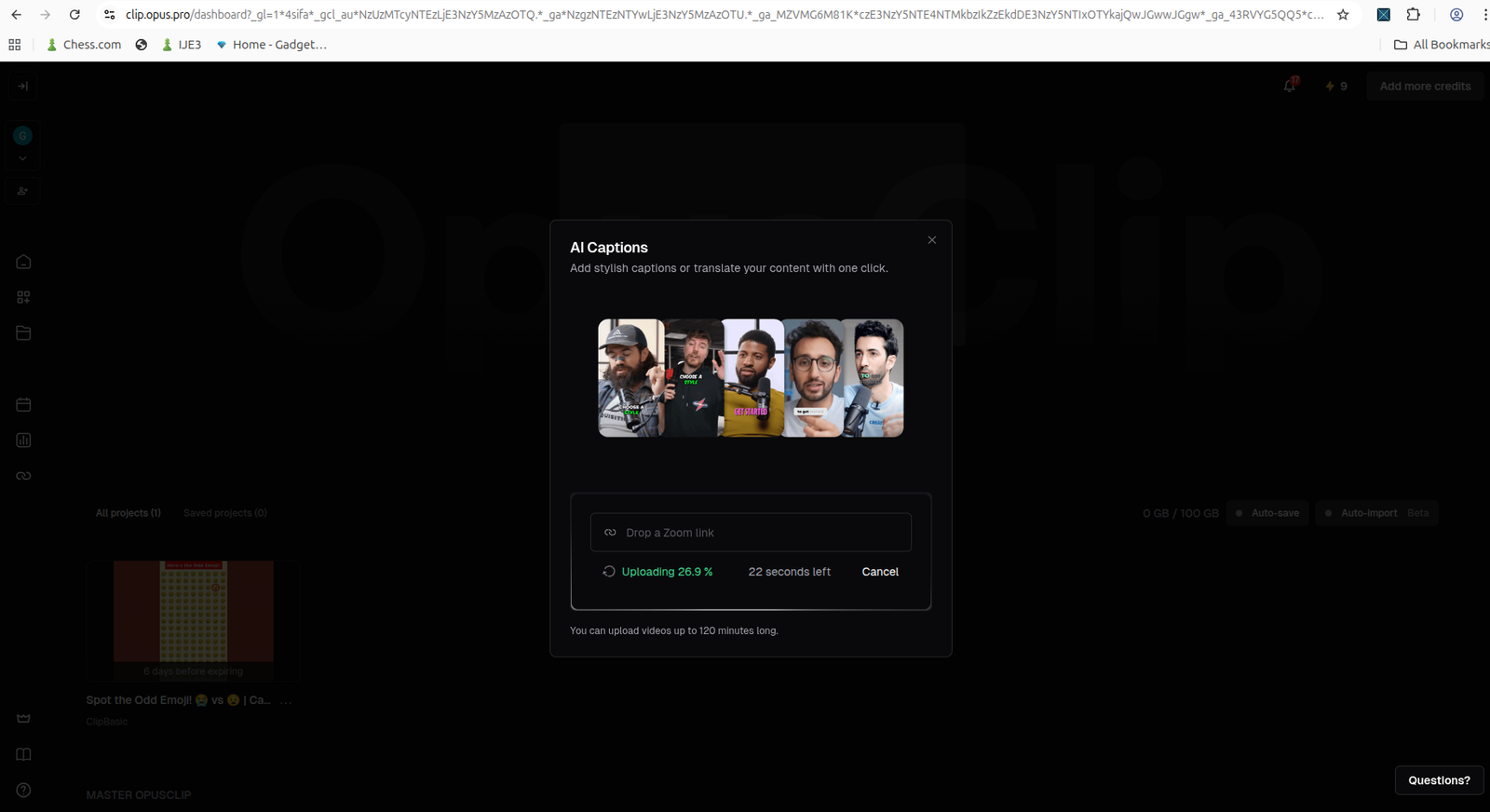
OpusClip upload workflow screen showing a local-file test in progress.
Credits And Free-Plan Limits
Credits are one of the most important free-vs-paid differences.
During testing, the dashboard showed credit changes after generation steps:
- one generated project appeared after credits decreased from 10 to 9
- another workflow test showed credits dropping to 8
- the AI Reframe processing project later showed the visible credit count at 7
This suggests credits are consumed as real workflow actions run, not only when exporting final files.
For small creators, that means the free/trial workflow should be used carefully. Do not test random files just to explore. Use a real video that represents your actual content.
A good test file should match your real workflow:
- similar video length
- similar speaker framing
- similar audio quality
- similar motion level
- similar intended Shorts/Reels/TikTok output
Output, Watermark, And Export Behavior
The AI Reframe test completed successfully and opened a final result view. The vertical reframed clip was visible along with transcript/scene analysis and actions such as Download HD, Edit clip, AI hook, Enhance speech, and Add B-Roll.
The preview shown in the evidence retained the free/trial watermark state, and the result view exposed export/edit actions that are important to evaluate before upgrading.
If watermark-free export is your main concern, I will cover that separately in a dedicated OpusClip watermark and export limits guide.
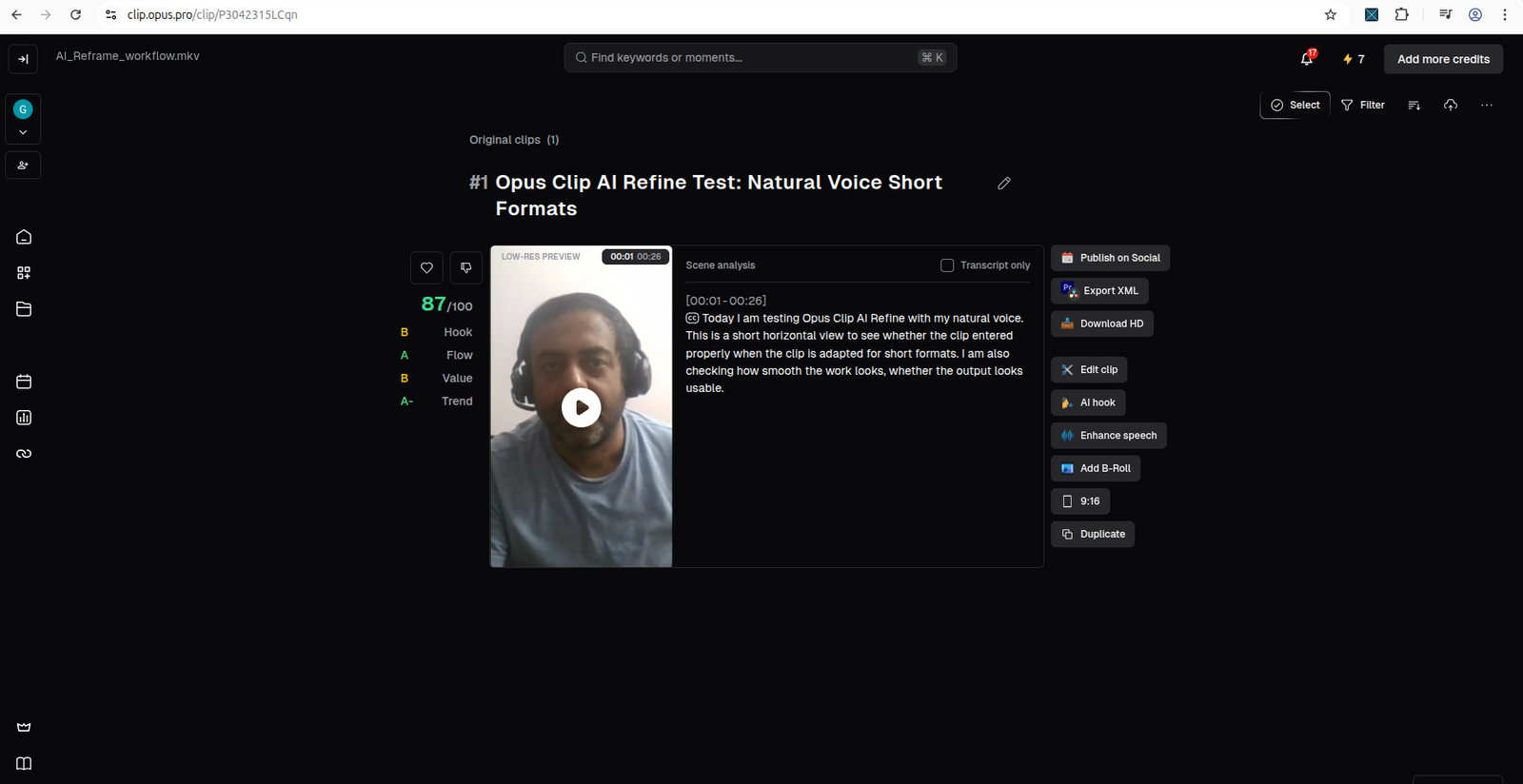
OpusClip result screen showing the completed AI Reframe output and export/edit actions.
Captions, Transcript, And Output Quality
OpusClip can create useful output, but captions and transcript results still need manual review.
The natural-speech test produced a generated result with transcript/caption output and visible result controls. That is useful for evaluating whether OpusClip can reduce editing time, but it does not prove every caption will be correct or every clip will be publish-ready without review.
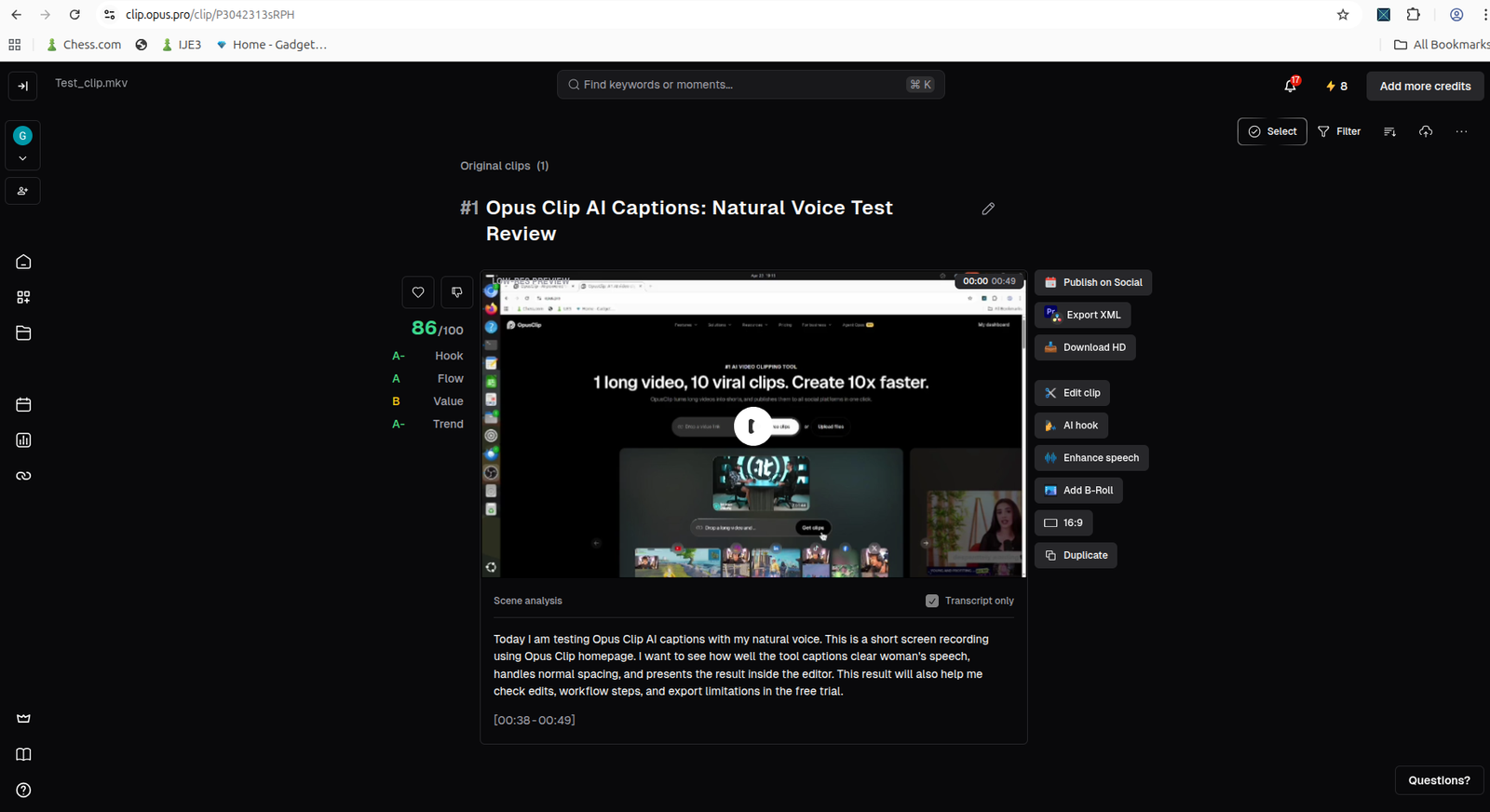
OpusClip result screen showing generated clip, captions, and output controls.
What Changes When You Upgrade?
Based on the tested workflow and pricing-plan review, upgrading mainly matters when the free/trial limits start blocking real production.
The biggest upgrade reasons are likely:
| Upgrade area | Why it matters |
|---|---|
| More credits | Needed if you process videos regularly |
| Better export workflow | Important if you need production-ready downloads |
| Watermark/export limits | Important for branded or client-ready content |
| Faster or deeper workflow | Useful if OpusClip becomes part of weekly publishing |
| More import/export flexibility | Useful when processing many source videos |
| Business features | More relevant for teams, agencies, or higher-volume use |
For small creators, the most important paid-plan question is simple: does OpusClip save enough editing time to justify the cost?
Is OpusClip Free Enough?
OpusClip’s free/trial workflow is enough if your goal is to test the tool.
It is enough for:
- checking dashboard access
- testing local file upload
- trying AI Reframe
- generating a vertical result
- reviewing transcript/scene analysis
- checking credit usage
- seeing whether the editor and export actions fit your workflow
It is not enough if you need:
- repeated weekly processing
- predictable credit volume
- production-ready exports without free/trial limitations
- clean branded outputs
- reliable processing for many videos
- a repeatable Shorts pipeline
Who Should Stay Free?
Stay free if:
- you are still comparing AI repurposing tools
- you have not tested OpusClip with your own videos
- you do not publish Shorts consistently yet
- you only need to validate the workflow
- you are still unsure whether AI Reframe helps your content
- you do not know whether the generated clips are worth publishing
The free/trial workflow is good for research and validation.
Who Should Consider Paid?
Consider upgrading only if OpusClip proves it can repeatedly create useful clips from your real source videos.
A paid plan may make sense if:
- you publish short-form clips regularly
- you need more processing credits
- AI Reframe saves editing time
- the generated results are close to publish-ready
- transcript/caption tools reduce manual cleanup
- export limits or watermark friction become blockers
- the tool becomes part of your weekly content workflow
Do not upgrade only because the feature list looks impressive. Upgrade if the tool saves time and creates outputs you would actually use.
Used OpusClip yourself?
If you have tested OpusClip’s free or paid plan, share what worked, what disappointed you, and whether you would recommend it to other small creators.
OpusClip Free vs Paid: Practical Verdict
OpusClip’s free/trial workflow is useful because it lets small creators test real parts of the repurposing process. In testing, I could access AI Reframe, upload a local horizontal clip, generate a vertical result, review transcript/scene analysis, and see export/edit actions.
But the free/trial workflow also shows why paid plans exist. Credits decrease during real usage, export actions matter, and free/trial output may not be enough for a consistent production workflow.
My recommendation: test OpusClip with one real video first. Upgrade only if it creates clips you would actually publish and saves enough editing time to justify the paid plan.
FAQ
Is OpusClip free?
OpusClip showed a free-plan entry point during testing, and the signup modal stated that a free plan was available with no credit card required. Pricing and plan limits can change, so verify the current details before upgrading.
What can I test on OpusClip free or trial access?
You can use the free/trial workflow to validate core parts of the process, such as dashboard access, AI Reframe, local file upload, vertical output, transcript/scene analysis, credits, and export/edit actions.
Does OpusClip use credits?
Yes. During testing, visible credits decreased as generation workflows ran. The dashboard showed credits dropping across multiple processing steps, which suggests credits are tied to real workflow usage.
Is OpusClip AI Reframe available before paying?
In testing, I was able to open AI Reframe, upload a local horizontal file, select 9:16 Fill settings, generate a result, and open the completed output view.
Does OpusClip output need manual review?
Yes. Captions, transcript output, and reframing should be reviewed manually before publishing. The test proves OpusClip can generate a vertical result, but it does not prove every clip will be publish-ready without edits.
When should I upgrade OpusClip?
Upgrade only if OpusClip repeatedly creates clips you would actually publish, saves meaningful editing time, and the free/trial limits around credits, export, or watermark/upgrade friction become real blockers.