
How to Test an AI Video Tool Before Buying: A 15-Minute Routine
Most AI video tool reviews show you the best-case scenario — the polished demo clip, the confident voiceover, the "wow, that was fast." What they don't show you is the MKV that got rejected, the reframe that cut off someone's forehead, or the upgrade modal that appeared the second real money was on the line.
So here's the opposite of that. This is the exact fifteen-minute routine used to test every tool before a word gets written about it. You can run the same thing yourself, start to finish, before you subscribe to anything. Set a timer. The whole point of learning how to test an ai video tool free before buying a subscription is that fifteen honest minutes beats an hour of hoping.
Based on CreatorIntelHQ methodology · How we test creator tools
Minutes 0–3: The signup test
The clock starts at the signup screen, and you're watching for one thing above all: does it want a credit card just to look around?
Good news is that none of the four tools tested demanded a card to get in — OpusClip, Submagic, and Vizard all said so explicitly, and Quso.ai offered Google, Facebook, Microsoft, and email logins with no payment step. If a tool does ask for a card before you've seen a single feature, that's your first red flag, and honestly enough reason to close the tab.
The second thing to clock is how long the onboarding drags. This is a preview of how much the tool will nag you later. Quso.ai, for example, ran through name, role, a goal question ("I just want shorts from my videos" versus "I need a system for my social media"), where you heard about it, and then a live-training upsell before the dashboard would load. Vizard kept it to a tight three-step survey. The longer the funnel to get in, the more upsell pressure is usually waiting inside.
There is a failure mode this test catches that a pricing page will not, and we found it on Klap on 18 September 2026. Klap has no free plan at all — its pricing page lists only Basic, Pro and Pro+ — yet the trial dashboard displayed a 120-clip allowance, which is more than the $29 Basic plan actually grants. The product named no plan and showed no expiry: billing offered only "Choose a plan" and "No invoices", so there was no way from inside the product to tell which tier we were on or when access ended. Every other tool covered here shows that. An allowance you cannot spend, attached to a plan the product will not name, is worth three minutes to discover.
By minute three you should be looking at a working dashboard. If you're not, the tool has already told you something.
Minutes 3–7: The upload test
Now upload your own footage — and bring the file format you actually record with, not a convenient MP4 you made just for this.
This is where surprises live. An MKV dragged into Vizard was rejected on the spot; it only takes MP4, MOV, 3GP, AVI, MP3, WAV, and M4A. Quso.ai rejected MKV too, allowing only MP4, WEBM, and QuickTime. If your recorder outputs MKV, you've just learned you'll need a conversion step on every video forever — a real tax that never shows up in a review.
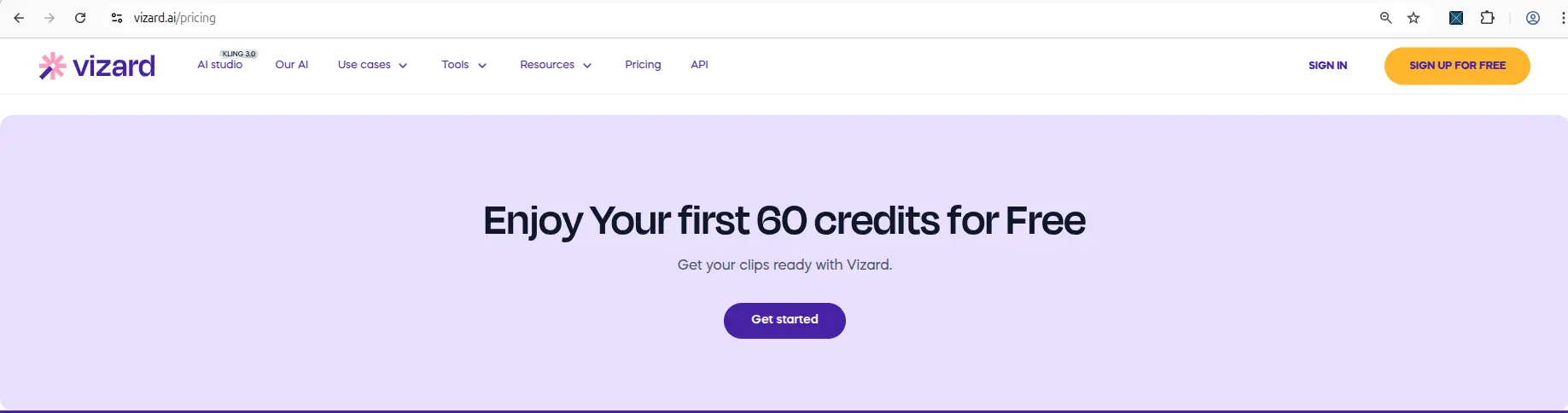
While the upload runs, read the limits on screen. Vizard's free plan caps input at 60 minutes, 1GB, and 720p. Submagic caps at 10 minutes and 2GB. And watch the credit meter, because this is when the honest tools show their hand: Vizard displays 60 credits on the dashboard, and uploading a video dropped it to 59 right in front of you. That live countdown is exactly what you want to see — it means you can plan how many test runs your month buys. When a tool hides the meter and only shows a per-job estimate later (as Quso did), you can't budget your own experiments.
Every free plan runs out somewhere. Know where first.
The Free-Plan Reality Check: what OpusClip, Vizard AI, Submagic and Quso.ai actually let you do for $0 - from real signups, real uploads and real paywall hits.
Minutes 7–12: The output test
The clip generates. Do not celebrate yet — this is where you find out if "AI-powered" means "good" or just "automated."
Watch the generated clip critically, and look hard at two things. First, the reframe. When Vizard produced a 9:16 vertical clip, the reframing did not keep the subject centered in playback — the person drifted toward the edge. For talking-head content, that's the difference between usable and unusable, and you'd never catch it from a thumbnail. Second, the captions. OpusClip's transcript was mostly understandable but had noticeable wording mistakes; Vizard's captions had imperfect words too. Every one of these tools produces captions that need a manual cleanup pass, and "needs manual review" actually means you re-read every line before posting because a wrong word is glaring in a sound-off Short.
Also notice how the tool spends your credits here. OpusClip's meter fell one per action — 10, then 9, then 8, then 7 across successive runs — so you always knew the cost. That transparency is part of the output test too: a tool that quietly drains credits without showing you is a tool you'll overspend on.
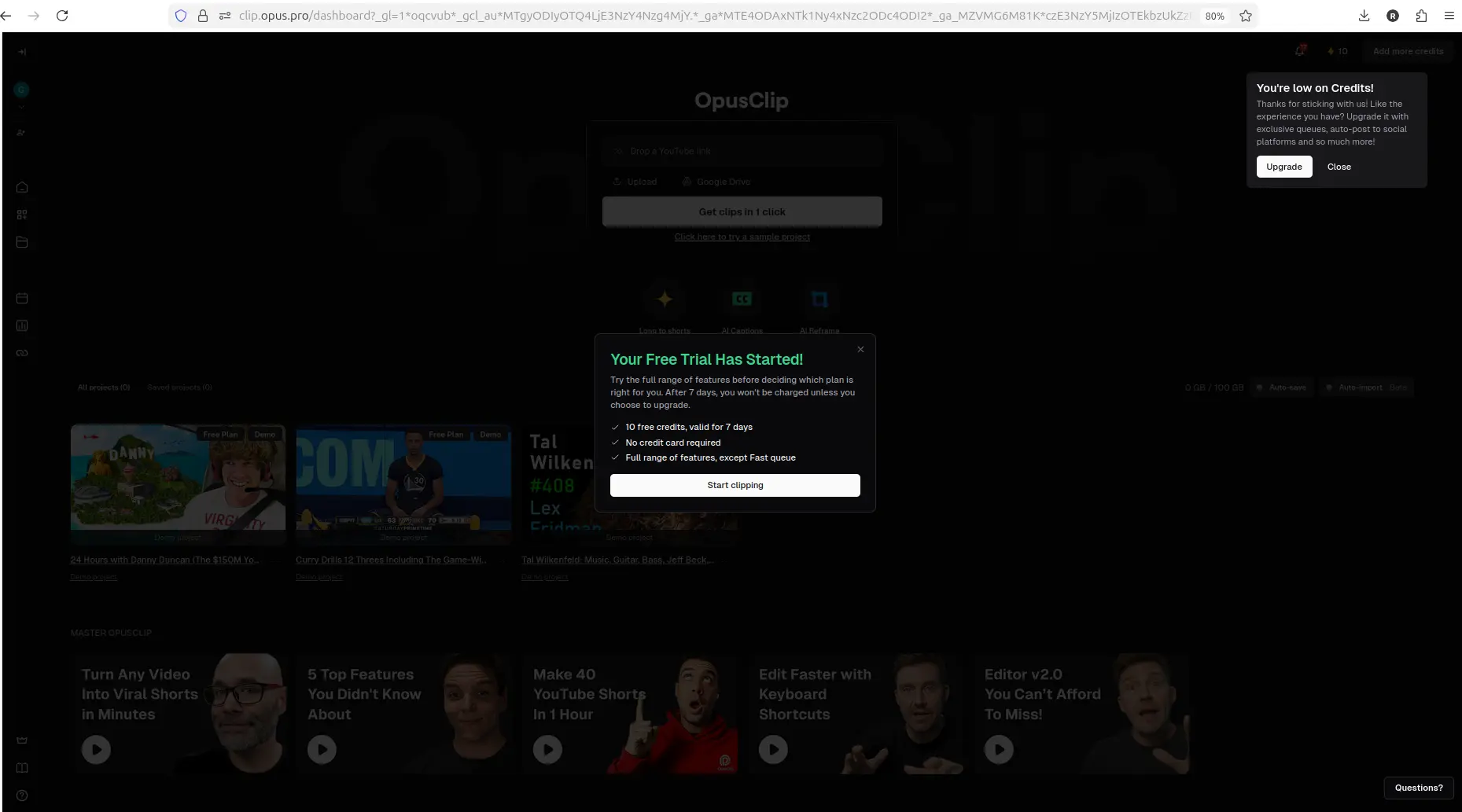
By minute twelve you should have an opinion on whether the raw output is worth your editing time. Now for the part that decides everything.
Minutes 12–15: The export test
This is the moment of truth, and it's the one most people skip because they're still admiring the preview. Click the actual Download or Export button.
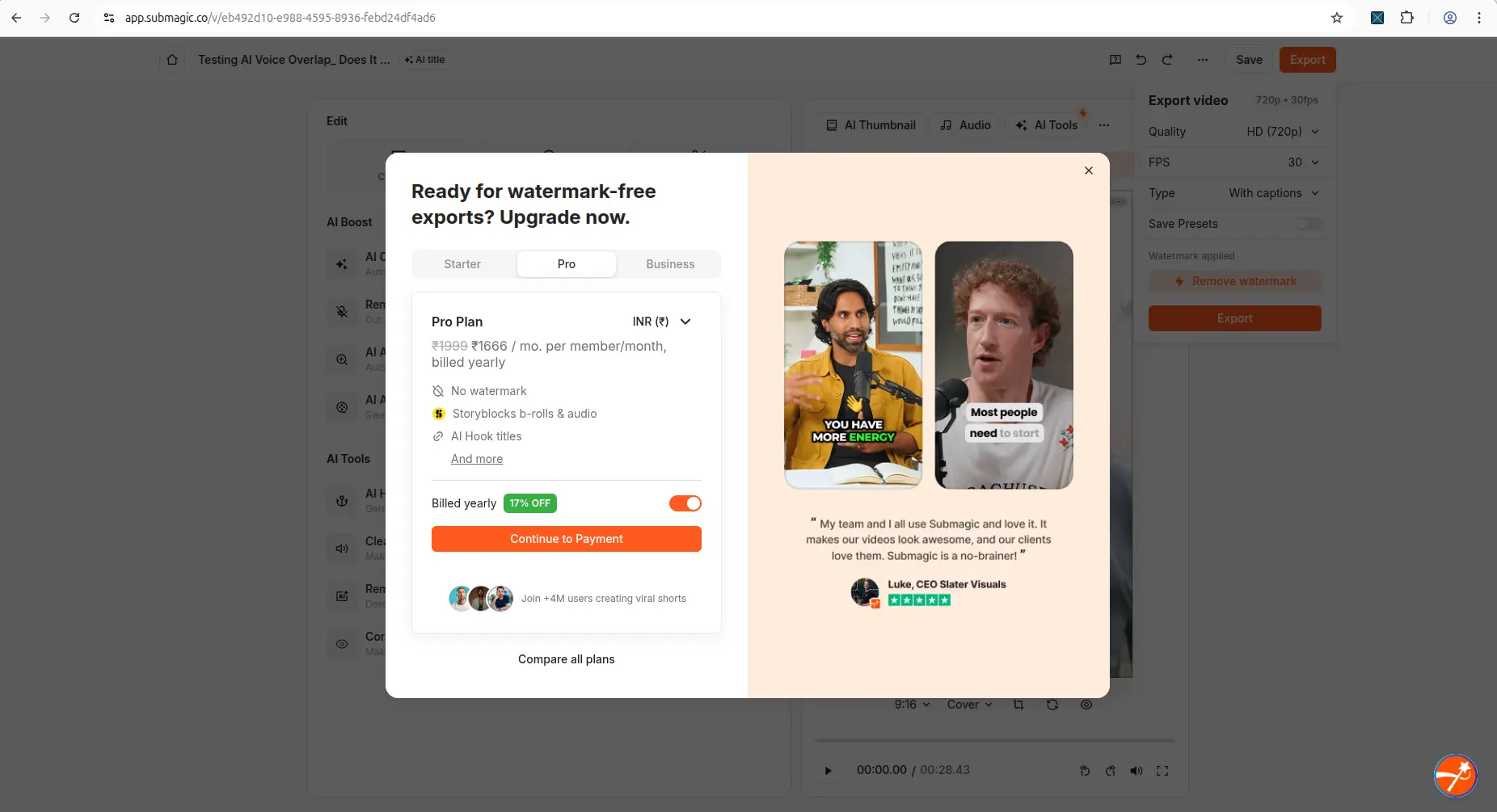
Here's what that click really does, based on testing. On Submagic, Export opened an upgrade popup pushing watermark-free export and the Pro plan — and after closing it, a second popup appeared offering "15 free videos" for sharing a referral link. On Vizard, an upgrade modal showed first, but closing it let the download go through, and the finished file had a visible Vizard watermark stamped on it. On OpusClip, Download HD used to raise the same kind of popup, but as of our September 2026 re-test it does not: the file simply downloads, watermarked, with no warning at all.
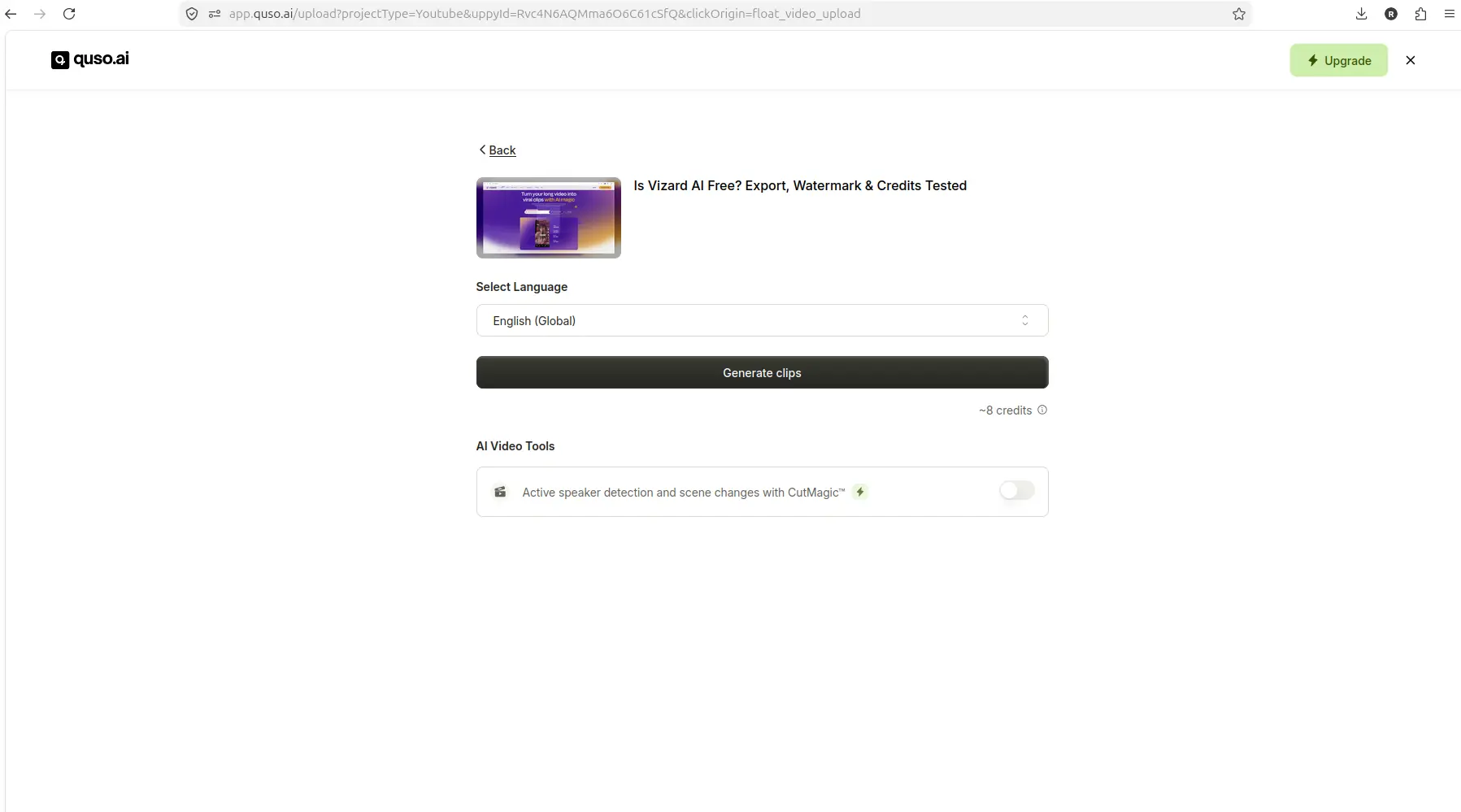
And on Quso.ai? You never reach this test, because clicking Generate clips opened the upgrade modal before any clip was even made. That failure at minute nine tells you everything: if generation is walled, the export test is moot.
The rule to burn in: a preview without a watermark proves nothing. Judge the tool by what lands in your downloads folder, because that's what you'd be posting.
After the test: what your results actually mean
Fifteen minutes in, you're holding real answers. Here's how to read them.
- Failed the signup test (card required to browse): walk away. There are card-free options.
- Failed the upload test (your format rejected): usable only if you accept a permanent conversion step. For MKV recorders, that rules out several tools.
- Failed the output test (reframe drifts, captions messy): fixable, but factor in the editing time. If the AI's "help" creates more cleanup than it saves, it's not saving you anything.
- Failed the export test at generation (Quso.ai): hard no for now — you can't evaluate what you can't make.
- Never had a free plan to fail (Klap): the trial shows an allowance it will not let you spend, and the product never names your plan or its expiry. Treat an unnamed plan as a countdown you cannot see.
- Passed with a watermark (Vizard, OpusClip): a good result for testing. You got a real file and a real look at quality. The watermark is just the price of not paying yet.
The decision framework is that blunt. A watermark is a trade you can accept while you're deciding; a blocked generation or export is a door you can't open. If a tool clears the signup, upload, and output tests and only stumbles at the watermark, it's earned a real trial. If it walls you before you can produce a file, your fifteen minutes just saved you an hour — and possibly a subscription you'd have regretted.
Keep this routine handy and run it on every shortlist. To see it applied to all four tools at once, read the side-by-side comparison.
Run the 15 minutes on a tool that passes. Vizard AI clears the signup, upload and export tests on free — no card, 60 credits, a real file at the end — so you can put the whole routine through it today. It passes with a watermark, which is the expected result for testing.
The one-page version
If you want something to glance at mid-test rather than read, this is the same routine compressed to seven checks — and what each of the four tools did when we ran them.
| The check | OpusClip | Vizard AI | Submagic | Quso.ai |
|---|---|---|---|---|
| 1. Upload accepts your file | Local upload + link/Drive/Zoom | MKV rejected (MP4/MOV/AVI…) | MP4/MOV/MP3, 10 min, 2GB | MKV rejected (MP4/WEBM/MOV) |
| 2. Credits shown upfront | Shown once you start (10 total) | Yes — 60 on dashboard | Counters: 3 videos / 1 clip / 10 min | Estimate only; balance hidden |
| 3. Real clip completes | Yes | Yes (27s in <1 min) | Yes (preview looks great) | Yes, until you generate |
| 4. Download works on free | Yes, watermarked | Yes, watermarked | Export → upgrade + referral popups | No — blocked at generate |
| 5. Watermark on file | Yes | Yes, visible | "Watermark applied" | Listed on pricing page |
| 6. Upgrade pressure hits | After download | After download | At export | At generation |
| 7. Format-friendly | Flexible | MP4 only | MP4/MOV/MP3 | MP4/WEBM/MOV |
Run checks 1 through 4 and you will know within five minutes whether a tool respects your time. If it fails check 4 the way Quso.ai did, close the tab — there is nothing further to learn.
See the routine applied in full
Want to see exactly what this test surfaced on a real tool? Read the complete write-ups:
Frequently asked questions
How long does it take to test an AI video tool?
15 minutes is enough to know the basics. Test upload (3 min), processing (5 min), output quality (4 min), and export (3 min). The export test is the most important.
What file format should I use to test AI tools?
Use MP4. Most AI video tools reject MKV, and some reject MOV. A short MP4 under 2 minutes is enough for a meaningful test.
Related guides
- How to turn a long video into YouTube Shorts with AI — the real clipping workflow this test prepares you for.