
The Best AI Video Tool to Start With as a Small YouTuber (Under 1000 Subs, No Budget)
When you're small, every hour is a decision. You don't have an editor, you don't have a subscription budget, and you definitely don't have three afternoons to burn learning a tool that's going to watermark your output, block your export, or reject your video file the moment you upload it.
That's the trap most "best AI video tool" lists walk you into. They rank tools by features, so you download the flashiest one, sink two hours into it, and discover at the export screen that you can't actually leave with your clip. For a channel under 1000 subscribers, that lost time is the most expensive thing you own.
So this guide does it backwards. Instead of the tool with the most features, you want the tool that lets you finish a workflow on free — upload, clip, and walk out with a file — so you can learn how AI clipping fits your channel without paying to find out. Here's the honest path.
Based on CreatorIntelHQ methodology · How we test creator tools
Why most AI clip tools aren't built for small channels
Here's the uncomfortable truth: these tools aren't designed around you. They're designed around converting free users into paying ones, and every free-plan limit exists to nudge that conversion.
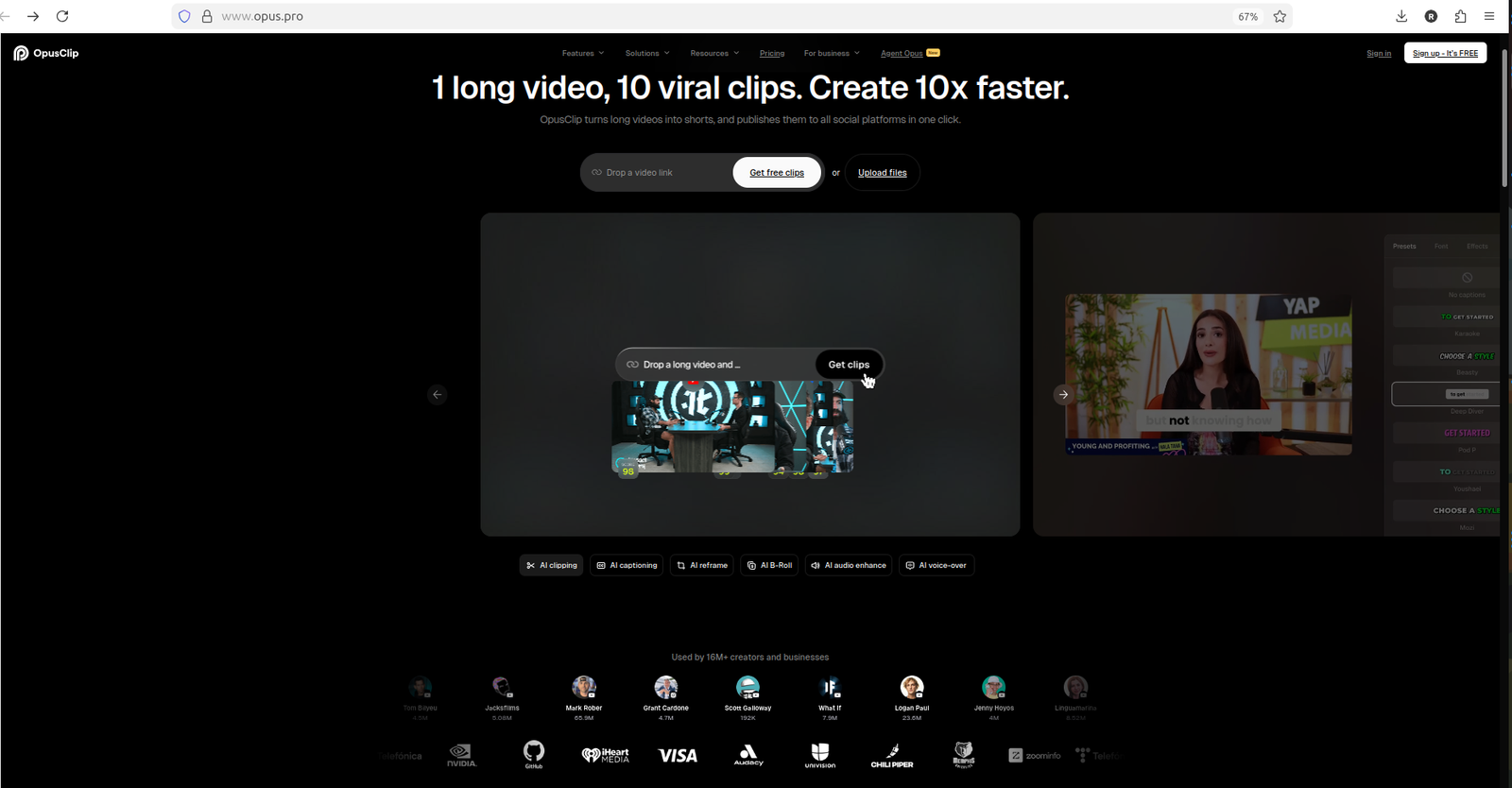
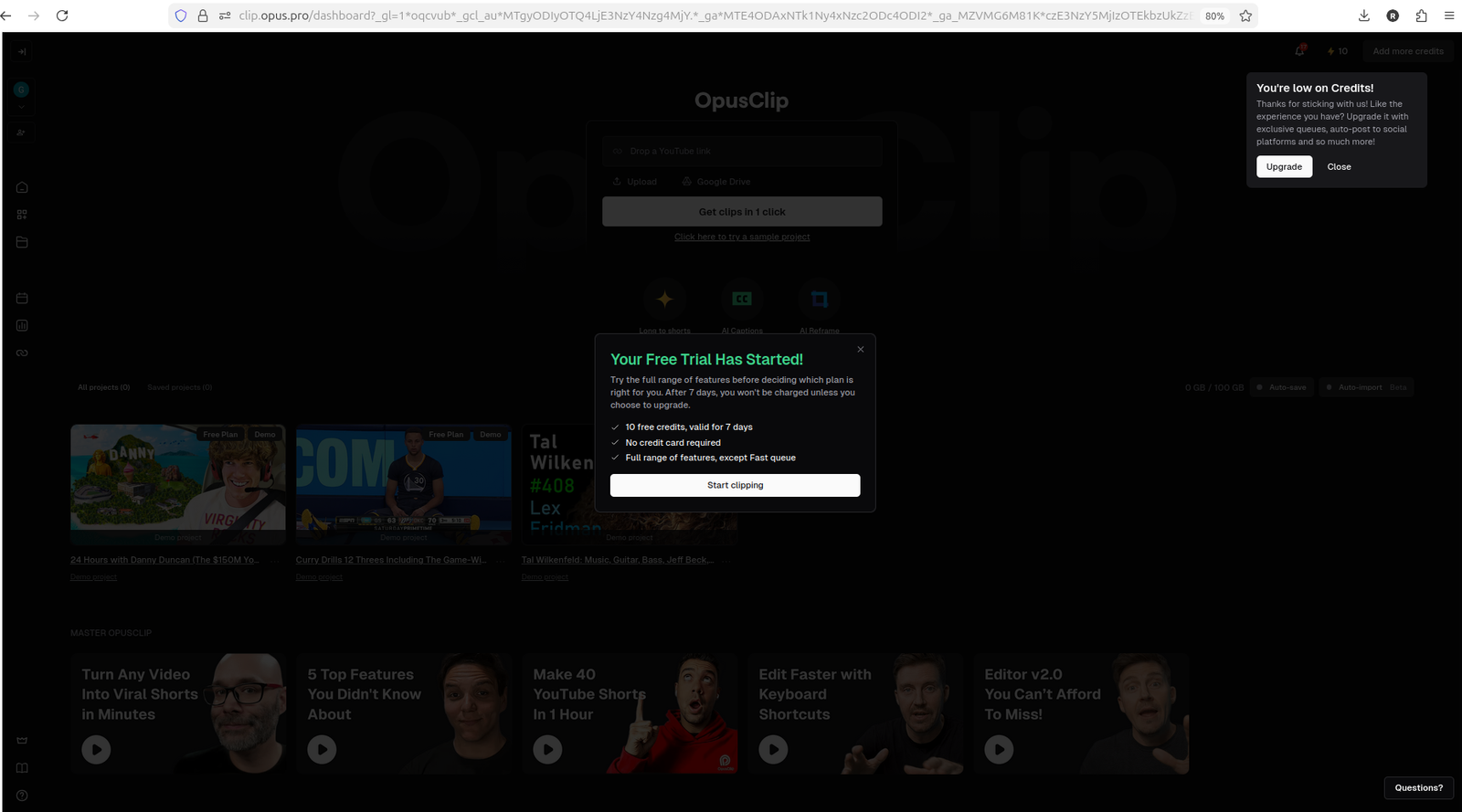
Credit caps are the first squeeze. OpusClip's free trial is 10 credits over 7 days — enough to test, not enough to run a channel. Vizard gives 60 credits a month, more breathing room but still a ceiling. The second squeeze is the watermark: on the free plan, both Vizard and OpusClip stamp their logo on every download, which is fine for testing and useless for publishing. And the third squeeze is the hard block — some tools won't let you export, or even generate, without paying at all.
The mismatch is simple. The tool wants you to hit a wall so you'll pull out a card. You want to learn the workflow for free. Your job as a small creator is to find the tool whose walls come late enough that you can still learn everything you need before you ever see them.
The one test that matters most when you're starting out
Forget the feature checklists. There's a single question that sorts these tools for a broke creator:
Can you export a real clip on the free plan, without entering a credit card?
That's it. If you can get a finished file — even a watermarked one — you can evaluate the tool: is the caption style good, does the reframe keep your face centered, does the workflow feel natural? If you can't get a file, the tool is useless to you right now no matter how impressive its landing page is, because you can't judge output you're not allowed to produce.
Run that one test and two of the four tools sort themselves straight into "later."
Start here: Vizard AI, and what you'll actually get
For a small YouTuber with no budget, Vizard AI is the most sensible first stop, and here's the honest reason: it lets you finish.
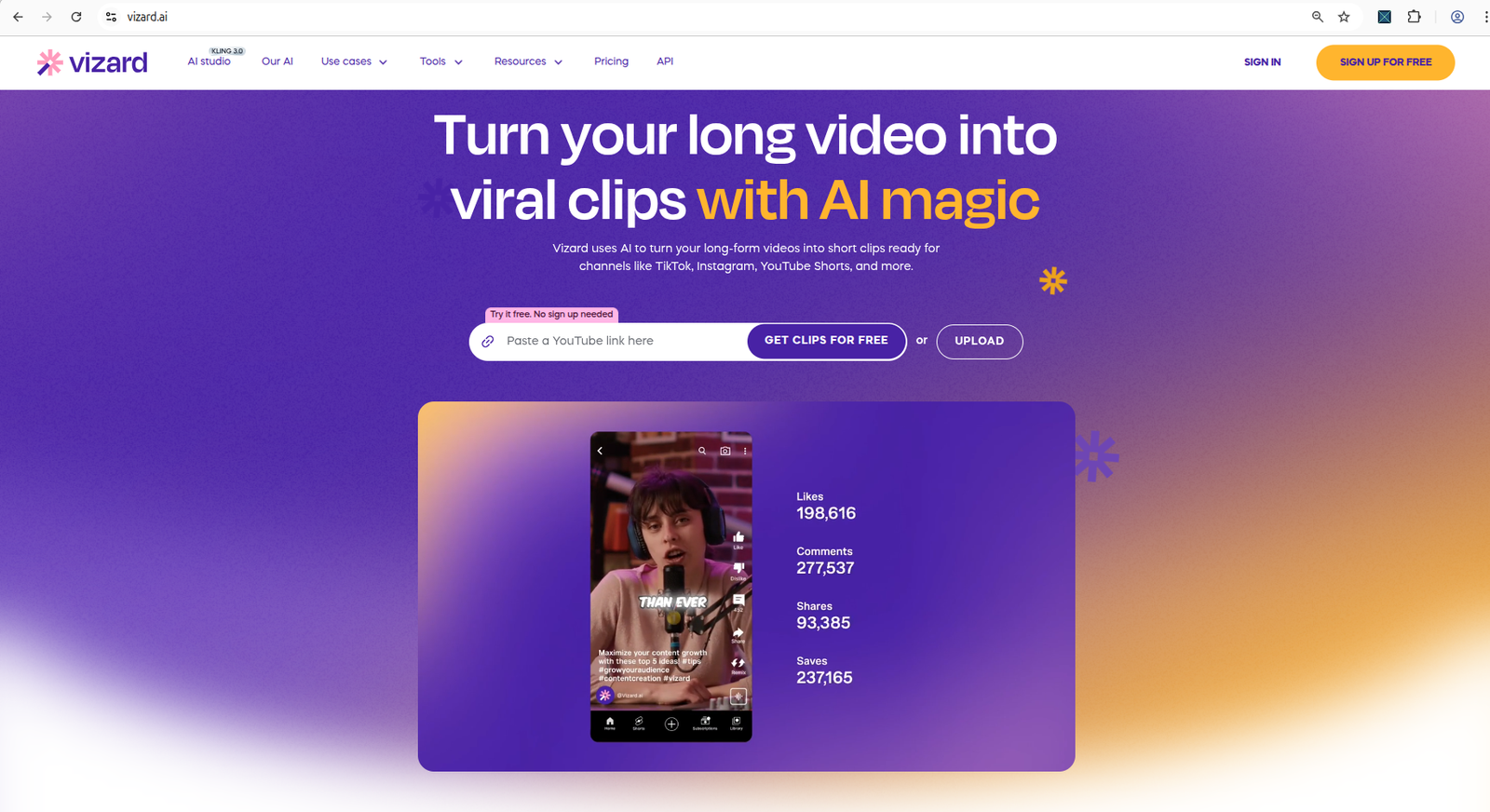
You sign up with Google or email — no card — get through a short survey about your role and goals, and land on a workspace with 60 credits sitting there in plain sight. That monthly allowance matters when you're small, because it means you can experiment across several sessions instead of racing a 7-day clock. Upload an MP4 and the meter ticks to 59 so you always know where you stand. A short clip processes in under a minute.
Now the honest part, because you deserve it upfront. The download works, but only after you close an upgrade modal, and the finished file has a visible Vizard watermark on it. The 9:16 reframe also drifted off-center in testing, so your face won't always land where you want it. And it only accepts MP4-family files — an MKV got rejected outright, so convert first. None of that disqualifies it for learning. You get a real clip, a real look at the caption quality, and a real feel for the workflow, all for zero dollars. For a first tool, that's exactly the deal you want. (Vizard also happens to be the one tool of the four with an active affiliate program, which is worth knowing but shouldn't change your decision — the reason to start here is that it lets you finish.)
When to try OpusClip instead
If Vizard's off-center reframe bugs you — and for a talking-head channel it should — OpusClip is the one to try next.
Its edge is control over the vertical crop. The AI Reframe was set to 9:16 with a Fill layout and Original crop, and it completed as its own reviewable step, so you can actually check your face is centered before you commit. The clip quality feels a notch more deliberate, and the credit system is refreshingly transparent: each action costs one credit and you watch the meter drop from 10 to 9 to 8, so nothing sneaks up on you.
The catches are the mirror image of Vizard's. Same watermark situation — Download HD warns free and trial users get an OpusClip watermark — and a tighter runway: 10 credits over 7 days instead of 60 a month. So OpusClip is the "sit down for one focused evening and really test it" option, where Vizard is the "dabble over the month" option. For a small creator, trying both costs nothing and teaches you a lot.
What to avoid until you're ready to pay
Two of the four tools are simply not worth your free time right now, and it's kinder to say so plainly.
Quso.ai looks the most generous on paper — 75 credits a month, 720p, direct TikTok publishing — but in testing, clicking Generate clips just opened an upgrade modal, both for a YouTube link and a local MP4. Generation never started on free. Posts, Planner, and Analytics were all walled off too. You can't learn a workflow you're not allowed to run, so leave Quso until you've decided to pay for something.
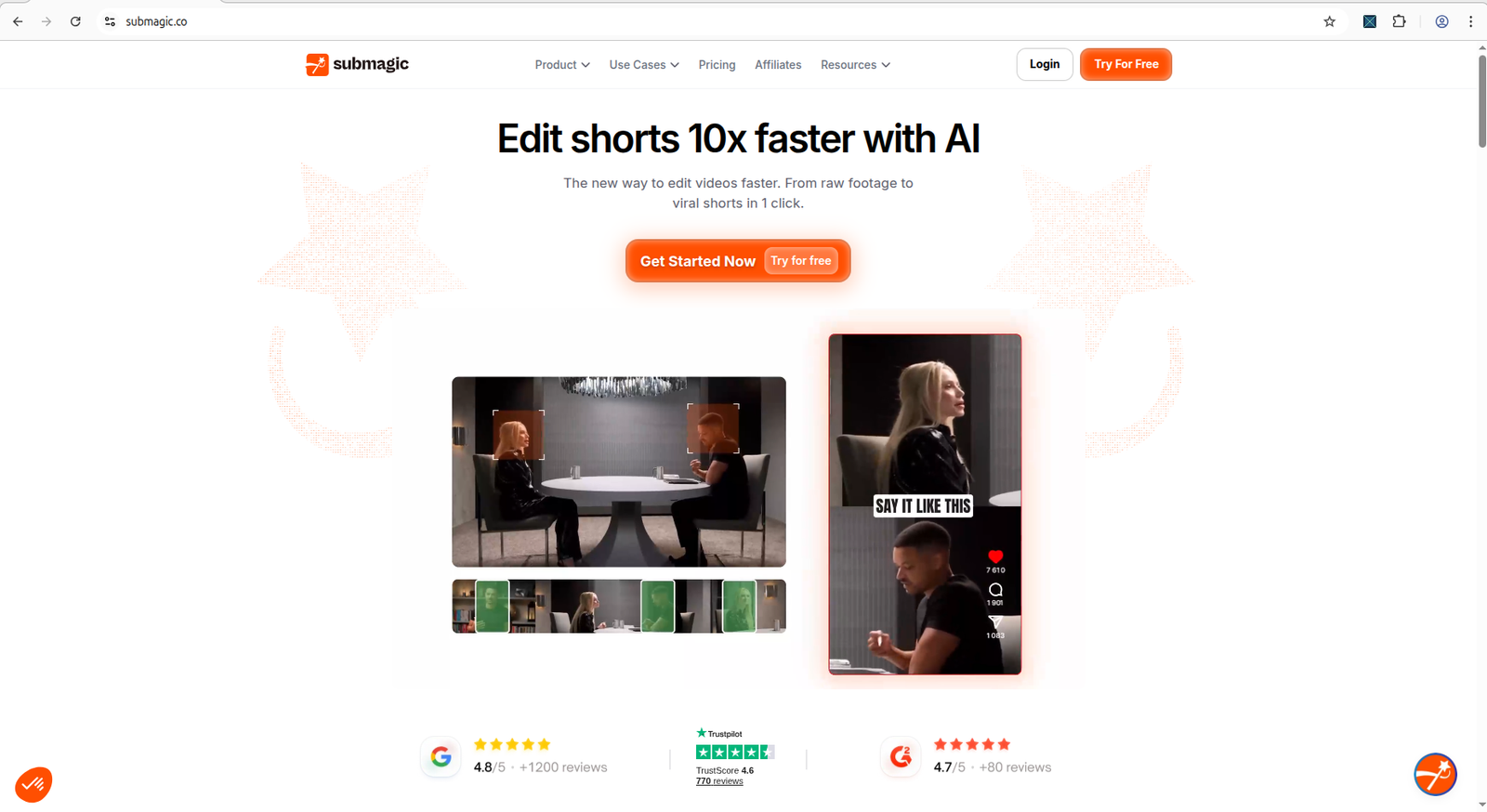
Submagic has the best captions of the group, genuinely, but getting a clip out means closing an upgrade popup and then a referral popup, and the file's still watermarked. For a small creator trying to move fast, that gauntlet is friction you don't need yet. Bookmark it for when captions become your bottleneck; skip it for now.
The $0 workflow that actually works
Here's the plan that respects your time and your empty wallet:
- Convert your recording to MP4 so nothing gets rejected on upload.
- Start with Vizard for the monthly runway, or OpusClip if you want to check the reframe carefully — both let you finish a clip on free.
- Accept the watermark for now. You're learning the workflow and judging the output, not publishing a masterpiece. A watermarked test clip answers every question that matters.
- Re-read every caption and check every reframe before you decide the AI is any good — that's where these tools live or die.
- Only then decide whether a clean, watermark-free export is worth paying for, and for which tool.
Being small isn't a reason to spend recklessly on tools — it's a reason to test ruthlessly and pay for exactly one thing once you know it earns its keep. Start with the tool that lets you finish, and let the flashy ones wait. For the fifteen-minute routine that confirms all this yourself, read how to test an AI video tool before paying, and see the full four-way breakdown in the AI video repurposing comparison.
The evidence behind these picks
- Start with Vizard AI — full test — why it's the sensible first stop, watermark and all.
- OpusClip alternative test — the tool to try when the reframe has to be right.
- Free plan checklist before you start — the 7 checks to run before committing your time.
Frequently asked questions
What is the best free AI video tool for a YouTube channel under 1000 subscribers?
Start with Vizard AI. It gives 60 free credits per month, completes the full workflow, and lets you test clipping and captions before paying. The watermark on free downloads means you cannot publish directly, but it is the best tool for learning the workflow.
Can I grow a YouTube channel using only free AI tools?
Yes, with limitations. Free plans help you test workflows and caption quality. For publishing watermark-free content consistently, you will eventually need a paid plan or find tools that offer genuinely free exports.
Related guides
- The AI video free plan checklist — your go/no-go checks for any free plan.
- How to test an AI video tool before paying — the full routine for both tools above.